
howtosimply.com/guides/how-to-change-what-the-fn-or-globe-key-does-on-a-mac/ · Checked October 2026 · MacBook Pro · macOS Tahoe 26
In this guide
Open System Settings, click Keyboard, and choose from the Press fn key to menu: Change Input Source, Show Emoji & Symbols, Start Dictation or Do Nothing. On keyboards with a Globe key, the row is named after that key.
3 of 3 steps with real screenshots · 1 official source below
- Device
- Mac
- Shown on
- macOS Tahoe 26 (MacBook Pro)
- App
- System Settings
- Path
- System Settings › Keyboard › Press fn key to
- Real screenshots
- 3 of 3 steps
- Checked
- October 2026
- Sources
- 1 official, linked below
Step by step
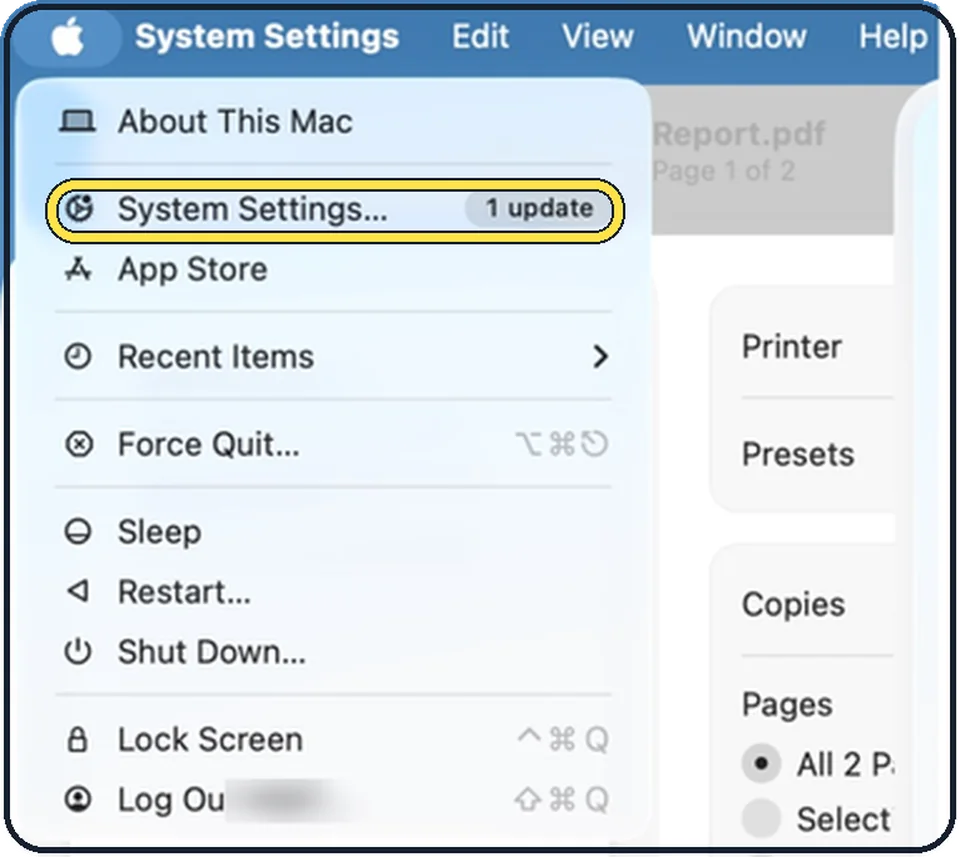
Tap the picture to see it full size Open System Settings
Click the Apple menu in the top left corner of the screen and choose System Settings.
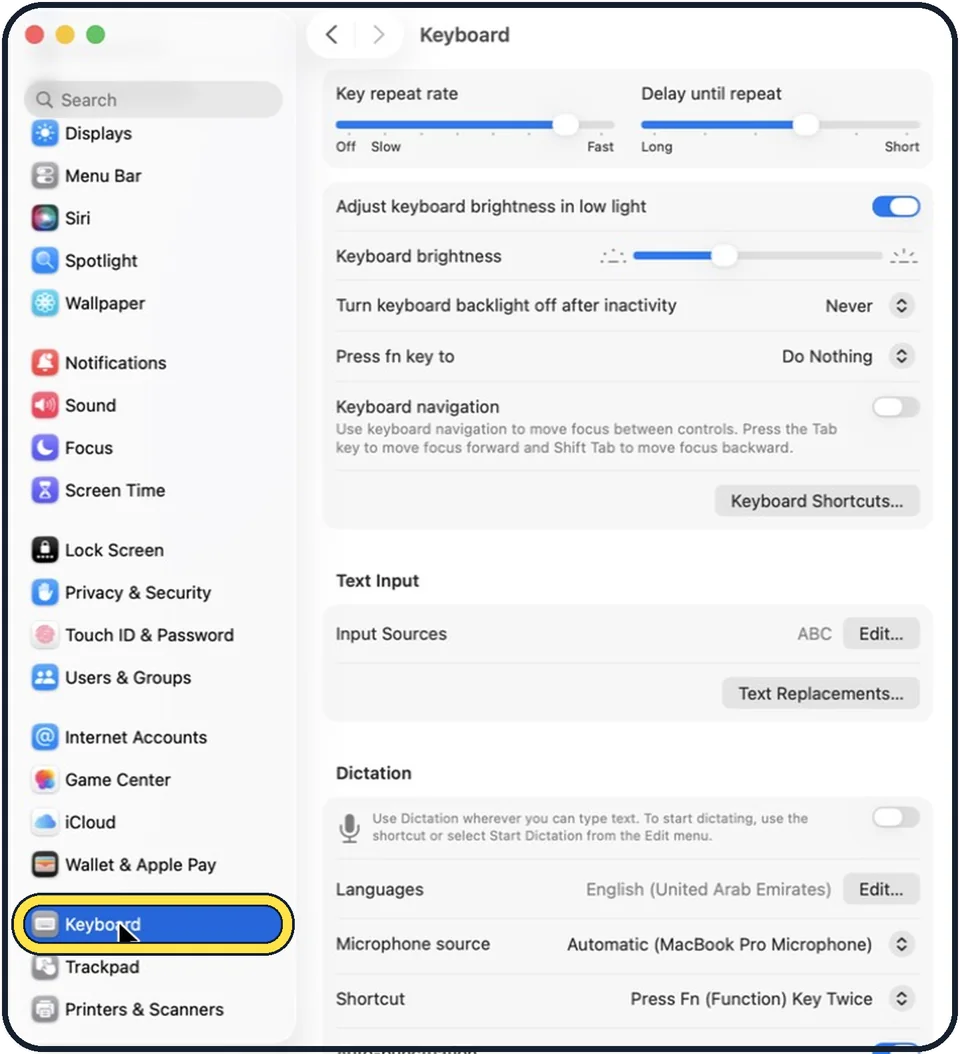
Zoomed in on the setting. Tap to see the whole screenTap the picture to see it full size Click Keyboard in the sidebar
Keyboard is near the bottom of the sidebar. Scroll down to find it.
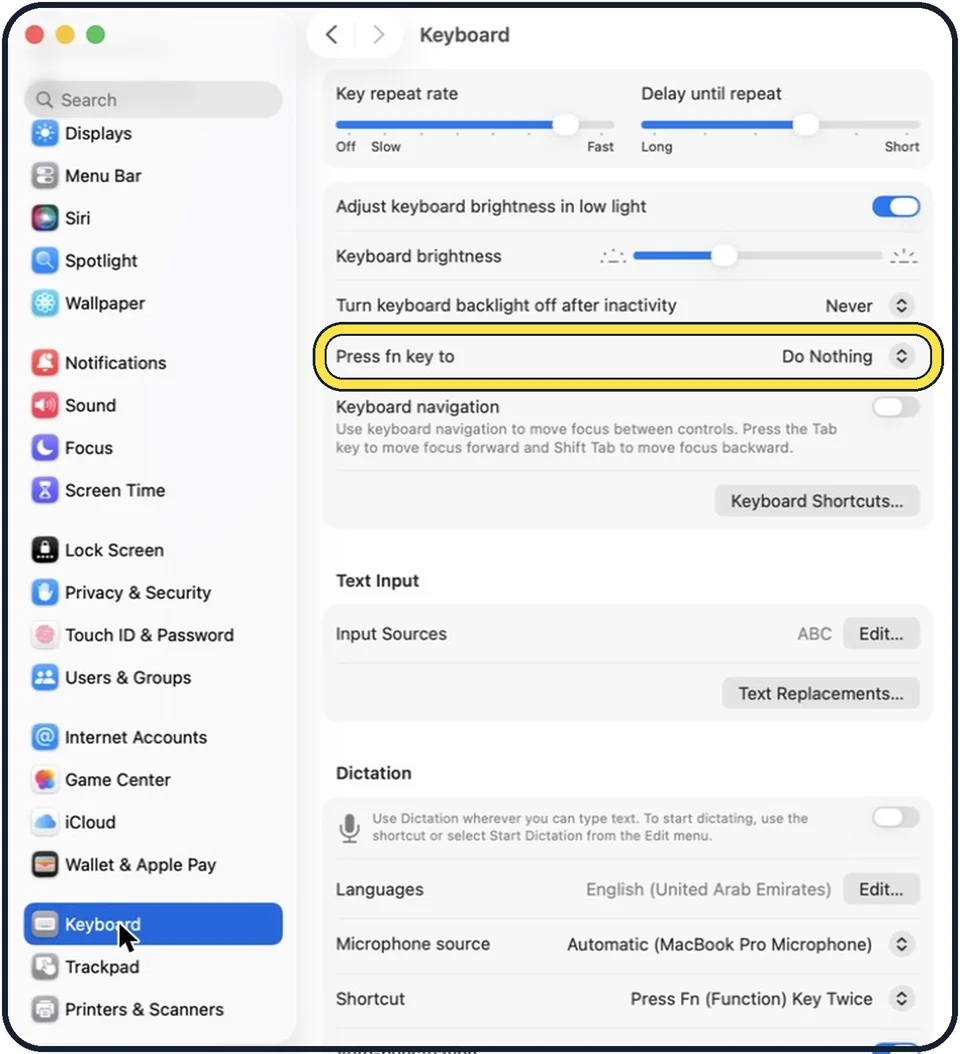
Tap the picture to see it full size Click the Press fn key to menu
In the picture it is set to Do Nothing, in the row below Turn keyboard backlight off after inactivity. Choose what you want.
If you do not see this option
- The row names the Globe key Apple says the row reads Press fn key to, or names the Globe key on keyboards that have one. The choices are the same. Source: Keyboard settings on Mac
- Start Dictation asks you to turn on dictation Apple says you may be asked to enable dictation first. Source: Keyboard settings on Mac
If this does not work
- A double press still starts dictation Our picture shows why: the Dictation Shortcut reads Press Fn (Function) Key Twice. Apple says you choose Dictation's shortcut in that Shortcut menu. Source: Keyboard settings on Mac
- Change Input Source does nothing Apple says it switches between input sources. Our Mac lists only ABC under Input Sources, so there is nothing to switch to until you add another. Source: Keyboard settings on Mac
About this guide
One press on the fn key, or the Globe key on newer keyboards, can open the emoji picker or switch the keyboard language, and two presses can start dictation. If the emoji window keeps appearing by accident, set the key to do nothing.
The screenshots show System Settings on macOS Tahoe 26.
Good to know
Apple describes the choices. Change Input Source switches between keyboard layouts for writing in other languages. Show Emoji & Symbols opens the Character Viewer. Start Dictation starts dictation when you press the key twice. Do Nothing: nothing happens.
In short: System Settings, Keyboard, Press fn key to.
Links checked in October 2026. Menus and features can change after software updates. These steps match the version named at the top.
Did this guide work for you?
Sorry about that. What happened?