
You are viewing the macOS 26 version of this guide, recorded on macOS Tahoe 26 (MacBook Pro) on 4 October 2026. It is kept as it was and not updated. See the macOS 27 version.
howtosimply.com/guides/how-to-make-a-pdf-smaller-on-a-mac-with-preview/ · Checked 4 October 2026 · MacBook Pro · macOS Tahoe 26
In this guide
Open the PDF in Preview and choose File, Export. Tick Optimize images for screen, or Save images as JPEG, or both, and click Save. The new file is smaller because the pictures in it are stored at lower quality. Keep the original in case the result looks too rough.
3 of 5 steps with real screenshots · 1 official source below
- Device
- Mac
- Shown on
- macOS Tahoe 26 (MacBook Pro)
- App
- Preview
- Real screenshots
- 3 of 5 steps
- Checked
- 4 October 2026
- Sources
- 1 official, linked below
Step by step
Open the PDF in Preview
Double-click the file. If it opens in another app, Control-click it and choose Open With, Preview.
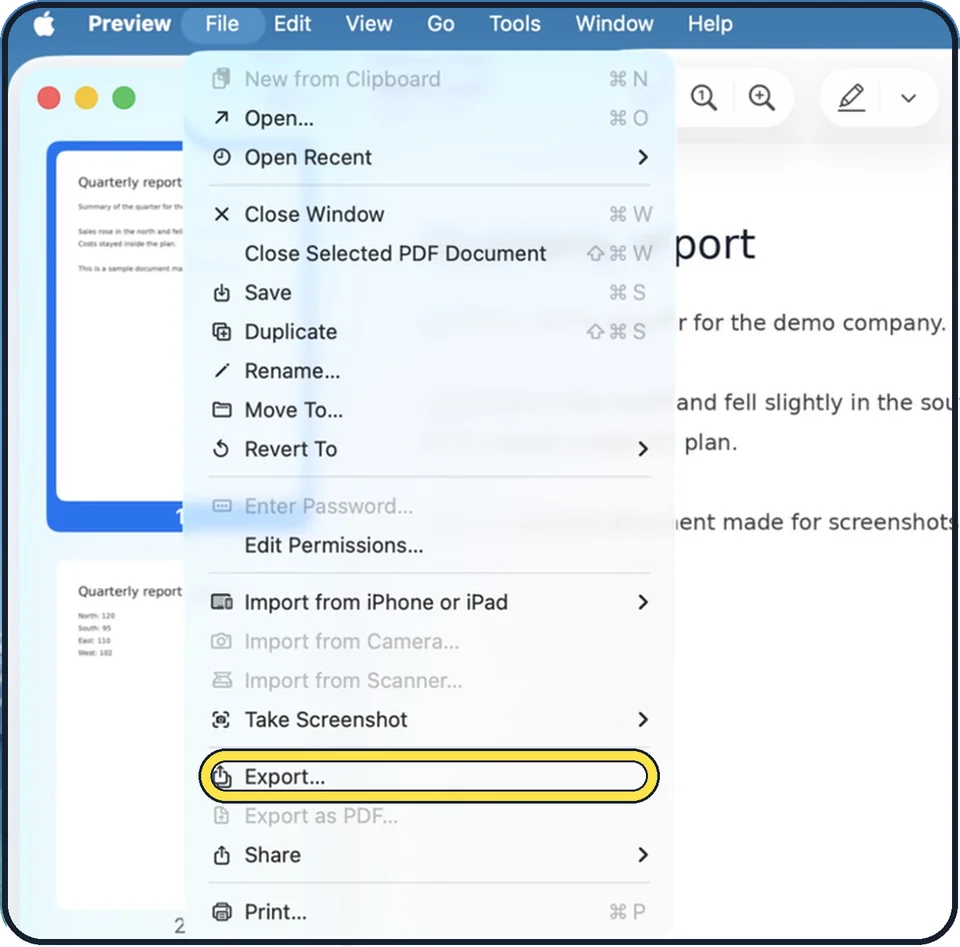
Tap the picture to see it full size Choose File, Export
Not Export as PDF, which has no compression options.
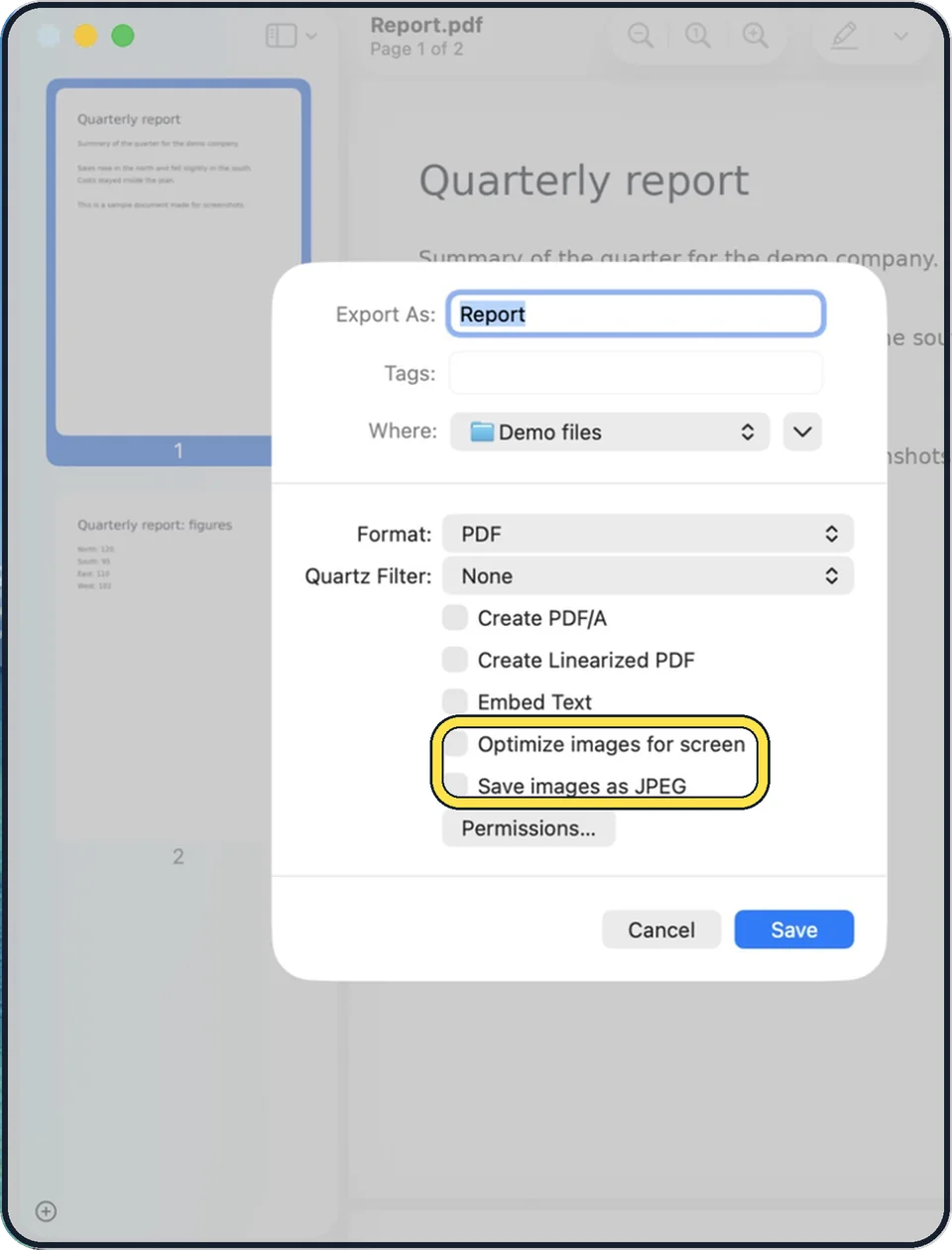
Tap the picture to see it full size Tick the compression options
Optimize images for screen reduces the resolution of the pictures to what a display needs. Save images as JPEG converts all pictures to JPEG. You can tick one or both. On older versions of macOS the same job is done by the Quartz Filter menu with the entry Reduce File Size.
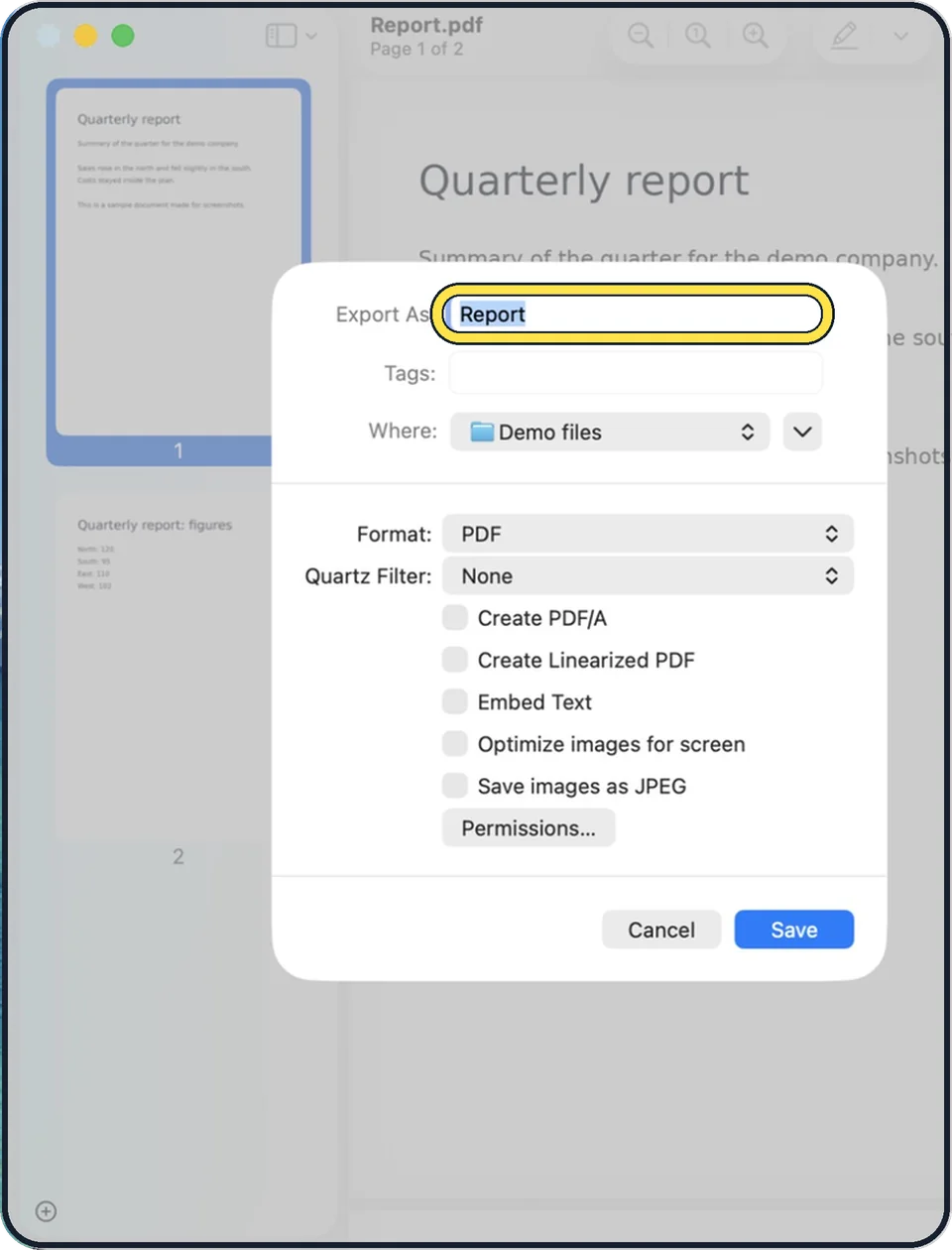
Tap the picture to see it full size Give it a new name and click Save
Use a different name, so the original stays untouched.
Check the result
Open the new file and zoom in on small print and on photos. Apple notes that a compressed PDF may be of lower quality than the original. Compare the sizes in Finder with Command + I.
What we saw on our device
- Open the PDF in Preview: On our MacBook Neo, Preview was at the top of the list as Preview (default).
- Choose File > Export…: On our MacBook Neo, Format was already PDF and Quartz Filter was None.
- Set Quartz Filter to Reduce File Size: On our MacBook Neo it sits directly under Format: PDF, above the list of tick boxes.
- Tick the two image options: On our MacBook Neo, these two ticks without the Reduce File Size filter left the file at 17 MB, so do not skip the previous step.
- Compare the sizes in Finder: On our MacBook Neo, Report small was 194 KB against 17 MB for Report.pdf.
- Check the exact size and the quality: On our MacBook Neo, Get Info showed 17.002.036 bytes for the original and 193.799 bytes for the copy.
About this guide
A scanned form or a brochure with photos can be far too large to email or upload. Preview, the PDF viewer that comes with every Mac, can shrink it in a few clicks. The saving comes almost entirely from the images, so a PDF that is only text will hardly change.
Menu names are from recent versions of macOS, where the settings app is called System Settings.
Good to know
If the text in a scan becomes hard to read, try again with only one of the two options.
Removing pages you do not need saves more than any compression: open the sidebar with View, Thumbnails, select pages and press Delete.
More with Preview: how to combine PDF files on a Mac and how to sign a PDF on a Mac.
In short: Control-click the PDF > Open With > Preview > File > Export > Quartz Filter: Reduce File Size > tick Optimize images for screen and Save images as JPEG > new name > Save > compare sizes.
Links checked in October 2026. Menus and features can change after software updates. These steps match the version named at the top.
Did this guide work for you?
Sorry about that. What happened?