
macOS 27 compared with macOS 26: We rewrote steps 2, 3, 4 and 5 to match the macOS 27 screens. The macOS 26 page keeps the steps and screenshots as they were.
howtosimply.com/guides/how-to-sign-a-pdf-on-a-mac/ · Checked October 2026 · MacBook Neo · macOS 27.0.1
In this guide
Open the PDF in Preview, click the Markup button, then Sign. Sign your name with the trackpad, camera or iPhone, click Done, place the signature on the line and press Command-S to save.
3 of 5 steps with real screenshots · 1 official source below
- Device
- Mac
- Shown on
- macOS 27.0.1 (MacBook Neo)
- App
- Preview
- Real screenshots
- 3 of 5 steps
- Checked
- October 2026
- Sources
- 1 official, linked below
Step by step
Open the PDF in Preview
Double-click the file, or right-click it and choose Open With, Preview.
Zoomed in on the setting. Tap to see the whole screenTap the picture to see it full size Click the Markup button
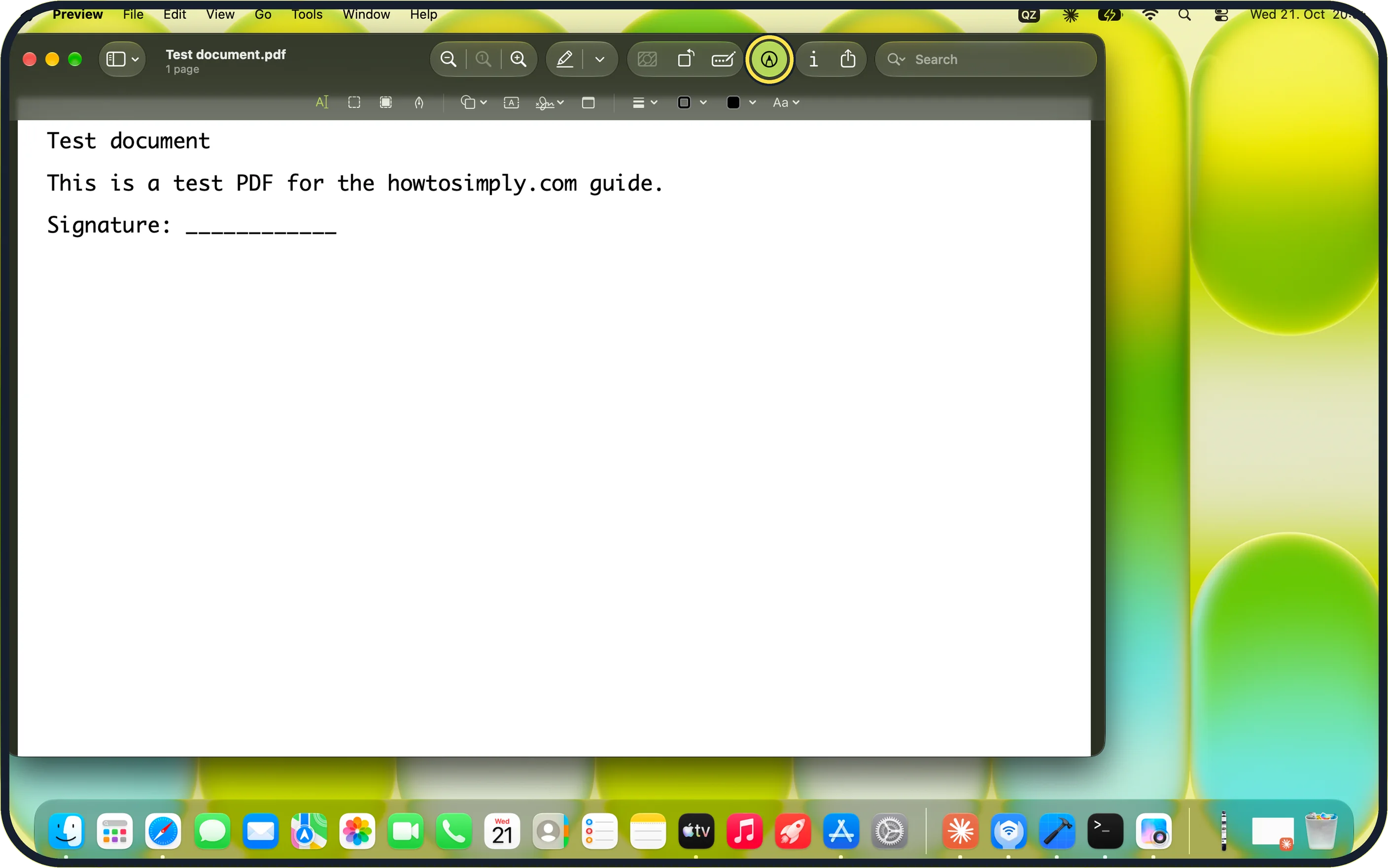
It is the round button near the right of the top toolbar. A second toolbar appears below the main one.
On our MacBook Neo the Markup button turns green when it is on. You can also choose View, Show Markup Toolbar.
Zoomed in on the setting. Tap to see the whole screenTap the picture to see it full size Click Sign and create your signature
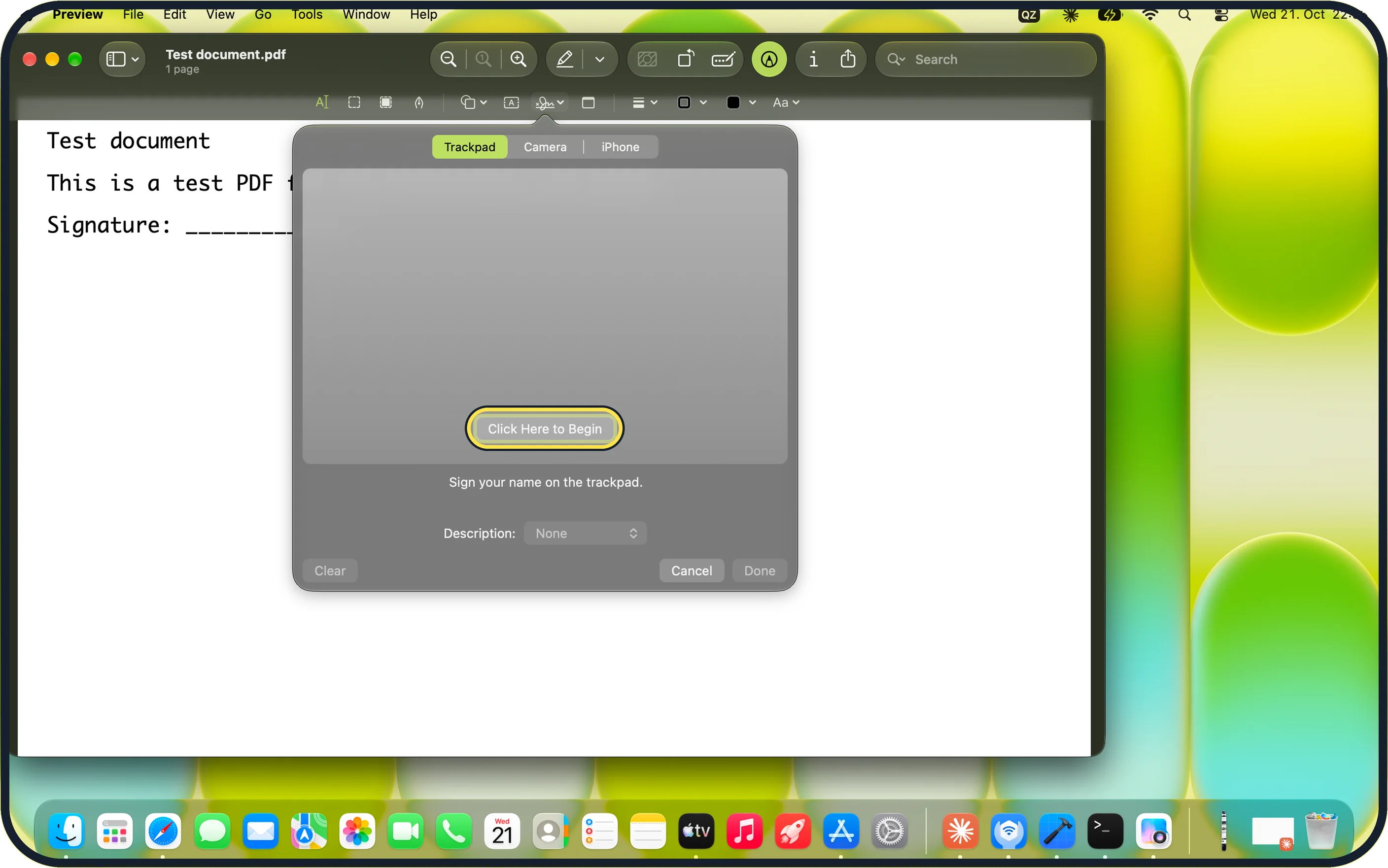
Click the Sign button in the Markup toolbar. On our MacBook Neo, with no saved signature, it opens the create panel straight away, with Trackpad, Camera and iPhone tabs.
Pick a tab, click the box in the middle of the panel to begin, sign your name, then click Done.
Place the signature
Apple says to click Sign again and click your saved signature to add it. Drag it to the signature line and resize it by its corners.
Zoomed in on the setting. Tap to see the whole screenTap the picture to see it full size Save
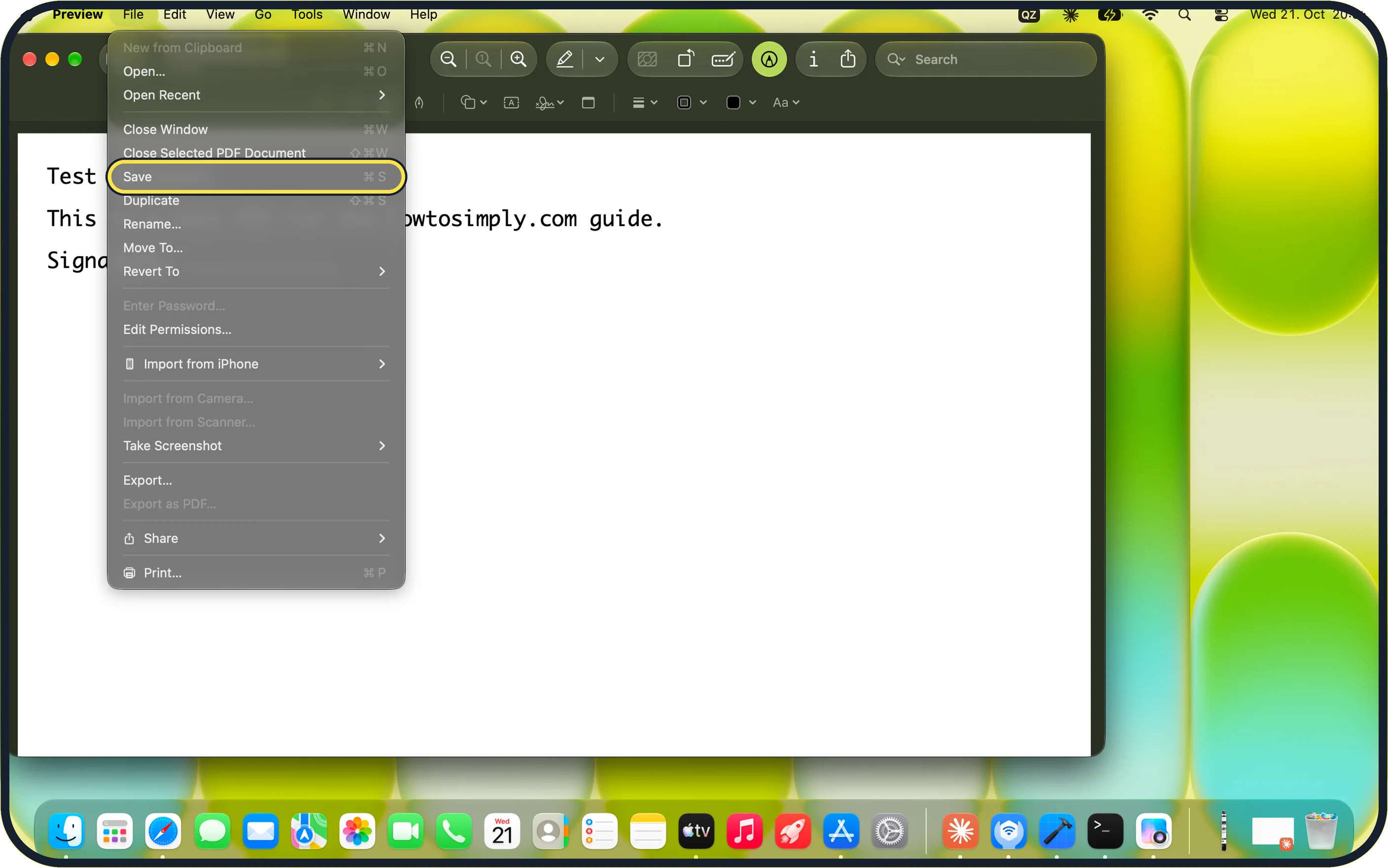
Press Command-S, or choose File, Save.
To keep an unsigned original, choose File, Duplicate or Export… instead and give the signed copy a new name.
What we saw on our device
- Click the Markup button: On our MacBook Neo the Markup button turns green when it is on.
- Click Sign and create your signature: On our MacBook Neo, with no saved signature, it opens the create panel straight away, with Trackpad, Camera and iPhone tabs.
If you do not see this option
- No Markup toolbar Choose View, Show Markup Toolbar.
- No Create Signature item On our MacBook Neo, with no saved signature, Sign opened the create panel directly, as in step 3. Apple says your saved signatures are listed there once you have made one.
- Export as PDF… is grey On our MacBook Neo Export as PDF… is greyed out for an unchanged PDF. Use Save or Export… instead.
If this does not work
- Done stays grey On our MacBook Neo Done and Clear are greyed out until you have signed. Click the box in the middle of the panel and sign on the trackpad first.
- The signature looks wrong Click Clear to try again, or Cancel to close the panel without saving a signature.
- The camera or iPhone tab does not work Switch to the Trackpad tab and sign with your finger, then click Done.
About this guide
You do not need to print, sign and scan. Preview stores your handwritten signature once and adds it to any PDF in a few clicks.
Screenshots: MacBook Neo, macOS 27.0.1, dark mode.
Good to know
To fill in the rest of a form, click a text field and type, or use the Text button in the Markup toolbar.
A drawn signature like this is accepted for many everyday documents. Some contracts require a certified electronic signature from a signing service. Check what the other side needs.
In short: Preview > Markup > Sign > sign your name > Done > place the signature > File > Save.
Links checked in October 2026. Menus and features can change after software updates. These steps match the version named at the top.
Did this guide work for you?
Sorry about that. What happened?