
macOS 27 compared with macOS 26: We rewrote this guide on macOS 27.0.1 (MacBook Neo): it now has 3 steps instead of 4. The macOS 26 page keeps the steps and screenshots as they were.
howtosimply.com/guides/how-to-right-click-on-a-mac/ · Checked October 2026 · MacBook Neo · macOS 27.0.1
In this guide
Click with two fingers on the trackpad, or hold the Control key and click. To change how the trackpad does it, open System Settings, click Trackpad, then Point & Click, and pick an option from the Secondary click menu.
3 of 3 steps with real screenshots · 1 official source below
- Device
- Mac
- Shown on
- macOS 27.0.1 (MacBook Neo)
- App
- System Settings
- Real screenshots
- 3 of 3 steps
- Checked
- October 2026
- Sources
- 1 official, linked below
Step by step
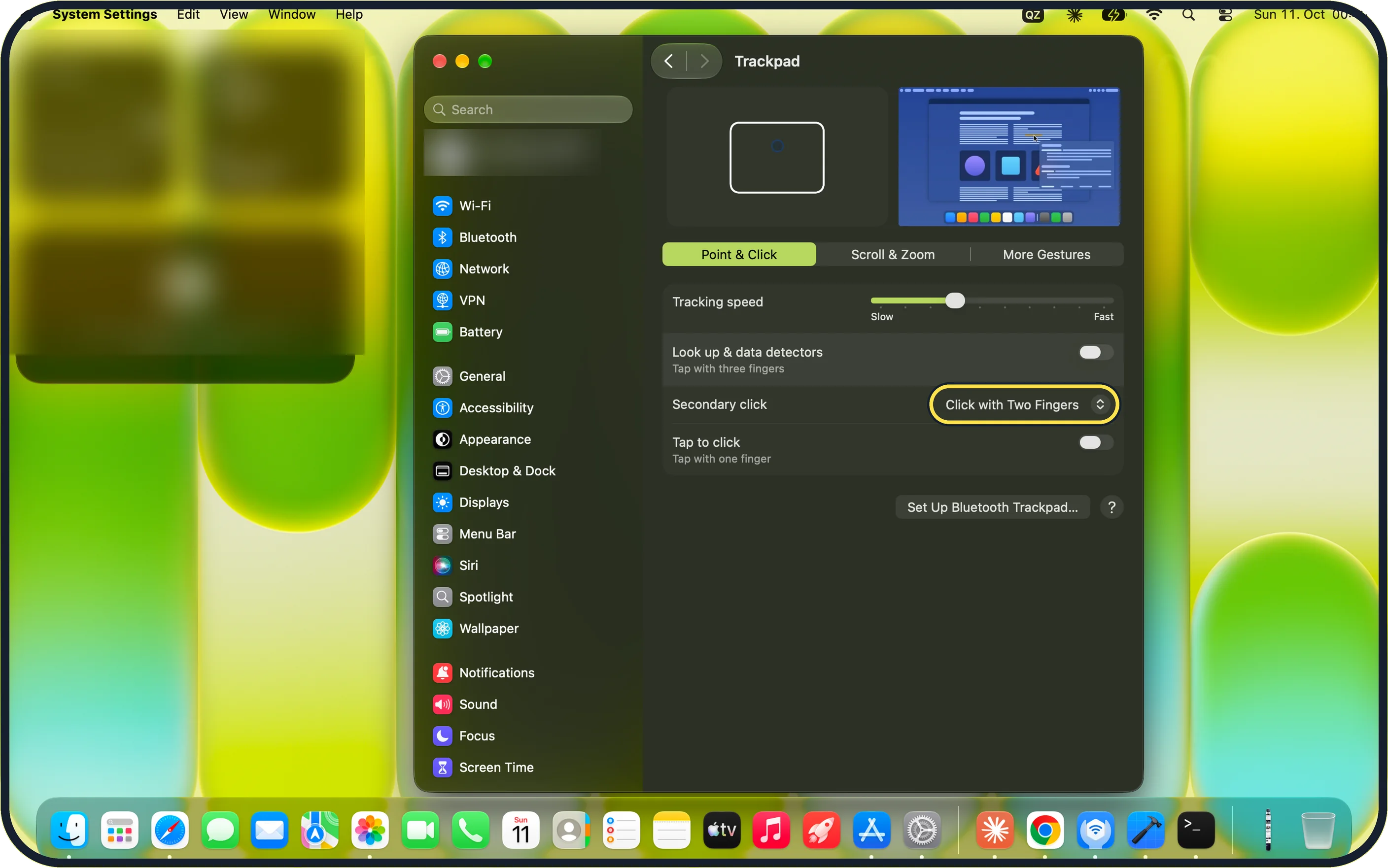
Zoomed in on the setting. Tap to see the whole screenTap the picture to see it full size Trackpad: click with two fingers
Rest two fingers on the trackpad and press down.
Apple says a two-finger tap also works when Tap to click is on. It was off on our Mac.
On our MacBook Neo, Secondary click under Trackpad was set to Click with Two Fingers.
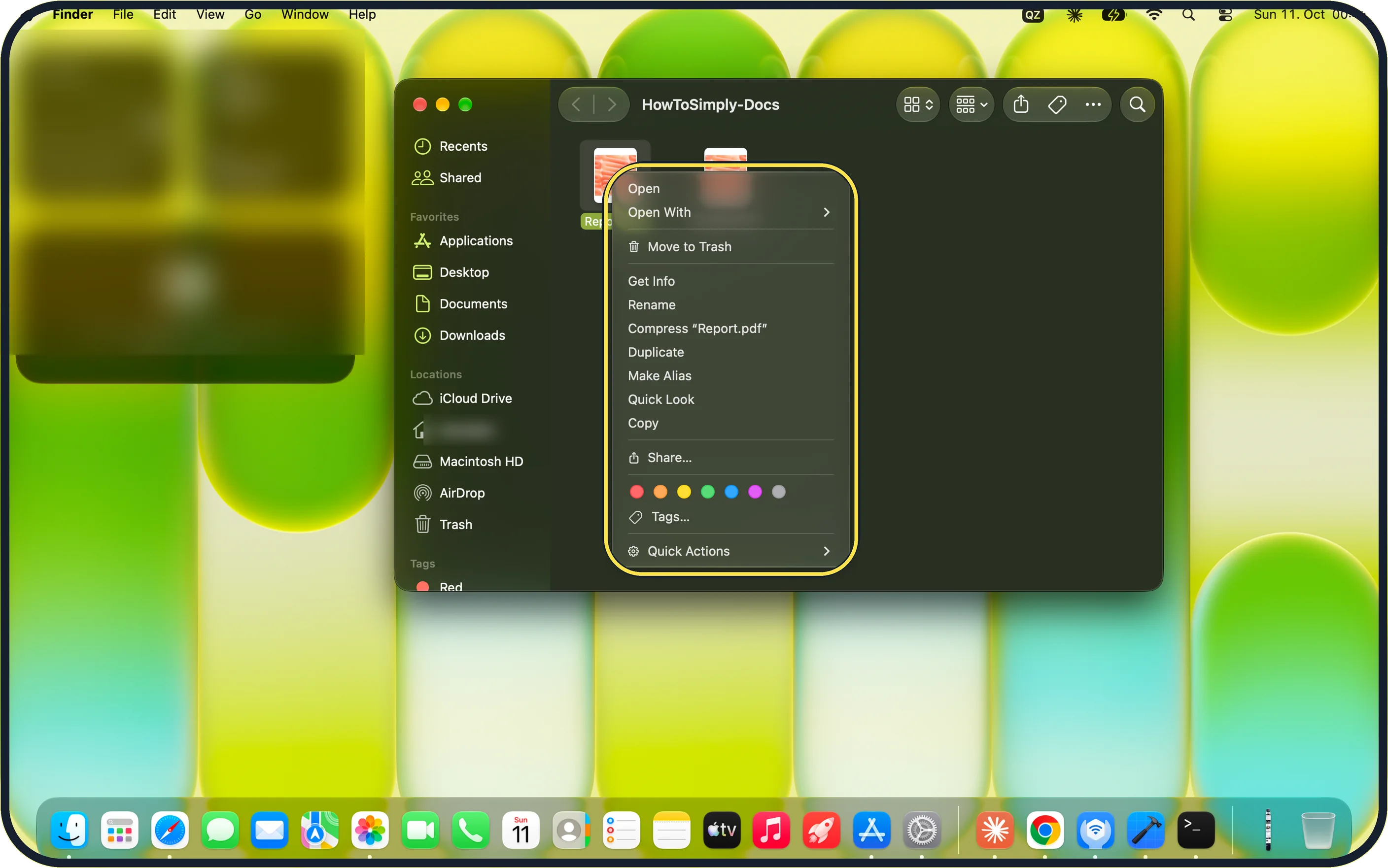
Zoomed in on the setting. Tap to see the whole screenTap the picture to see it full size Any mouse or trackpad: Control-click
Hold the Control key and click an item, and its shortcut menu opens.
On our MacBook Neo, Control-clicking Report.pdf in Finder showed Open, Open With, Move to Trash, Get Info, Rename, Compress "Report.pdf", Duplicate, Make Alias, Quick Look, Copy, Share…, the colour tags, Tags… and Quick Actions.
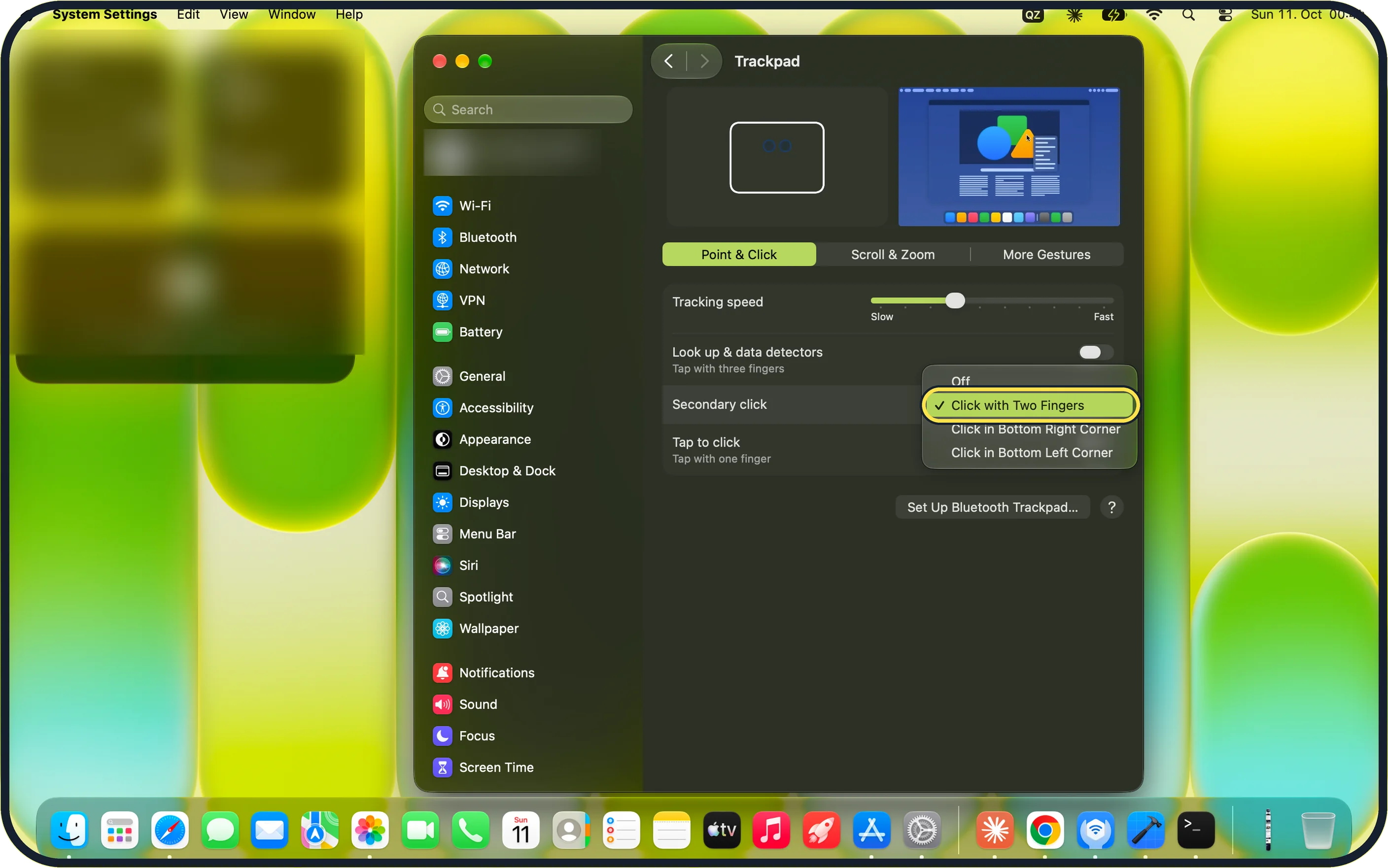
Zoomed in on the setting. Tap to see the whole screenTap the picture to see it full size Change how right-click works
Open System Settings, click Trackpad, select the Point & Click tab and open the menu next to Secondary click. The tick shows the current setting.
Pick Click with Two Fingers, Click in Bottom Right Corner or Click in Bottom Left Corner. On our MacBook Neo the menu also offers Off, which turns secondary click on the trackpad off.
What we saw on our device
- Trackpad: click with two fingers: On our MacBook Neo, Secondary click under Trackpad was set to Click with Two Fingers.
- Any mouse or trackpad: Control-click: On our MacBook Neo, Control-clicking Report.pdf in Finder showed Open, Open With, Move to Trash, Get Info, Rename, Compress "Report.pdf", Duplicate, Make Alias, Quick Look, Copy, Share…, the colour tags, Tags… and Quick Actions.
- Change how right-click works: On our MacBook Neo the menu also offers Off, which turns secondary click on the trackpad off.
If you do not see this option
- No Secondary click row Select the Point & Click tab at the top of the Trackpad settings; Secondary click is listed there under Tracking speed and Look up & data detectors.
- You use an Apple Magic Mouse Apple says to open System Settings, click Mouse and set Secondary click to Click Right Side, then click the right half of the mouse. Connect the mouse first: the Mouse settings only show with a mouse connected. Source: Right-click on Mac
If this does not work
- Two-finger click does nothing Open the Secondary click menu under Trackpad and check it is not set to Off. Choose Click with Two Fingers.
- A two-finger tap does nothing Press down with two fingers instead. Apple says tapping only works when Tap to click is on, and it was off on our Mac. Source: Right-click on Mac
- The trackpad still will not right-click Hold Control and click instead. Apple says this works with any mouse or trackpad. Source: Right-click on Mac
About this guide
Right-clicking, which Apple calls a secondary click, opens a shortcut menu of options for whatever is under the pointer, such as Copy, Rename or Move to Trash. Nothing on the trackpad is marked for it, so new Mac users often think it is missing.
Screenshots: MacBook Neo, macOS 27.0.1, dark mode.
Good to know
A normal USB or Bluetooth mouse with two buttons works on a Mac without any setup. The right button right-clicks.
If two-finger click does nothing, check that Secondary click is not switched off under System Settings, Trackpad.
Prefer tapping to clicking on the trackpad? How to turn on tap to click on a Mac.
All the other trackpad gestures: Mac trackpad gestures: the full list.
In short: Two-finger click or Control-click; to change it: System Settings > Trackpad > Point & Click > Secondary click.
Links checked in October 2026. Menus and features can change after software updates. These steps match the version named at the top.
Did this guide work for you?
Sorry about that. What happened?