
howtosimply.com/guides/how-to-flip-a-photo-on-an-iphone/ · Checked October 2026 · iPhone 17e · iOS 27.0.1
In this guide
Open the photo in Photos, tap Edit (the sliders), then Crop. Tap the flip button at the top left to mirror it, then the yellow tick to save. To undo it later, tap Edit, the red circular-arrow button at the top right, then Revert to Original.
6 of 6 steps with real screenshots · 1 official source below
- Device
- iPhone
- Shown on
- iOS 27.0.1 (iPhone 17e)
- App
- Photos
- Real screenshots
- 6 of 6 steps
- Checked
- October 2026
- Sources
- 1 official, linked below
Step by step
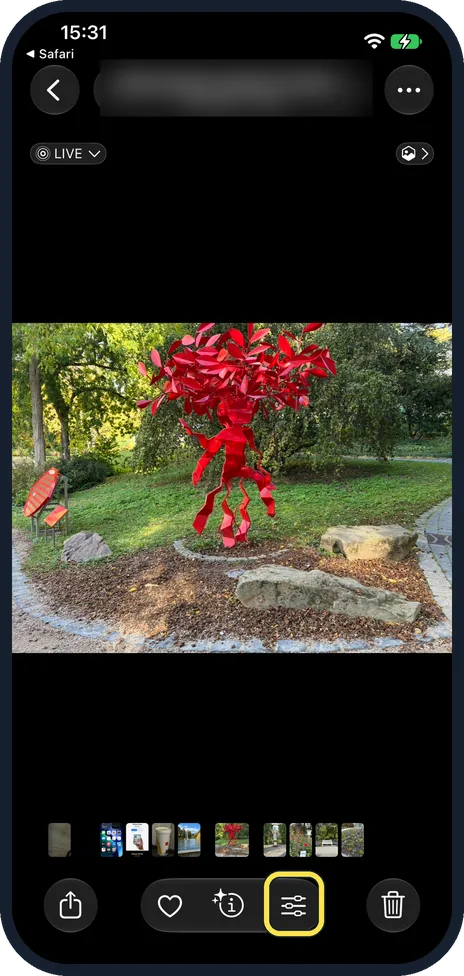
Open the photo and tap Edit
Edit is the sliders button in the bar at the bottom.
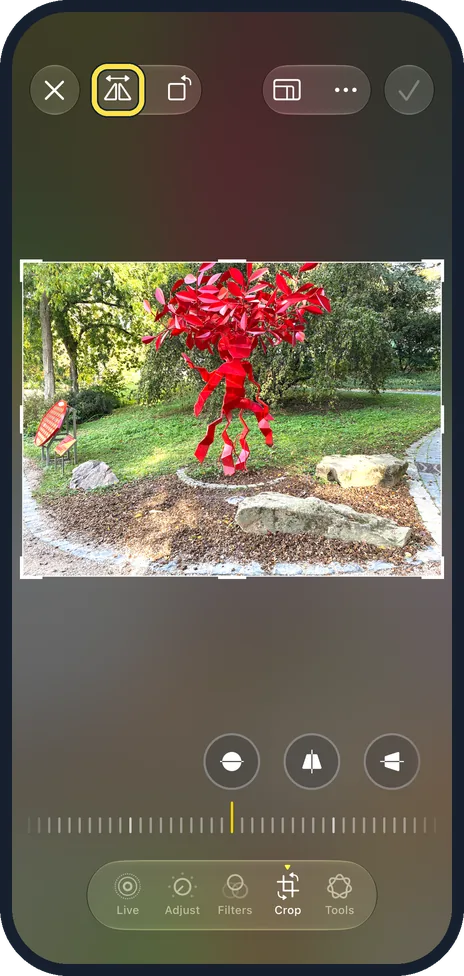
Tap Crop, then the flip button
Crop is in the bar at the bottom with Live, Adjust, Filters and Tools. Flip is the first button at the top left, Rotate the second.
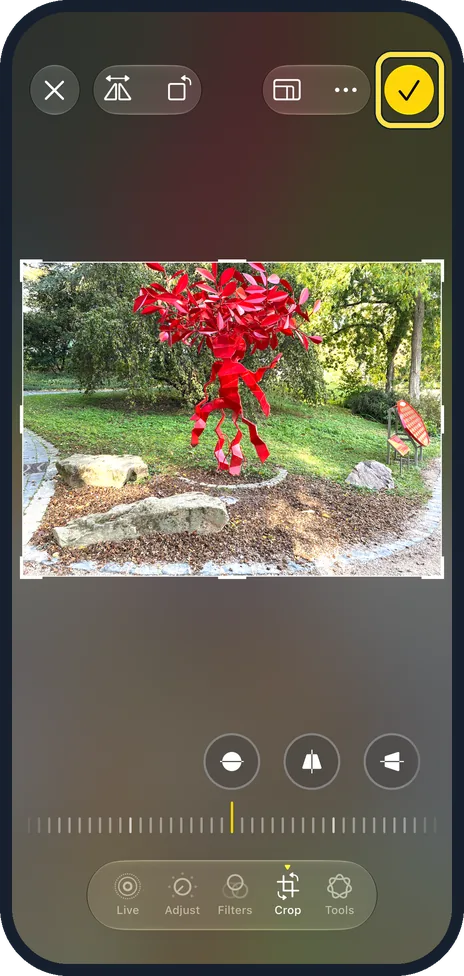
Check it, then tap the yellow tick
Ours flipped at once: the big stones moved to the left. The tick is at the top right.
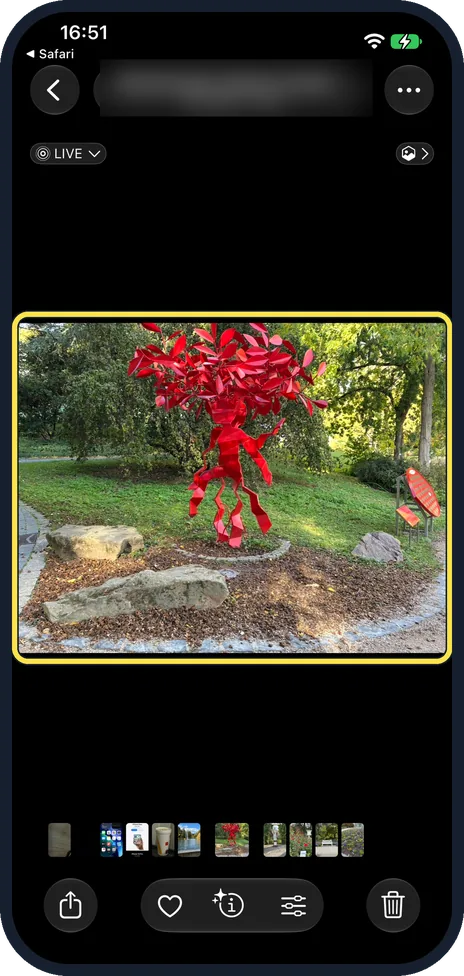
Find the saved photo
Back in the viewer, ours showed the mirrored photo.
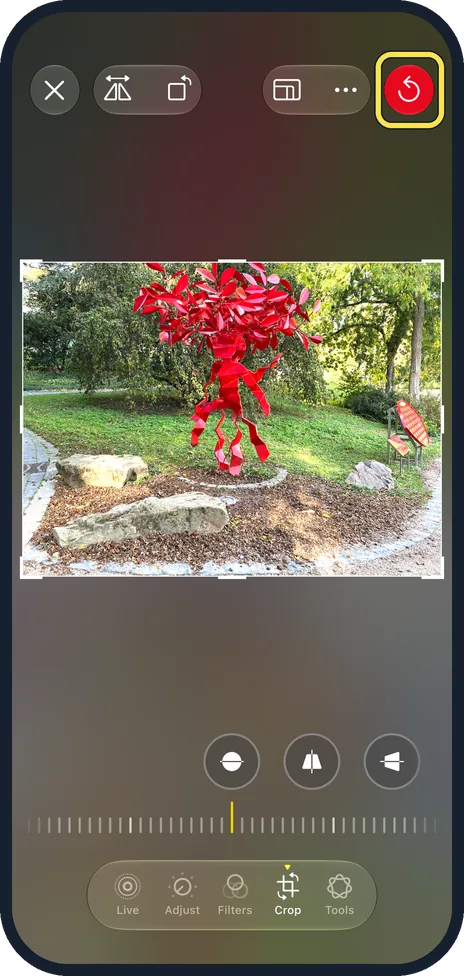
To undo it later, tap Edit, then the red button
On iOS 27.0.1 Revert is a red circular-arrow button at the top right of Edit, not a word.
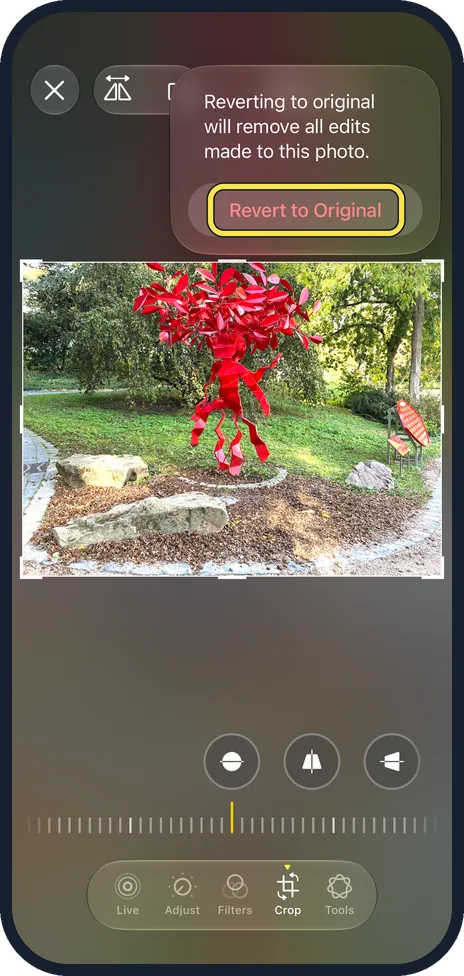
Tap Revert to Original
Ours said: Reverting to original will remove all edits made to this photo.
If you do not see this option
- No Done or Revert button? Apple's guide says Done and Revert. On our iOS 27.0.1 Done is a yellow tick (step 3) and Revert is the red arrow button (step 5). Source: Crop, rotate, flip, or straighten photos and videos on iPhone
- No flip button? Flip is in the Crop tool: tap Crop in the bottom bar first (step 2).
- Need it turned, not mirrored? Apple says the Rotate button turns it 90 degrees. It is next to Flip. Source: Crop, rotate, flip, or straighten photos and videos on iPhone
If this does not work
- Changed your mind before saving? Tap the X at the top left. Apple says to tap Cancel, then Discard Changes. Source: Crop, rotate, flip, or straighten photos and videos on iPhone
- Flipping a video? Apple says the same Crop tools work on videos. Source: Crop, rotate, flip, or straighten photos and videos on iPhone
About this guide
Flip mirrors the photo left to right. It sits next to Rotate in the Crop tool.
The screenshots are from our iPhone 17e with iOS 27.0.1, in Dark mode, taken on 25 October 2026. We flipped and saved the photo, then reverted it to the original. The place name above the photo is blurred.
Good to know
To keep a photo out of the library, see hide photos on an iPhone.
To pull a still out of a video first, see save a video frame as a photo.
In short: Photo, Edit, Crop, flip button, tick.
Links checked in October 2026. Menus and features can change after software updates. These steps match the version named at the top.
📷 See real photos from the iPhone 17e in our Camera Lab, next to 10 other phones.
Did this guide work for you?
Sorry about that. What happened?