
howtosimply.com/guides/how-to-check-screen-time-on-a-samsung-galaxy/ · Checked October 2026 · Samsung Galaxy A57 5G (SM-A576B), One UI 8.5, Android 16
In this guide
Open Settings, Digital Wellbeing and parental controls. Screen time today shows the total and the apps you used most. Below, App timers lets you set a daily limit for an app.
3 of 3 steps with real screenshots · 1 official source below
- Device
- Android
- Shown on
- Samsung Galaxy A57 5G (SM-A576B), One UI 8.5, Android 16
- App
- Settings
- Real screenshots
- 3 of 3 steps
- What we did
- Observed: looked at each screen, changed nothing
- Our phone
- Shown on Galaxy A57, One UI 8.5
- Checked
- October 2026
- Sources
- 1 official, linked below
Step by step
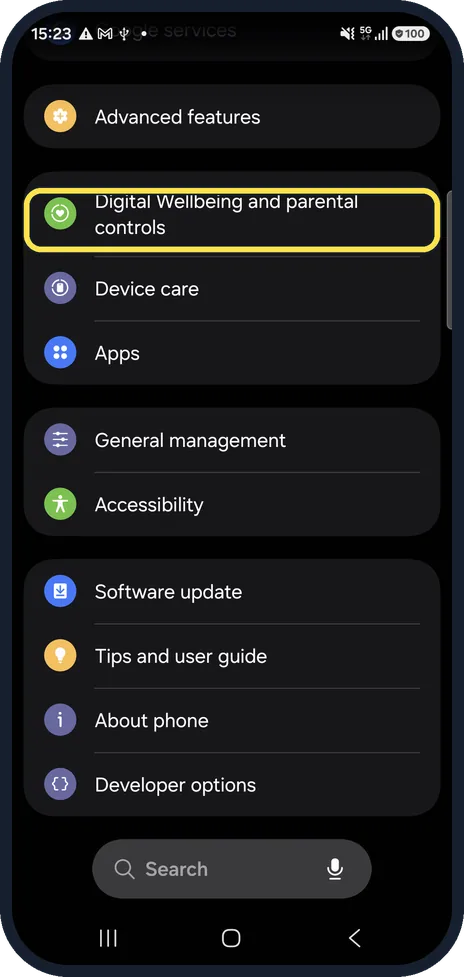
Open Digital Wellbeing
Open Settings and tap Digital Wellbeing and parental controls.
Watch these steps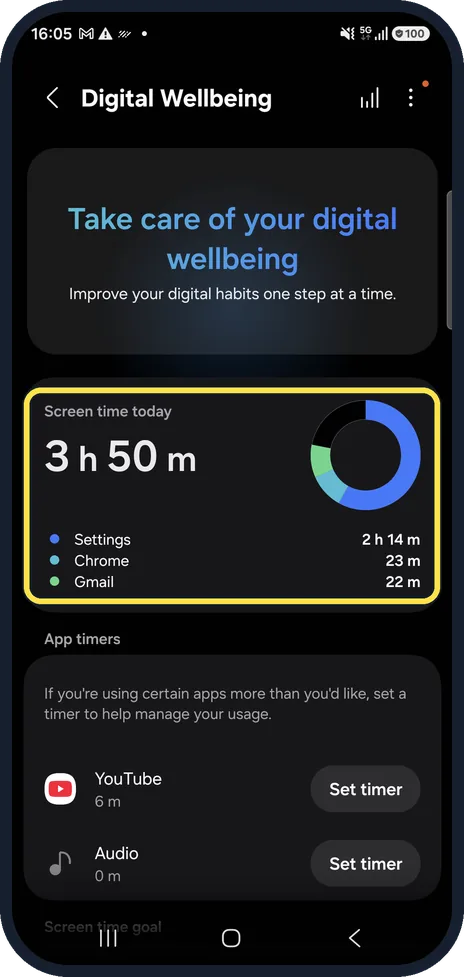
Read Screen time today
The total for today, with a ring split by app and the top apps below it.
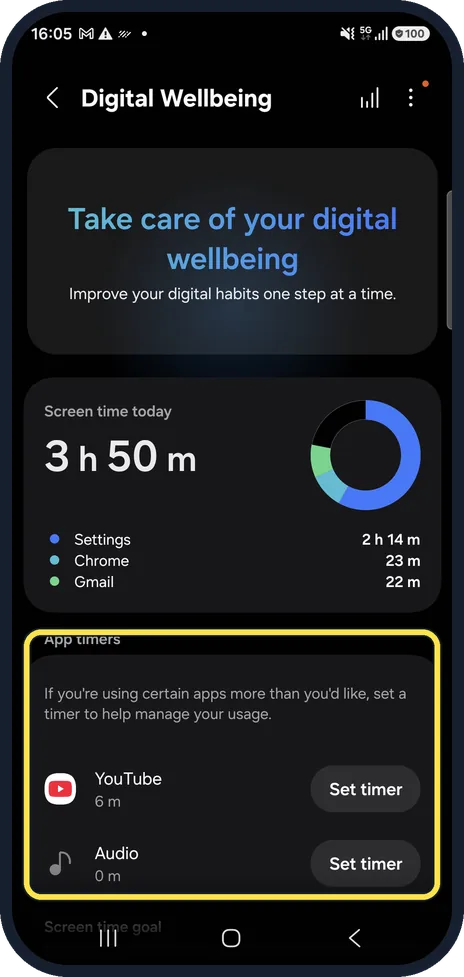
Set an app timer
Under App timers, tap Set timer next to an app and choose a daily limit. When the time is up, the app is paused for the rest of the day.
Watch these steps
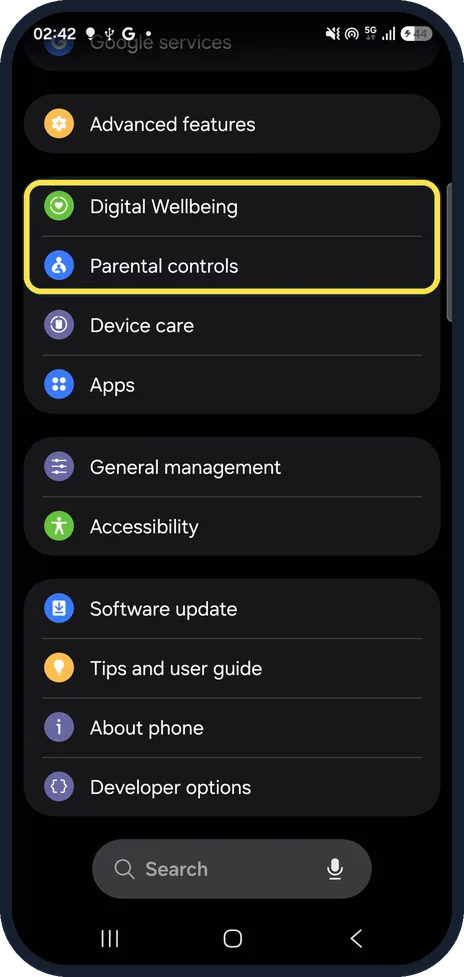
If you do not see this option
- Your Galaxy runs One UI 9. Digital Wellbeing and parental controls is now two rows, Digital Wellbeing and Parental controls. Tap Digital Wellbeing. Seen on our Galaxy A57 after the One UI 9.0 update.
- Digital Wellbeing is missing Samsung says these features need Android 10 or later, and that Digital Wellbeing cannot be removed or turned off. Source: Use Digital Wellbeing features on your Galaxy phone or tablet
- A wellbeing option you knew has gone Samsung says some of these options have moved to Modes and Routines in Settings. Source: Use Digital Wellbeing features on your Galaxy phone or tablet
If this does not work
- You want one limit for the whole phone Samsung says to tap Set goal under Screen time goal in Digital Wellbeing and choose the hours and minutes. On some phones you choose the time first, then tap Set. Source: Use Digital Wellbeing features on your Galaxy phone or tablet
- You want to change or remove an app timer Samsung says to tap the app on the App timers tracker, then tap its schedule to edit it. Source: Use Digital Wellbeing features on your Galaxy phone or tablet
About this guide
Digital Wellbeing is built in on every Galaxy. It counts from the moment the phone is set up; there is nothing to switch on.
Good to know
Bedtime and focus options sit in Modes and Routines: how to use Sleep mode on a Samsung Galaxy.
In short: Settings, Digital Wellbeing and parental controls: Screen time today, App timers.
Links checked in October 2026. Menus and features can change after software updates. These steps match the version named at the top.
📷 See real photos from the Galaxy A57 in our Camera Lab, next to 10 other phones.
Did this guide work for you?
Sorry about that. What happened?