
macOS 27 compared with macOS 26: We rewrote this guide on macOS 27.0.1 (MacBook Neo): it now has 6 steps instead of 5. The macOS 26 page keeps the steps and screenshots as they were.
howtosimply.com/guides/how-to-use-dictation-on-a-mac/ · Checked October 2026 · MacBook Neo · macOS 27.0.1
In this guide
Open System Settings, click Keyboard, scroll down to Dictation, turn on the switch and click Enable. Then click where you want to type, press the microphone key (or choose Edit > Start Dictation) and speak. Press the key again to stop.
5 of 6 steps with real screenshots · 1 official source below
- Device
- Mac
- Shown on
- macOS 27.0.1 (MacBook Neo)
- App
- System Settings
- Real screenshots
- 5 of 6 steps
- Checked
- October 2026
- Sources
- 1 official, linked below
Step by step
Open System Settings and click Keyboard
Click the Apple menu and choose System Settings.
Click Keyboard in the sidebar.
Zoomed in on the setting. Tap to see the whole screenTap the picture to see it full size Turn on Dictation
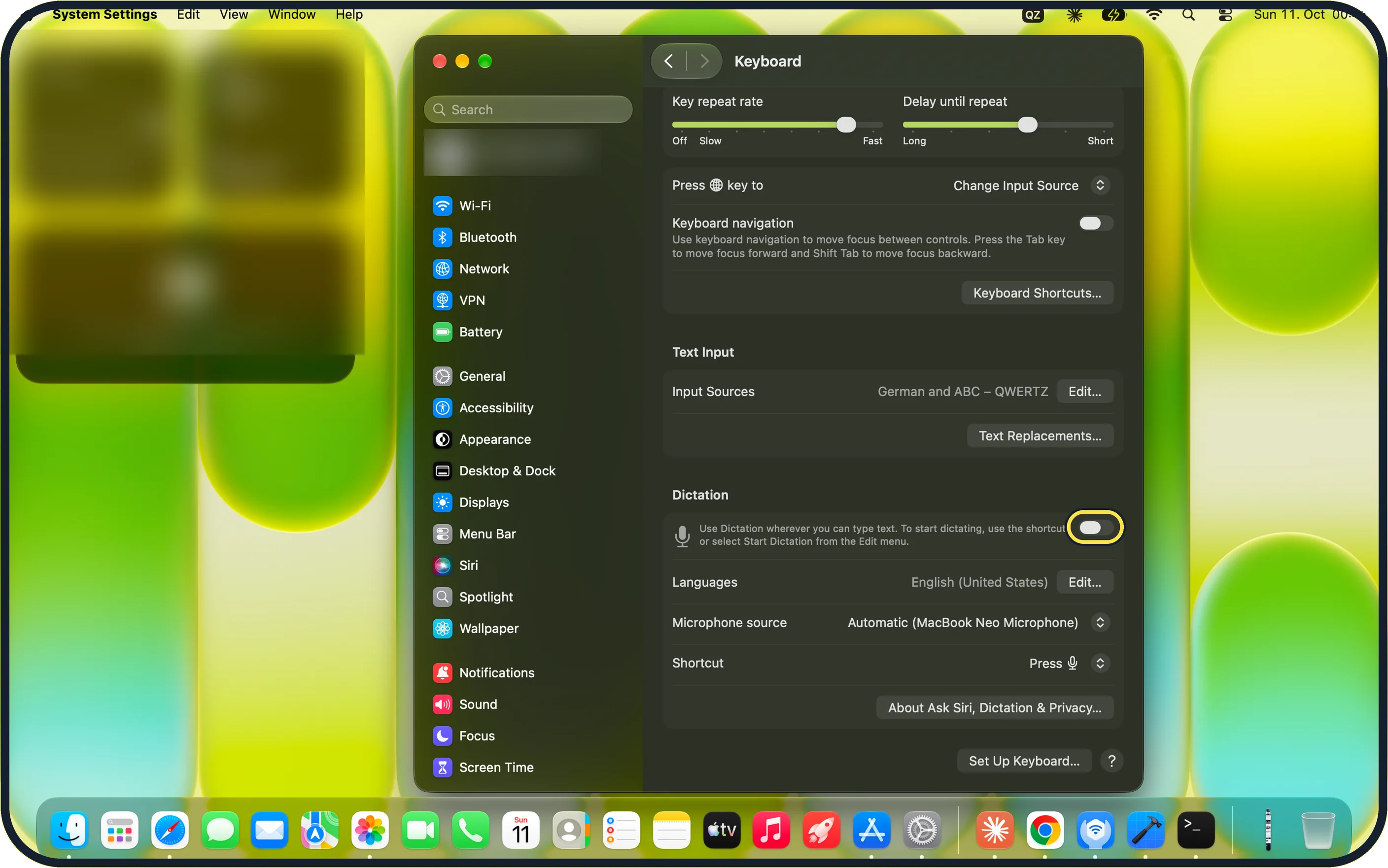
Scroll down past Text Input to the Dictation section.
Turn on the switch next to "Use Dictation wherever you can type text".
Zoomed in on the setting. Tap to see the whole screenTap the picture to see it full size Click Enable
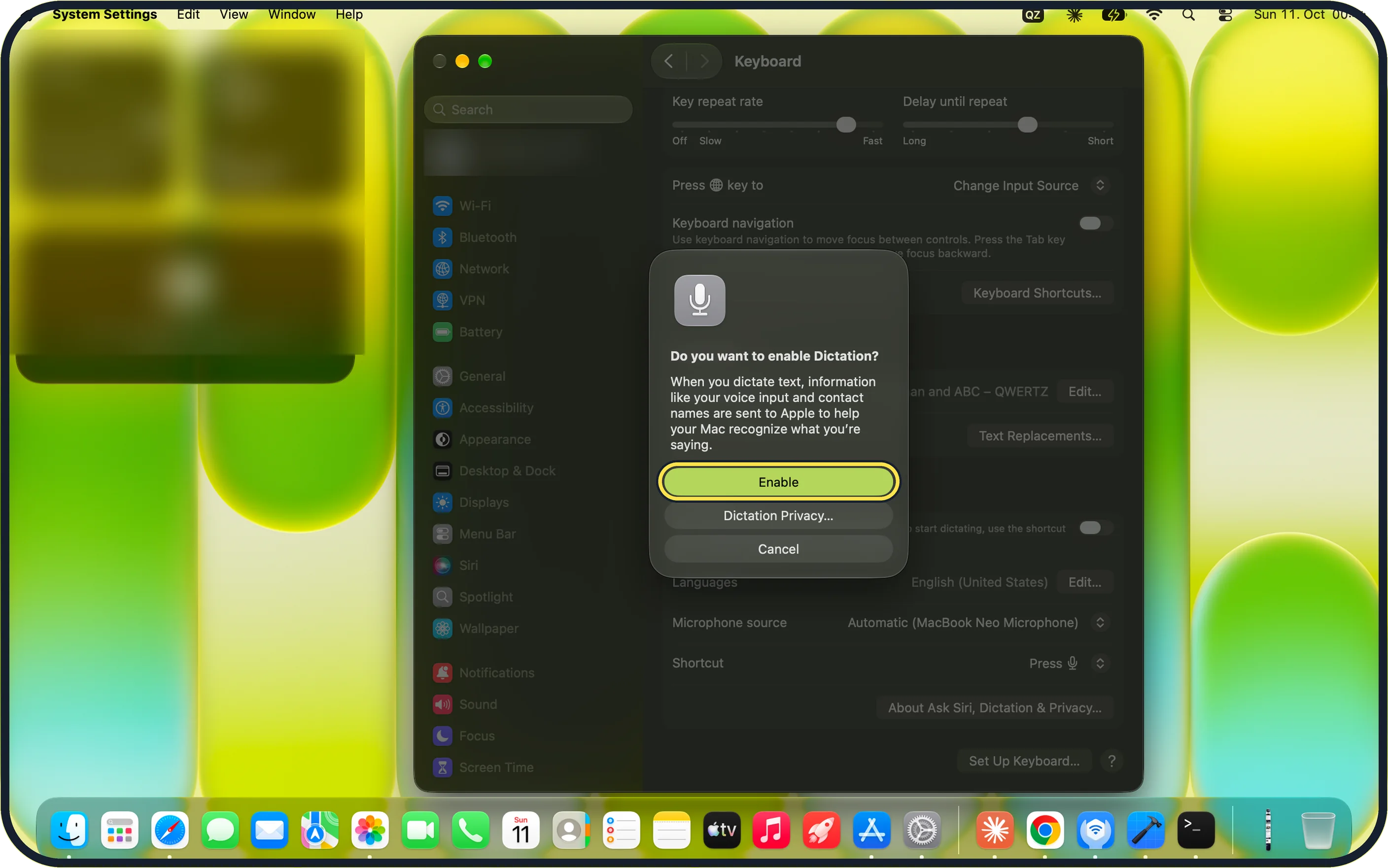
A box asks "Do you want to enable Dictation?". Click Enable.
On our MacBook Neo the box also offers Dictation Privacy… and Cancel.
Zoomed in on the setting. Tap to see the whole screenTap the picture to see it full size Check the shortcut
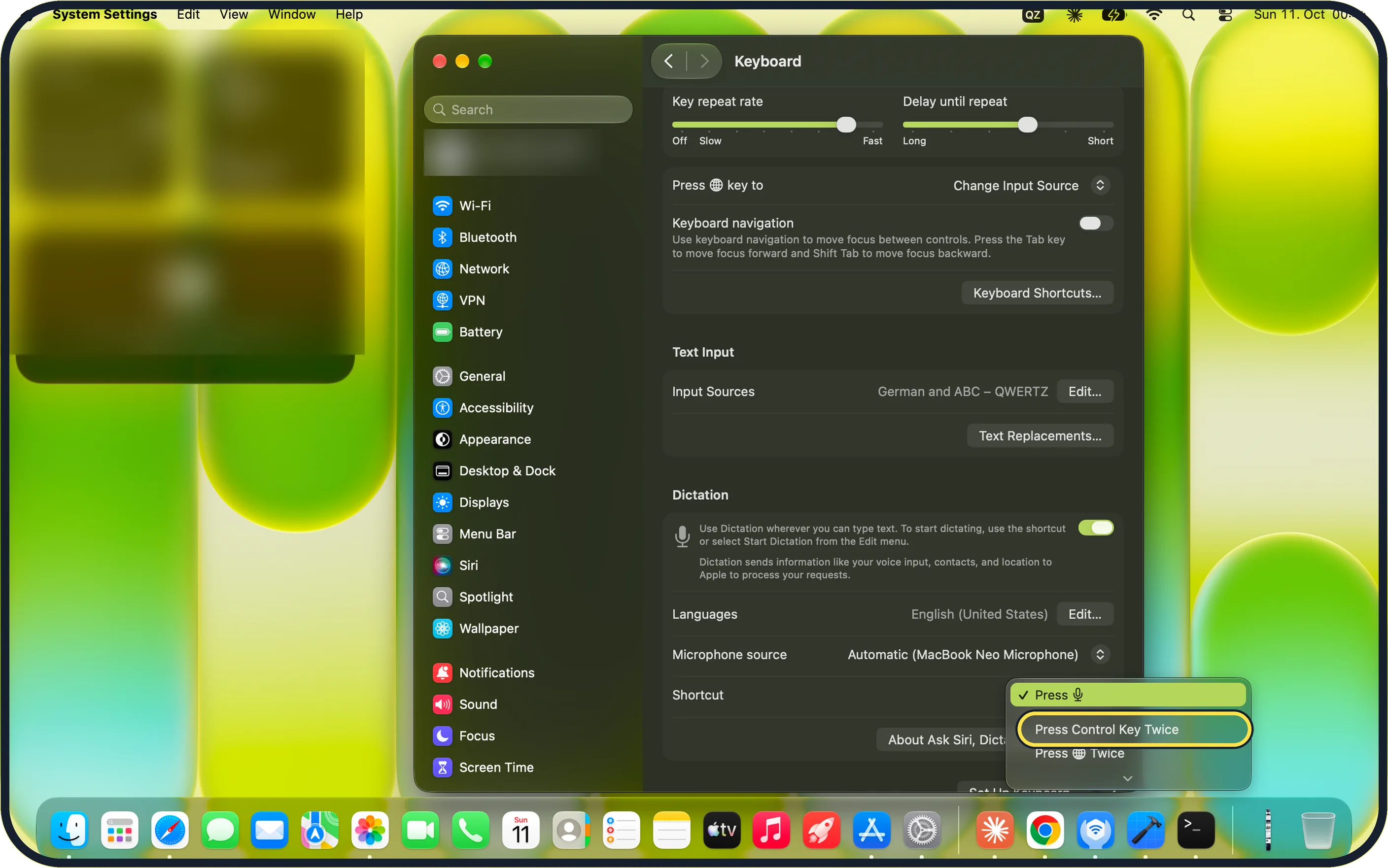
Click the Shortcut menu to choose how you start dictation. The default is Press 🎤, the microphone key. If your keyboard has no microphone key, choose Press Control Key Twice.
On our MacBook Neo the menu offers Press 🎤 (ticked), Press Control Key Twice and Press 🌐 Twice, with an arrow at the bottom for more.
Zoomed in on the setting. Tap to see the whole screenTap the picture to see it full size Click in a text field and start dictating
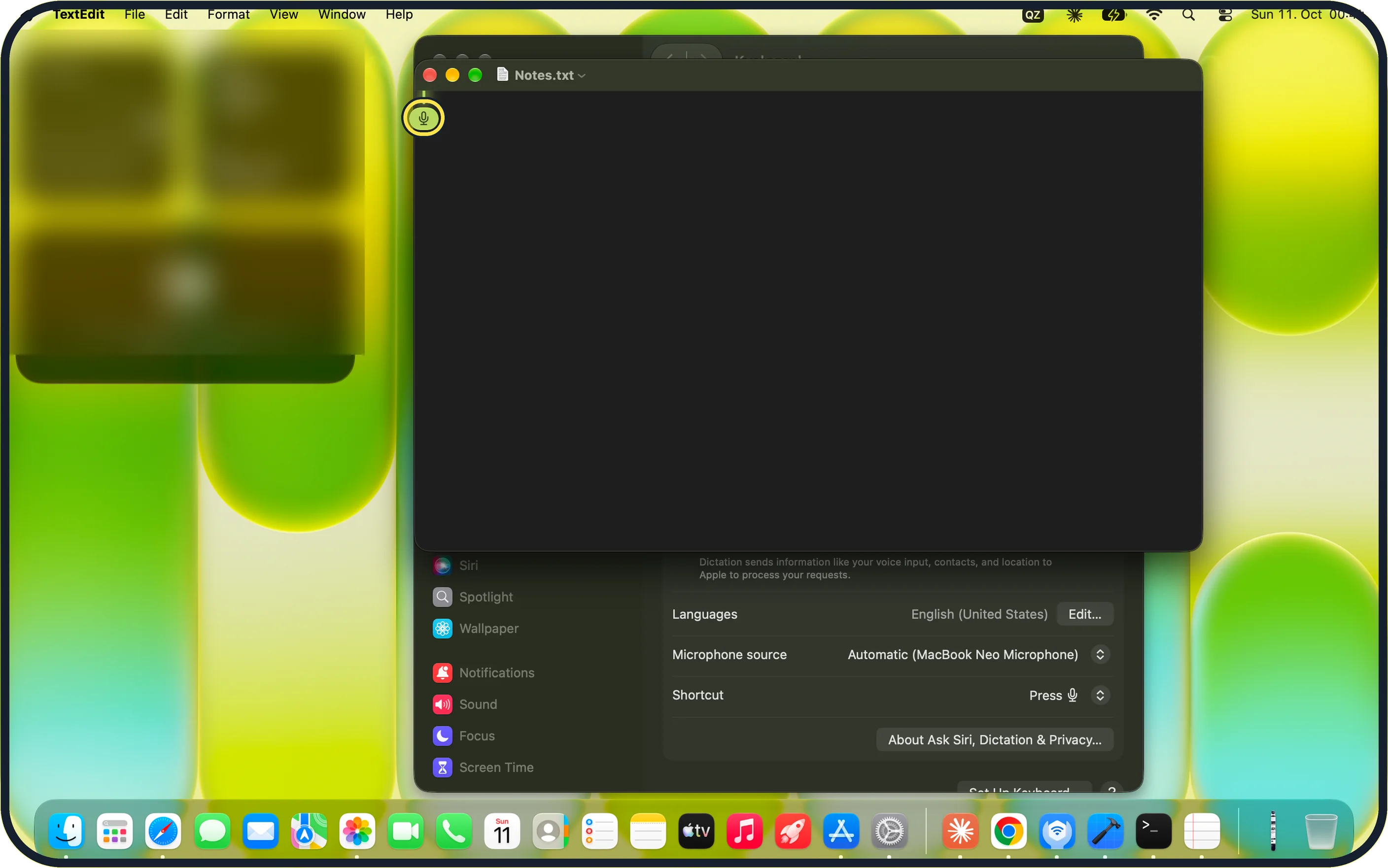
Click where you want the text, then press your shortcut or choose Edit > Start Dictation.
A microphone bubble appears at the cursor. Speak normally.
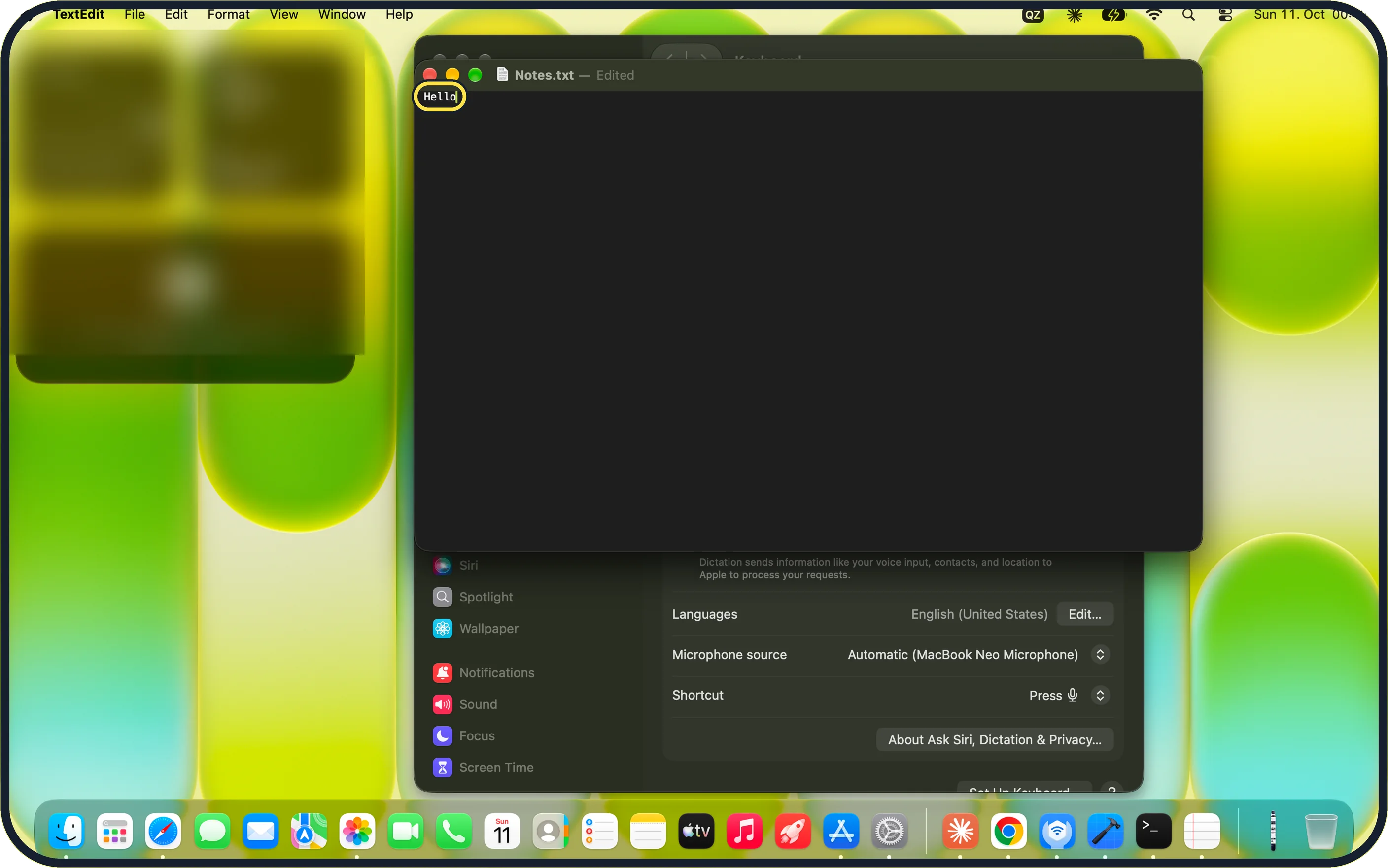
Zoomed in on the setting. Tap to see the whole screenTap the picture to see it full size Stop dictating
Press the shortcut again. Apple says you can also press Escape.
Your words appear in the document. On our MacBook Neo, TextEdit showed "Hello" in Notes.txt.
What we saw on our device
- Click Enable: On our MacBook Neo the box also offers Dictation Privacy… and Cancel.
- Check the shortcut: On our MacBook Neo the menu offers Press 🎤 (ticked), Press Control Key Twice and Press 🌐 Twice, with an arrow at the bottom for more.
- Stop dictating: On our MacBook Neo, TextEdit showed "Hello" in Notes.txt.
If you do not see this option
- No Dictation section Scroll further down the Keyboard page. Dictation sits below Text Input, above the Set Up Keyboard… button.
- No microphone key Open the Shortcut menu and choose Press Control Key Twice or Press 🌐 Twice instead.
- The shortcut you want is not listed Click the arrow at the bottom of the Shortcut menu to see more choices.
If this does not work
- Nothing is picked up Check the Microphone source row. On our MacBook Neo it read Automatic (MacBook Neo Microphone); choose another microphone there if you use one.
- Words come out in the wrong language Click Edit… next to Languages and add or pick the language you speak. Ours was set to English (United States).
- Only some words appear Speak clearly and close to the Mac, then start dictation again.
About this guide
Dictation turns your speech into text in any app where you can type, such as TextEdit, Mail or Notes.
Screenshots: MacBook Neo, macOS 27.0.1, dark mode.
Good to know
Say "new line" or "new paragraph" to move down. You can also say "comma" or "question mark".
For controlling the whole Mac by voice, look at Voice Control under System Settings, Accessibility.
Want the Mac to read text back to you as well? How to make a Mac read selected text aloud.
The same on an iPhone: how to delete your Siri and dictation history on an iPhone covers what is stored.
In short: System Settings > Keyboard > Dictation switch on > Enable, then press 🎤 in any text field and speak.
Links checked in October 2026. Menus and features can change after software updates. These steps match the version named at the top.
Did this guide work for you?
Sorry about that. What happened?