
howtosimply.com/guides/how-to-zoom-in-on-the-screen-on-a-mac/ · Checked October 2026 · MacBook Pro · macOS Tahoe 26
In this guide
Open System Settings, click Accessibility, then Zoom, and switch on Use keyboard shortcuts to zoom. Then press Option, Command and 8 to switch zoom on or off, Option, Command and = to zoom in, and Option, Command and - to zoom out.
6 of 6 steps with real screenshots · 1 official source below
- Device
- Mac
- Shown on
- macOS Tahoe 26 (MacBook Pro)
- App
- System Settings
- Path
- System Settings › Accessibility › Zoom
- Real screenshots
- 6 of 6 steps
- Checked
- October 2026
- Sources
- 1 official, linked below
Step by step
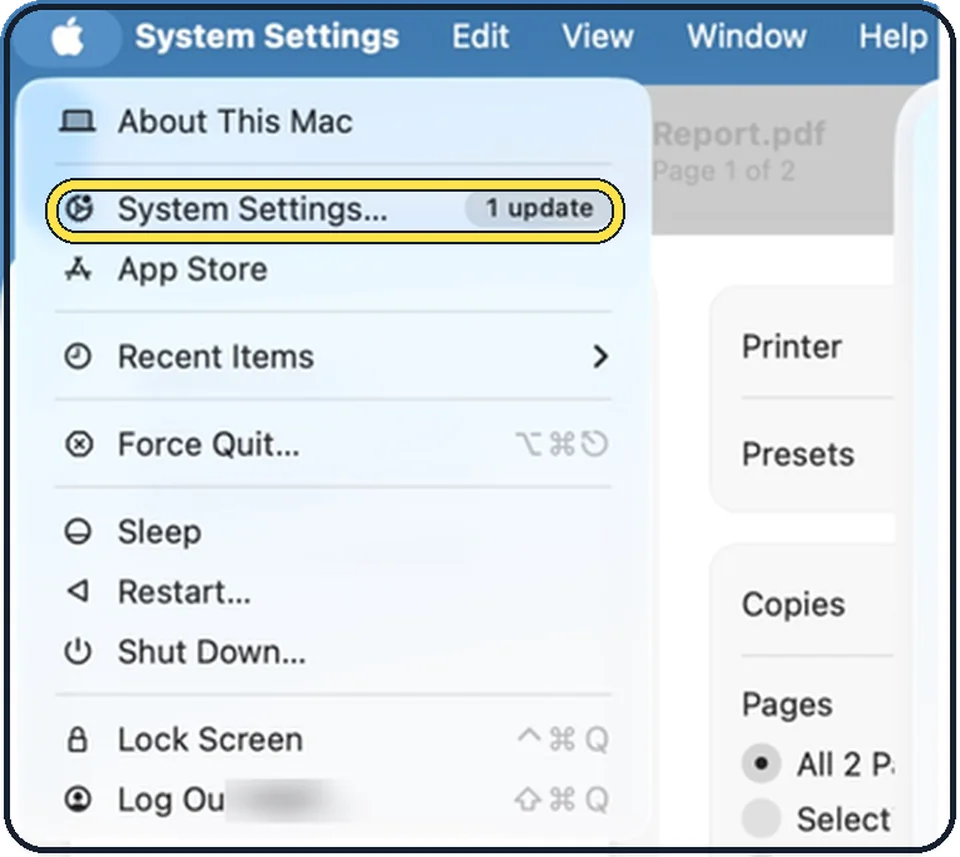
Tap the picture to see it full size Open System Settings
Click the Apple menu in the top left corner of the screen and choose System Settings.
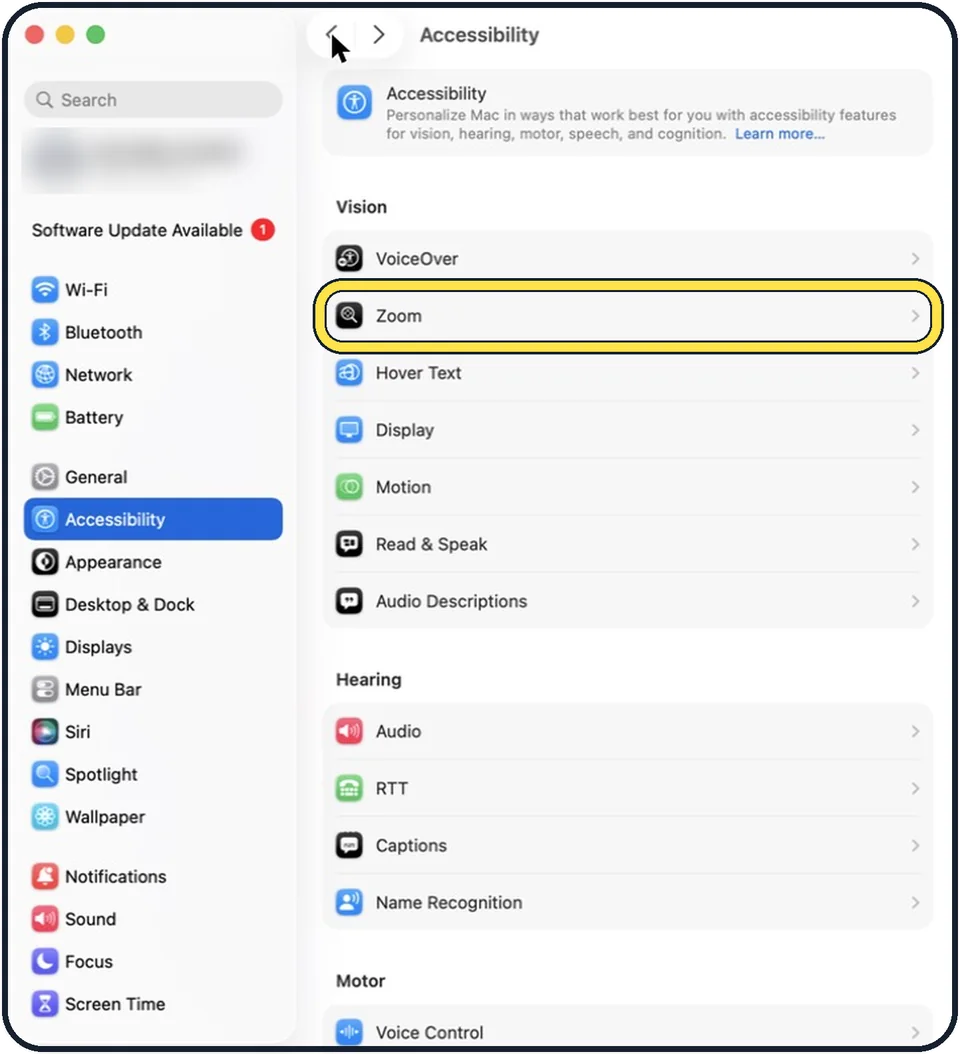
Tap the picture to see it full size Click Accessibility, then Zoom
Accessibility is in the sidebar on the left. Zoom is in the Vision group on the right. You may need to scroll down in the sidebar.
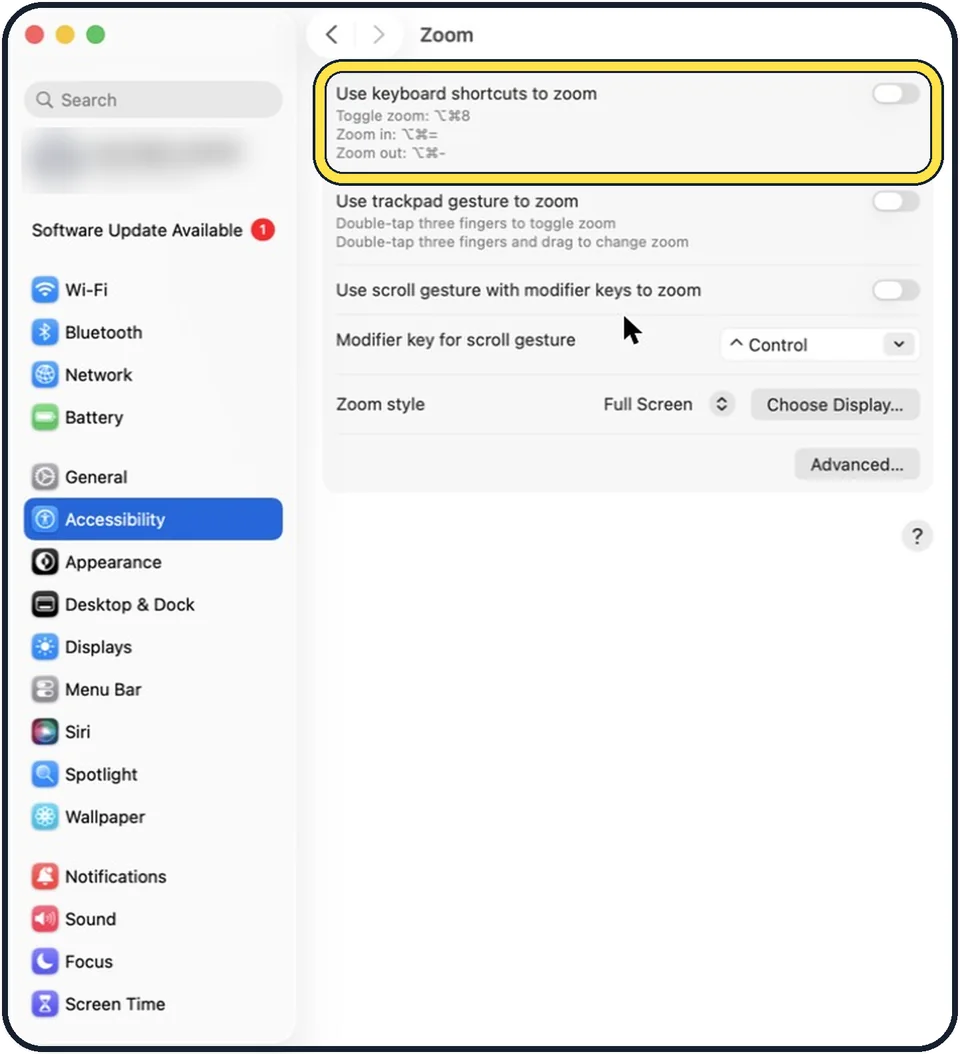
Tap the picture to see it full size Switch on Use keyboard shortcuts to zoom
The shortcuts are listed under the switch: toggle zoom with Option, Command, 8. Zoom in with Option, Command and the equals key. Zoom out with Option, Command and the minus key.
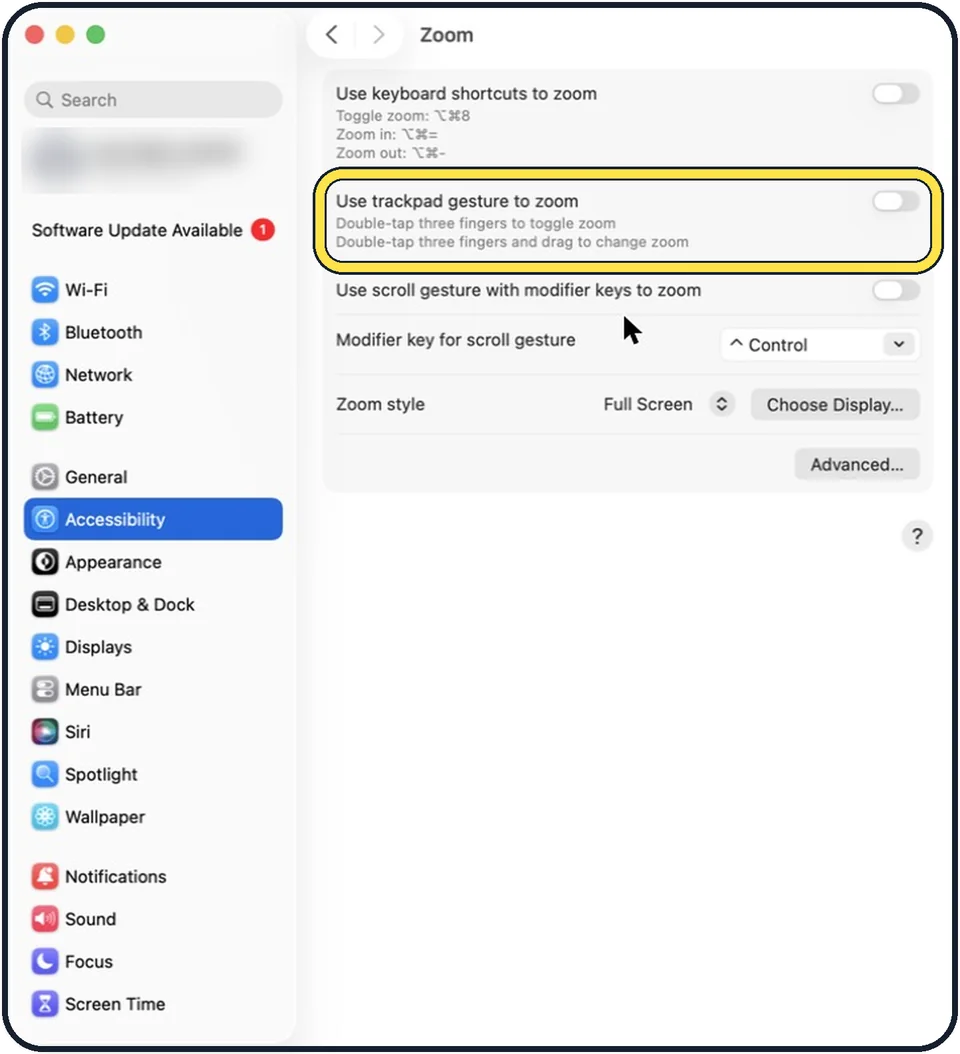
Tap the picture to see it full size Or zoom with the trackpad
Use trackpad gesture to zoom: double-tap with three fingers to switch zoom on or off, and double-tap with three fingers and drag to change the zoom.
Tap the picture to see it full size Or zoom by scrolling
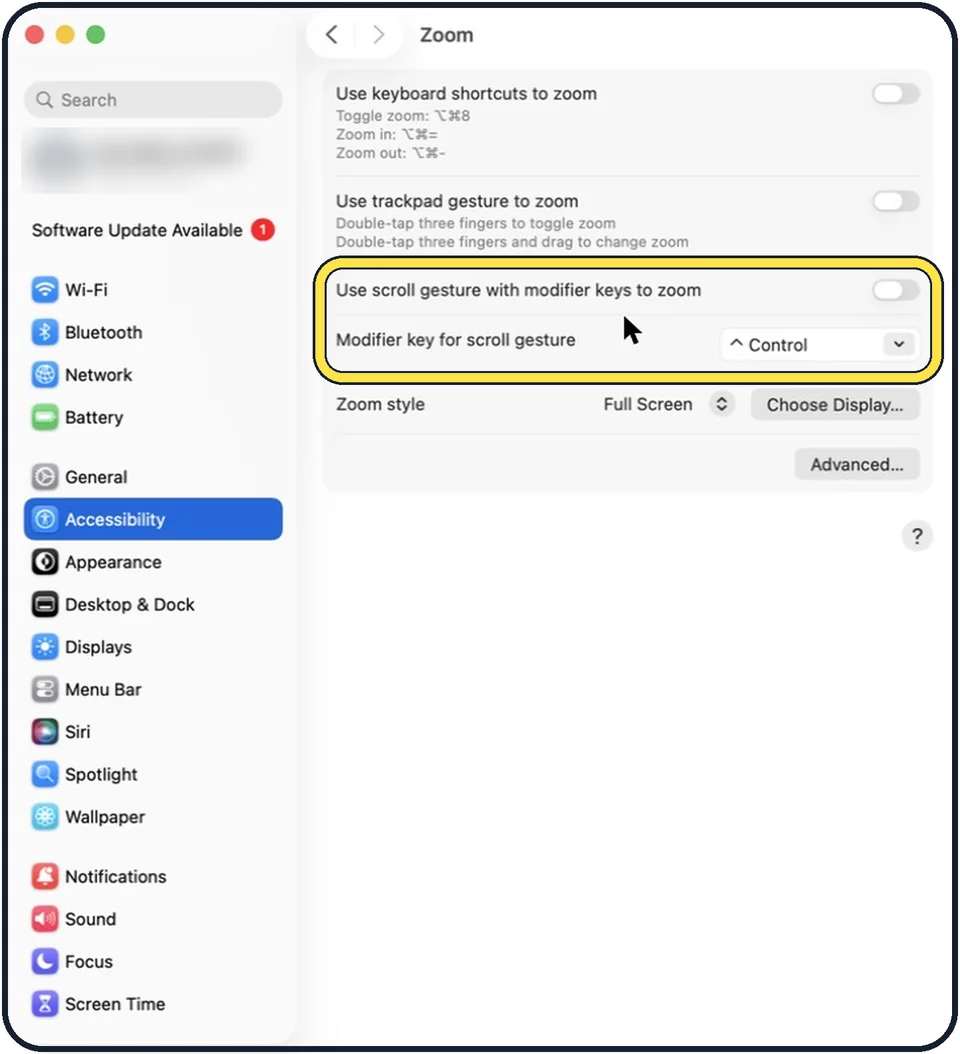
Use scroll gesture with modifier keys to zoom: hold the chosen key and scroll with the trackpad or mouse. The key is Control at first. You can change it to Option or Command in the row below.
Tap the picture to see it full size Choose the zoom style
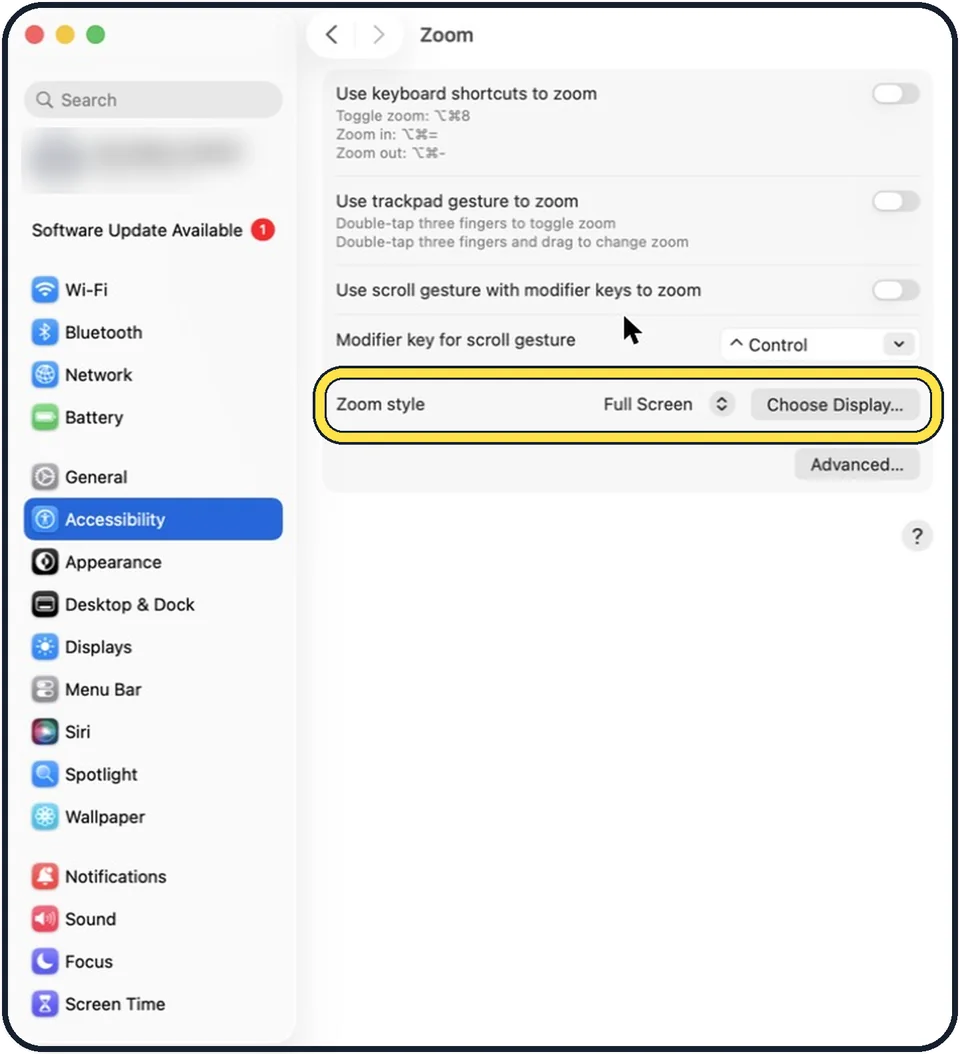
Full Screen enlarges the whole screen. According to Apple, Split Screen enlarges a custom area of the screen, and Picture-in-Picture only the area where the pointer is.
About this guide
Zoom enlarges everything on the screen, or only the area around the pointer, without changing the resolution. All three ways of zooming are off at first: by keyboard, by trackpad gesture, and by scrolling while you hold a key.
The screenshots show System Settings on macOS Tahoe 26.
Good to know
The Advanced button has more options for the selected zoom style.
If only the mouse pointer is hard to see: how to make the mouse pointer bigger on a Mac.
In short: System Settings, Accessibility, Zoom, keyboard shortcuts on, then Option, Command, 8.
Links checked in October 2026. Menus and features can change after software updates. These steps match the version named at the top.
Did this guide work for you?
Sorry about that. What happened?