
howtosimply.com/guides/how-to-make-mac-apps-reopen-their-windows/ · Checked October 2026 · MacBook Pro · macOS Tahoe 26
In this guide
Open System Settings, click Desktop & Dock, scroll to Windows and switch off Close windows when quitting an application. Apps then restore their open documents and windows when you open them again.
3 of 3 steps with real screenshots · 2 official sources below
- Device
- Mac
- Shown on
- macOS Tahoe 26 (MacBook Pro)
- App
- System Settings
- Path
- System Settings › Desktop & Dock › Windows
- Real screenshots
- 3 of 3 steps
- Checked
- October 2026
- Sources
- 2 official, linked below
Step by step
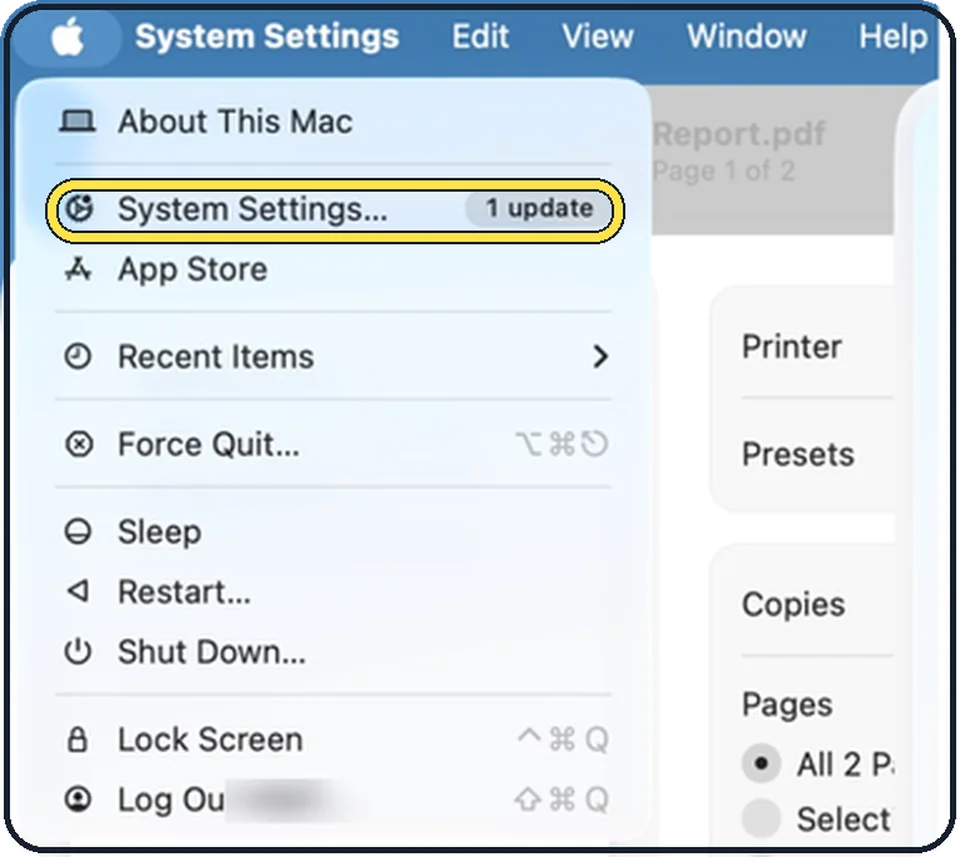
Tap the picture to see it full size Open System Settings
Click the Apple menu in the top left corner of the screen and choose System Settings.
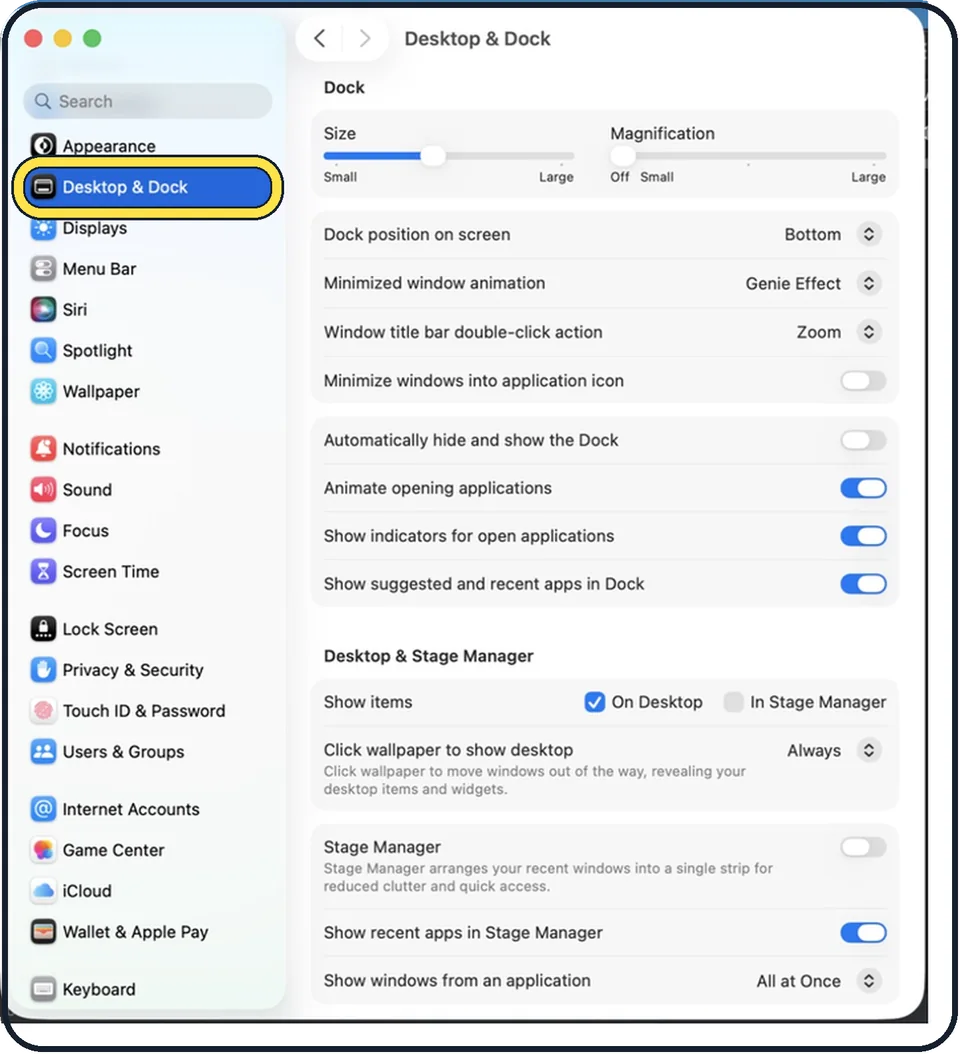
Zoomed in on the setting. Tap to see the whole screenTap the picture to see it full size Click Desktop & Dock in the sidebar
It is below Appearance. You may need to scroll down in the sidebar.
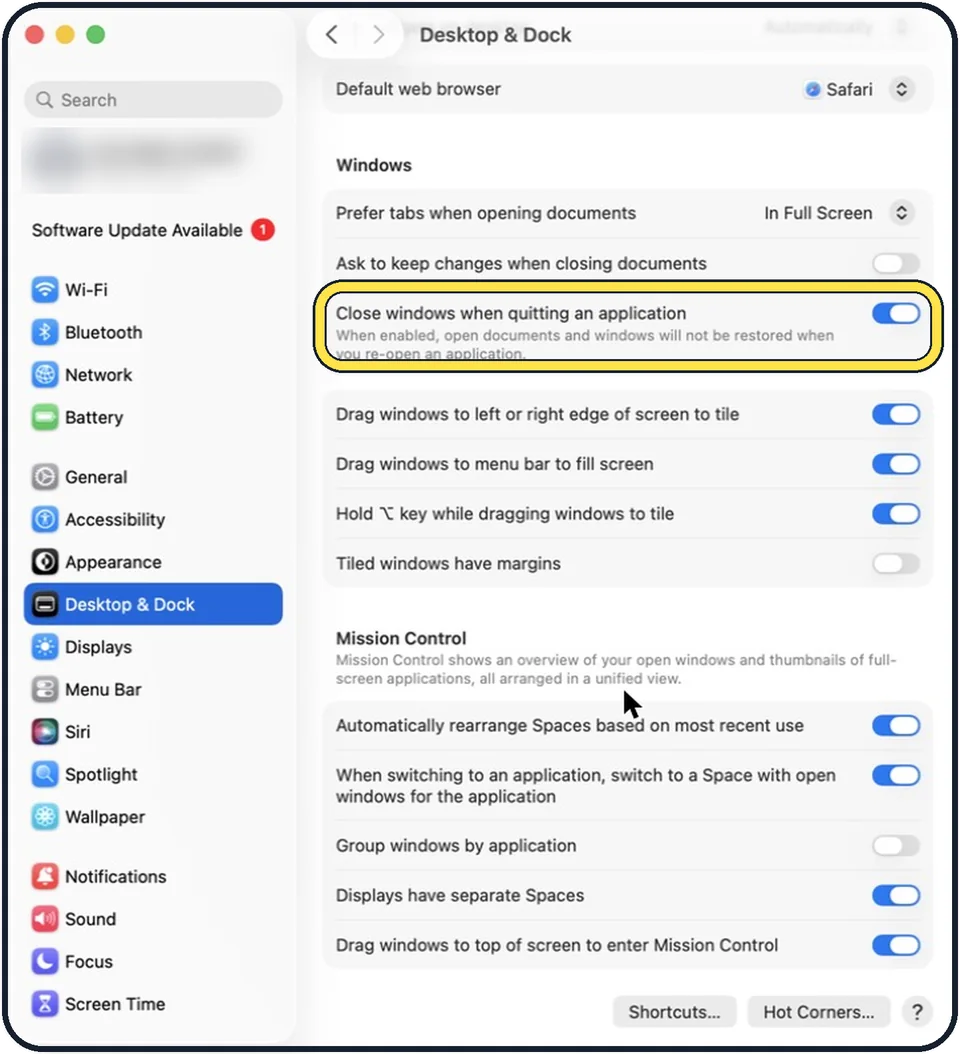
Tap the picture to see it full size Scroll to Windows and switch off Close windows when quitting an application
In the picture it is on. The note reads: when enabled, open documents and windows will not be restored when you re-open an application.
If you do not see this option
- macOS Monterey or earlier Apple says on versions before macOS Ventura the option is in System Preferences, General, as Close windows when quitting an app. Untick it there. Source: Prevent apps and windows from reopening on Mac
- Only one app forgets its windows Apple says some apps have their own setting for which windows they reopen. Safari, for example, has a setting for the windows it opens with. Source: Prevent apps and windows from reopening on Mac
If this does not work
- Windows still do not come back Apple says that if you hold Shift while opening an app, it forgets the windows that were open last time. Open it without holding Shift. Source: Prevent apps and windows from reopening on Mac
- Apps do not reopen after a restart That is a different setting. Apple says the Reopen windows when logging back in tick box in the shut down, restart or log out dialogue decides it. Source: Prevent apps and windows from reopening on Mac
About this guide
With Close windows when quitting an application on, an app starts empty: the windows you had open do not come back. The note under the switch says so. Switch it off if you want to carry on where you stopped.
The screenshots show System Settings on macOS Tahoe 26.
Good to know
The switch above it makes the Mac ask before saving: how to make a Mac ask before saving changes.
In short: System Settings, Desktop & Dock, Windows, Close windows when quitting an application off.
- Mac User Guide: Change Desktop & Dock settings on Mac
- Apple Support: Prevent apps and windows from reopening on Mac
Links checked in October 2026. Menus and features can change after software updates. These steps match the version named at the top.
Did this guide work for you?
Sorry about that. What happened?