
howtosimply.com/guides/how-to-stop-the-wallpaper-tinting-windows-on-a-mac/ · Checked October 2026 · MacBook Pro · macOS Tahoe 26
In this guide
Open System Settings, click Appearance, and switch off Tint window background with wallpaper color. Window areas such as toolbars and status bars then no longer take on colours from the wallpaper.
3 of 3 steps with real screenshots · 4 official sources below
- Device
- Mac
- Shown on
- macOS Tahoe 26 (MacBook Pro)
- App
- System Settings
- Path
- System Settings › Appearance
- Real screenshots
- 3 of 3 steps
- Checked
- October 2026
- Sources
- 4 official, linked below
Step by step
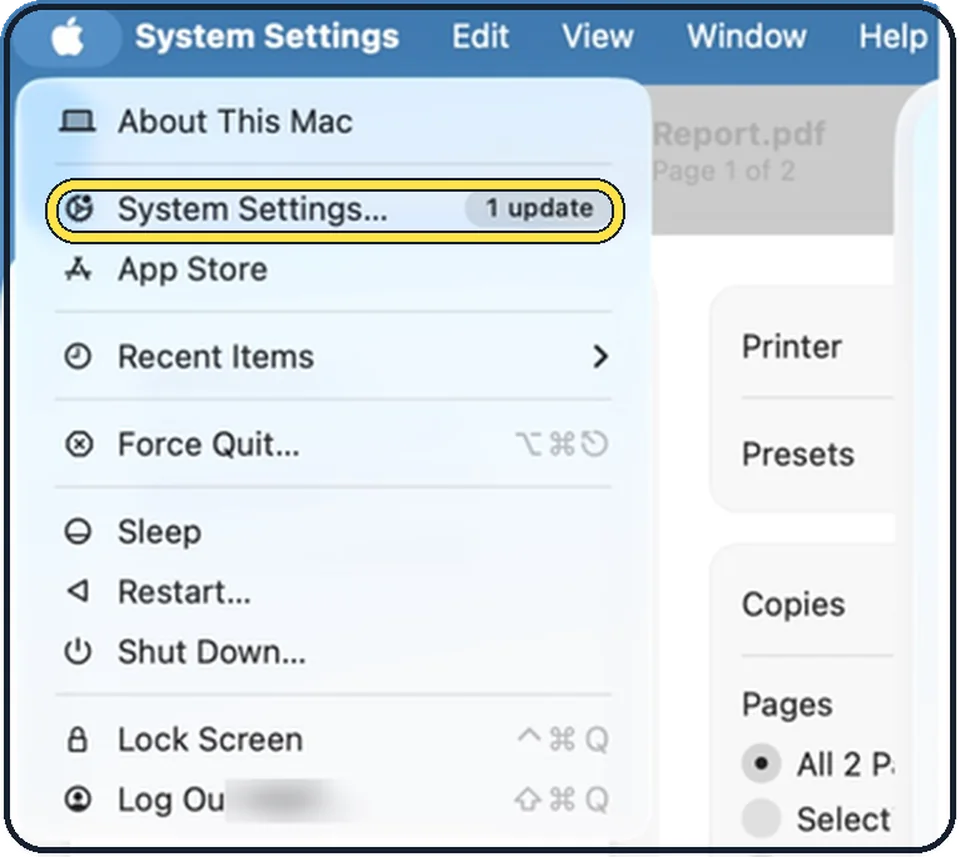
Tap the picture to see it full size Open System Settings
Click the Apple menu in the top left corner of the screen and choose System Settings.
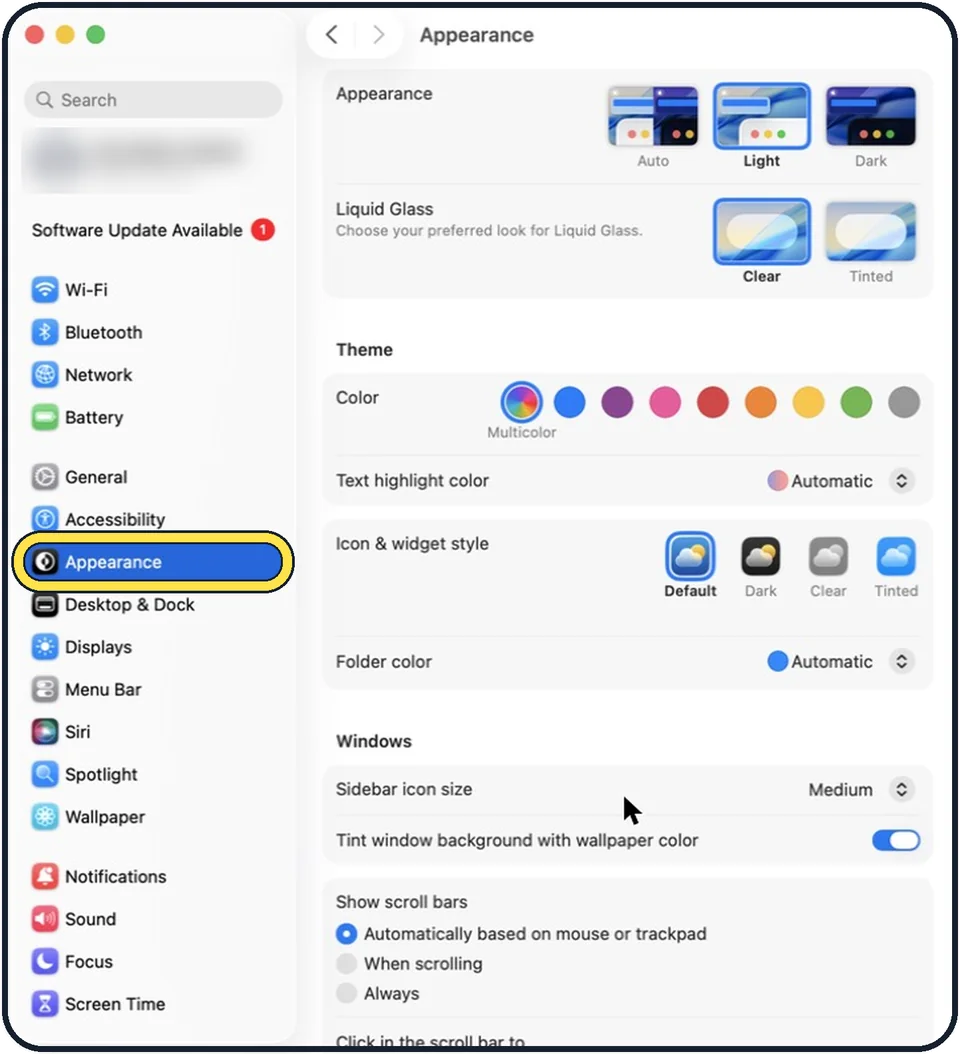
Zoomed in on the setting. Tap to see the whole screenTap the picture to see it full size Click Appearance in the sidebar
Appearance is below Accessibility.
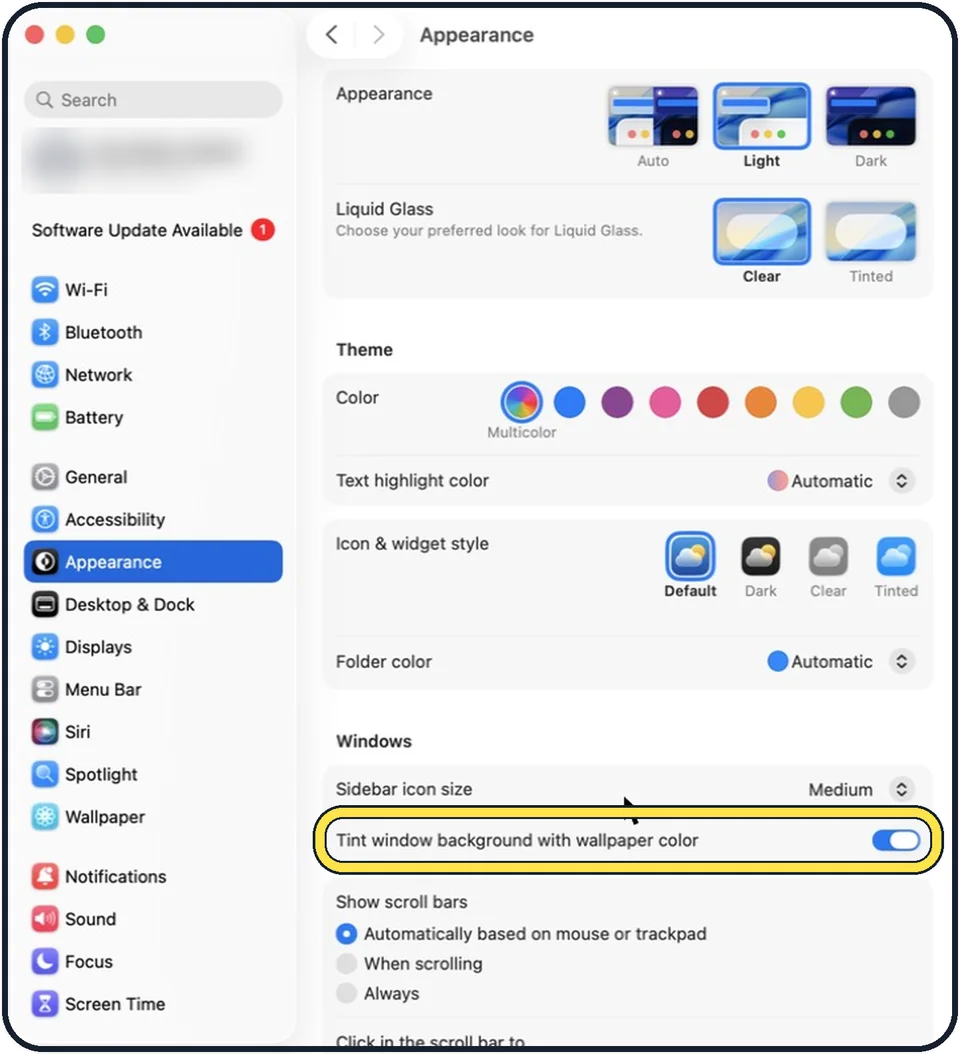
Tap the picture to see it full size Switch off Tint window background with wallpaper color
It is under the heading Windows, below Sidebar icon size. In the picture it is on.
If you do not see this option
- macOS Sequoia or Sonoma Apple's guide for those versions calls the switch Allow wallpaper tinting in windows, in Appearance settings. Source: Change Appearance settings on Mac (macOS Sequoia 15)
- The switch has a slightly different name Apple's guide for macOS Tahoe 26 calls it Tint window background with wallpaper style; our Mac shows wallpaper color. It is the row under Windows that starts with Tint window background. Source: Change Appearance settings on Mac (macOS Tahoe 26)
If this does not work
- Buttons and menus still look coloured That comes from the theme. Apple says Color under Theme sets buttons, pop-up menus and other controls; ours is set to Multicolor. Source: Change Appearance settings on Mac
- Window backgrounds look see-through Apple says Reduce transparency, in Accessibility, Display, replaces the transparent effect on some backgrounds with a solid one. Source: Change Display settings for accessibility on Mac
About this guide
macOS lets colours from the wallpaper subtly tint certain window areas. With a strongly coloured wallpaper, windows can look slightly pink, green or blue. If you want neutral windows, switch the tint off.
The screenshots show System Settings on macOS Tahoe 26.
Good to know
How much see-through effect the system uses is a different setting: how to increase contrast and reduce transparency on a Mac.
In short: System Settings, Appearance, Tint window background with wallpaper color off.
- Mac User Guide: Change Appearance settings on Mac
- Apple Support: Change Appearance settings on Mac (macOS Sequoia 15)
- Apple Support: Change Appearance settings on Mac (macOS Tahoe 26)
- Mac User Guide: Change Display settings for accessibility on Mac
Links checked in October 2026. Menus and features can change after software updates. These steps match the version named at the top.
Did this guide work for you?
Sorry about that. What happened?