Unknown device with Code 28 on Windows 11: how to fix it
By Saadat Rafiq · 2 min read · 7 steps · Published 6 October 2026
Code 28 means Windows has no driver for that device. Right-click Start, open Device Manager, right-click the Unknown device and choose Update driver, then Search automatically. If nothing is found, install optional driver updates in Windows Update or the driver from the maker of the PC or device.
- Device
- Windows
- Shown on
- Windows 11 Enterprise 25H2 (build 26200.9457), Microsoft Cloud PC
- App
- Settings
- Real screenshots
- 6 of 7 steps
- Checked
- October 2026
- Sources
- 1 official, linked below
Step by step
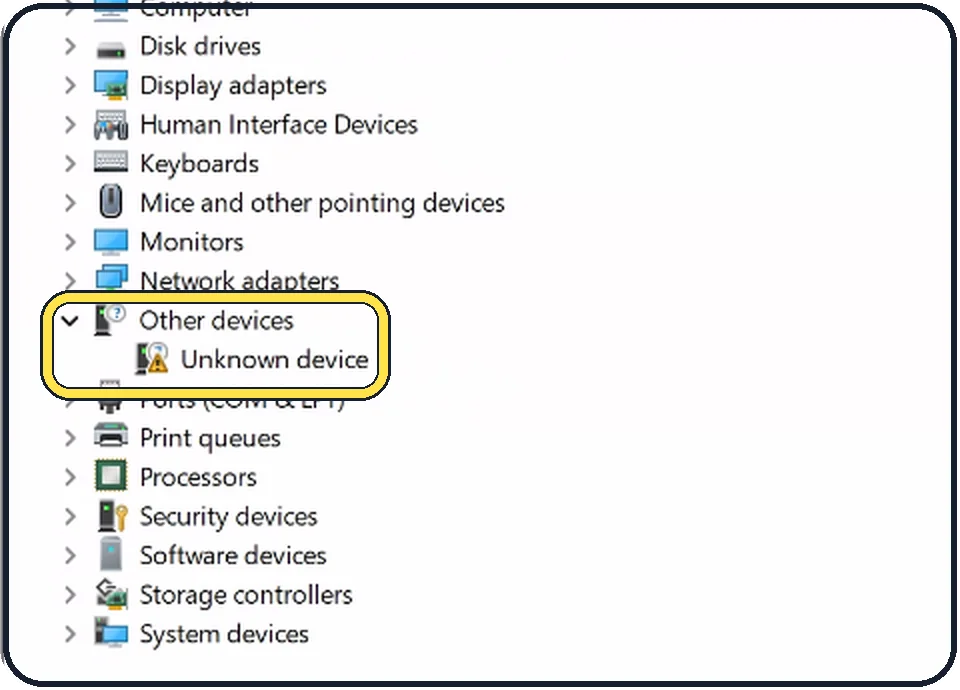
Open Device Manager
Right-click the Start button and choose Device Manager. Devices without a driver are under Other devices, with a small yellow warning sign.
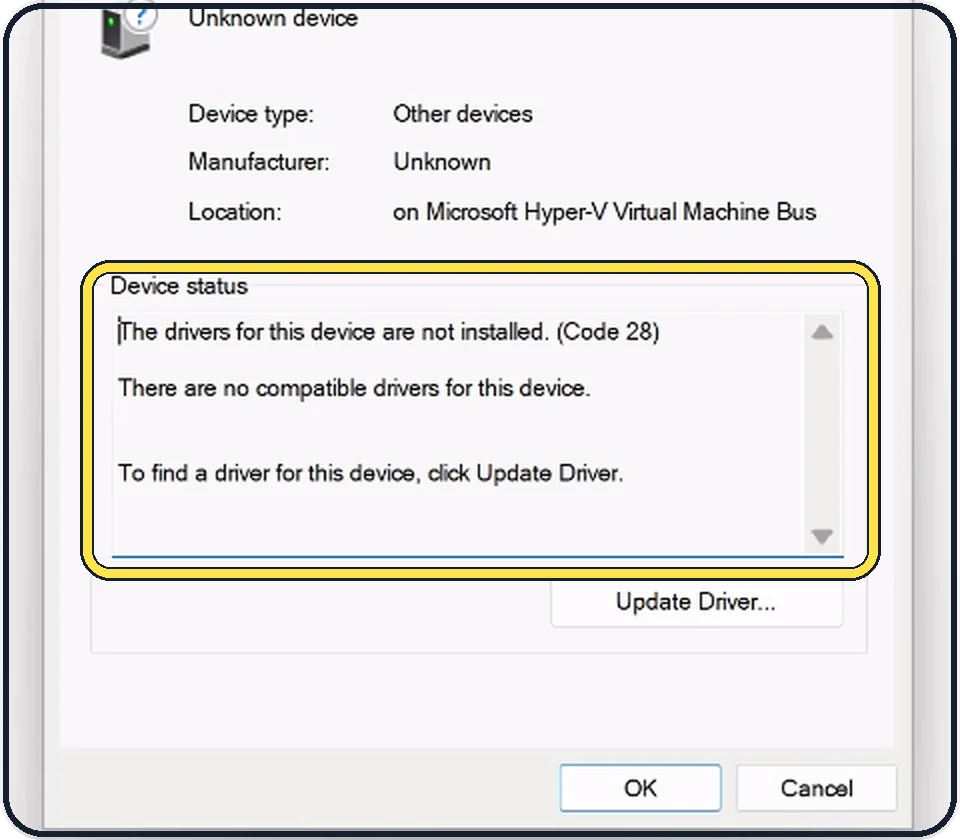
Read the device status
Double-click Unknown device. On the General tab, Device status shows the code. Code 28 reads The drivers for this device are not installed.
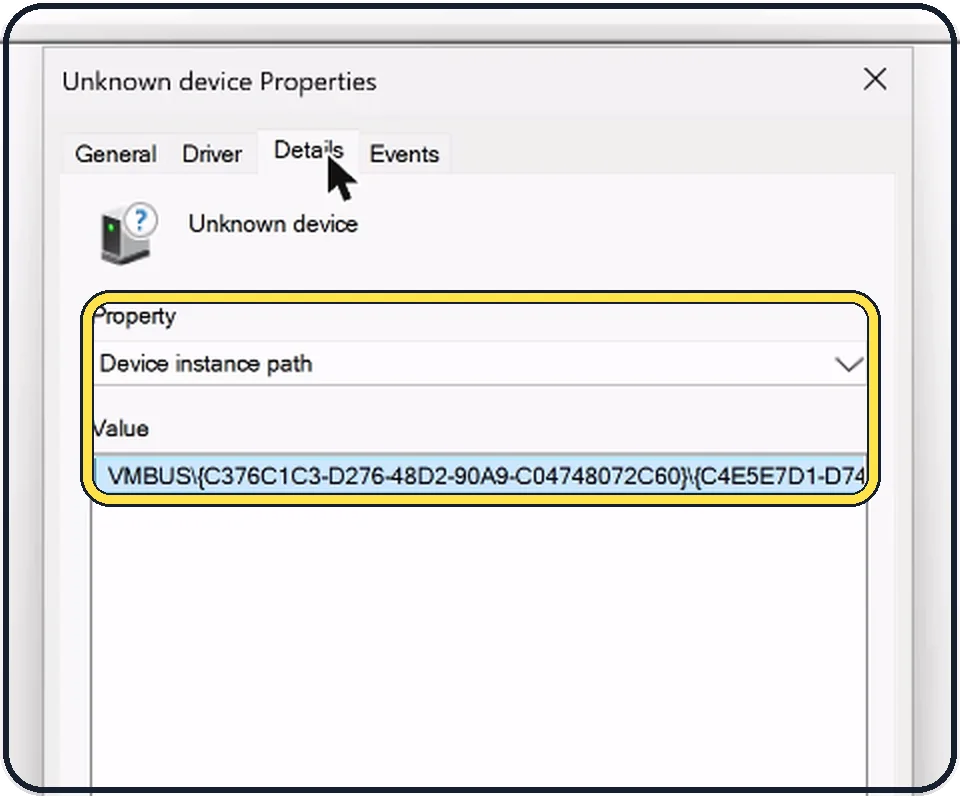
Find out what the device is
Click the Details tab and choose Device instance path or Hardware Ids under Property. The text in Value names the bus and the maker's ID. Search for it on the PC maker's website to find the right driver.
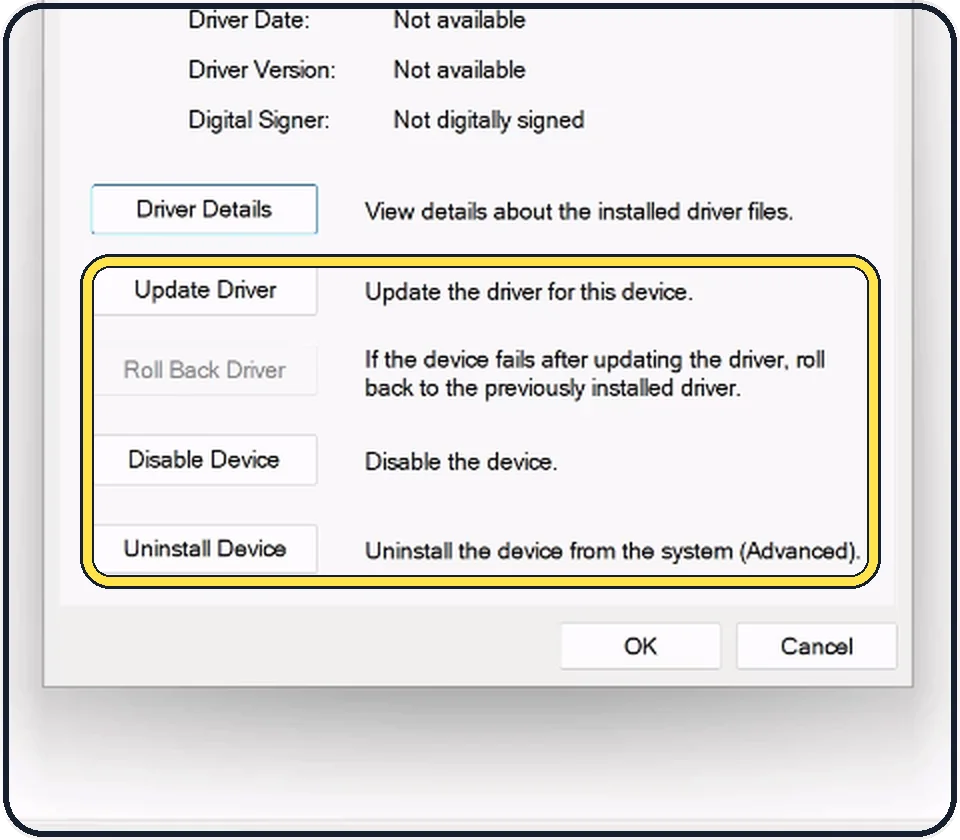
Let Windows look for a driver
On the Driver tab, click Update Driver, then Search automatically for drivers. Windows checks its own driver library and Windows Update.
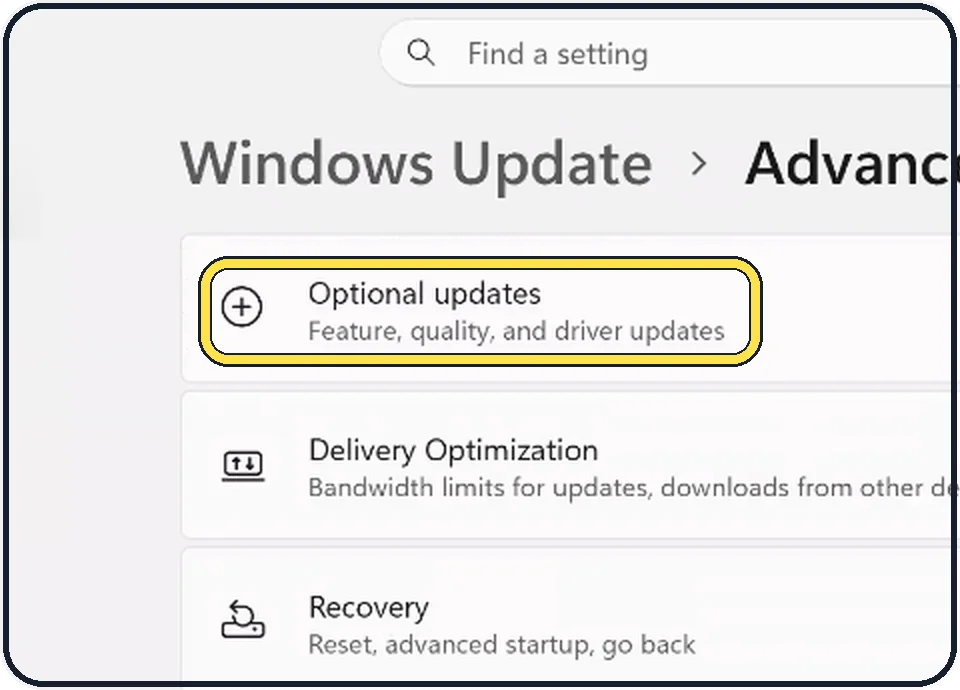
Install optional driver updates
Open Settings, Windows Update, Advanced options, Optional updates. Driver updates from the PC maker are listed there; ours shows none.
Get the driver from the maker
If Windows finds nothing, download the driver from the support page of your PC model, or of the device itself for a printer, webcam or adapter, and install it. Prefer the maker's site over driver download sites.
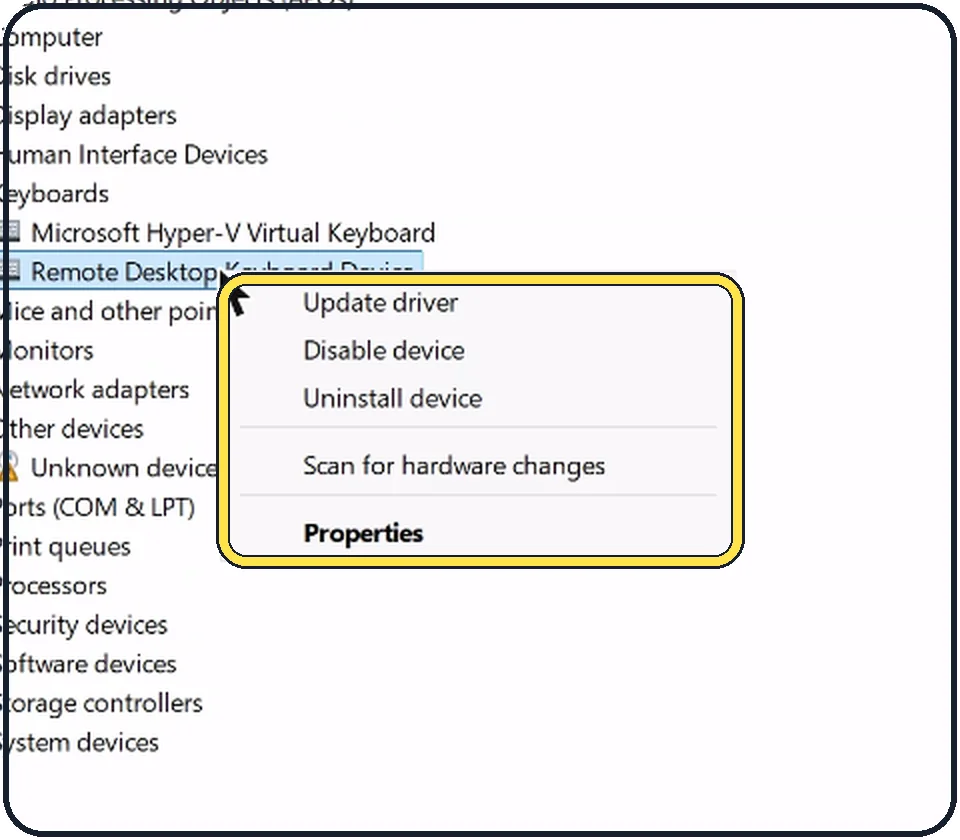
Scan for hardware changes
After installing, right-click any entry in Device Manager and choose Scan for hardware changes. The Unknown device should now show its real name.
About this guide
A yellow warning sign on Unknown device in Device Manager means a piece of hardware is connected but Windows does not know which driver to load. Microsoft's list of Device Manager errors explains Code 28 as "The drivers for this device are not installed". Our Cloud PC shows exactly this error, so the screenshots are of a real case.
The screenshots are our own, taken on Windows 11 Enterprise 25H2 (build 26200.9457) running as a Microsoft Cloud PC, a Windows PC that runs in the cloud. The Settings app is the same on Home and Pro PCs; where the Cloud PC shows something different, the step says so.
Good to know
Uninstall device in the same menu removes the entry; when you restart, Windows detects the device again and tries once more. Your own files are not touched.
If a device stopped working after an update rather than never having a driver, the Driver tab's Roll Back Driver button returns to the previous one. On our Cloud PC it is greyed out because there is no earlier driver.
Installing updates: how to check for updates on Windows 11.
In short: Device Manager, double-click Unknown device, check Code 28, Details tab for the hardware ID, Update Driver, optional updates in Windows Update, or the maker's driver, then Scan for hardware changes.
Links checked on 4 October 2026. Rules and prices change. Check the official source before you act.