
howtosimply.com/guides/how-to-share-files-between-windows-pcs-with-nearby-sharing/ · Checked October 2026 · Windows 11 Enterprise 25H2 (build 26200.9457), Microsoft Cloud PC
In this guide
On both PCs, open Settings, System, Nearby sharing and choose My devices only or Everyone nearby. Then right-click a file in File Explorer, choose Share and click the name of the other PC. On that PC, click Save or Save & open.
4 of 7 steps with real screenshots · 1 official source below
- Device
- Windows
- Shown on
- Windows 11 Enterprise 25H2 (build 26200.9457), Microsoft Cloud PC
- App
- Settings
- Path
- Settings › System
- Real screenshots
- 4 of 7 steps
- Checked
- October 2026
- Sources
- 1 official, linked below
Step by step
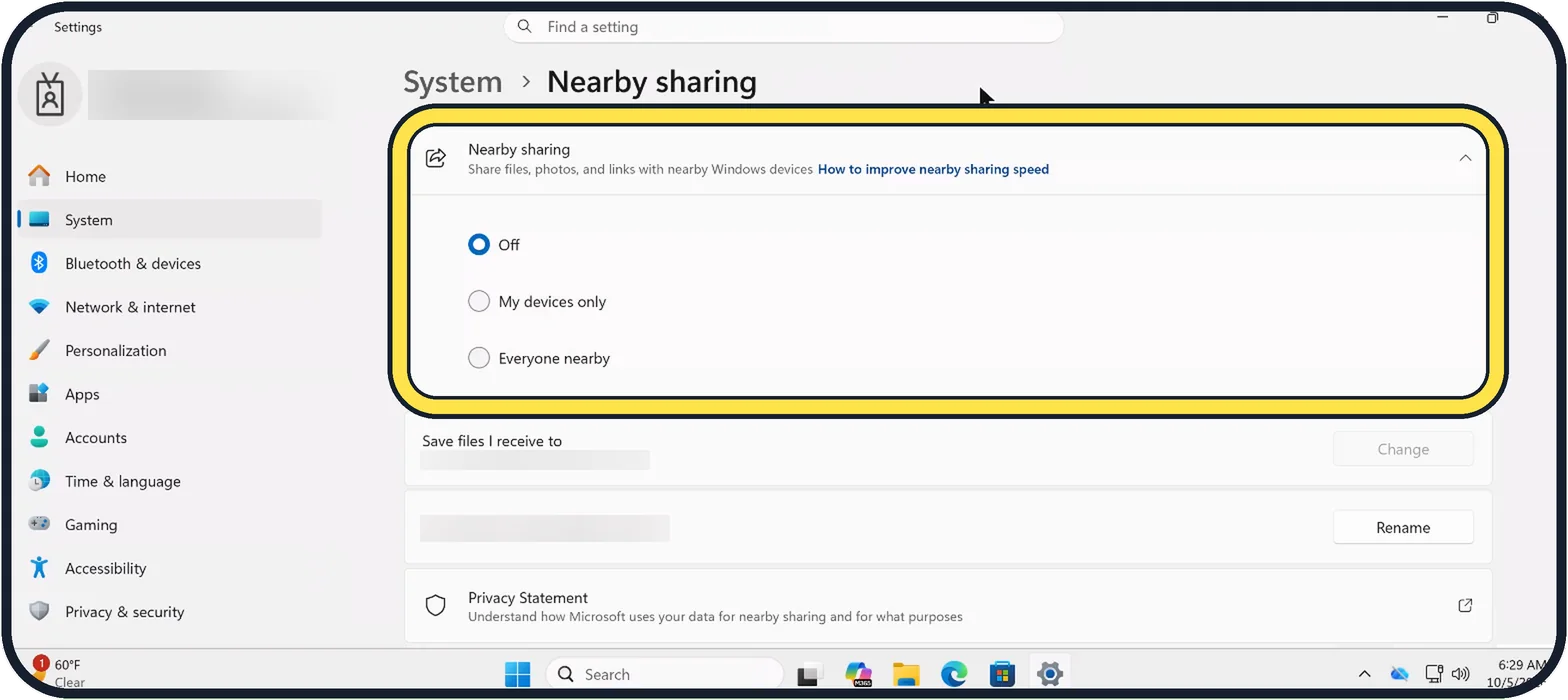
Tap the picture to see it full size Turn it on on both PCs
Open Start, Settings, System, Nearby sharing. Choose My devices only to share between PCs signed in to your own Microsoft account, or Everyone nearby to share with any PC close to you. Off is the default on our Cloud PC.
Check Bluetooth and Wi-Fi
Bluetooth must be on. Transfers are much faster when both PCs are also on the same Wi-Fi network and that network is set to Private.
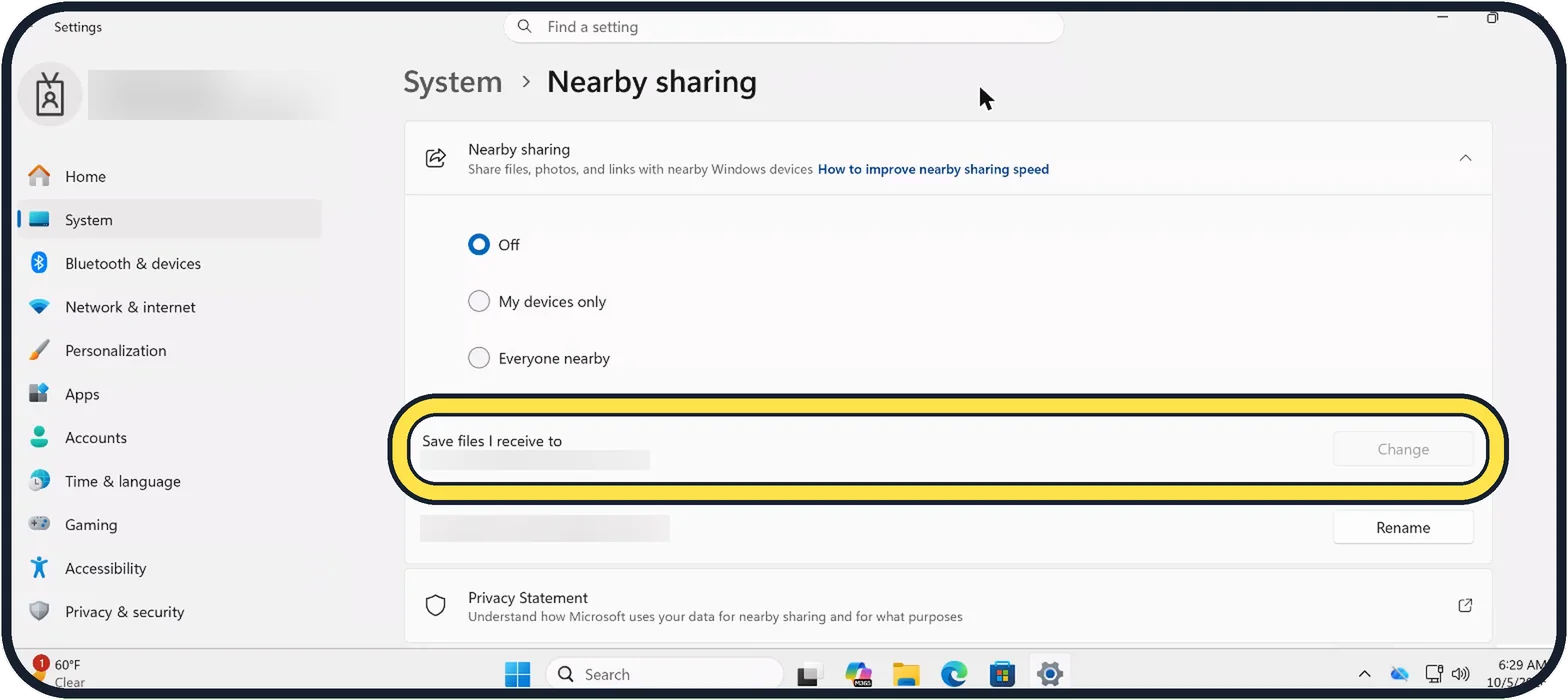
Tap the picture to see it full size Choose where received files go
Under Save files I receive to, Microsoft says you can choose another folder with Change. On our Cloud PC the Change button was greyed out.
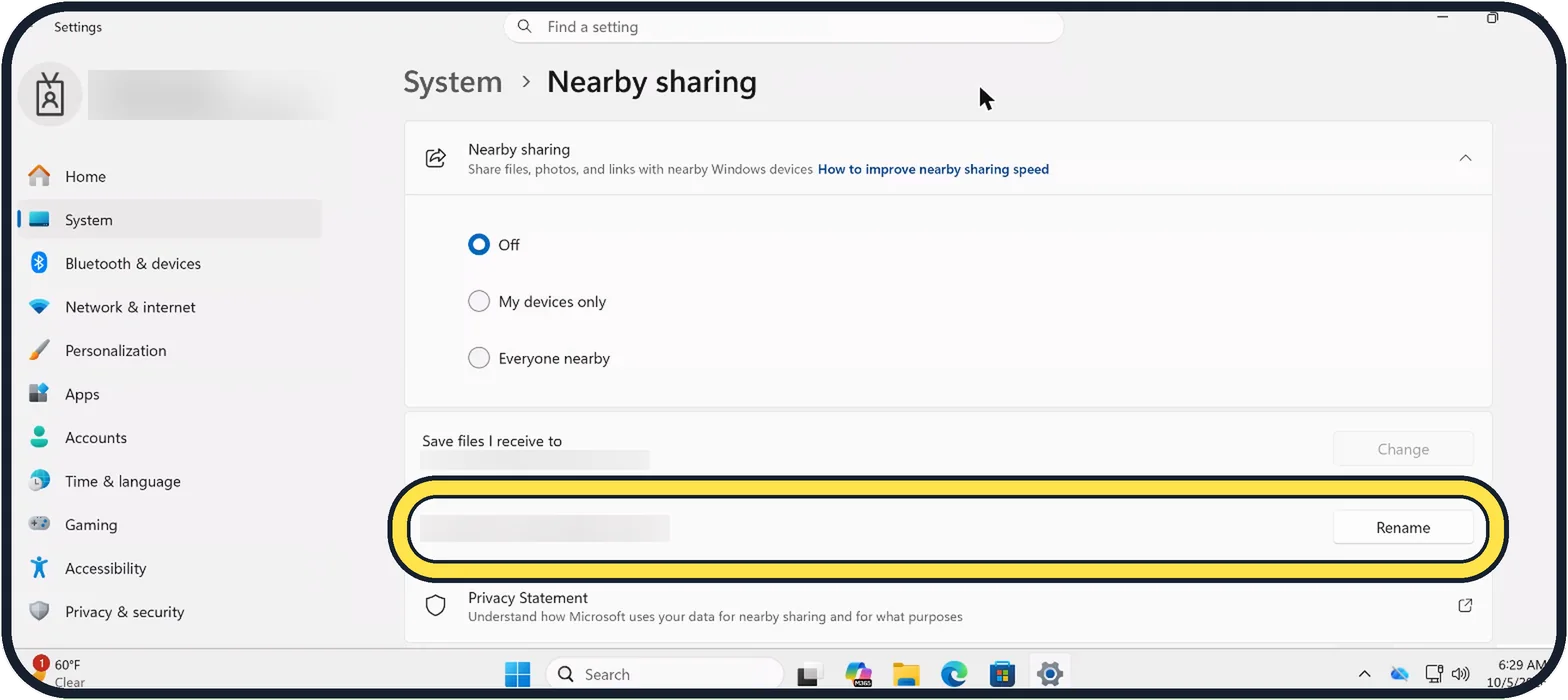
Tap the picture to see it full size Check the name others see
Your device is discoverable as shows the name other PCs see. Click Rename to give it a name people recognise. We blurred ours.
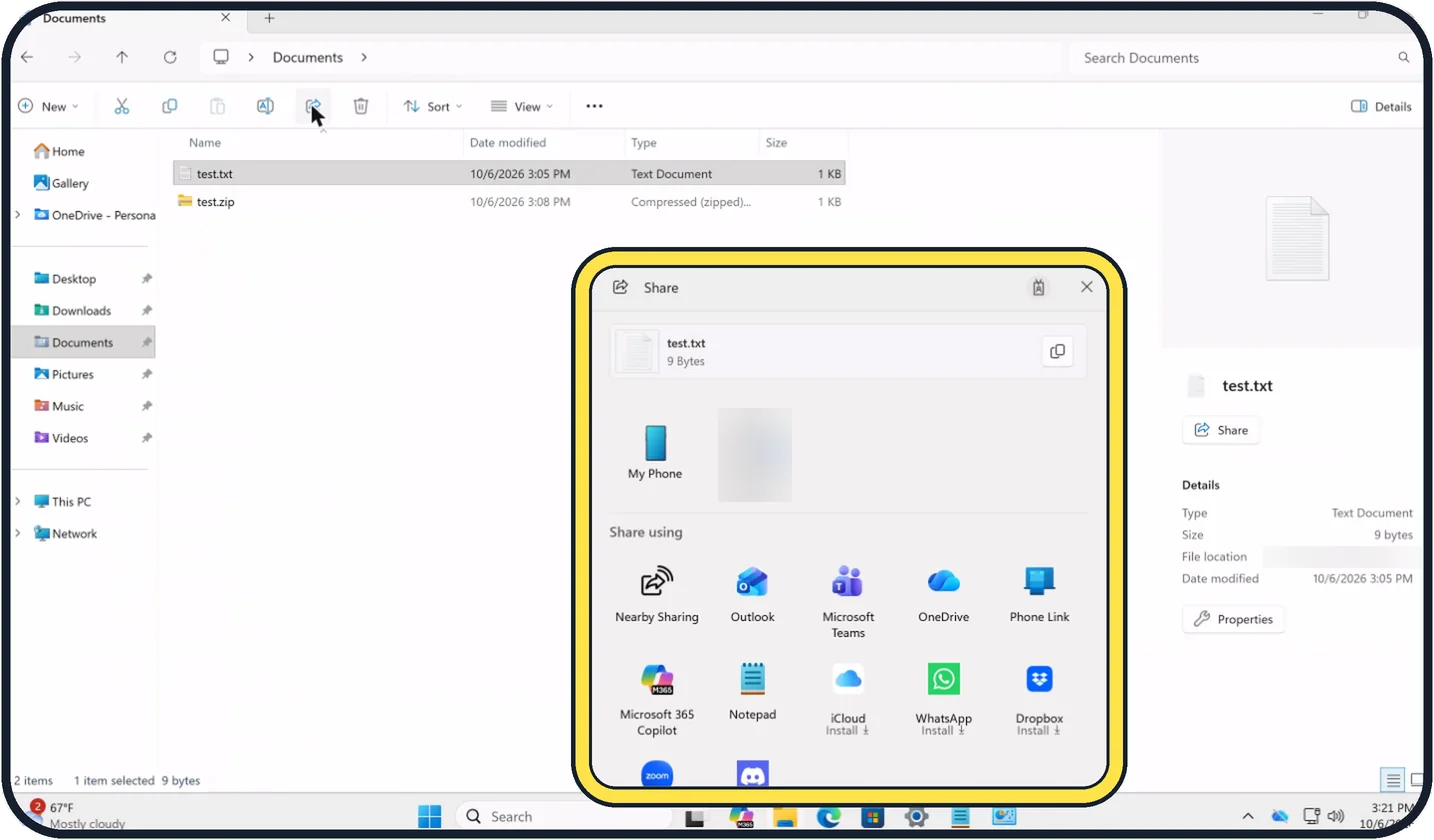
Zoomed in on the setting. Tap to see the whole screenTap the picture to see it full size Share a file
In File Explorer, select the file and click Share in the toolbar, or right-click it and choose Share. In the Share window, pick Nearby Sharing and then the name of the other PC.
Accept on the other PC
A notification appears there. Click Save & open or Save.
Share a web page or a photo
In Microsoft Edge, open Settings and more, More tools, Share and pick the PC. In the Photos app, open the picture and click Share.
About this guide
Nearby sharing sends files, photos and links from one Windows PC to another close by, over Bluetooth or Wi-Fi, without a cable, a USB stick or email. Both PCs need Windows 11 or Windows 10 from version 1803.
The screenshots are our own, taken on Windows 11 Enterprise 25H2 running as a Microsoft Cloud PC, a Windows PC that runs in the cloud.
Good to know
With Everyone nearby, the name of your PC is visible to other PCs around you. Switch back to My devices only or Off when you are done, especially in public places.
If the other PC does not appear, bring the two closer together and open the Nearby sharing settings on the receiving PC.
To and from an Android phone, use Quick Share: how to share files with Quick Share on Android. For phone notifications and photos on the PC: how to connect a phone to a Windows 11 PC with Phone Link.
In short: Settings, System, Nearby sharing on both PCs, Bluetooth on, right-click the file, Share, pick the PC, Save on the other side.
Links checked in October 2026. Menus and features can change after software updates. These steps match the version named at the top.
Did this guide work for you?
Sorry about that. What happened?