
howtosimply.com/guides/how-to-set-up-a-vpn-connection-on-windows-11/ · Checked October 2026 · Windows 11 Enterprise 25H2 (build 26200.9457), Microsoft Cloud PC
In this guide
Open Settings, Network & internet, VPN and click Add VPN. Choose Windows (built-in) as the provider, give the connection a name, enter the server address, the VPN type and the type of sign-in info, and click Save. Then click Connect next to the new entry.
3 of 6 steps with real screenshots · 1 official source below
- Device
- Windows
- Shown on
- Windows 11 Enterprise 25H2 (build 26200.9457), Microsoft Cloud PC
- App
- Settings
- Path
- Settings › Network & internet › VPN › Add VPN › Windows (built-in)
- Real screenshots
- 3 of 6 steps
- Checked
- October 2026
- Sources
- 1 official, linked below
Step by step
Collect the details
You need the server name or address, the VPN type (the protocol), and how you sign in: user name and password, a certificate or a one-time code. Your IT department or the VPN provider gives you these.
Tap the picture to see it full size Open Settings, Network & internet, VPN
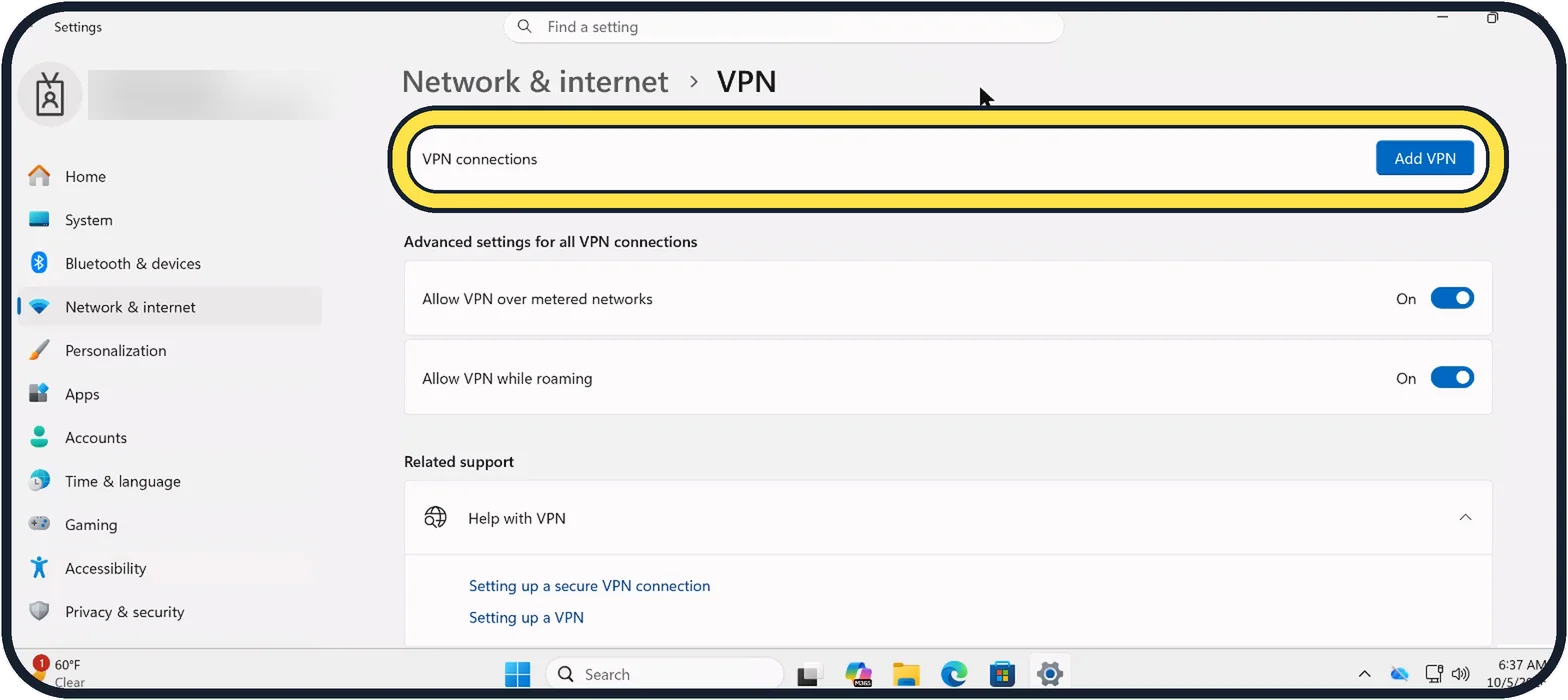
Next to VPN connections, click Add VPN. Our Cloud PC has no VPN yet, so the list is empty.
Zoomed in on the setting. Tap to see the whole screenTap the picture to see it full size Fill in the form
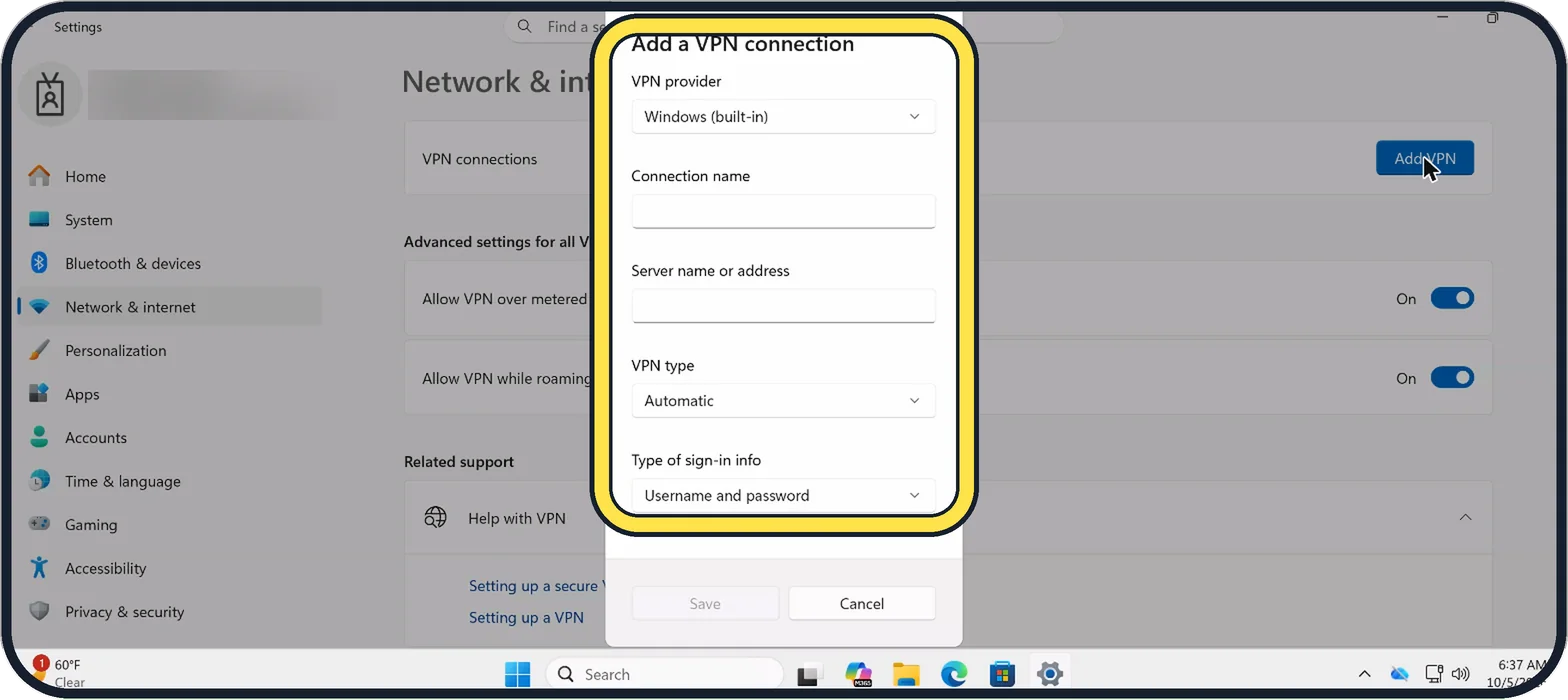
VPN provider: Windows (built-in). Connection name: any name you will recognise, for example Work VPN. Server name or address: as given to you. VPN type: Automatic, or the protocol you were told. Type of sign-in info: Username and password unless told otherwise.
Zoomed in on the setting. Tap to see the whole screenTap the picture to see it full size Click Save
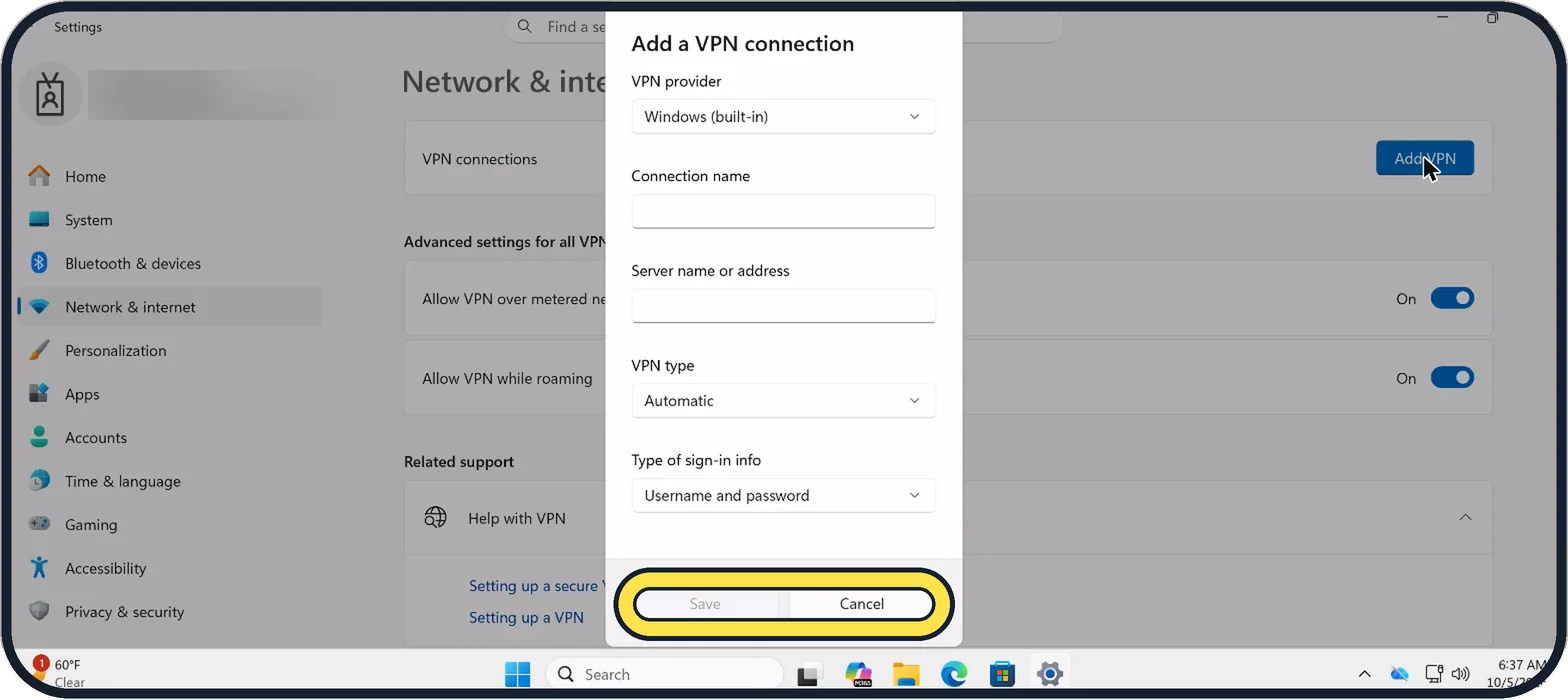
Save only becomes clickable once the required boxes are filled; on our empty form it is still grey. The connection then appears in the VPN list.
Connect
Click Connect next to the entry and enter your sign-in details if asked. When it says Connected under the name, the VPN is up.
Connect from the taskbar next time
Click the network, volume and battery icons at the right of the taskbar and click VPN. A shield on the network icon shows that the VPN is active.
About this guide
Windows 11 can connect to a VPN without extra software, which is what you need for a company or university network. You get the details from the organisation that runs the VPN. Commercial VPN services usually come with their own app, which sets all of this up for you.
Good to know
A VPN from your employer sends your traffic through the company network. Use it for work, and disconnect for private browsing if your employer's rules say so.
If the connection fails, check the server address and VPN type first. A wrong protocol is the most common mistake.
On public Wi-Fi a VPN protects what you send from others on the same network. It does not make you anonymous to the VPN provider.
Connection trouble in general: Windows 11 Wi-Fi not working: 8 fixes to try.
In short: Settings, Network & internet, VPN, Add VPN, Windows (built-in), name, server, type, sign-in info, Save, Connect.
Links checked in October 2026. Menus and features can change after software updates. These steps match the version named at the top.
Did this guide work for you?
Sorry about that. What happened?