ANDROID
Nothing Phone not getting notifications? 7 settings to check
Check Settings, Notifications, App notifications and the app's own Notifications row, then let the app run in the background under App battery usage. Also check Sleep standby optimisation, Modes such as Do Not Disturb, Flip to Glyph and your Essential Notifications rules.

7 of 7 steps show a real screenshot from our Phone (4a) Pro. Each step was checked against the maker's own instructions, linked at the end.
Steps
- 1
Open App notifications
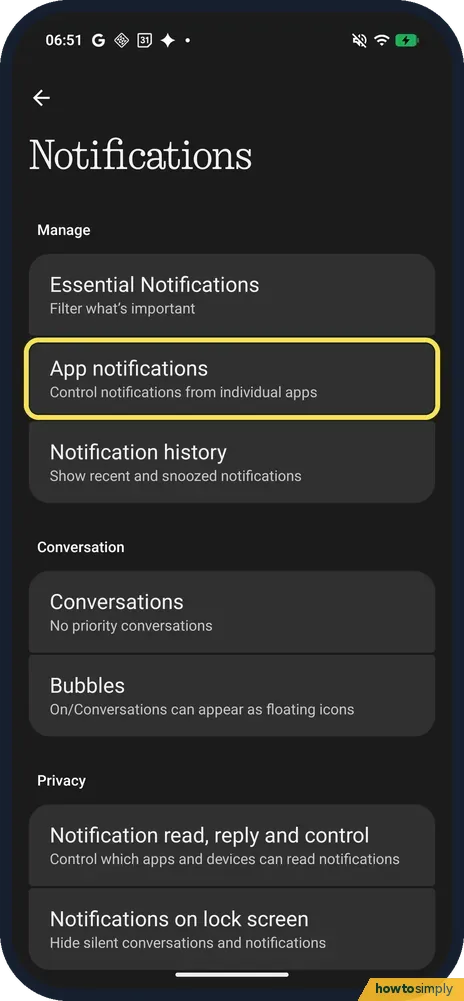
Open Settings, Notifications and tap App notifications: Control notifications from individual apps. The app you pick there has its own switches.
- 2
Check the app's Notifications row
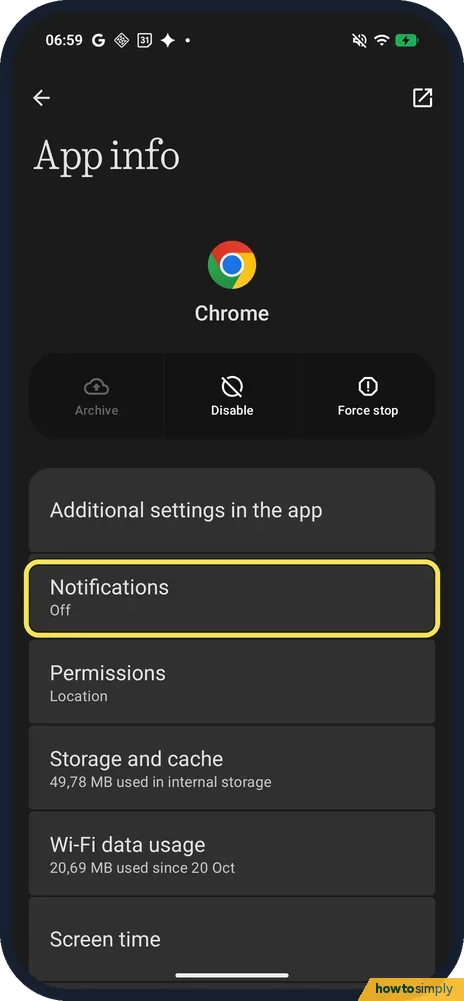
You can also open the app's App info from Settings, Apps. Ours showed Notifications Off for Chrome, so Chrome could not notify at all. Tap the row and turn notifications on.
- 3
Let it run in the background
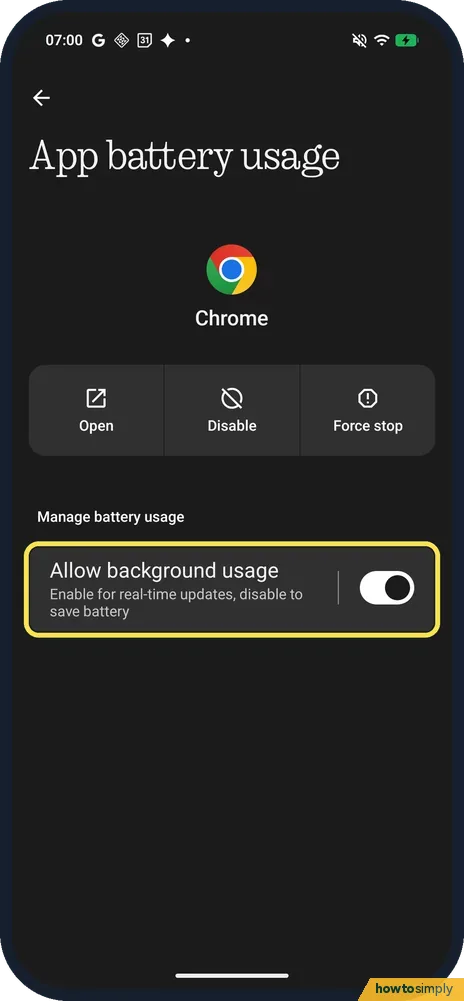
Scroll down App info and tap App battery usage. Allow background usage was on for Chrome on ours; the page says: Enable for real-time updates, disable to save battery. Keep it on for chat apps.
- 4
Check Sleep standby optimisation
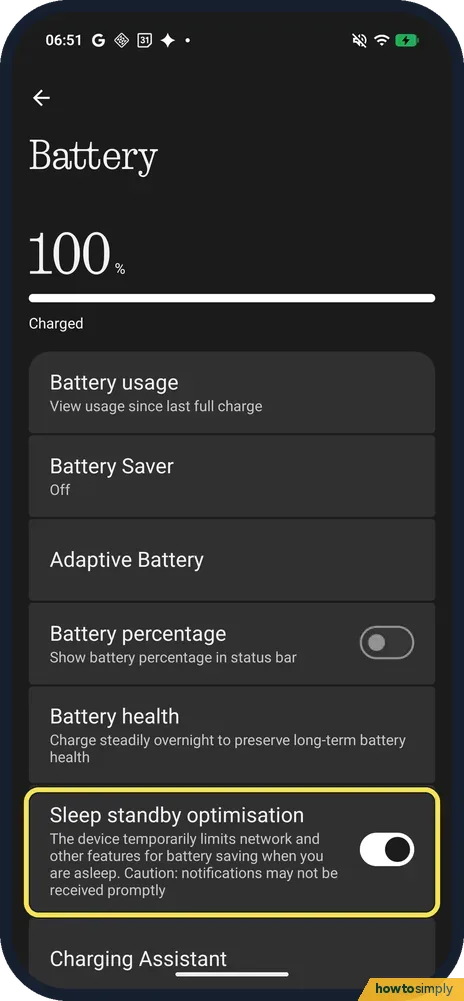
Open Settings, Battery. Sleep standby optimisation was on on ours, and the page warns: Caution: notifications may not be received promptly. Turn it off if messages arrive late at night.
- 5
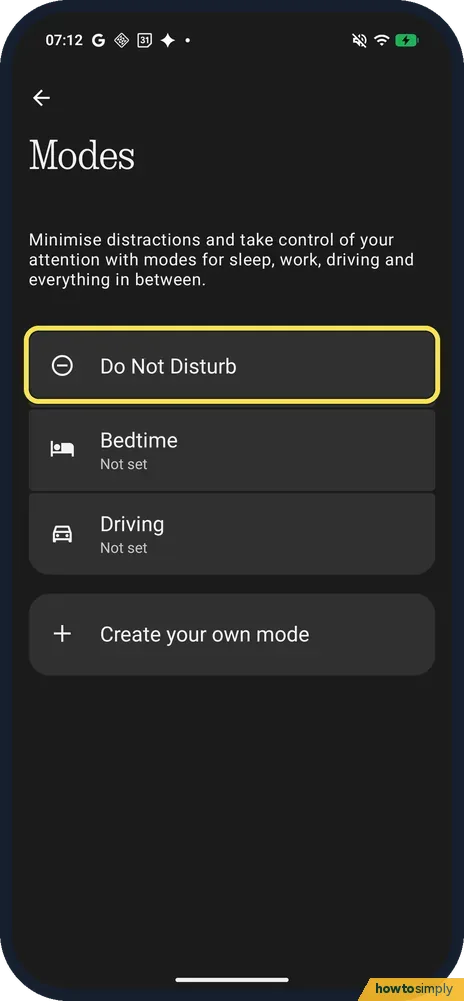
Check Modes
Open Settings, Modes. Ours listed Do Not Disturb, Bedtime (Not set) and Driving (Not set). Make sure no mode is on, or that the app or person is allowed through it.
- 6
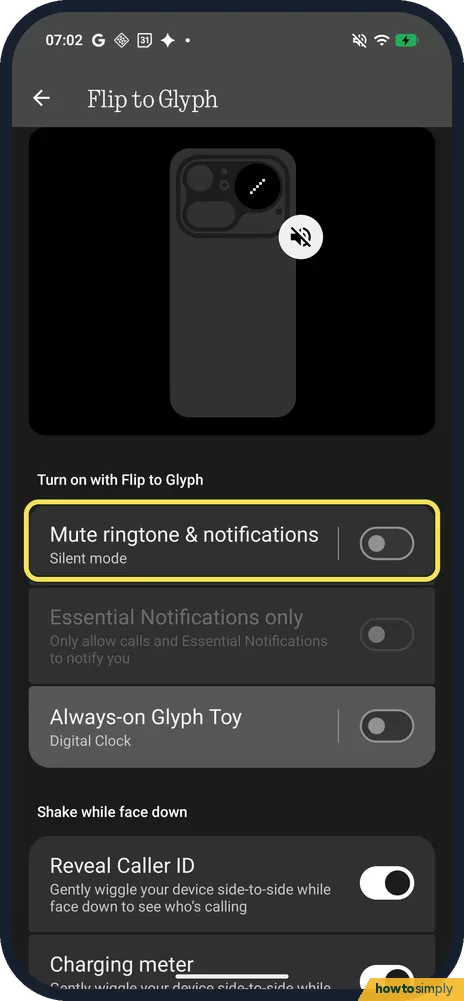
Check Flip to Glyph
Open Settings, Glyph Interface, Flip to Glyph. With Mute ringtone & notifications on, laying the phone face down puts it in Silent mode. It was off on ours.
- 7
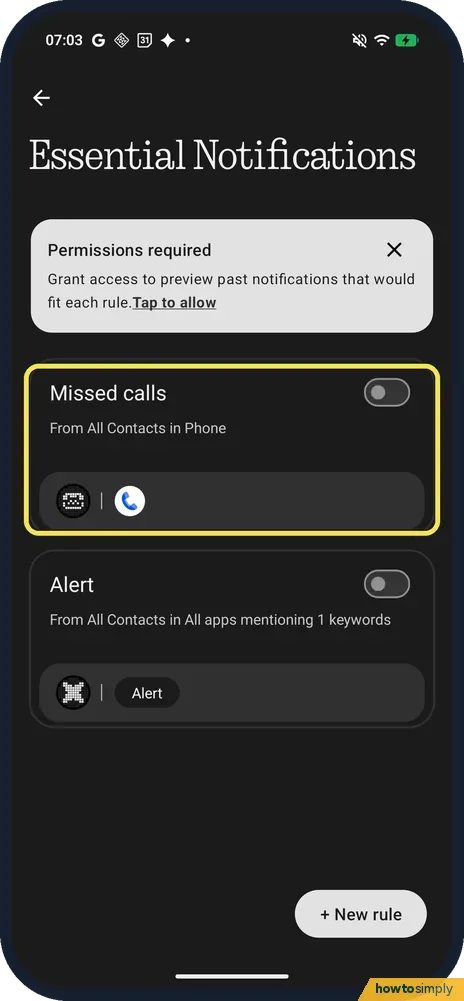
Check your Essential Notifications rules
Open Settings, Notifications, Essential Notifications. Ours had two rules, Missed calls and Alert, both off, and a Permissions required card asking to preview past notifications. A rule only works when its switch is on.
If you do not see this option
- Want to turn off one kind of alert only? Google says many apps have categories: open the app in App notifications and turn off the categories you do not need, rather than the whole app. Source: Control notifications on Android
- Missed one and want it back? Notification history, on the Notifications page, shows recent and snoozed notifications once it is on. See the link below.
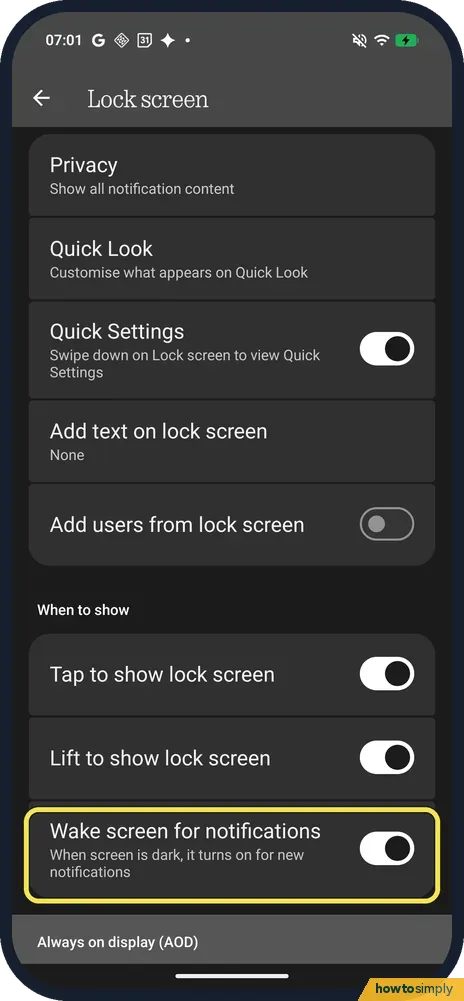
- Notification arrives but the screen stays dark? Wake screen for notifications is on the Lock screen page; it was on on ours: When screen is dark, it turns on for new notifications.
If this does not work
- Notifications stopped after you limited the battery? Adaptive Battery's own page on ours warns that restricted apps may not work properly and notifications may be delayed. Set that app back to Optimised, or Unrestricted, under Allow background usage.
- You turned one off by accident? Find the app under Settings, Notifications, App notifications, as in step 1, and turn its notifications back on. If the app has categories, check that the one you need is on as well.
- Nothing at all comes through, even calls? Check Do Not Disturb: Google says Do Not Disturb modes can block calls, alarms and other interruptions. See turn on Do Not Disturb on a Nothing Phone.
Good to know
If notifications work again after a change, leave the other settings as they are. Each switch above affects either one app (its notifications and background usage) or the whole phone (Sleep standby optimisation, Modes and Flip to Glyph).
Turning off Sleep standby optimisation or setting an app to Unrestricted can use more battery. Change it only for the apps that matter to you; see Nothing Phone battery draining fast.
Google says you can also touch and hold a notification in the shade and tap Settings to jump to that app's notification settings.
About this guide
- Device
- Android
- Shown on
- Nothing Phone (4a) Pro (A069P, EEA), Nothing OS 4.1, Android 16 (build FroggerPro-B4.1-260907-1153-EEA)
- App
- Settings
- Path
- Settings › Notifications › App notifications
- Real screenshots
- 7 of 7 steps
- Checked
- October 2026
- Sources
- 3 official, linked below
Sources
Links checked October 2026. Menus and features can change with updates.Spotted a mistake? Menus change with updates, and we want every step to match your screen. Email us about this page or use the contact form. We read every report, and fixes are listed on What changed.
Liked this guide?
Follow us for new guides and short how-to videos.
Did this guide work for you?
Sorry about that. What happened?