
howtosimply.com/guides/how-to-set-up-essential-space-on-a-nothing-phone/ · Checked October 2026 · 4a) Pro (A069P, EEA), Nothing OS 4.1, Android 16 (build FroggerPro-B4.1-260907-1153-EEA · Nothing Phone
In this guide
- Tap Get started
- Read the feature list and tap Continue
- Pick a location option
- See where the Essential Key is and tap Got it
- Double-click the Essential Key
- Read what is new and tap Continue
- Read about live note taking and tap Continue
- Accept or Decline Memory
- See the main page
- Tap the profile icon
- In Settings, tap Essential Key
- Choose the Essential Key options
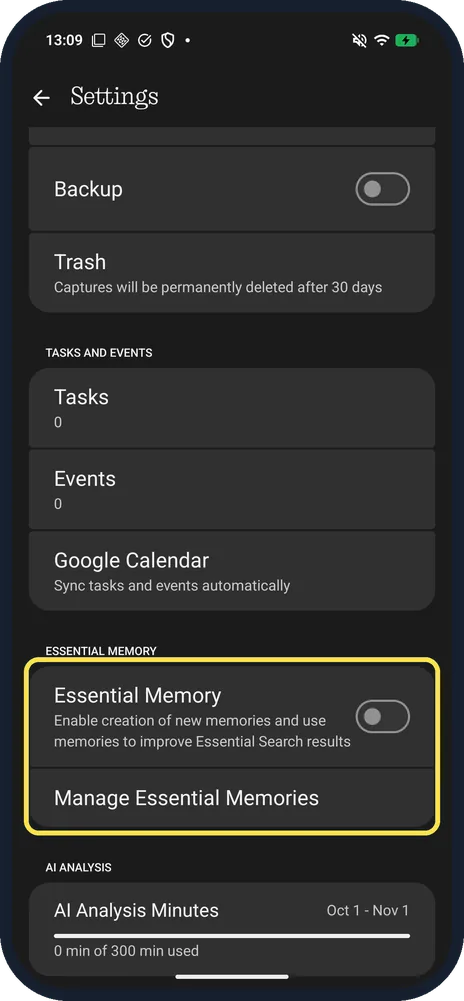
- Check Essential Memory
- If you do not see this option
- If this does not work
- Good to know
- Sources
Nothing says to double-press the Essential Key to open Essential Space. Tap Get started and Continue, pick a location option, then double-click the key when the setup asks. The profile icon at the bottom left opens Settings, with the Essential Key options and Essential Memory.
13 of 13 steps with real screenshots · 4 official sources below
- Device
- Android
- Shown on
- Nothing Phone (4a) Pro (A069P, EEA), Nothing OS 4.1, Android 16 (build FroggerPro-B4.1-260907-1153-EEA)
- App
- Settings
- Real screenshots
- 13 of 13 steps
- Checked
- October 2026
- Sources
- 4 official, linked below
Step by step
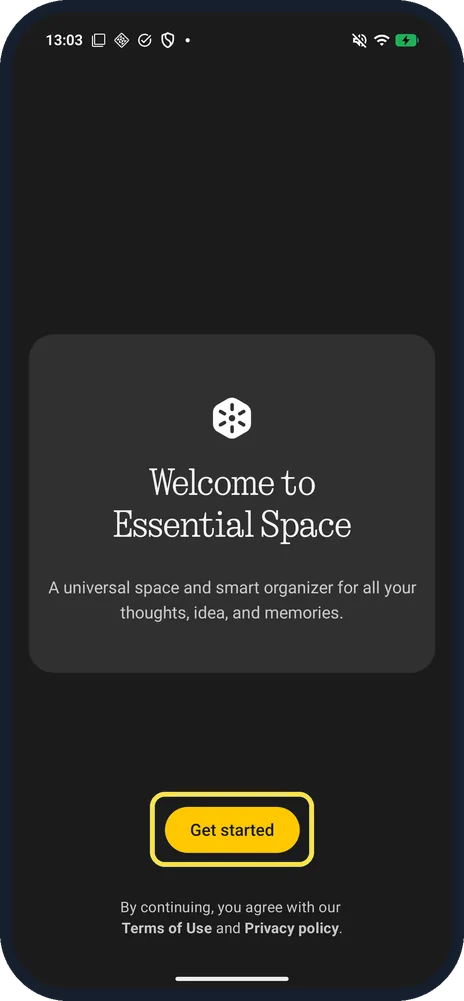
Tap Get started
The welcome screen says that by continuing you agree with Nothing's Terms of Use and Privacy policy.
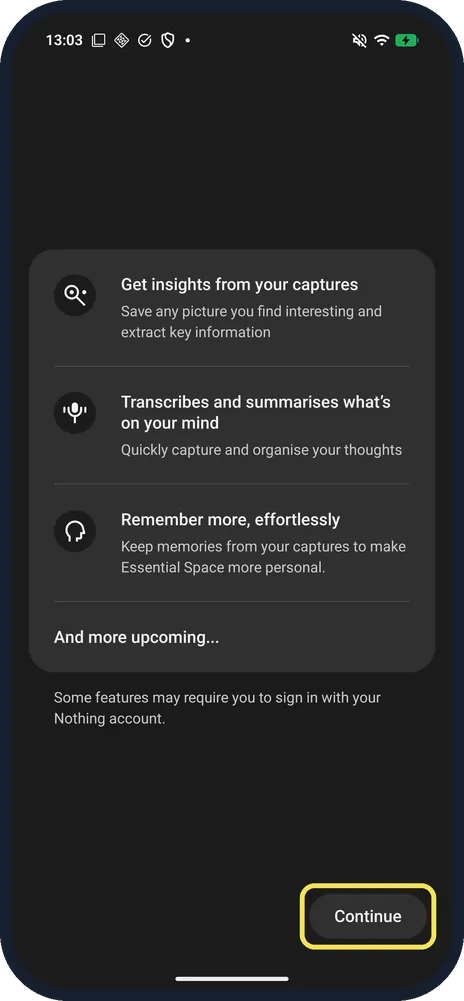
Read the feature list and tap Continue
Get insights from your captures, Transcribes and summarises what's on your mind, and Remember more, effortlessly. The note says some features may require you to sign in with your Nothing account.
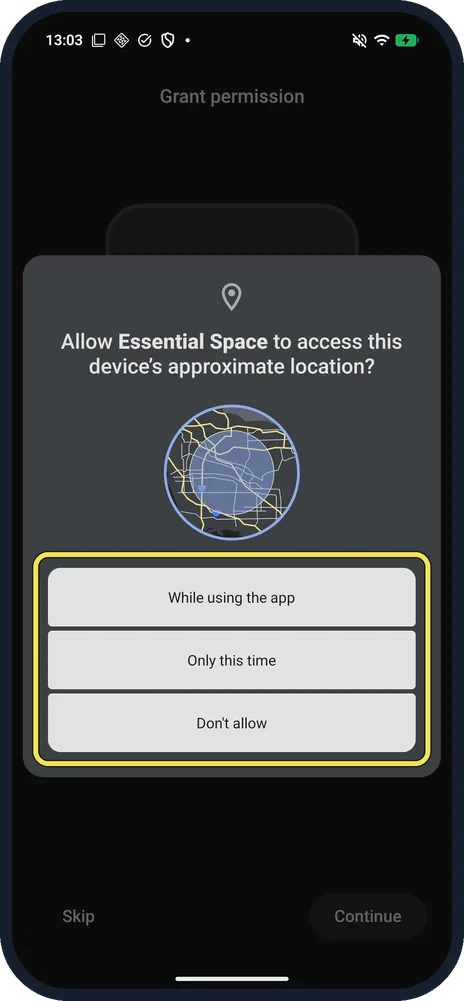
Pick a location option
Essential Space asks for this device's approximate location: While using the app, Only this time or Don't allow. We tapped Only this time.
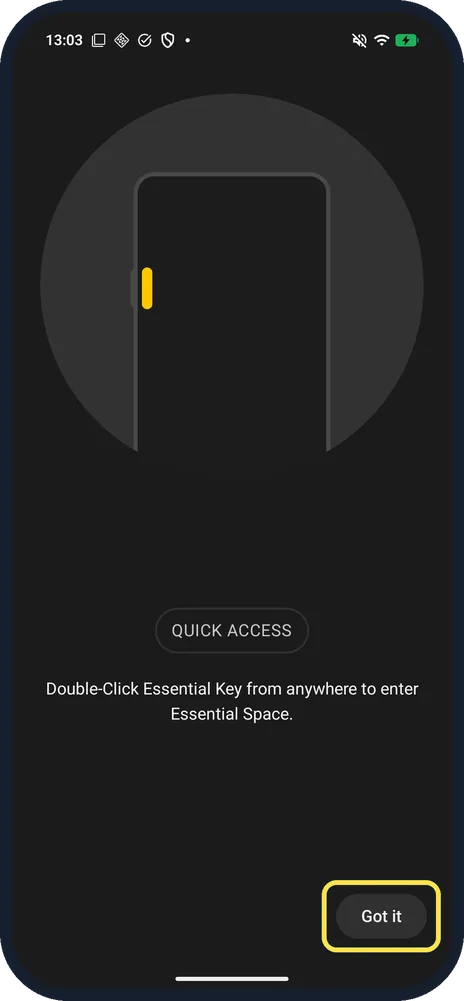
See where the Essential Key is and tap Got it
QUICK ACCESS: Double-Click Essential Key from anywhere to enter Essential Space. The yellow mark shows the key on the left edge of the phone. Got it is at the bottom right.
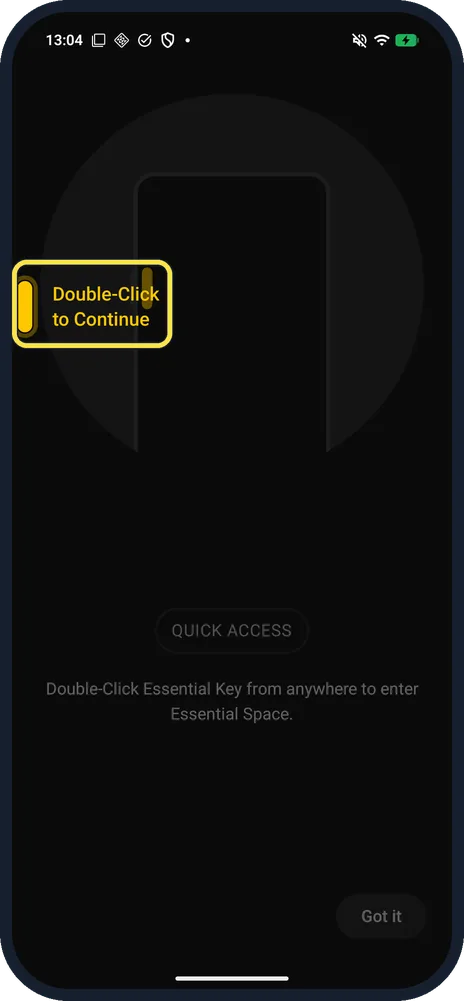
Double-click the Essential Key
The setup then waits with Double-Click to Continue next to the key. Press the real key twice.
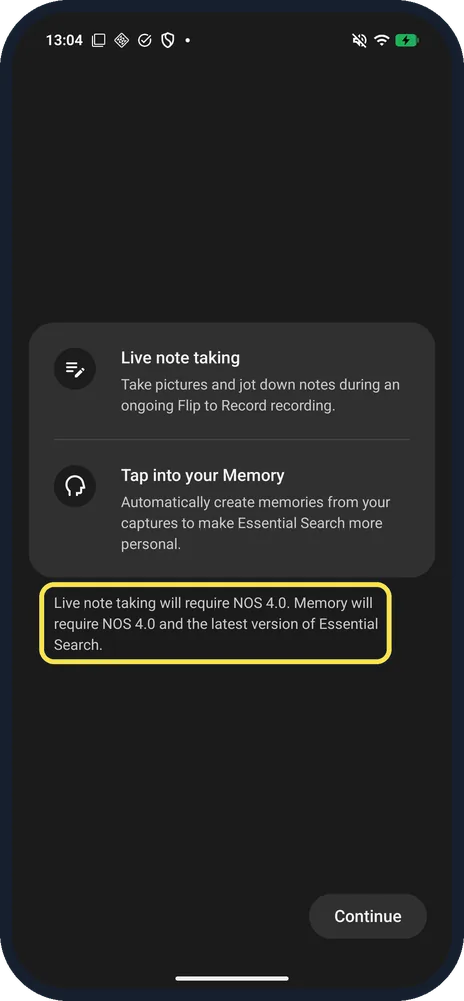
Read what is new and tap Continue
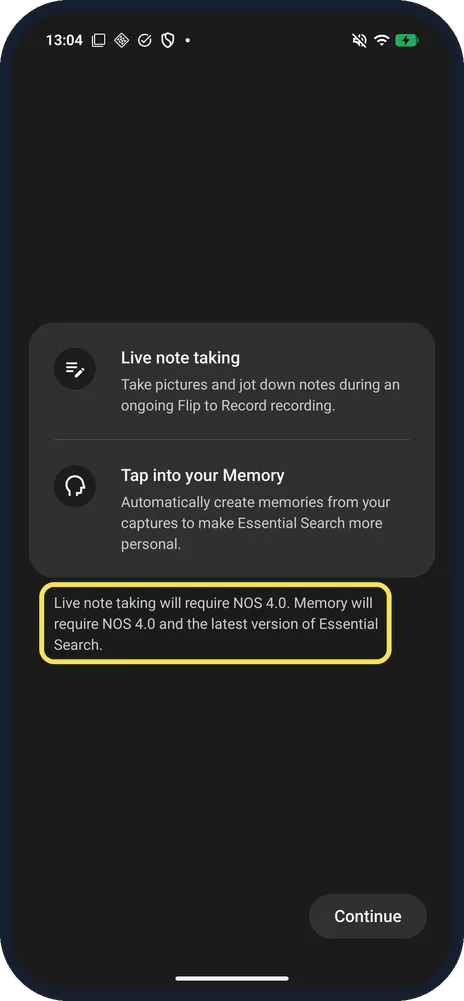
Two newer features: Live note taking and Tap into your Memory. The note says Live note taking will require NOS 4.0, and Memory will require NOS 4.0 and the latest version of Essential Search.
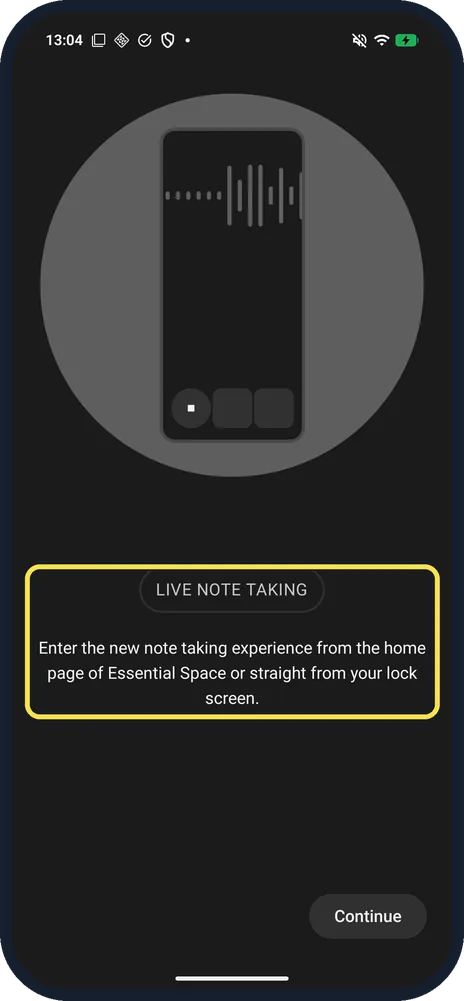
Read about live note taking and tap Continue
LIVE NOTE TAKING: Enter the new note taking experience from the home page of Essential Space or straight from your lock screen.
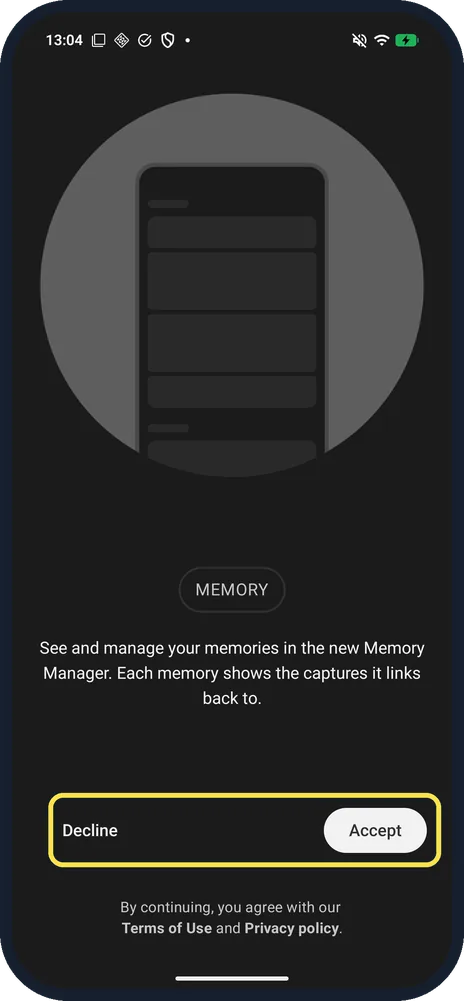
Accept or Decline Memory
Memory: see and manage your memories in the new Memory Manager; each memory shows the captures it links back to. Tap Accept or Decline. We tapped Decline.
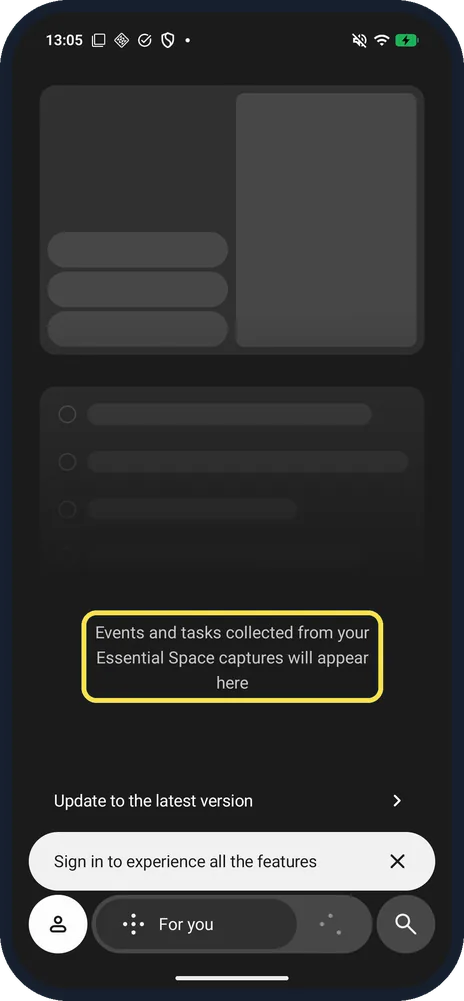
See the main page
With nothing saved yet, For you says: Events and tasks collected from your Essential Space captures will appear here. Search is the magnifier at the bottom right.
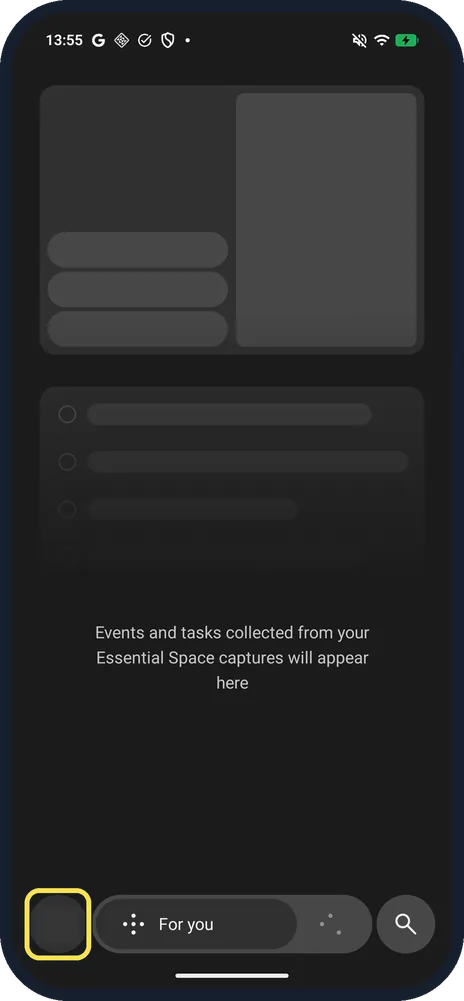
Tap the profile icon
On the main page, tap the round profile icon at the bottom left, left of For you. It opens Essential Space's Settings.
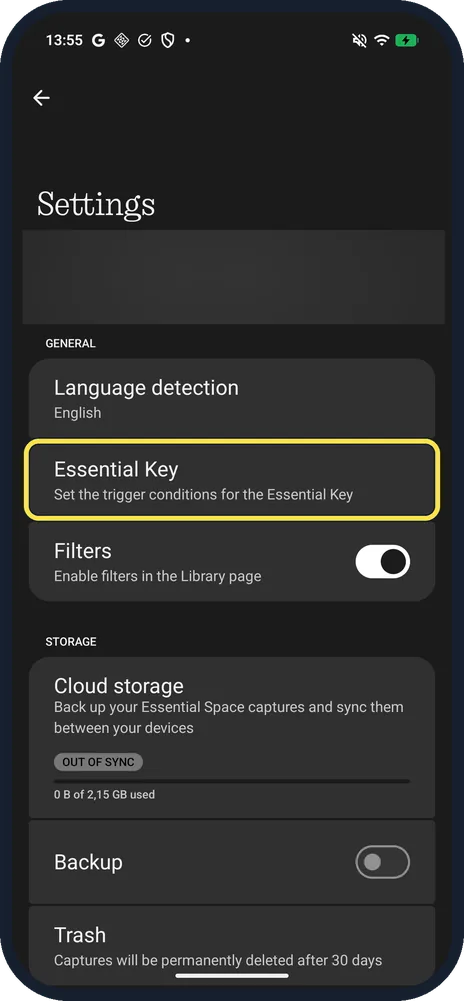
In Settings, tap Essential Key
Under General: Language detection (English on ours), then Essential Key: Set the trigger conditions for the Essential Key.
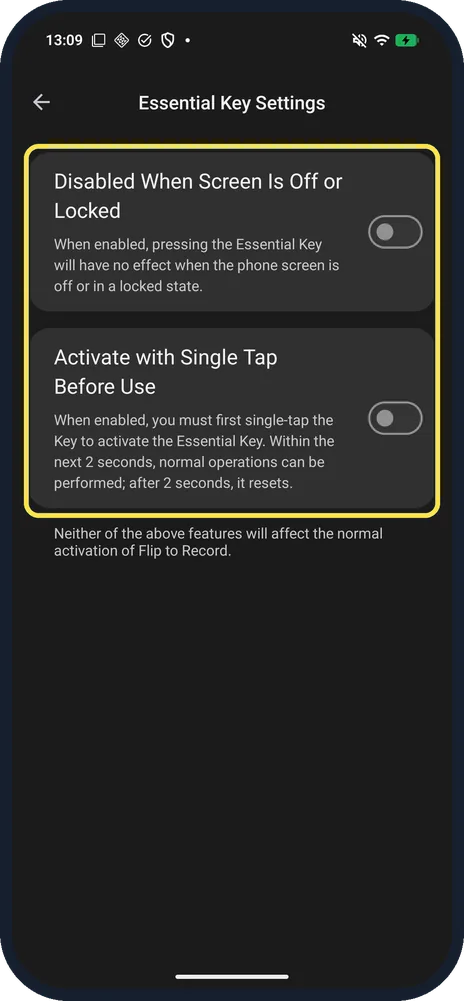
Choose the Essential Key options
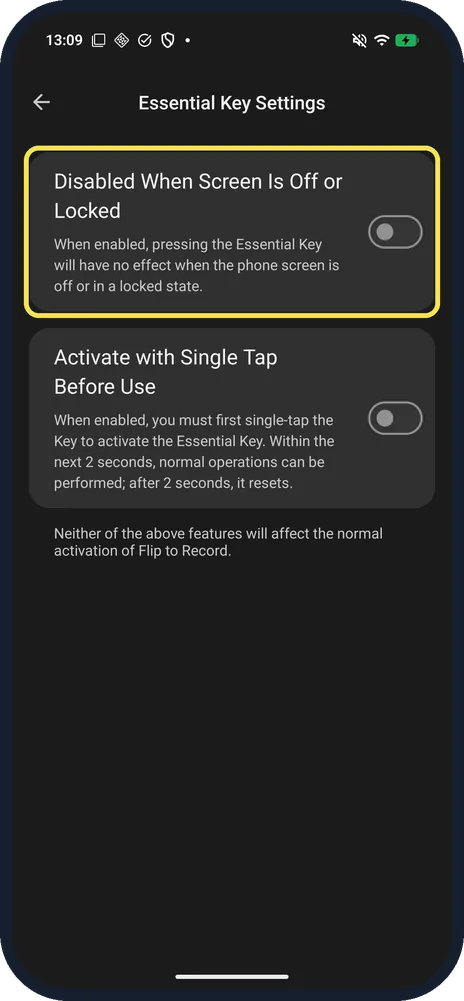
Disabled When Screen Is Off or Locked: when enabled, pressing the Essential Key will have no effect when the phone screen is off or in a locked state. Activate with Single Tap Before Use: when enabled, you must first single-tap the Key to activate the Essential Key; within the next 2 seconds, normal operations can be performed; after 2 seconds, it resets. Both were off on ours.
Check Essential Memory
Back in Settings, scroll down. Essential Memory: Enable creation of new memories and use memories to improve Essential Search results. It was off on ours after Decline in step 8; Manage Essential Memories is below it.
If you do not see this option
- No Live note taking or Memory? The setup says Live note taking will require NOS 4.0, and Memory will require NOS 4.0 and the latest version of Essential Search. On an older Nothing OS, update the phone first. Ours ran Nothing OS 4.1.
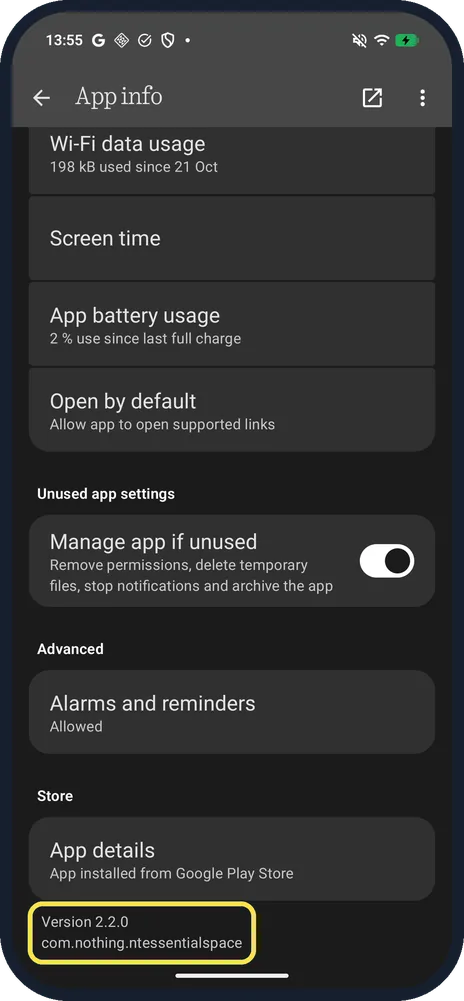
- Settings look different? Check your Essential Space version. Its App info page lists it at the bottom: ours said Version 2.2.0, App installed from Google Play Store.
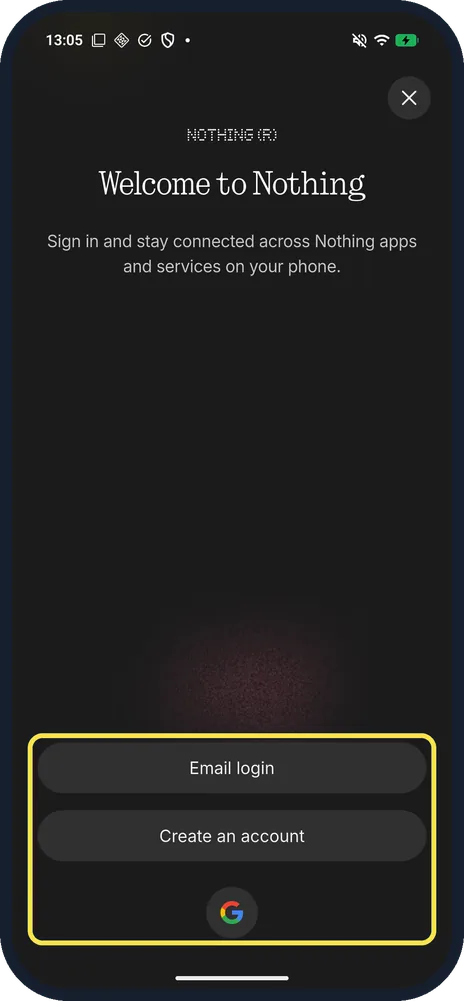
- Asked to sign in? Nothing says full features need you to be logged in to your Nothing account. Its Welcome to Nothing sheet offers Email login, Create an account and a Google button. Source: How do I access Essential Space?
If this does not work
- Key does nothing with the screen off? Check Disabled When Screen Is Off or Locked in Essential Key Settings (step 12). With it on, the key has no effect while the screen is off or locked.
- No AI summaries? Nothing says you must be logged in to your Nothing account for AI analysis of what you record, such as summary reports and key highlights. Sources: What is the intelligent analysis of Essential Space?, How do I access Essential Space?
- Want a voice memo instead of a screenshot? Nothing says long press the Essential Key: recording starts on the preview page and runs until you release the key; then short press the key to save. A double press shows your most recent recordings. Sources: How do I add voice memos using the Essential Key?, How to use the Essential Key to access recent recordings?
About this guide
Essential Space calls itself "a universal space and smart organizer for all your thoughts, idea, and memories". The first run is a short setup; after it, the main page waits for your first captures.
The screenshots are from our Nothing Phone (4a) Pro, the European model A069P, with Nothing OS 4.1 and Android 16 (build FroggerPro-B4.1-260907-1153-EEA), in Dark mode, taken on 27 October 2026. The Settings pictures are from Essential Space version 2.2.0, as its App info page shows. In the setup we allowed notifications, chose Only this time for location and declined Memory.
Good to know
Under Storage in Settings, Cloud storage says: Back up your Essential Space captures and sync them between your devices. Ours showed OUT OF SYNC and "0 B of 2.15 GB used", with Backup off.
Where the key is and what a short press does: the Essential Key on the (4a) Pro.
For other ways to take a screenshot, see take a screenshot on a Nothing Phone.
In short: Double-press the Essential Key or open Essential Space, Get started, Continue, location choice, Got it, double-click the key, then Continue and Accept or Decline. Profile icon, Settings, Essential Key for the key options.
- Nothing Support: How do I access Essential Space?
- Nothing Support: What is the intelligent analysis of Essential Space?
- Nothing Support: How do I add voice memos using the Essential Key?
- Nothing Support: How to use the Essential Key to access recent recordings?
Links checked in October 2026. Menus and features can change after software updates. These steps match the version named at the top.
📷 See real photos from the Nothing Phone (4a) Pro in our Camera Lab, next to 10 other phones.
Did this guide work for you?
Sorry about that. What happened?