
You are viewing the macOS 26 version of this guide, recorded on macOS Tahoe 26 (MacBook Pro) on 4 October 2026. It is kept as it was and not updated. See the macOS 27 version.
howtosimply.com/guides/mac-won-t-connect-to-wi-fi-8-fixes-that-work/ · Checked 4 October 2026 · MacBook Pro · macOS Tahoe 26
In this guide
Turn Wi-Fi off and on from the menu bar, restart the Mac and the router, then forget the network under System Settings, Wi-Fi and join again. Run Wireless Diagnostics if the problem continues.
3 of 8 steps with real screenshots · 1 official source below
- Device
- Mac
- Shown on
- macOS Tahoe 26 (MacBook Pro)
- App
- System Settings
- Real screenshots
- 3 of 8 steps
- Checked
- 4 October 2026
- Sources
- 1 official, linked below
Step by step
Turn Wi-Fi off and on
Click the Wi-Fi icon in the menu bar, or Control Centre, and switch Wi-Fi off. Wait ten seconds and switch it on.
Tap the picture to see it full size Restart the Mac
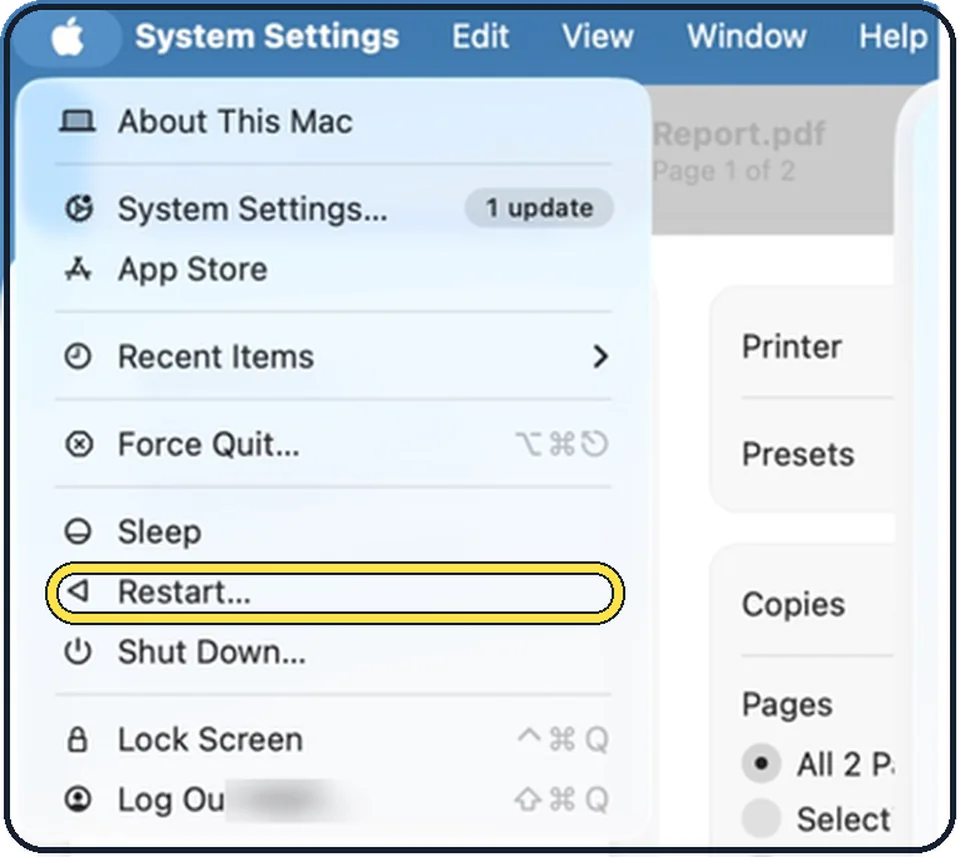
Click the Apple menu and choose Restart.
Restart the router
Unplug it for 30 seconds and give it a few minutes to come back.
Forget the network and join again
Open System Settings, Wi-Fi. Click Details next to the network, or the three dots, and choose Forget This Network. Select it again and enter the password.
Tap the picture to see it full size Check the date and time
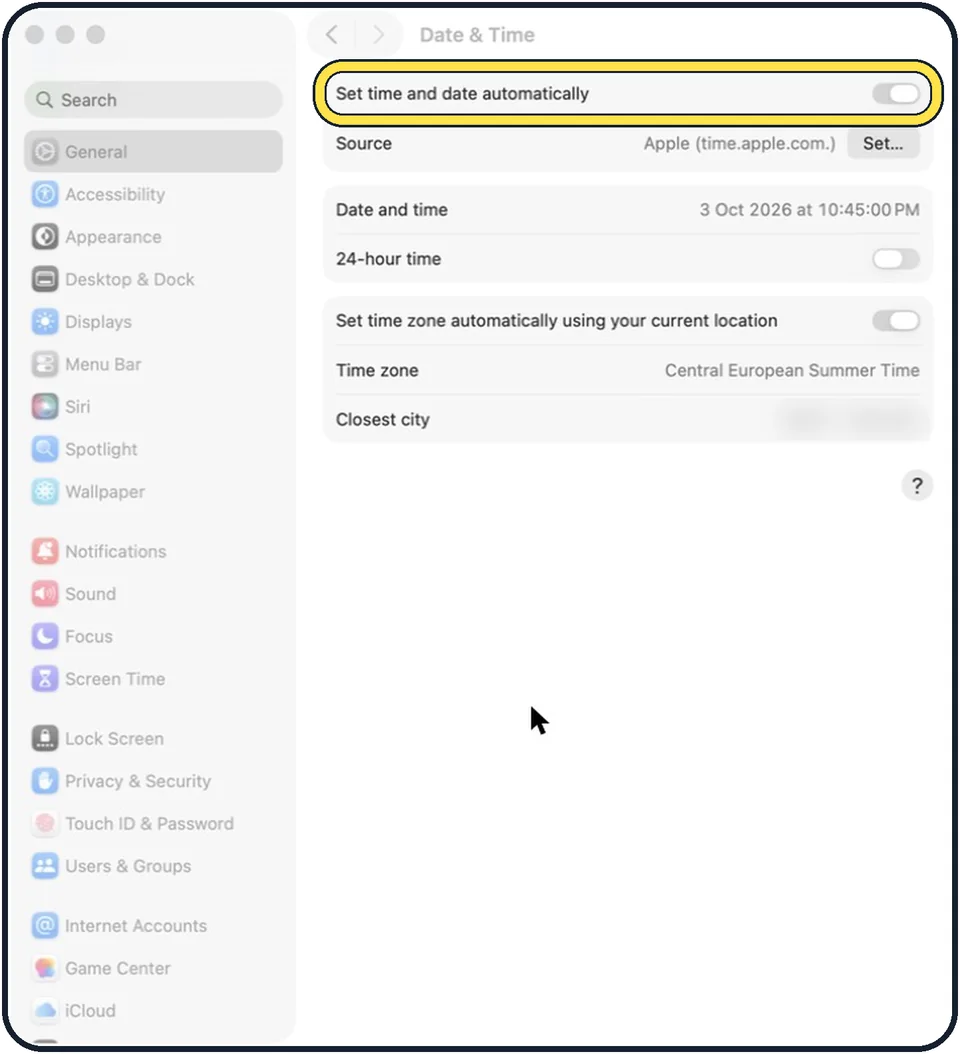
Open System Settings, General, Date & Time and switch on Set time and date automatically. A wrong clock breaks secure websites.
Turn off VPN and security software for a test
Disconnect any VPN under System Settings, VPN, and pause firewall or antivirus apps briefly to see whether they are blocking the connection.
Run Wireless Diagnostics
Hold the Option key and click the Wi-Fi icon in the menu bar. Choose Open Wireless Diagnostics and follow the steps. It tests the connection and suggests fixes.
Tap the picture to see it full size Update macOS
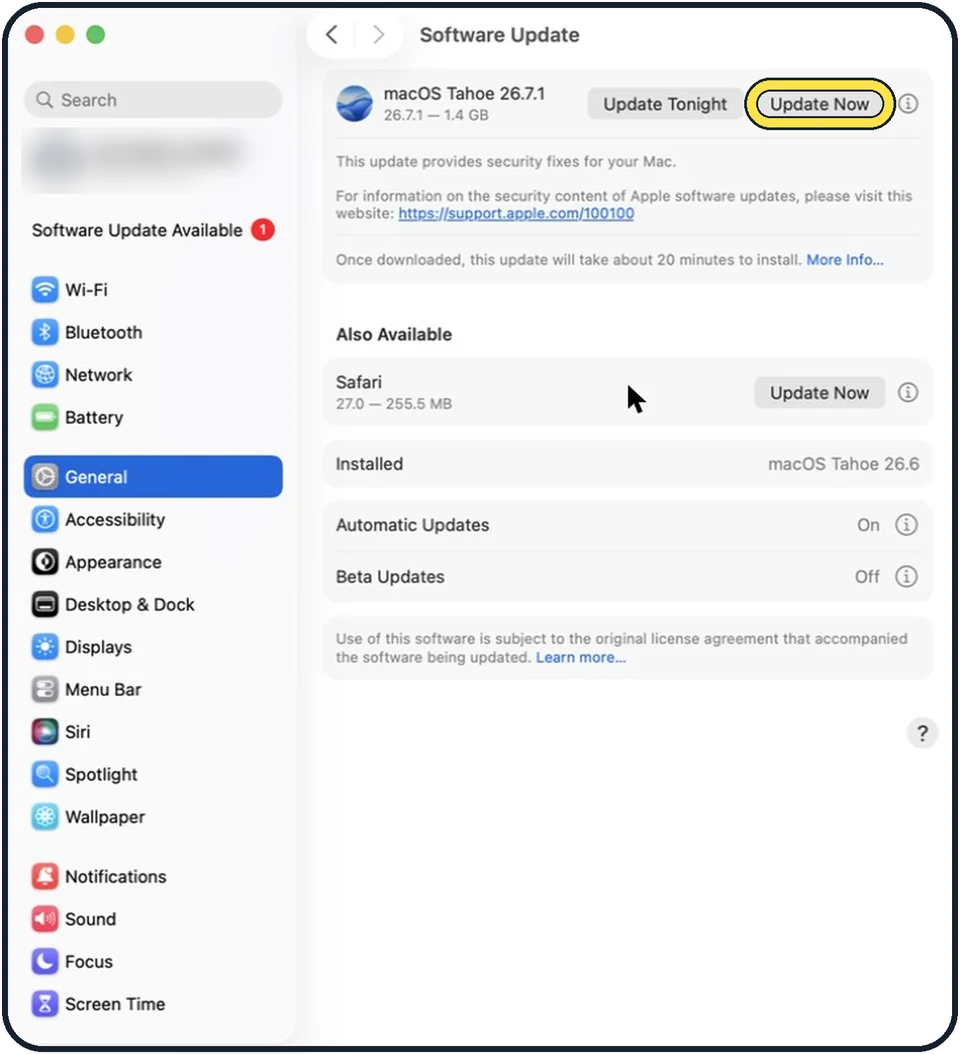
Use a phone hotspot or a network cable to get online, then open System Settings, General, Software Update.
What we saw on our device
- Turn Wi-Fi off and on: On our MacBook Neo the Wi-Fi page shows the switch at the top, the joined network as Connected with a Privacy Warning, and Known Networks and Other Networks below.
- Restart the Mac: On our MacBook Neo, Restart… sits between Sleep and Shut Down… in the Apple menu.
- Check the date and time: On our MacBook Neo it is on, with Source: Apple (time.apple.com.).
- Turn off VPN for a test: On our MacBook Neo, VPN is its own sidebar row directly under Network.
About this guide
Check first whether other devices work on the same Wi-Fi. If they do, the Mac needs attention. If nothing connects, restart the router or contact your provider.
Good to know
A login page for hotel or café Wi-Fi sometimes fails to appear. Open Safari and go to captive.apple.com to trigger it.
If the Mac sees no networks at all and the Wi-Fi menu says "No hardware installed", that is a hardware fault. Contact Apple.
Wi-Fi that is fine near the router and poor elsewhere is a signal problem, not a Mac problem.
In short: Wi-Fi off and on, restart, date and time, VPN off, update macOS, Wireless Diagnostics.
Links checked in October 2026. Menus and features can change after software updates. These steps match the version named at the top.
Did this guide work for you?
Sorry about that. What happened?