
You are viewing the macOS 26 version of this guide, recorded on macOS Tahoe 26 (MacBook Pro) on 4 October 2026. It is kept as it was and not updated. See the macOS 27 version.
howtosimply.com/guides/mac-trackpad-gestures-the-full-list-and-how-to-change-them/ · Checked 4 October 2026 · MacBook Pro · macOS Tahoe 26
In this guide
On a Mac trackpad, tap or click with two fingers to right-click, slide two fingers to scroll and pinch with two fingers to zoom. Swipe up with four fingers for Mission Control and sideways with four fingers to change desktops. You can change each gesture under System Settings, Trackpad.
6 of 8 steps with real screenshots · 1 official source below
- Device
- Mac
- Shown on
- macOS Tahoe 26 (MacBook Pro)
- App
- System Settings
- Real screenshots
- 6 of 8 steps
- Checked
- 4 October 2026
- Sources
- 1 official, linked below
Step by step
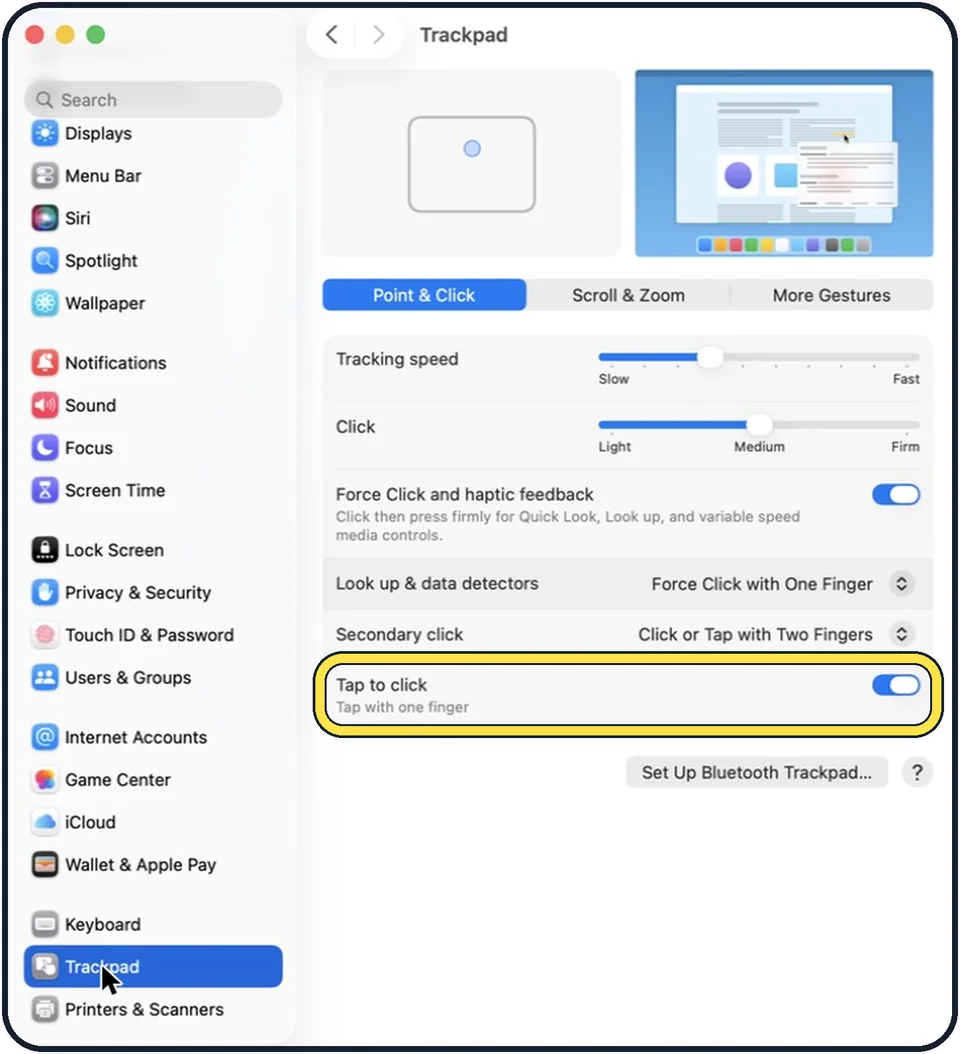
Tap the picture to see it full size One finger
Tap with one finger to click, if Tap to click is switched on. Otherwise press the trackpad down until it clicks.
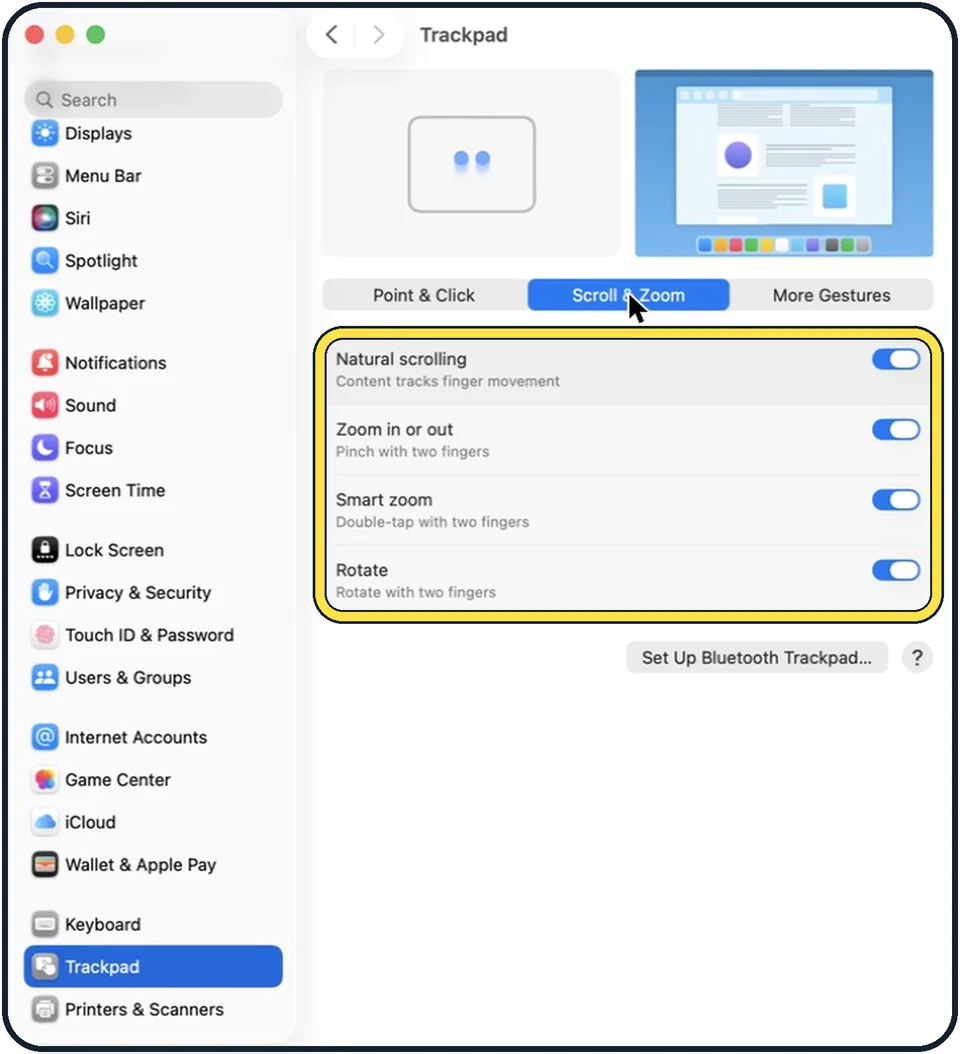
Tap the picture to see it full size Two fingers: click, scroll and zoom
Click or tap with two fingers for a secondary click (right-click). Slide two fingers up or down to scroll. Pinch two fingers together or apart to zoom out or in. Double-tap with two fingers for smart zoom, which enlarges a web page or PDF and shrinks it again. Move two fingers around each other to rotate a photo.
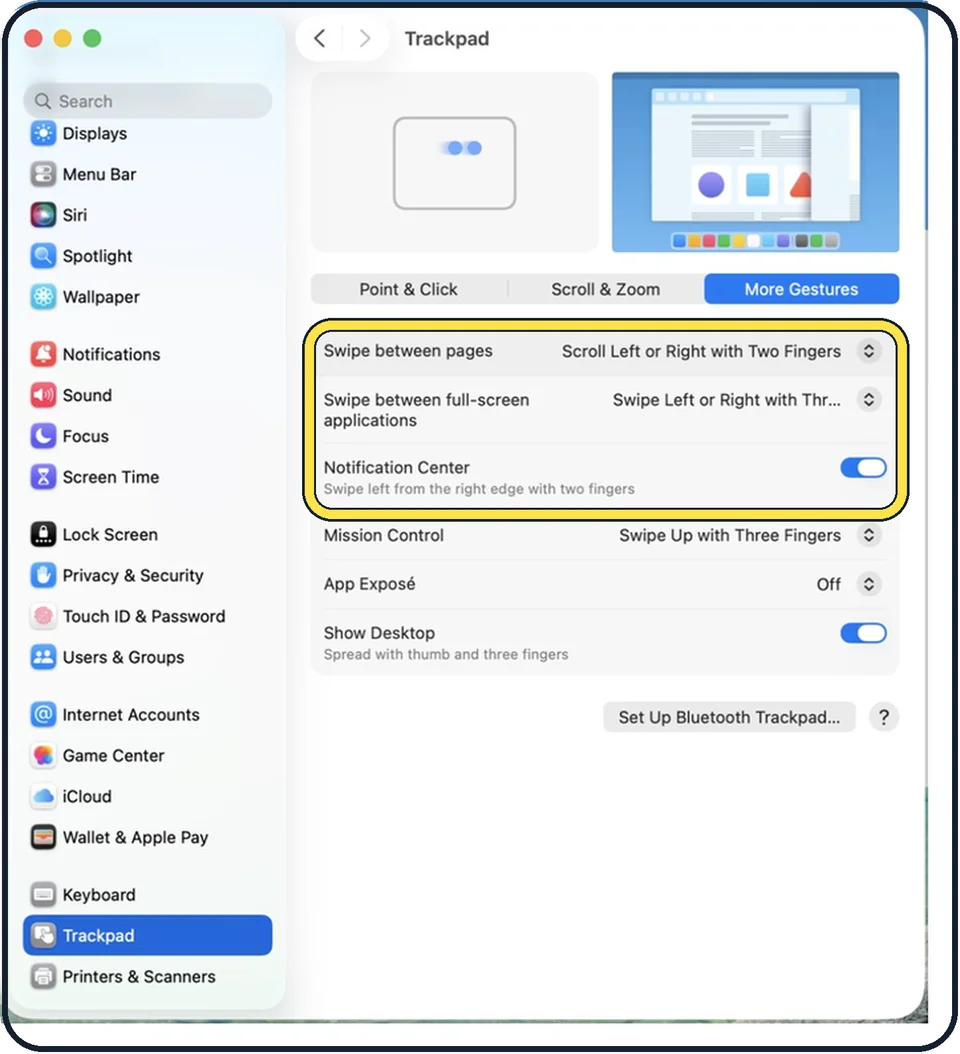
Tap the picture to see it full size Two fingers: pages and notifications
Swipe left or right with two fingers to go back or forward a page, for example in Safari. Swipe left from the right edge of the trackpad with two fingers to open Notification Center.
Three fingers
Tap with three fingers to look up a word or get a preview of a link, where that gesture is switched on. With three-finger drag switched on, you move windows and select text by sliding three fingers, without pressing.
Four fingers
Swipe up with four fingers to open Mission Control, which shows all open windows. Swipe down with four fingers to see all windows of the current app (App Exposé). Swipe left or right with four fingers to move between desktops and full-screen apps.
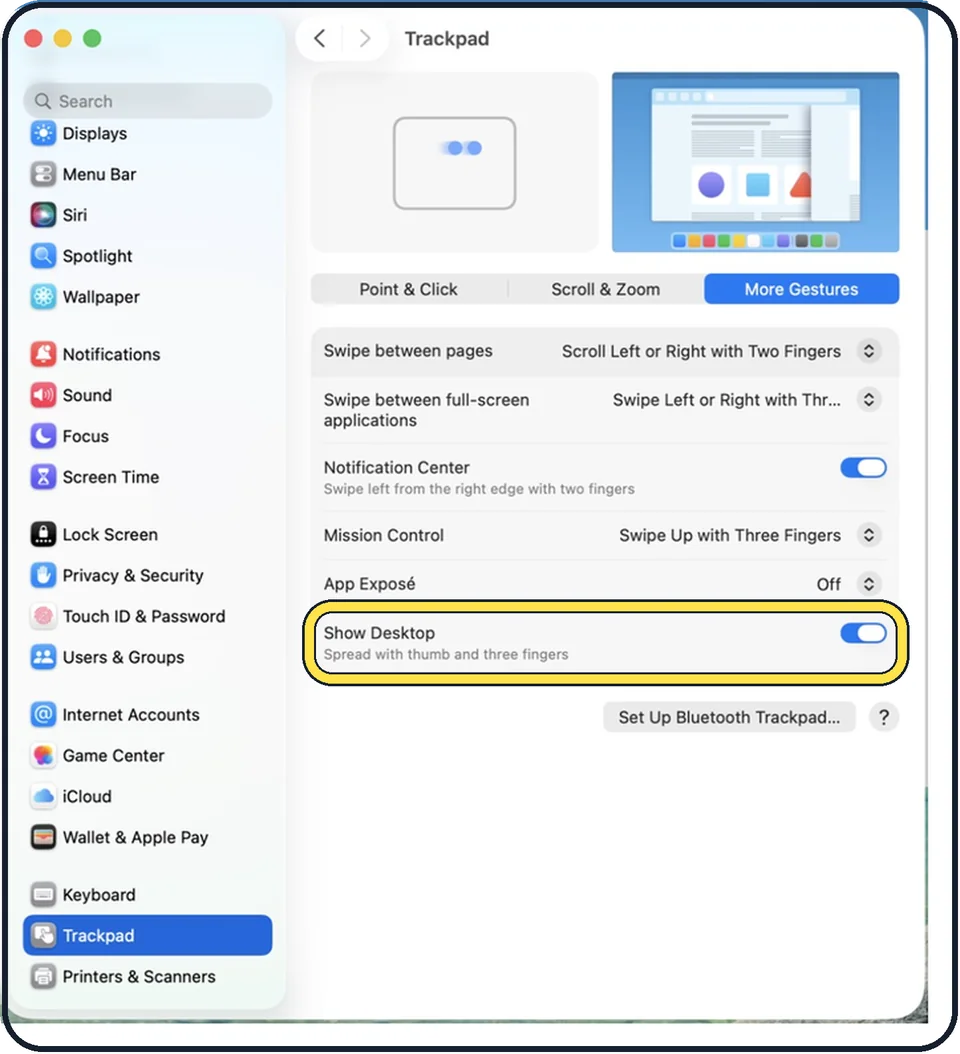
Tap the picture to see it full size Thumb and three fingers
Spread your thumb and three fingers apart to push all windows aside and show the desktop. Pinch them together to show your apps.
Tap the picture to see it full size Change or switch off a gesture
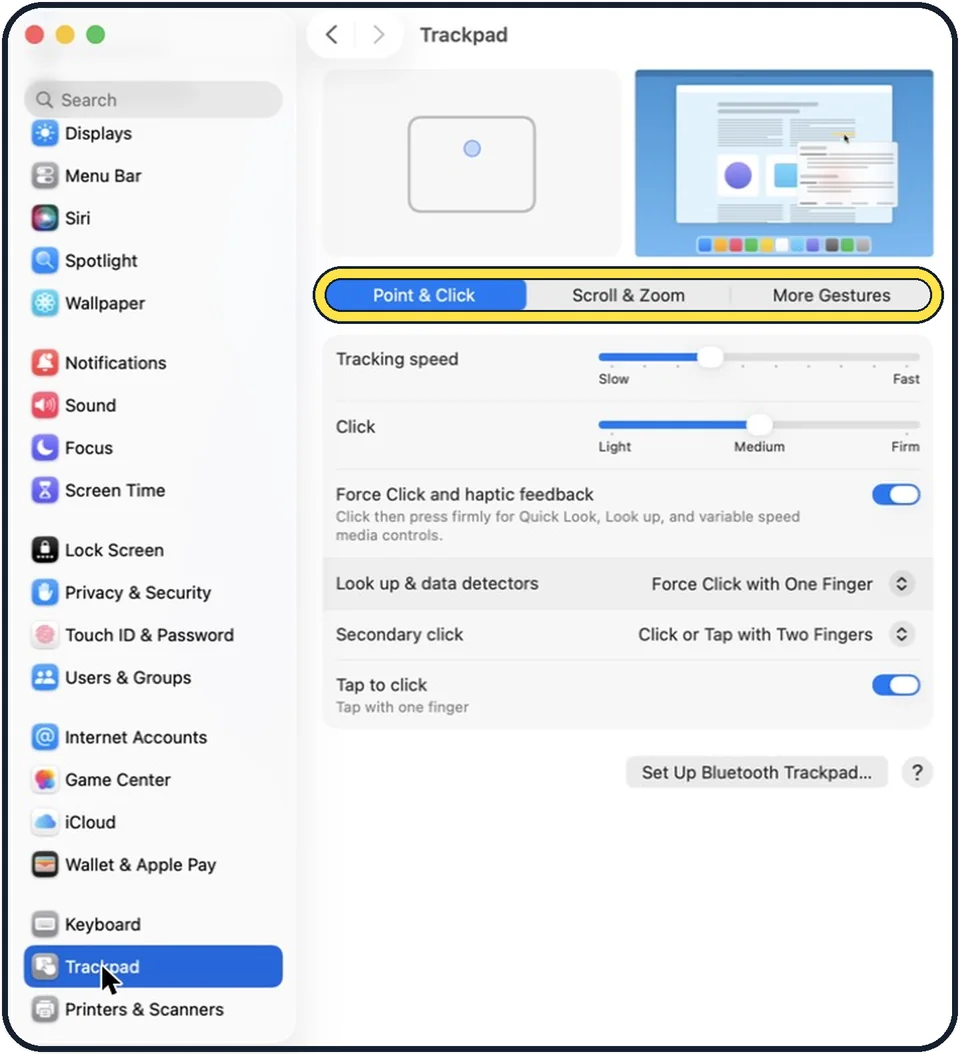
Choose Apple menu, System Settings and click Trackpad in the sidebar. The tabs Point & Click, Scroll & Zoom and More Gestures list every gesture with a short video. Switch one off, or change the number of fingers.
Tap the picture to see it full size Turn on three-finger drag
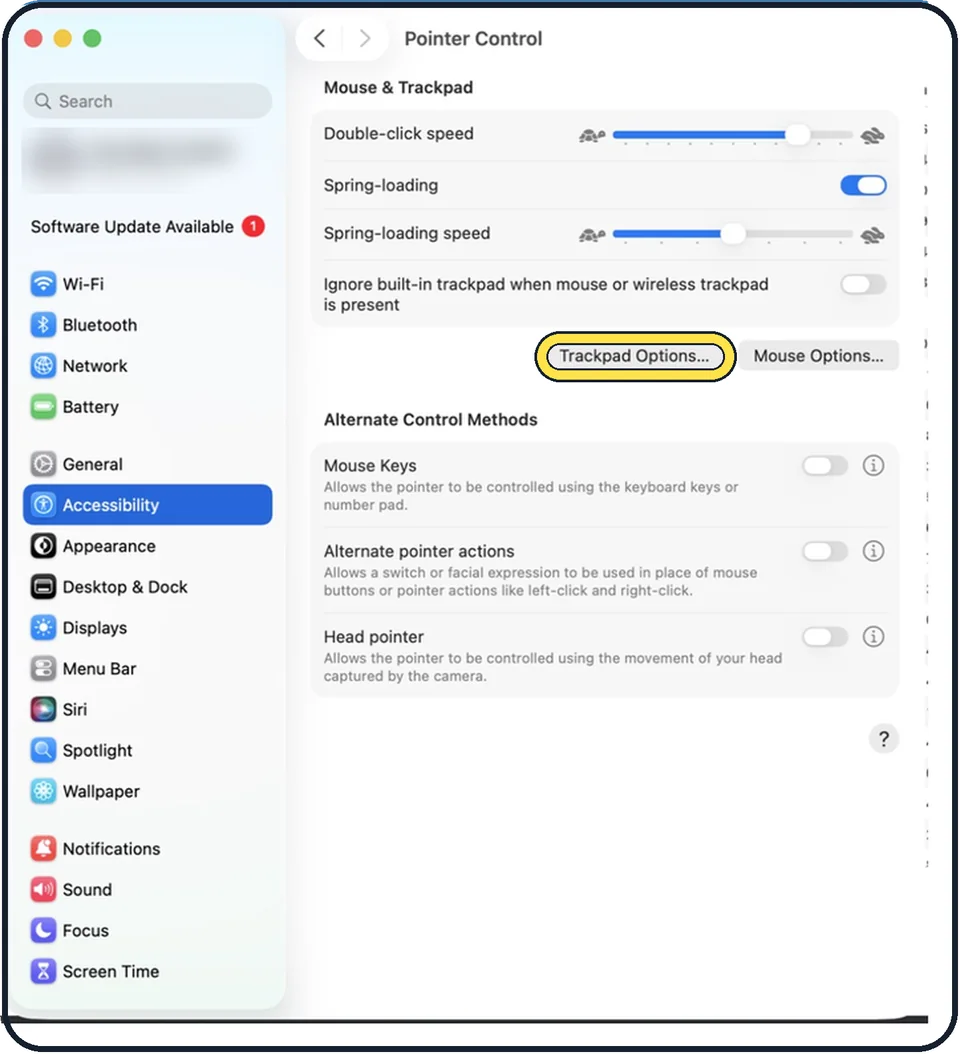
This one is in a different place: System Settings, Accessibility, Pointer Control, Trackpad Options. Switch on the dragging option and choose Three-Finger Drag.
What we saw on our device
- Click with one finger: On our MacBook Neo, Tap to click was switched off and the Point & Click tab had no Force Click rows.
- Tap with three fingers to look up a word: On our MacBook Neo this switch was off.
- Use your thumb and three fingers: On our MacBook Neo, More Gestures also lists Apps: Pinch with thumb and three fingers.
- Switch on trackpad dragging: On our MacBook Neo, Use trackpad for dragging was off and Dragging style was greyed out, showing Without Drag Lock.
About this guide
The trackpad on a MacBook, and the separate Magic Trackpad, understand far more than pointing and clicking. A handful of gestures replaces most of the buttons and keys you would otherwise reach for. Here is the whole list, sorted by the number of fingers.
Menu names are from recent versions of macOS, where the settings app is called System Settings.
Good to know
Several gestures can be set to three or four fingers. If one in this list does not react on your Mac, look in the Trackpad settings to see which is selected.
On a Magic Mouse: click on the right side for a secondary click, slide one finger to scroll, double-tap with one finger for smart zoom, double-tap with two fingers for Mission Control, and swipe with two fingers to move between full-screen apps.
Related: how to right-click on a Mac, how to change the scroll direction on a Mac and how to use Mission Control and multiple desktops on a Mac.
In short: Apple menu > System Settings > Trackpad > Point & Click, Scroll & Zoom or More Gestures; dragging: Accessibility > Pointer Control > Trackpad Options…
Links checked in October 2026. Menus and features can change after software updates. These steps match the version named at the top.
Did this guide work for you?
Sorry about that. What happened?