
You are viewing the macOS 26 version of this guide, recorded on macOS Tahoe 26 (MacBook Pro) on 2 October 2026. It is kept as it was and not updated. See the macOS 27 version.
howtosimply.com/guides/mac-camera-not-working-6-fixes-to-try/ · Checked 2 October 2026 · MacBook Pro · macOS Tahoe 26
In this guide
Update macOS, then check two settings: Screen Time must allow the camera, and the app must be allowed under System Settings, Privacy & Security, Camera. Restart the Mac. A green light that flashes next to the camera points to a hardware fault.
3 of 6 steps with real screenshots · 2 official sources below
- Device
- Mac
- Shown on
- macOS Tahoe 26 (MacBook Pro)
- App
- System Settings
- Real screenshots
- 3 of 6 steps
- Checked
- 2 October 2026
- Sources
- 2 official, linked below
Step by step
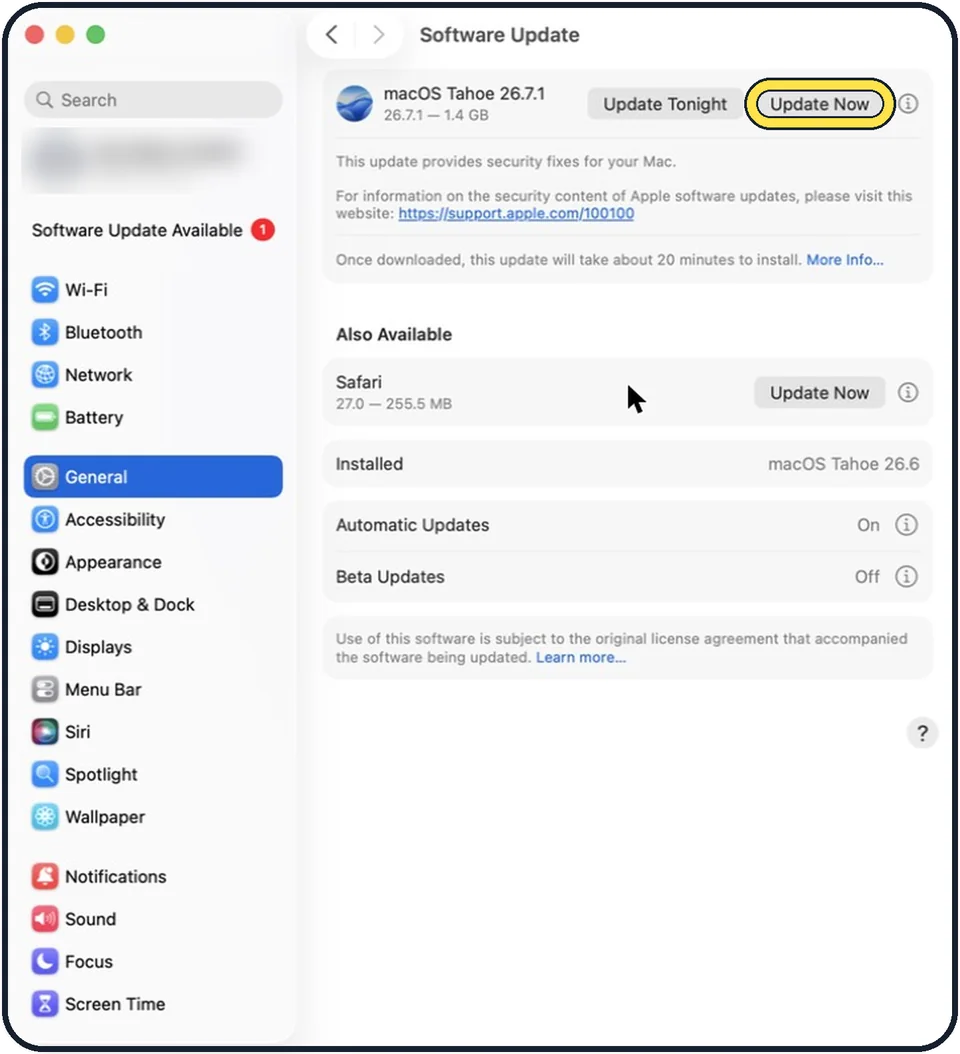
Tap the picture to see it full size Update macOS
Apple's first step is to make sure the software is up to date. Open System Settings, General, Software Update.
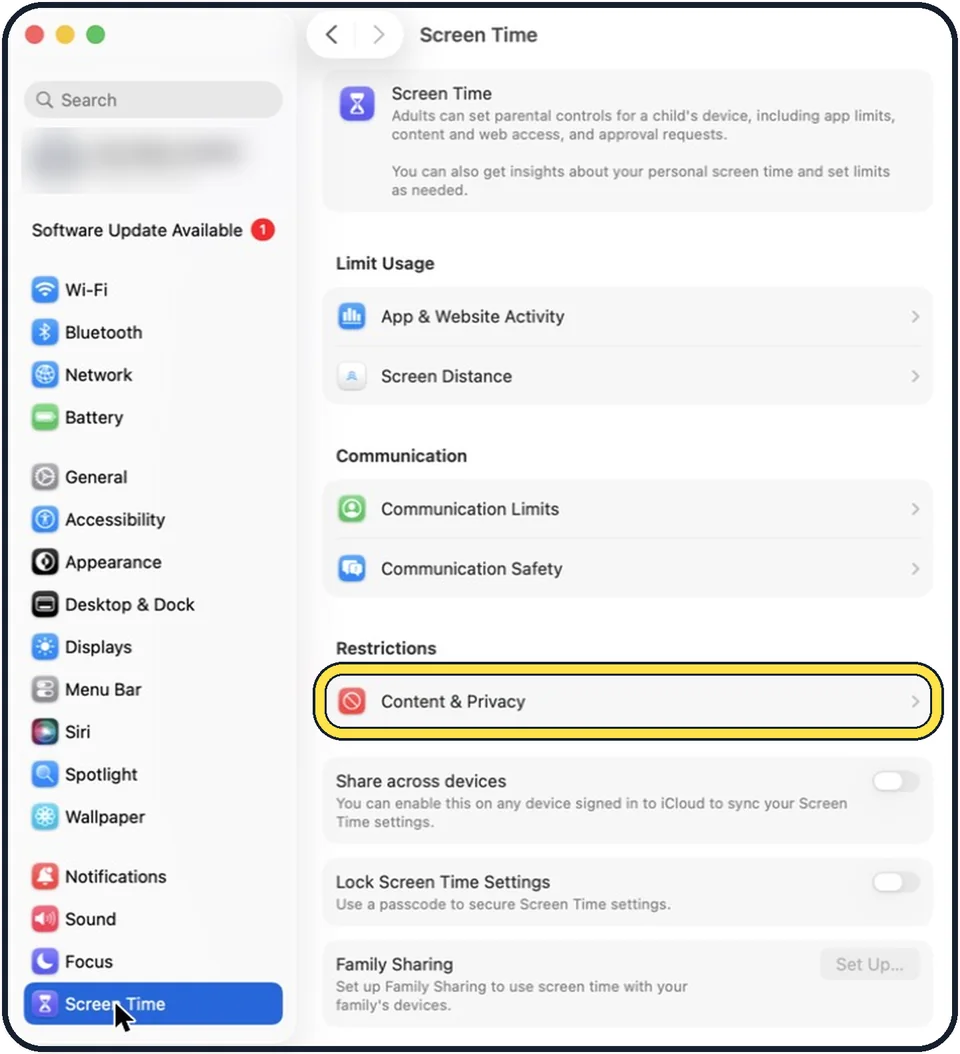
Tap the picture to see it full size Check Screen Time
If Screen Time is in use, open System Settings, Screen Time, Content & Privacy, App Restrictions and make sure Camera is allowed. Also check that the app you want to use is not blocked by an app limit.
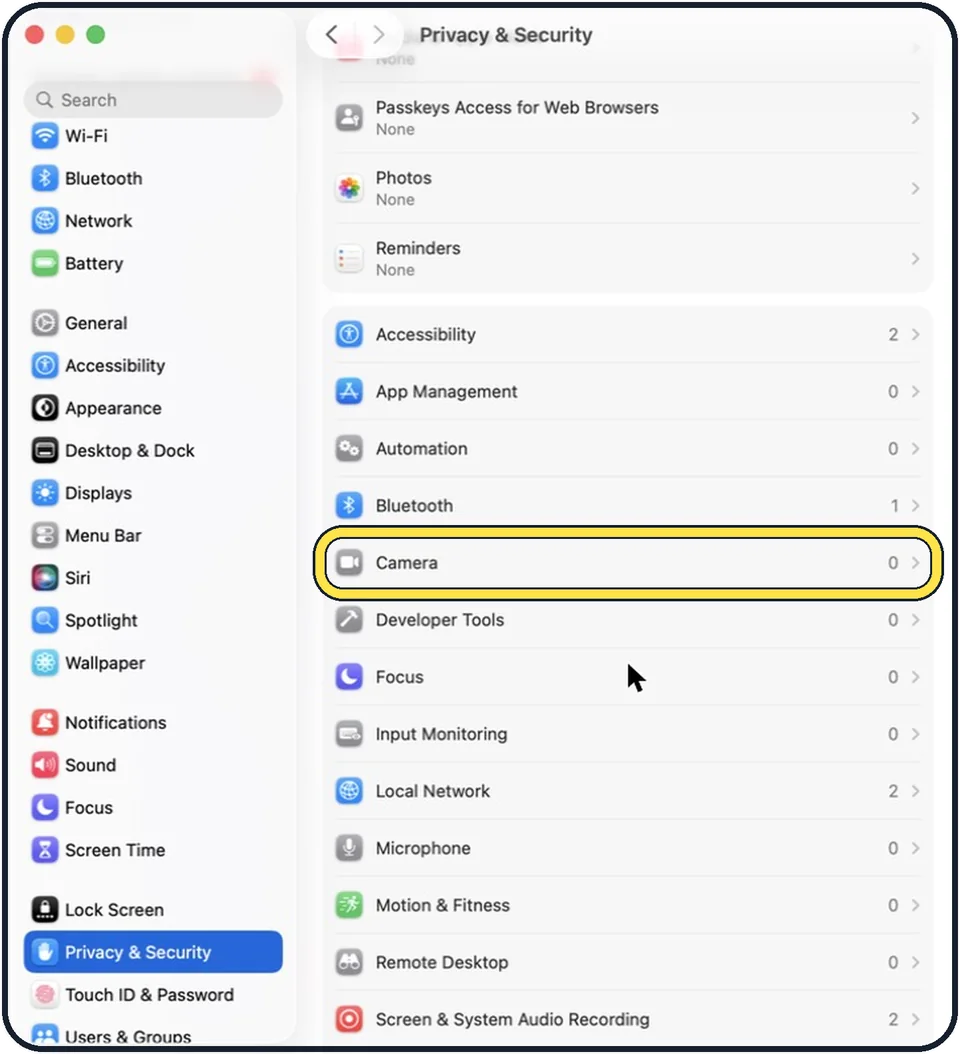
Tap the picture to see it full size Allow the app to use the camera
Open System Settings and click Privacy & Security, then Camera. Switch on the app that needs the camera. Quit the app and open it again.
Restart the Mac
On a Mac with Apple silicon, a restart is enough. On an Intel Mac, Apple also advises resetting the SMC, the controller that manages power.
Try a different app
Open Photo Booth or FaceTime. If the camera works there, the fault is in the settings of the first app. Many video apps have their own camera menu in which the wrong camera can be selected.
Watch the light next to the camera
A steady green light means the camera is on. If the light flashes green, Apple says this points to a problem with the hardware. Contact Apple Support.
What we saw on our device
- Update macOS: On our MacBook Neo it said "Your Mac is up to date." with "macOS 27 Golden Gate 27.0.1", and Automatic Updates was On.
- Check that Screen Time allows the camera: On our MacBook Neo, Camera is listed with AirDrop, Apple Advertising, CarPlay, Dictation, SharePlay and Tracking.
About this guide
When the built-in camera shows a black picture in FaceTime, Zoom or Teams, the camera is rarely broken. Usually an app is not allowed to use it, or another app is still holding it.
Menu names are from recent versions of macOS, where the settings app is called System Settings. The pictures are our own screenshots from macOS Tahoe 26 on a MacBook Pro.
Good to know
Only one app at a time shows the camera picture reliably. Quit other video apps before a call.
Do not close a MacBook with a camera cover fitted. Apple warns that this can damage the display, because the gap between screen and keyboard is very small.
An iPhone makes a better webcam than the built-in camera: how to use an iPhone as a webcam for a Mac.
In short: System Settings > General > Software Update; Screen Time > Content & Privacy Restrictions > Camera; Privacy & Security > Camera; restart; test another app; watch the light.
- Apple Support: If the built-in camera isn't working on your Mac
- Apple Support: Don't close your MacBook with a cover over the camera
Links checked in October 2026. Menus and features can change after software updates. These steps match the version named at the top.
Did this guide work for you?
Sorry about that. What happened?