
What changed: rewritten for iOS 27, where App Limits is now Time Allowances, with our own iPhone 17e screenshots in dark mode.
howtosimply.com/guides/how-to-set-a-daily-time-limit-for-apps-on-iphone/ · Checked October 2026 · iPhone 17e · iOS 27.0.1
In this guide
- Open Settings and tap Screen Time
- Tap Time Allowances
- Turn on App & Website Activity if asked
- Set the time for a category
- Check the new time
- Or make your own category: tap Manage Categories, then the plus button
- Pick the kind of category
- If you do not see this option
- If this does not work
- Good to know
- Sources
Open Settings, tap Screen Time, then Time Allowances, which replaced App Limits in iOS 27. Turn on App & Website Activity if the iPhone asks. Use the minus and plus buttons next to a category to change its daily time, or tap Manage Categories to make your own group of apps.
7 of 7 steps with real screenshots · 3 official sources below
- Device
- iPhone
- Shown on
- iOS 27.0.1 (iPhone 17e)
- App
- Settings
- Path
- Settings › Screen Time › Time Allowances
- Real screenshots
- 7 of 7 steps
- Checked
- October 2026
- Sources
- 3 official, linked below
Step by step
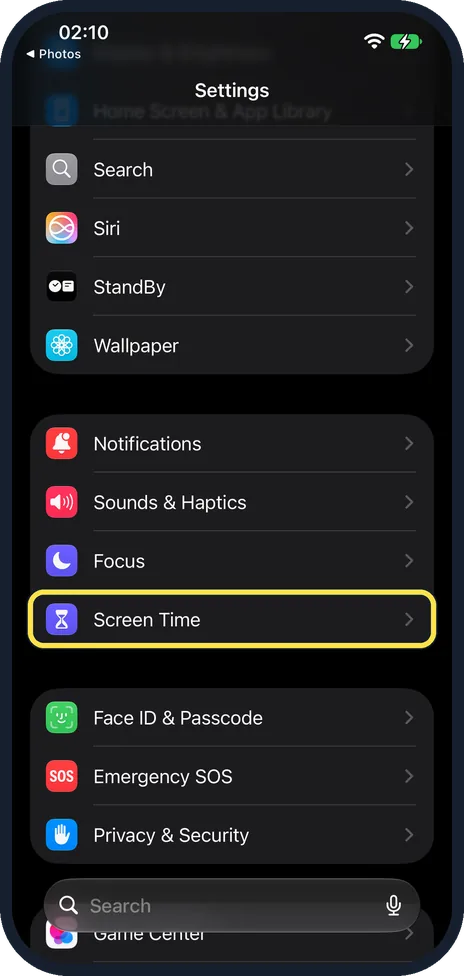
Open Settings and tap Screen Time
Scroll down the Settings list to the purple hourglass.
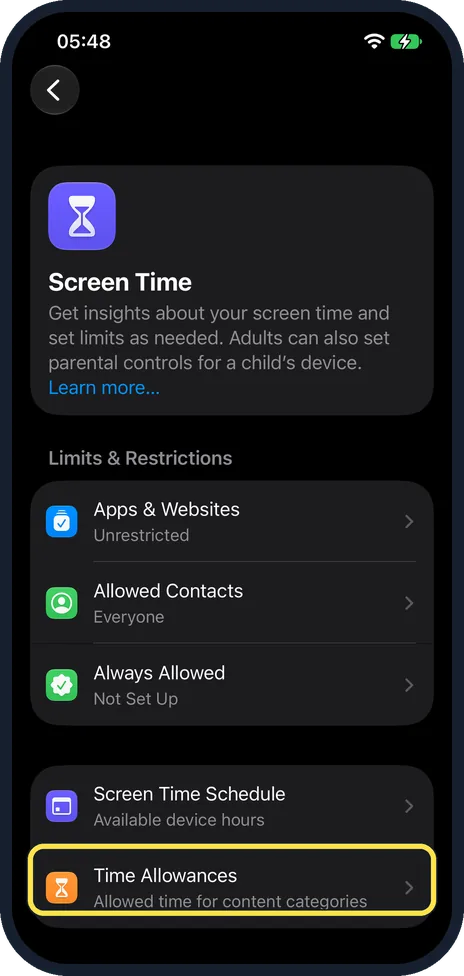
Tap Time Allowances
It is below Screen Time Schedule, with the line: allowed time for content categories. On iOS 27 it replaces App Limits.
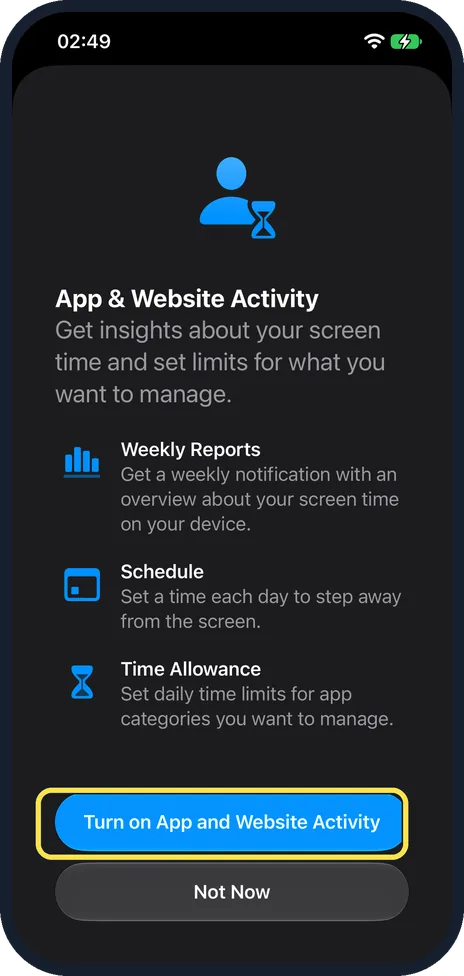
Turn on App & Website Activity if asked
Time Allowances needs App & Website Activity. On our iPhone 17e it was off, so this sheet opened first. Tap Turn on App and Website Activity.
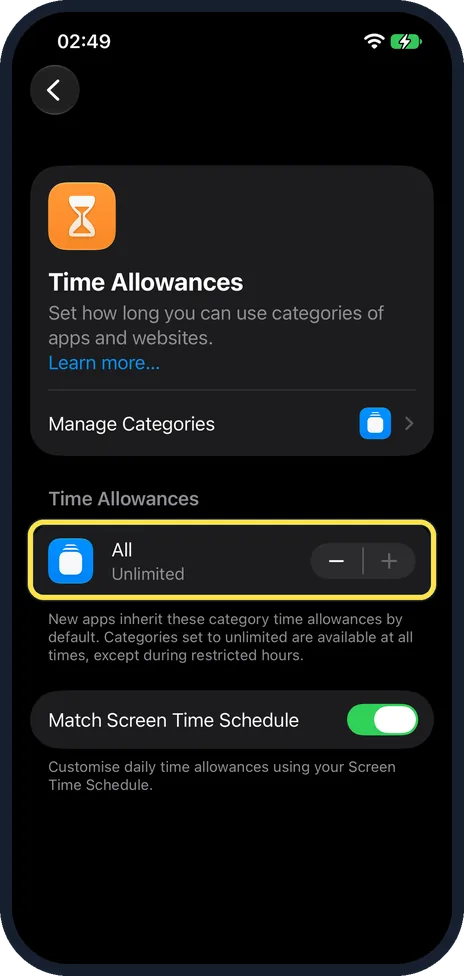
Set the time for a category
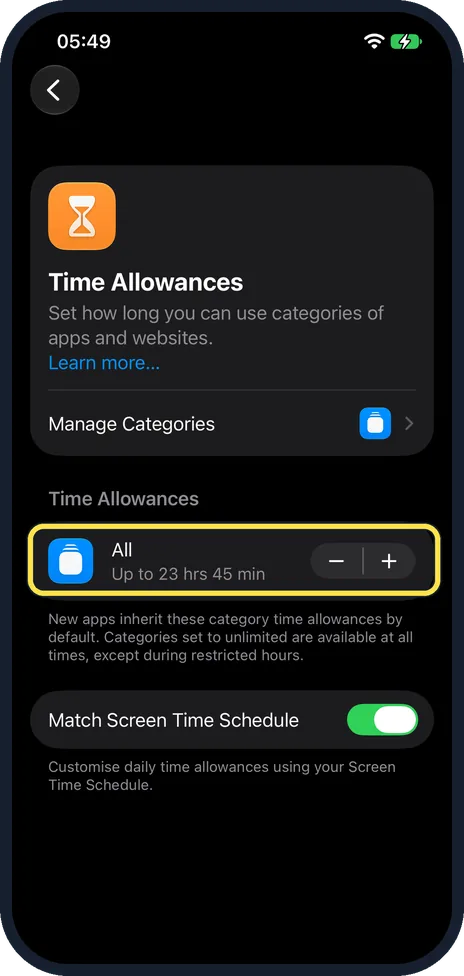
Under the heading Time Allowances each category shows its time. Ours had one category, All, set to Unlimited. Use the minus and plus buttons next to it to change the time. There is no slider for a daily total on this page: each category has its own minus and plus buttons. Below, Match Screen Time Schedule was on. The note under it says: customise daily time allowances using your Screen Time Schedule.
Check the new time
Unlimited is the highest setting, so on ours the plus button did nothing at first. One tap on the minus button changed All to Up to 23 hrs 45 min. Keep tapping minus until it shows the time you want.
Or make your own category: tap Manage Categories, then the plus button
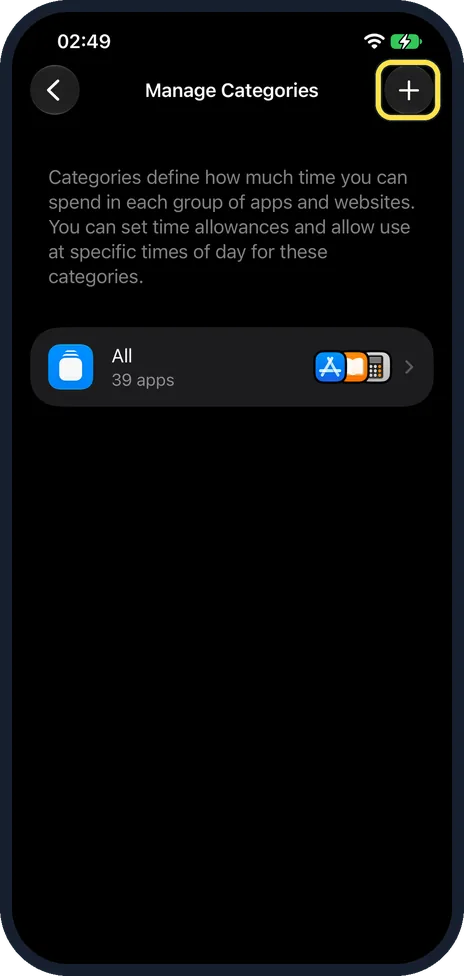
Manage Categories is the row at the top of the Time Allowances page. Ours listed one category, All, with 39 apps. Tap the plus button at the top right.
Pick the kind of category
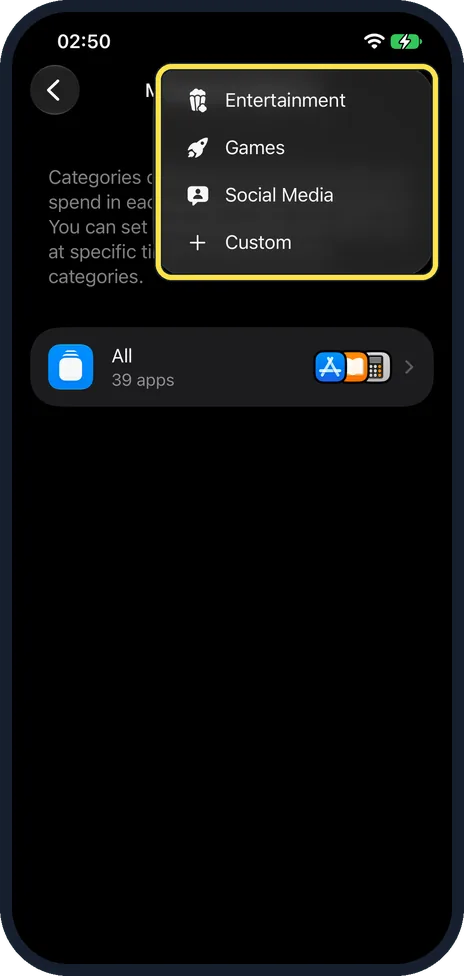
The menu offers Entertainment, Games, Social Media and Custom. Pick one, and the new category gets its own time on the Time Allowances page.
What changed: rewritten for iOS 27, where App Limits is now Time Allowances, with our own iPhone 17e screenshots in dark mode.
What we saw on our device
- Turn on App & Website Activity if asked: On our iPhone 17e it was off, so this sheet opened first.
- Set the time for a category: Ours had one category, All, set to Unlimited.
- Or make your own category: tap Manage Categories, then the plus button: Ours listed one category, All, with 39 apps.
If you do not see this option
- Your iPhone runs iOS 26 or earlier. There is no Time Allowances row yet. Tap App Limits, then Add Limit, tick a category or single apps, tap Next, set the time and tap Add.
- Your other Apple devices are not on iOS 27 yet. Apple says Screen Time Schedules and Time Allowances need iOS 27, iPadOS 27, macOS 27 or later on all your Apple devices. Source: Set Screen Time Schedules and Time Allowances in Screen Time on iPhone
- You want limits on a child's iPhone. Apple says the new parental controls need iOS 27 on every device in the Family Sharing group, and the organiser or a parent has to update the parental controls first. Set them from your own iPhone: Settings, Family, your child's name, Screen Time. Source: Use Screen Time to manage your child's iPhone or iPad
If this does not work
- The allowance only seems to count at some times. Apple describes Match Screen Time Schedule as using Time Allowances during certain times in your schedule. It was on on our iPhone, so check this switch on the Time Allowances page. Source: Set Screen Time Schedules and Time Allowances in Screen Time on iPhone
- A new app is not limited. The note on the page says new apps inherit the category time allowances by default. To check which apps a category holds, tap Manage Categories, then the category. Source: Set Screen Time Schedules and Time Allowances in Screen Time on iPhone
- You want to remove a time allowance. Tap Time Allowances, Manage Categories and choose the category. Apple's guide names the button Delete [category name] Category. Source: Set up Screen Time for yourself on iPhone
About this guide
Time Allowances, called App Limits before iOS 27, gives a group of apps a set amount of time per day. Apple describes it on the page as: set how long you can use categories of apps and websites.
It needs App & Website Activity, part of Screen Time. If that is off, the iPhone asks you to turn it on first.
The screenshots are our own, taken on an iPhone 17e running iOS 27.0.1, in dark mode.
Good to know
The note under the categories says: new apps inherit these category time allowances by default. Categories set to unlimited are available at all times, except during restricted hours.
One time allowance covers all the apps in its category together. Make separate categories if you want separate times.
If you want the limits to hold, set a Screen Time passcode and ask someone you trust to keep it.
In short: Settings, Screen Time, Time Allowances, then minus or plus next to a category. On iOS 26: App Limits, Add Limit.
- Apple iPhone User Guide: Set up Screen Time for yourself on iPhone
- Apple iPhone User Guide: Set Screen Time Schedules and Time Allowances in Screen Time on iPhone
- Apple Support: Use Screen Time to manage your child's iPhone or iPad
Links checked in October 2026. Menus and features can change after software updates. These steps match the version named at the top.
Did this guide work for you?
Sorry about that. What happened?