
What changed: the screenshots are now our own iPhone 17e on iOS 27.0.1, dark mode, and the wording is checked against those screens and Apple's iOS 27 guide.
howtosimply.com/guides/how-to-change-the-region-date-format-and-temperature-unit-on-iphone/ · Checked October 2026 · iPhone 17e · iOS 27.0.1
In this guide
Open Settings, tap General, then Language & Region. Tap Region to change the country, Temperature to switch between °C and °F, and Date Format or Number Format to change how dates and numbers are written.
8 of 8 steps with real screenshots · 5 official sources below
- Device
- iPhone
- Shown on
- iOS 27.0.1 (iPhone 17e)
- App
- Settings
- Path
- Settings › General › Language & Region
- Real screenshots
- 8 of 8 steps
- Checked
- October 2026
- Sources
- 5 official, linked below
Step by step
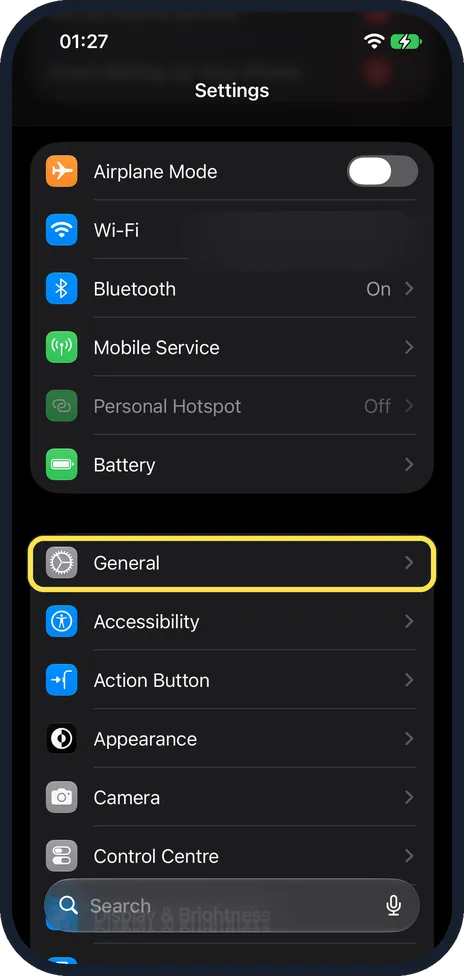
Open Settings and tap General
Open the grey Settings icon and tap General.
Watch these steps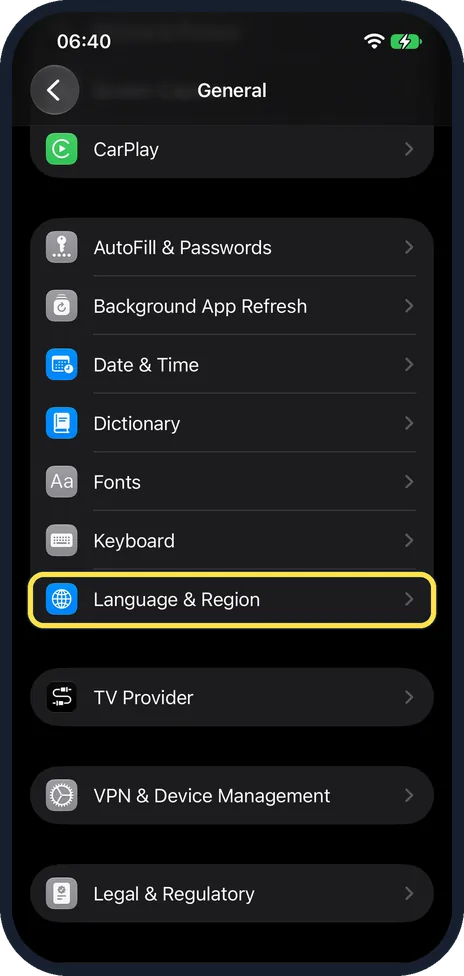
Tap Language & Region
Scroll down the General page to find it. On our iPhone 17e it is just below Keyboard.
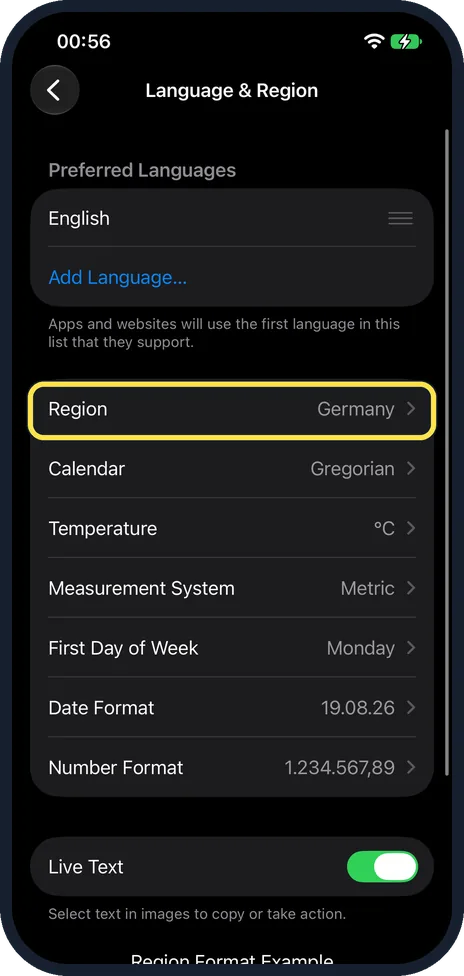
Tap Region
The Language & Region page starts with Preferred Languages, which on our iPhone 17e listed English and Add Language, with no separate iPhone Language row. Region is the first row of the next group and was set to Germany. The Region Format Example at the bottom of the page shows how your formats will look.
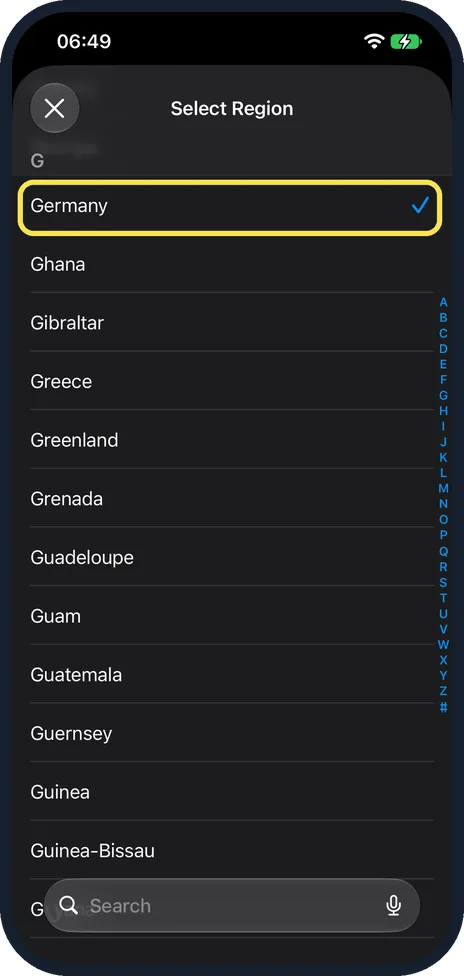
Choose your country
A Select Region list opens in alphabetical order, with a letter index down the right side and a Search field at the bottom. On our iPhone 17e Germany had the tick. Tap your country, or type its name in Search.
Set the temperature unit
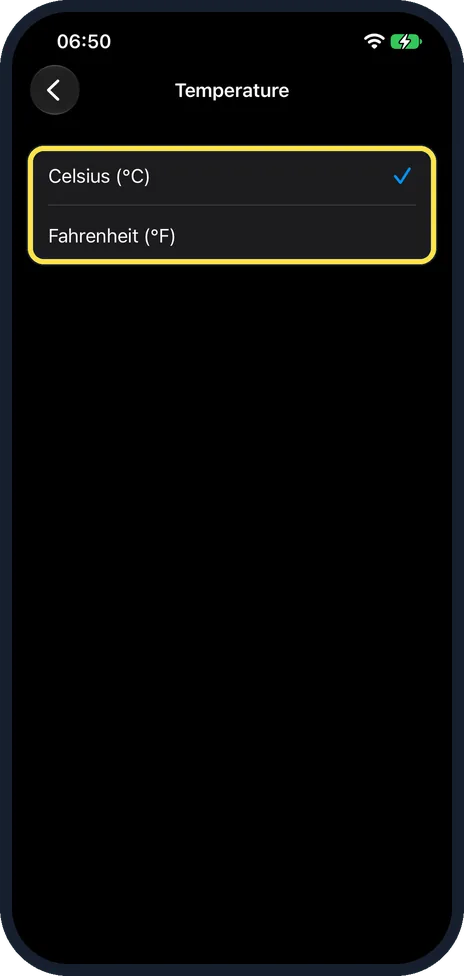
Tap Temperature and choose the unit. Apple's guide names the two choices, Celsius or Fahrenheit. On our iPhone 17e the row sits two rows below Region, after Calendar, and showed °C. Tapping it opened a Temperature page with two choices: Celsius (°C), ticked, and Fahrenheit (°F).
Adjust the date and number format
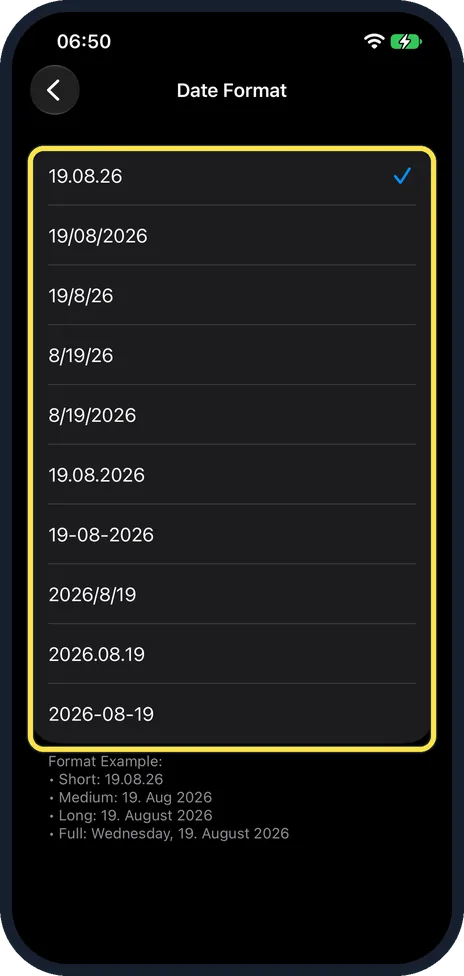
These rows sit below Temperature and Measurement System. On our iPhone 17e First Day of Week was Monday, Date Format showed 19.08.26 and Number Format showed 1.234.567,89. Date Format changes how dates are written. Number Format changes the marks for thousands and decimals. Tapping Date Format on our iPhone 17e opened a list of ten styles, from 19.08.26 (ticked), 19/08/2026 and 8/19/26 to 2026-08-19. Below the list, a Format Example shows the Short, Medium, Long and Full forms, such as Wednesday, 19. August 2026 for Full.
Optional: change the number format
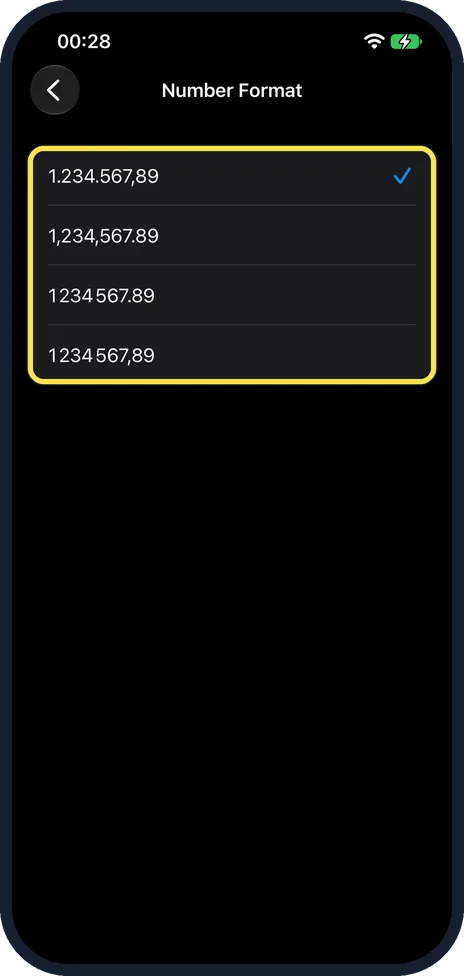
Tap Number Format. On our iPhone 17e it offered four styles: 1.234.567,89, ticked to match the Germany region, then 1,234,567.89, and two with spaces between the groups, 1 234 567.89 and 1 234 567,89. Tap the one you want. We left ours unchanged.
Know what changing the region does
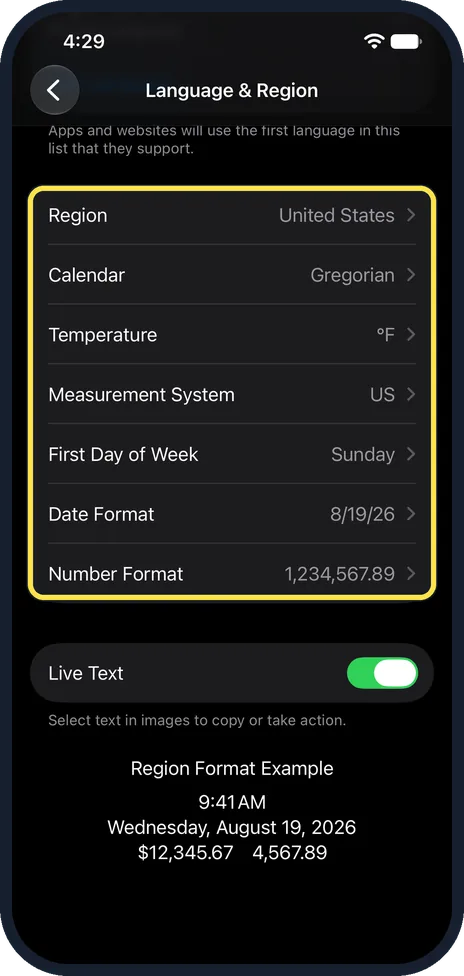
On our iPhone 17e we changed the region from Germany to United States and back. Choosing United States first asked whether to change the iPhone language to English (US), with Change to English (US), Keep English (UK) and Cancel. We kept English (UK). Settings then reopened, and every format had followed the new region: Temperature °F, Measurement System US, First Day of Week Sunday, Date Format 8/19/26 and Number Format 1,234,567.89. Switching back to Germany warned "Applying this setting will restart your iPhone". Afterwards everything was back to °C, Metric, Monday, 19.08.26 and 1.234.567,89. So changing the region resets every format to that region's defaults.
What changed: the screenshots are now our own iPhone 17e on iOS 27.0.1, dark mode, and the wording is checked against those screens and Apple's iOS 27 guide.
Watch these steps
What we saw on our device
- Tap Language & Region: On our iPhone 17e it is just below Keyboard.
- Choose your country: On our iPhone 17e Germany had the tick.
- Set the temperature unit: On our iPhone 17e the row sits two rows below Region, after Calendar, and showed °C.
- Adjust the date and number format: On our iPhone 17e First Day of Week was Monday, Date Format showed 19.08.26 and Number Format showed 1.234.567,89.
- Optional: change the number format: On our iPhone 17e it offered four styles: 1.234.567,89, ticked to match the Germany region, then 1,234,567.89, and two with spaces between the groups, 1 234 567.89 and 1 234 567,89.
- Know what changing the region does: On our iPhone 17e we changed the region from Germany to United States and back.
If you do not see this option
- Language is not in the list Apple's iOS 26 guide lists the iPhone language among these settings. The iOS 27 guide handles it separately, with Add Language under Preferred Languages. Source: Change the language and region on iPhone · Source: Change the language and region on iPhone (iOS 26)
- No miles or kilometres setting Distances and weights use the Measurement System row, just below Temperature on the same page. Apple's guide names the choices metric, US or UK. On our iPhone 17e it showed Metric. Source: Change the language and region on iPhone
If this does not work
- Time or date still wrong after moving country Go to Settings, General, Date & Time. Apple says the time zone is set automatically, but if Location Services is off or you have no service, you can turn off Set Time Zone Automatically and choose a Time Zone City. To set the date and time yourself, turn off Set Time Automatically. Source: Change the date and time on iPhone
- The Weather app still shows the other unit Apple says the Weather app has its own Units setting. For temperature you can choose Fahrenheit, Celsius or Use system setting. Pick Use system setting to follow the Temperature row here. Source: Check the weather on iPhone
- The iPhone asks to change the language On our iPhone 17e, picking United States asked whether to change the iPhone language to English (US). Tap the Keep button with your current language, Keep English (UK) on ours, to change only the region and its formats.
About this guide
Your region decides how the iPhone writes dates, numbers, currency and temperature. If you moved country or bought the phone abroad, these may not match what you are used to. You can change each one without changing the language. Screenshots: iPhone 17e, iOS 27.0.1, dark mode.
Good to know
To change the language, tap Add Language under Preferred Languages and select a language. The page notes that apps and websites use the first language in the list that they support.
Add a keyboard for the new language too: How to add a keyboard language on iPhone.
Between Region and Temperature there is a Calendar row. Apple calls it the calendar format. It was Gregorian on our iPhone 17e. It is separate from Date Format.
More on the clock: how to fix the date and time.
In short: Settings, General, Language & Region. Region, Temperature, Date Format and Number Format are all on that one page.
- Apple Support: Change the language and region on your iPhone
- Apple iPhone User Guide: Change the language and region on iPhone
- Apple iPhone User Guide: Change the language and region on iPhone (iOS 26)
- Apple iPhone User Guide: Change the date and time on iPhone
- Apple iPhone User Guide: Check the weather on iPhone
Links checked in October 2026. Menus and features can change after software updates. These steps match the version named at the top.
Did this guide work for you?
Sorry about that. What happened?