
What changed: the screenshots are now our own iPhone 17e on iOS 27.0.1, dark mode, and the wording is checked against those screens.
howtosimply.com/guides/how-to-stop-photos-taken-in-messages-being-saved-to-your-library/ · Checked October 2026 · iPhone 17e · iOS 27.0.1
In this guide
Open Settings, tap Camera, scroll to the bottom and switch off Save Captures to Photo Library under Messages. Photos you take with the camera inside the Messages app are then no longer saved to your library in the Photos app automatically.
3 of 3 steps with real screenshots · 1 official source below
- Device
- iPhone
- Shown on
- iOS 27.0.1 (iPhone 17e)
- App
- Settings
- Path
- Settings › Camera
- Real screenshots
- 3 of 3 steps
- What we did
- Performed: we made the change on our device and show the result
- Checked
- October 2026
- Sources
- 1 official, linked below
Step by step
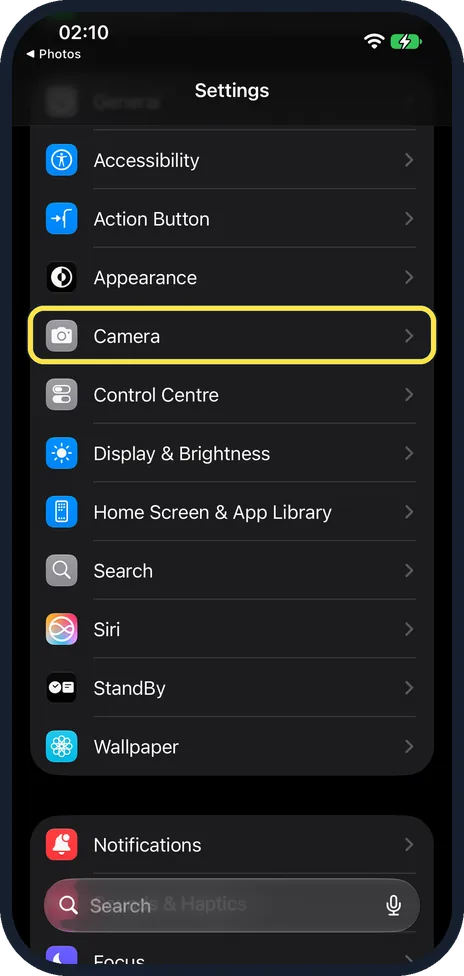
Open Settings and tap Camera
Camera is in the group that starts with General, a few rows below it.
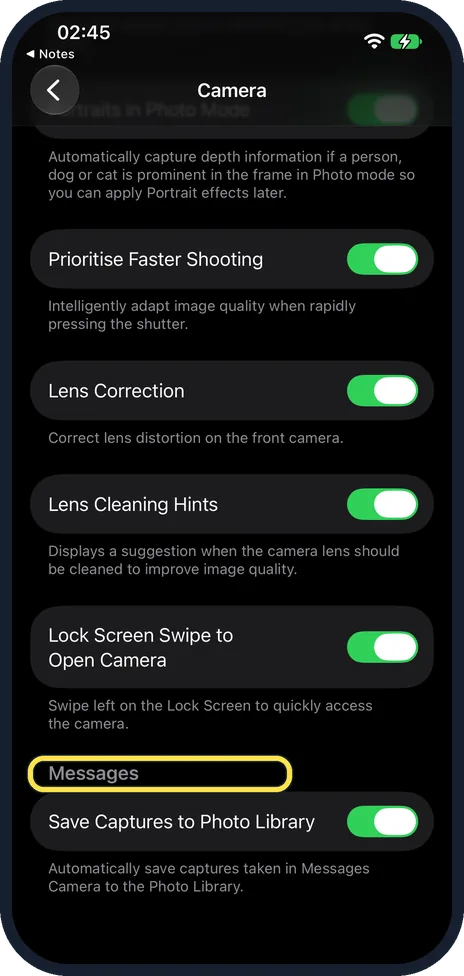
Scroll down to the heading Messages
It is near the bottom of the Camera page, below Lock Screen Swipe to Open Camera.
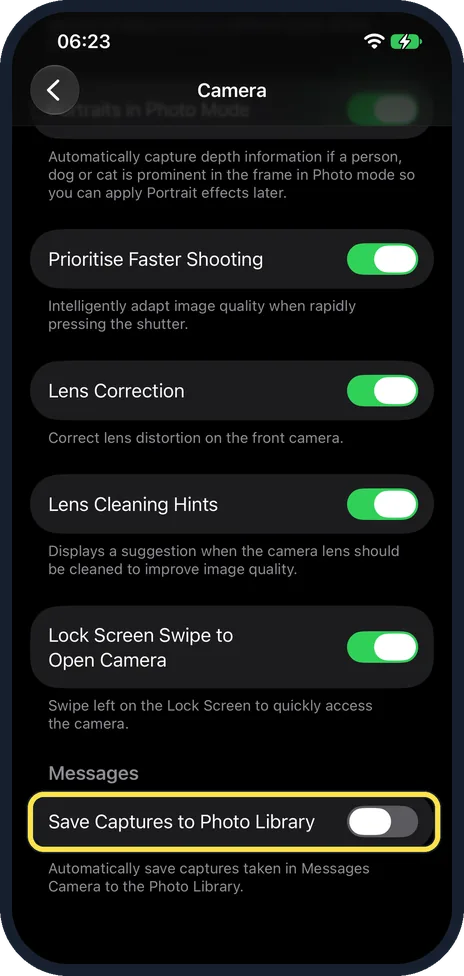
Scroll down and switch off Save Captures to Photo Library
It is under the heading Messages, below Lock Screen Swipe to Open Camera. It was on on our iPhone 17e; the picture shows it after we switched it off. The note below reads: "Automatically save captures taken in Messages Camera to the Photo Library."
What changed: the screenshots are now our own iPhone 17e on iOS 27.0.1, dark mode, and the wording is checked against those screens.
If you do not see this option
- Search for it. Open Settings, tap the search field at the bottom and type Save Captures. Apple notes that the sections in Settings depend on the iPhone model. Source: Find settings on iPhone
- Your Camera page has other rows. Apple says rows such as View Outside the Frame and Lens Correction appear only on supported models, so the Messages heading can sit higher or lower than on ours. Source: Change advanced camera settings on iPhone
If this does not work
- Photos taken earlier are still in your library. The switch only affects new captures. Delete the older ones in the Photos app.
- Photos still land in your library. This switch only covers the camera inside Messages. Photos you take with the Camera app itself are saved to your library as usual.
About this guide
A quick photo taken inside a chat, of a receipt or a parking spot, is automatically saved to your library in the Photos app as well. If you do not want these throwaway pictures there, one switch stops it.
The screenshots are our own, taken on an iPhone 17e running iOS 27.0.1, in dark mode.
Good to know
To have them saved again, switch Save Captures to Photo Library back on.
In short: Settings, Camera, Save Captures to Photo Library off.
Links checked in October 2026. Menus and features can change after software updates. These steps match the version named at the top.
Did this guide work for you?
Sorry about that. What happened?