
What changed: the screenshots are now our own iPhone 17e on iOS 27.0.1, dark mode, and the wording is checked against those screens and Apple's iOS 27 guide.
howtosimply.com/guides/how-to-use-sound-recognition-on-an-iphone/ · Checked October 2026 · iPhone 17e · iOS 27.0.1
In this guide
Open Settings, Accessibility, Sound & Name Recognition and tap Sound Recognition. Switch it on and choose the sounds you want to be alerted to. The iPhone then shows a notification when it hears one.
5 of 5 steps with real screenshots · 1 official source below
- Device
- iPhone
- Shown on
- iOS 27.0.1 (iPhone 17e)
- App
- Settings
- Path
- Settings › Accessibility › Sound & Name Recognition
- Real screenshots
- 5 of 5 steps
- Checked
- October 2026
- Sources
- 1 official, linked below
Step by step
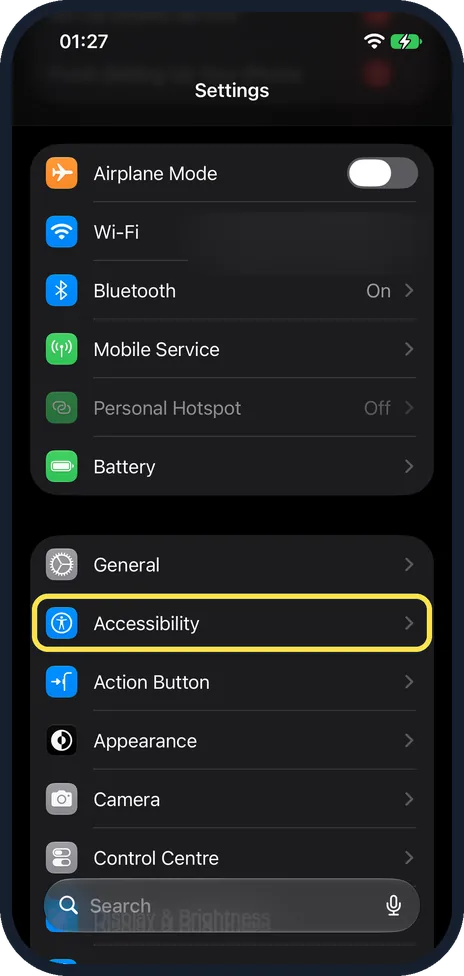
Open Accessibility
Open Settings and tap Accessibility. On our iPhone 17e with iOS 27 it was just below General.
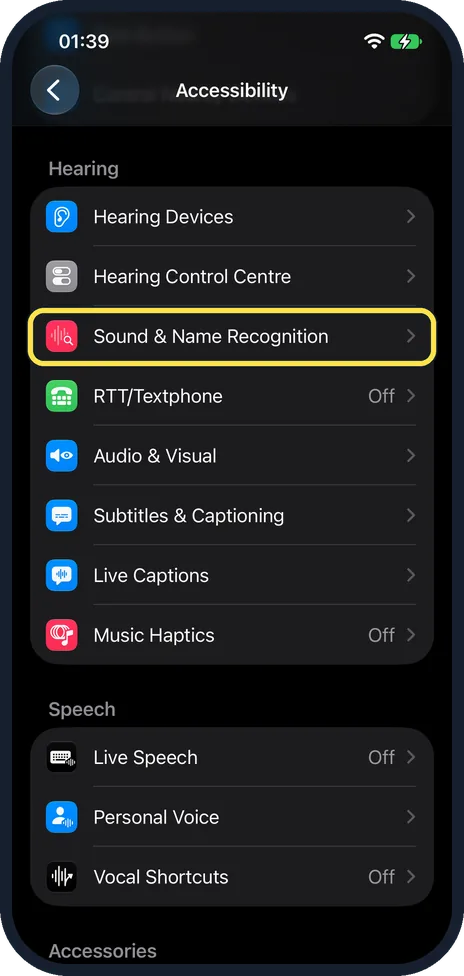
Tap Sound & Name Recognition
Scroll down to the Hearing group on the Accessibility page. On our iPhone 17e it was the third row there, below Hearing Devices and Hearing Control Centre.
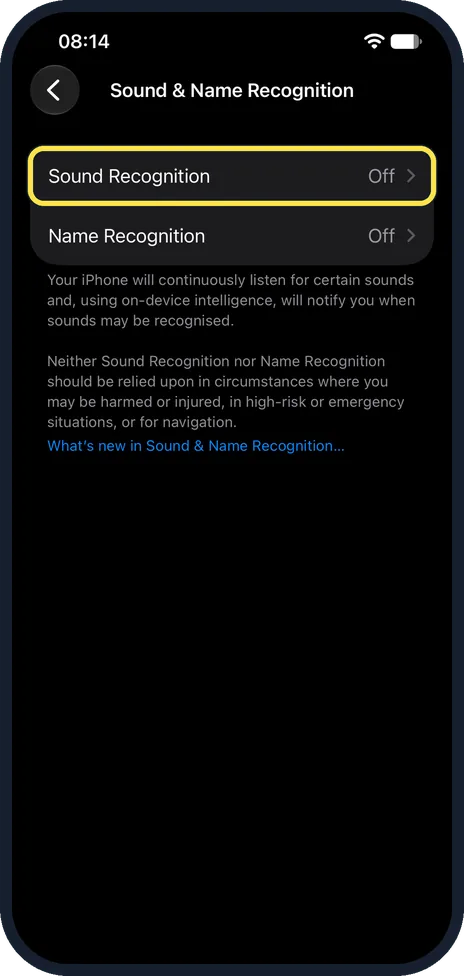
Tap Sound Recognition
The first row, above Name Recognition. On our iPhone 17e with iOS 27 both showed Off.
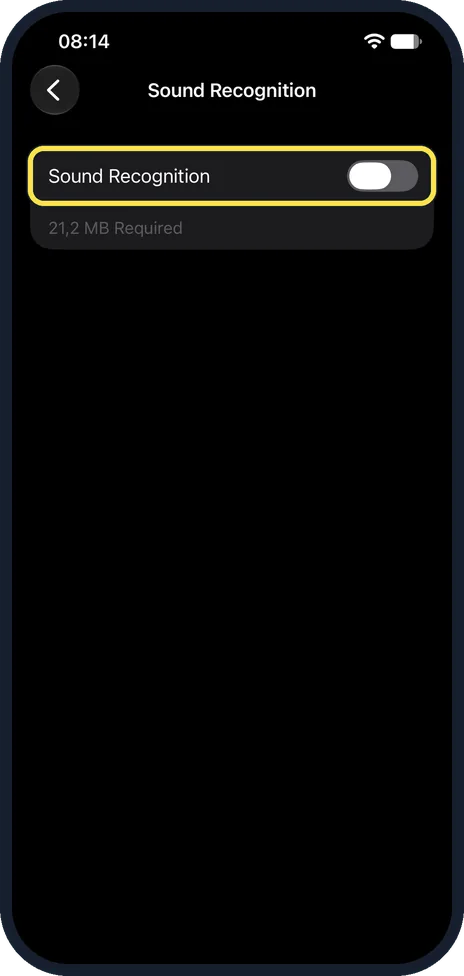
Switch on Sound Recognition
Turn on the switch. A Sounds row then appears below it: tap it and switch on the sounds you want to be alerted to. On our iPhone 17e with iOS 27 the switch was off with 21,2 MB Required under it, and the Sounds list only appears once it is on.
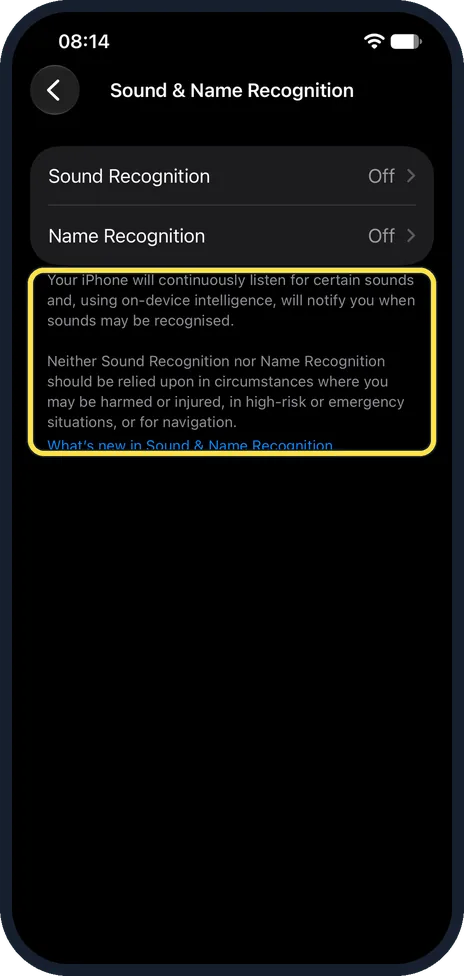
Read the warning
The Sound & Name Recognition page says the iPhone listens continuously using on-device intelligence, and that it should not be relied on in high-risk situations or for navigation.
What changed: the screenshots are now our own iPhone 17e on iOS 27.0.1, dark mode, and the wording is checked against those screens and Apple's iOS 27 guide.
If you do not see this option
- No Sounds row On our iPhone 17e, with Sound Recognition off, the page showed only the switch with 21,2 MB Required under it. Apple says to turn Sound Recognition on, then tap Sounds. Source: Recognize sounds using iPhone
- Your alarm, appliance or doorbell is not in the list Apple says you can add a custom one: tap Sounds, then Custom Alarm or Custom Appliance or Doorbell, enter a name, place the iPhone near the sound and tap Start Listening. Source: Recognize sounds using iPhone
If this does not work
- No alerts straight after switching it on Apple says that after you turn on Sound Recognition you may need to wait for the iPhone to download the available sounds. On our iPhone 17e the page said 21,2 MB Required. Source: Recognize sounds using iPhone
- Nothing happens for one sound Check that this sound is switched on under Sounds. Apple says to turn on each sound you want the iPhone to recognise, and not to rely on it where you may be harmed or injured, in emergencies or for navigation. Source: Recognize sounds using iPhone
About this guide
Sound Recognition lets the iPhone listen for certain sounds, such as a doorbell, siren or crying baby, and notify you when it recognises one. On iOS 27 it shares a page with Name Recognition.
Screenshots: iPhone 17e, iOS 27.0.1, dark mode. Both were off on our phone and we left them off.
Good to know
Name Recognition, the second row on the same page, is a separate setting with its own switch.
In short: Settings, Accessibility, Sound & Name Recognition, Sound Recognition on, choose sounds.
Links checked in October 2026. Menus and features can change after software updates. These steps match the version named at the top.
📷 See real photos from the iPhone 17e in our Camera Lab, next to 10 other phones.
Did this guide work for you?
Sorry about that. What happened?