VIVO
How to move to a vivo phone from an iPhone with Device clone

In short
On the vivo phone open Settings, System management, Device clone and tap This is a new device, then Apple. Install EasyShare on the iPhone from the QR code, open EasyShare, Device clone on the iPhone and scan the code the vivo phone shows. If scanning fails, use Manually connect and join its hotspot.
6 of 6 steps show a real screenshot from our V70 Lite 5G. Each step was checked against the maker's own instructions, linked at the end.
Steps
- 1
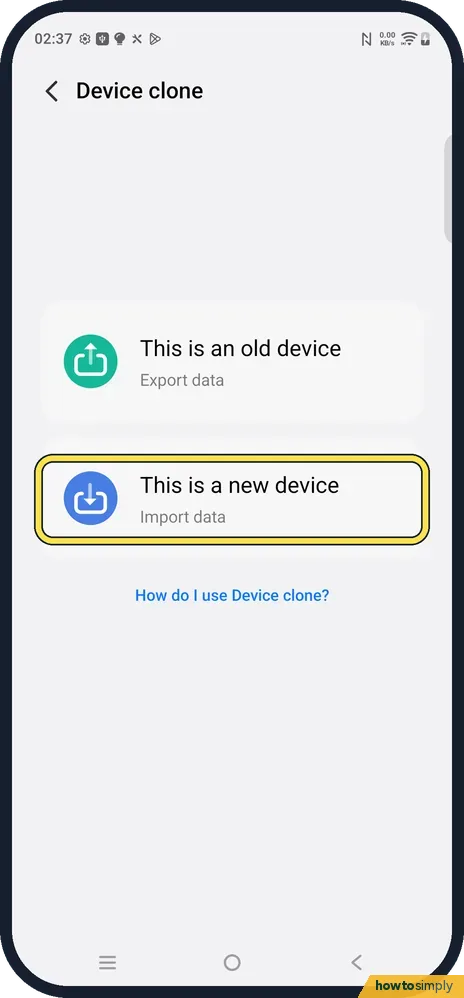
Open Device clone and tap This is a new device
Open Settings, System management, Device clone. Two choices show: This is an old device (Export data) and This is a new device (Import data). On the vivo phone you are moving to, tap This is a new device.
- 2
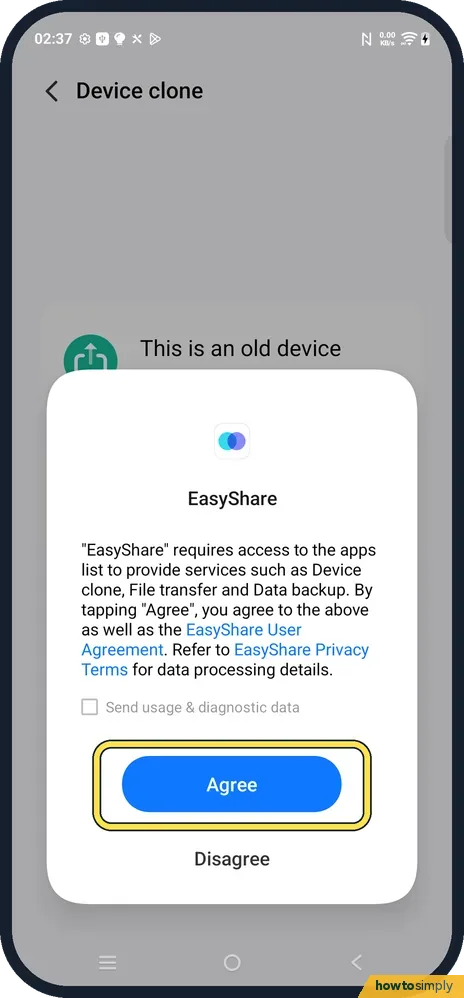
Read the EasyShare notice
The first time, EasyShare asks for access to the apps list to provide Device clone, File transfer and Data backup. Tap Agree to go on. Send usage & diagnostic data is a separate tick box; we left it unticked.
- 3
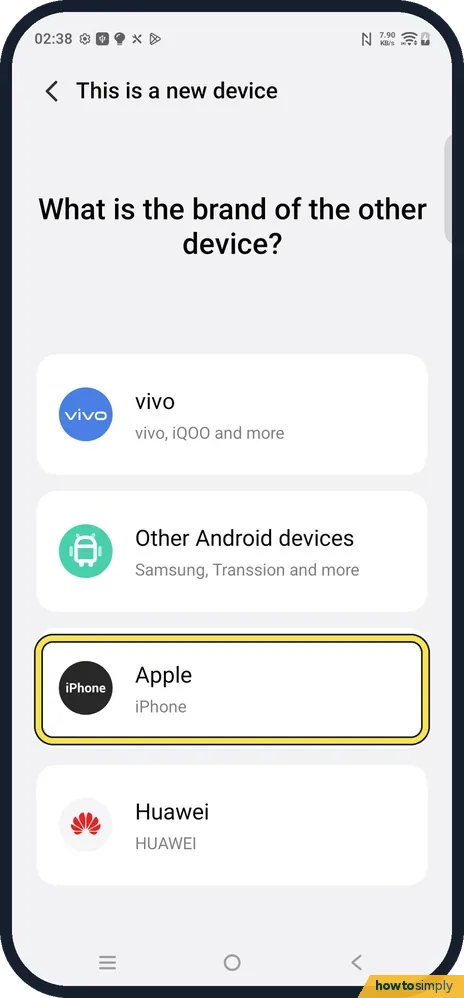
Pick Apple
The phone asks for the brand of the other device: vivo, Other Android devices, Apple or Huawei. Tap Apple (iPhone).
- 4
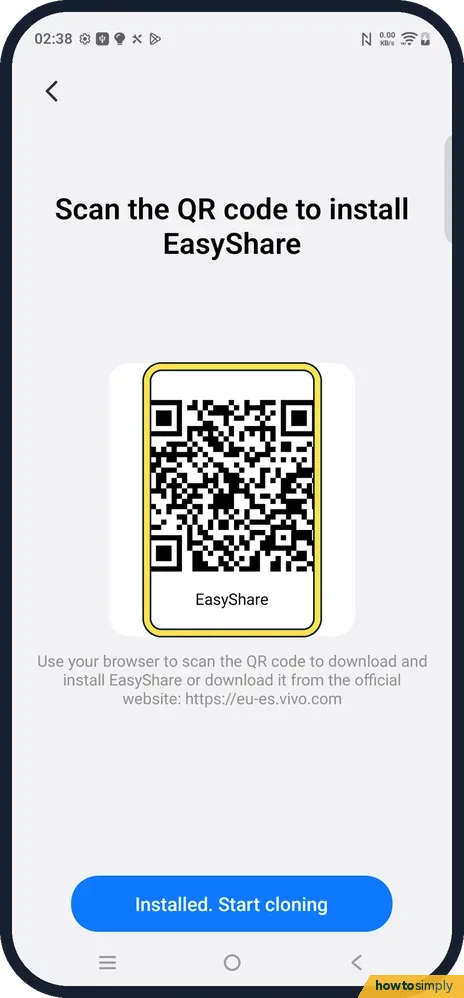
Install EasyShare on the iPhone
Scan the QR code with the iPhone's camera or browser to download EasyShare, or get it from vivo's site, eu-es.vivo.com on our European model. vivo says EasyShare is also in the iOS App Store, but only in some regions. When it is installed, tap Installed. Start cloning on the vivo phone.
- 5
Scan to connect from the iPhone
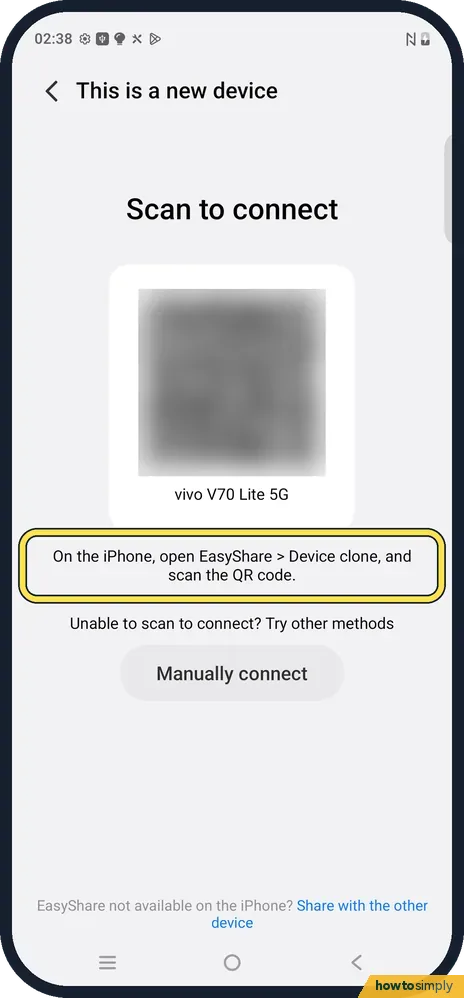
The vivo phone now shows its own QR code (blurred here) and its name. The instruction reads: On the iPhone, open EasyShare, Device clone, and scan the QR code. Then follow the screens on both phones to pick what to bring across.
- 6
If scanning fails, connect by hotspot
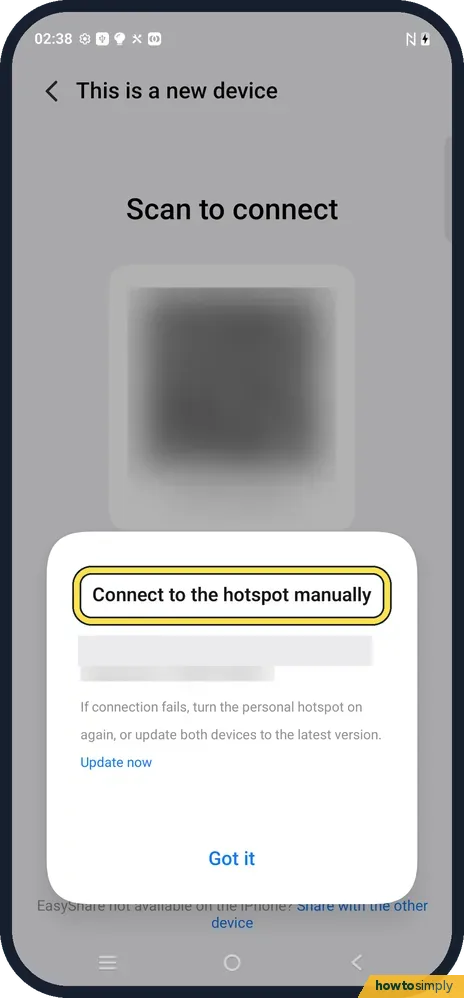
Tap Manually connect under Unable to scan to connect? A box shows the vivo phone's hotspot name and password (covered here). Join that Wi-Fi network on the iPhone in Settings, Wi-Fi, then return to EasyShare. If the connection fails, the box says to turn the personal hotspot on again or update both devices.
If you do not see this option
- No Device clone in System management? Search Settings for Device clone, or open the EasyShare app and look for Device clone or Phone Clone there. Settings home on ours also had a Device clone shortcut at the top (Copy your old phone). Source: EasyShare FAQs
- Your iPhone App Store has no EasyShare? vivo says the App Store version is only available in some regions. The QR code on the vivo phone links to vivo's own download page. Source: EasyShare FAQs
- Moving from another Android phone instead? Pick Other Android devices in step 3 (Samsung, Transsion and more), or vivo if the old phone is a vivo or iQOO.
If this does not work
- WhatsApp or other app chats did not come across? vivo says that because iOS and Android are different systems, the app data of iPhone cannot be transferred to vivo phones for now. Use the app's own transfer or backup for chats.
- The iPhone cannot see the vivo hotspot? Keep both phones close, turn the vivo hotspot on again from the Manually connect box, and update both phones and EasyShare, as the box suggests.
- The connection drops halfway? Keep both screens on and both phones on charge. Do not answer calls on the iPhone during the transfer, because the iPhone is joined to the vivo hotspot instead of your Wi-Fi.
- Prefer a cable or Google instead? Back up the iPhone's photos and contacts to your Google account, then sign in on the vivo phone. It is slower but does not depend on EasyShare.
Good to know
Device clone works phone to phone over a direct Wi-Fi link: the vivo phone acts as the hotspot and the iPhone joins it. You do not need mobile data for the transfer itself.
Do the clone before you set up the vivo phone too far. Data that already exists on the new phone can sit next to the copied data, so a clean start makes it easier to check what arrived.
Expect paid apps, iMessage and FaceTime to stay on the Apple side. Turn off iMessage on the iPhone before you move your SIM, so texts from iPhone users reach the vivo phone as normal SMS.
Keep the iPhone until you have checked contacts, photos and calendar on the vivo phone, and have opened your important apps once.
About this guide
- Device
- Android
- Shown on
- vivo V70 Lite 5G (V2529, EEA), OriginOS 6, Android 16 (build PD2512SF_EX_A_16.1.19.5)
- App
- Settings
- Path
- Settings › System management › Device clone › This is a new device › Apple
- Real screenshots
- 6 of 6 steps
- Checked
- October 2026
- Sources
- 2 official, linked below
Sources
Links checked October 2026. Menus and features can change with updates.Spotted a mistake? Menus change with updates, and we want every step to match your screen. Email us about this page or use the contact form. We read every report, and fixes are listed on What changed.
Liked this guide?
Follow us for new guides and short how-to videos.
Did this guide work for you?
Sorry about that. What happened?