
howtosimply.com/guides/how-to-turn-off-notifications-on-a-mac/ · Checked October 2026 · MacBook Pro · macOS Tahoe 26
In this guide
Open System Settings and click Notifications. Under Application Notifications, click the app or website and switch off Allow notifications. For a short break from all notifications, turn on Do Not Disturb instead.
3 of 5 steps with real screenshots · 2 official sources below
- Device
- Mac
- Shown on
- macOS Tahoe 26 (MacBook Pro)
- App
- System Settings
- Path
- System Settings › Notifications
- Real screenshots
- 3 of 5 steps
- Checked
- October 2026
- Sources
- 2 official, linked below
Step by step
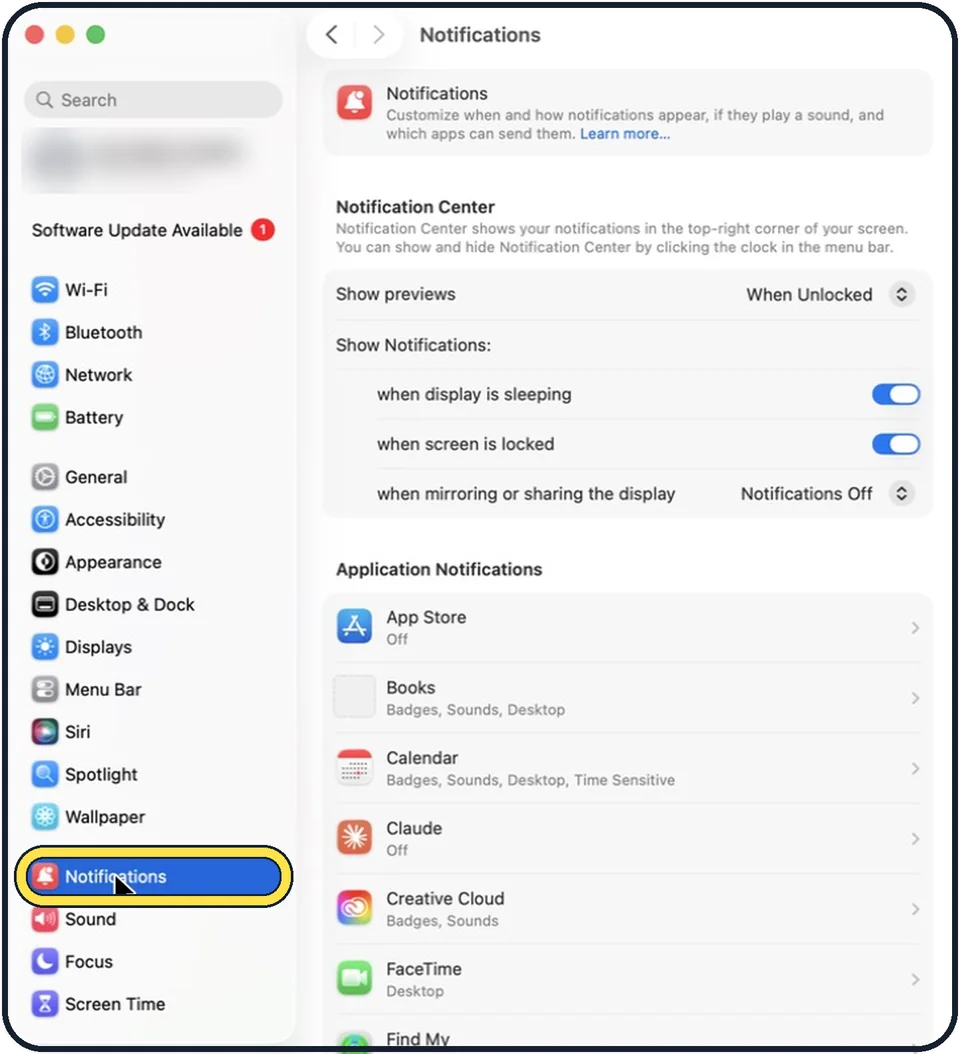
Zoomed in on the setting. Tap to see the whole screenTap the picture to see it full size Open System Settings and click Notifications
Click the Apple menu, then System Settings, then Notifications in the sidebar.
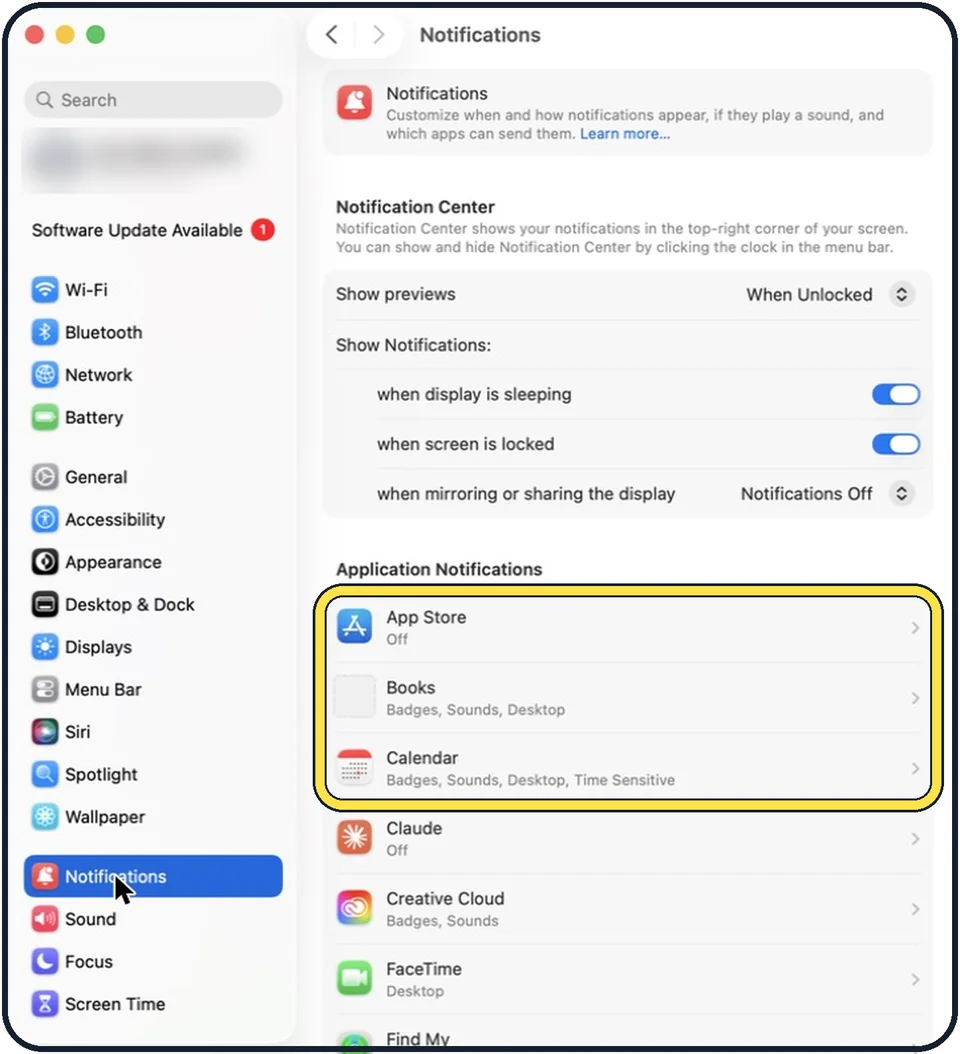
Tap the picture to see it full size Click the app or website
The list is under the heading Application Notifications. Websites that asked to send notifications in Safari appear in the same list.
Switch off Allow notifications
You receive nothing more from this app until you switch it on again.
Repeat for other apps
Go back and do the same for each app that disturbs you.
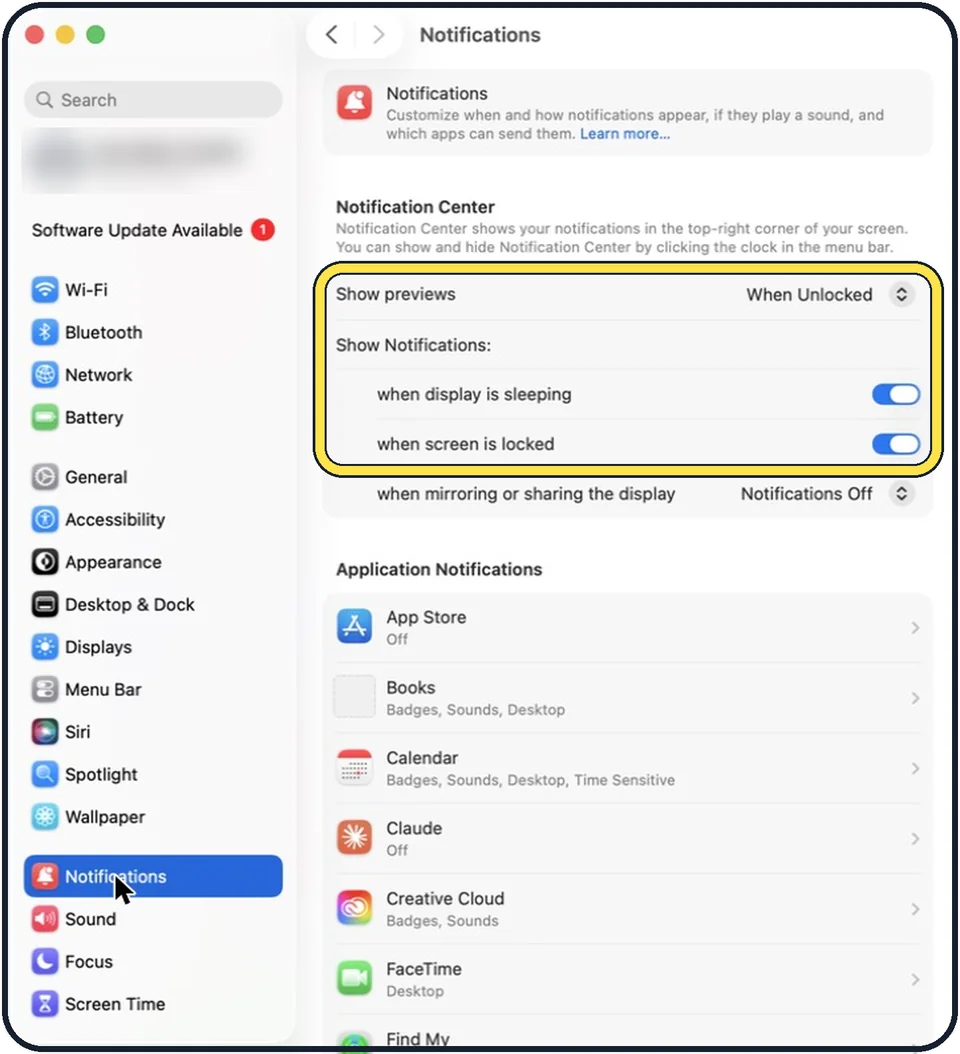
Tap the picture to see it full size Hide notifications on the Lock Screen
At the top of the Notifications page, set Show previews to When Unlocked or Never, and switch off the line when screen is locked.
About this guide
Banners in the corner of the screen interrupt work and show up in the middle of presentations. You can silence a single app for good, or everything for a while.
These steps are for recent versions of macOS, where the settings app is called System Settings. The pictures are our own screenshots from macOS Tahoe 26 on a MacBook Pro.
Good to know
For presentations, the same page has a setting for when you mirror or share the display. Set it to Notifications Off.
For a short break, use a Focus rather than changing each app: how to use Focus and Do Not Disturb on a Mac.
A website that keeps asking can be stopped in Safari, Settings, Websites, Notifications.
In short: System Settings, Notifications, pick the app, Allow notifications off.
- Apple Support: Turn off notifications for an app or website on Mac
- Apple Support: Change Notifications settings on Mac
Links checked in October 2026. Menus and features can change after software updates. These steps match the version named at the top.
Did this guide work for you?
Sorry about that. What happened?