
macOS 27 compared with macOS 26: We rewrote this guide on macOS 27.0.1 (MacBook Neo): it now has 5 steps instead of 4. The macOS 26 page keeps the steps and screenshots as they were.
howtosimply.com/guides/how-to-turn-on-filevault-on-a-mac/ · Checked October 2026 · MacBook Neo · macOS 27.0.1
In this guide
Open System Settings, click Privacy & Security, scroll down to Security and click FileVault, then turn on the FileVault switch. Apple says you then enter your password, choose how to unlock the disk if you forget it, and click Continue; keep any recovery key somewhere safe.
3 of 5 steps with real screenshots · 1 official source below
- Device
- Mac
- Shown on
- macOS 27.0.1 (MacBook Neo)
- App
- System Settings
- Real screenshots
- 3 of 5 steps
- Checked
- October 2026
- Sources
- 1 official, linked below
Step by step
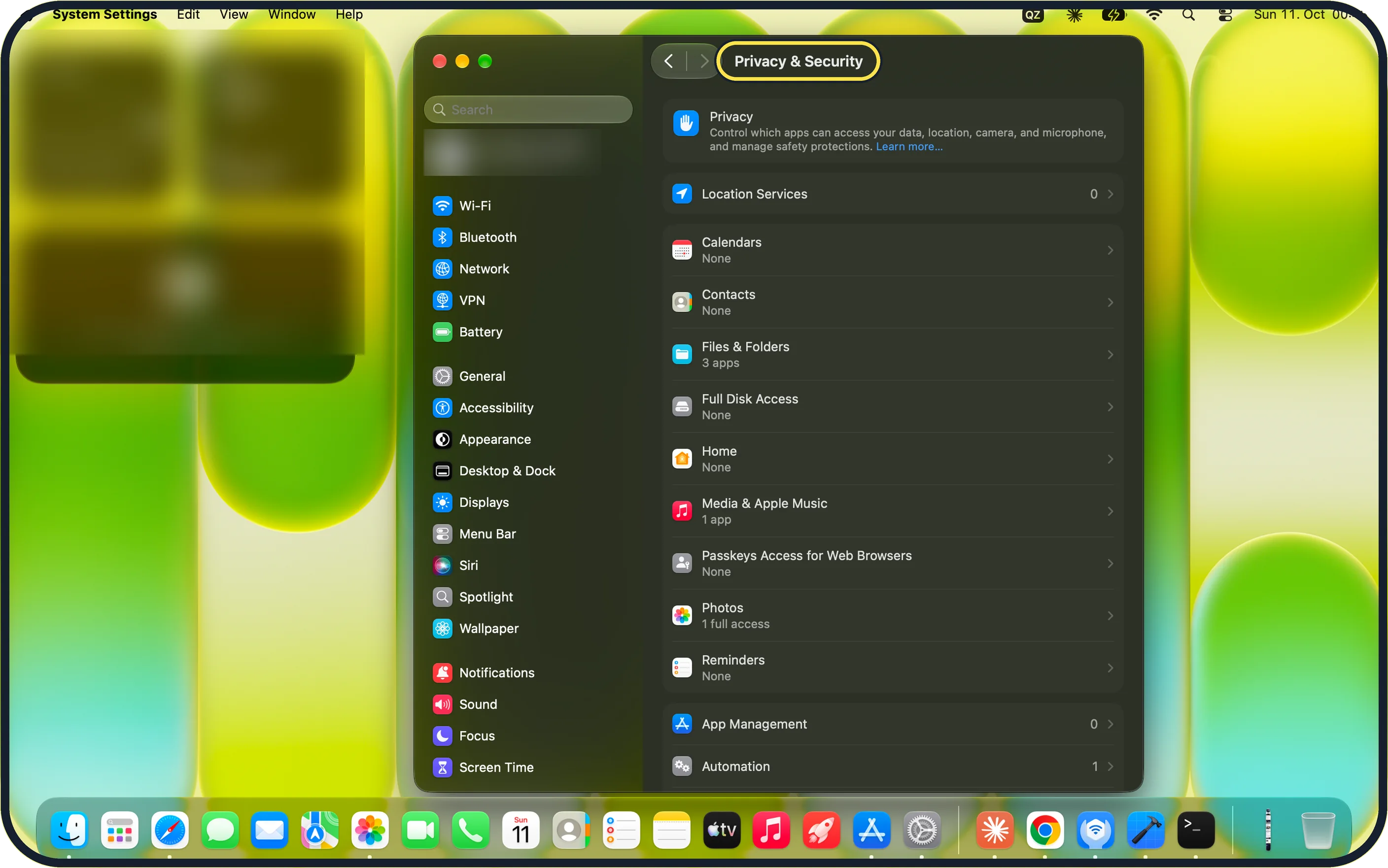
Zoomed in on the setting. Tap to see the whole screenTap the picture to see it full size Open System Settings and click Privacy & Security
Click the Apple menu in the top left corner and choose System Settings.
Click Privacy & Security in the sidebar. It is further down than Screen Time, so you may need to scroll the sidebar. On our MacBook Neo the page that opens is titled Privacy & Security, with Privacy and Location Services at the top.
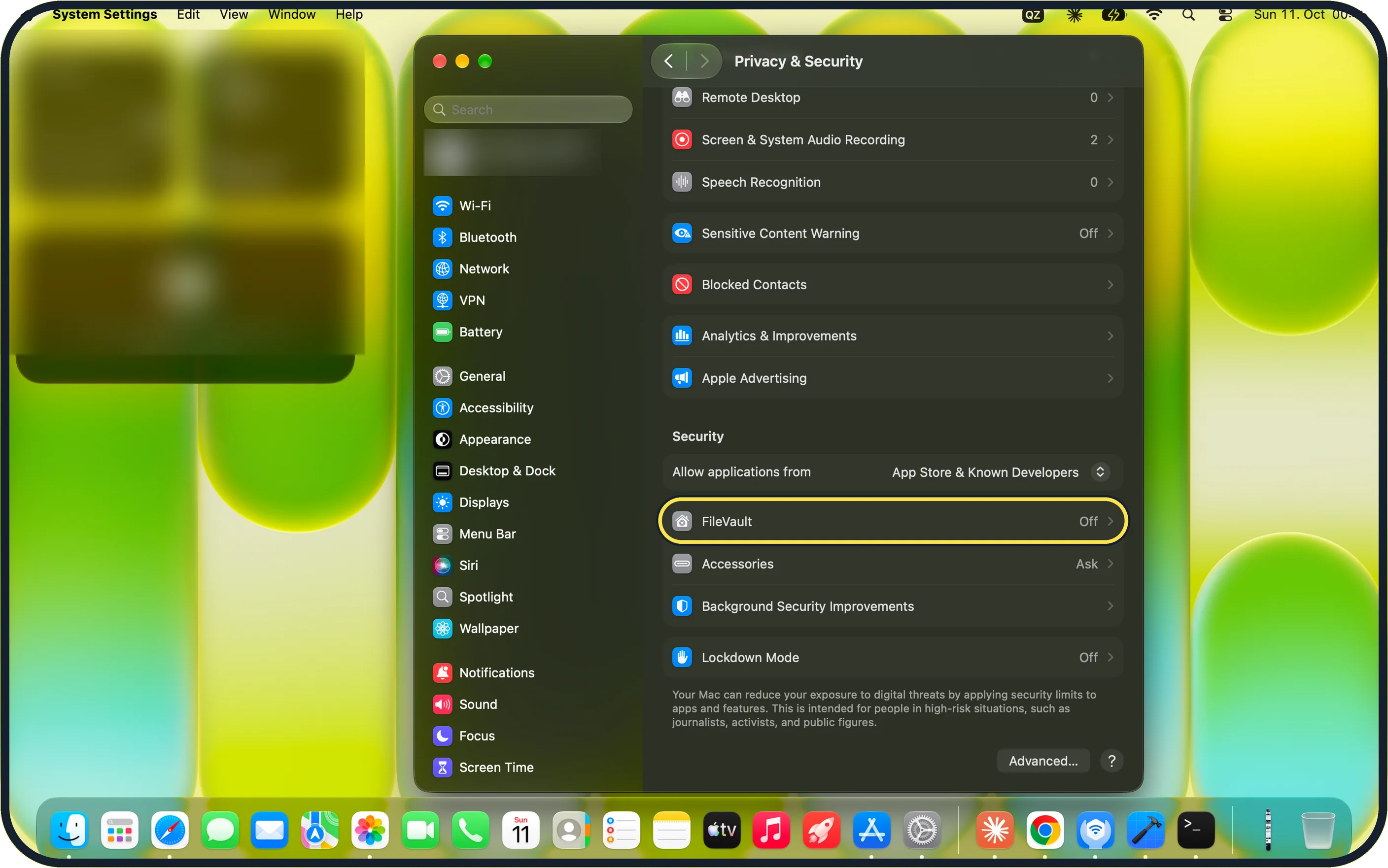
Zoomed in on the setting. Tap to see the whole screenTap the picture to see it full size Scroll to Security and click FileVault
Scroll the right-hand pane down to the Security heading and click FileVault.
On our MacBook Neo the row read FileVault Off, just below Allow applications from.
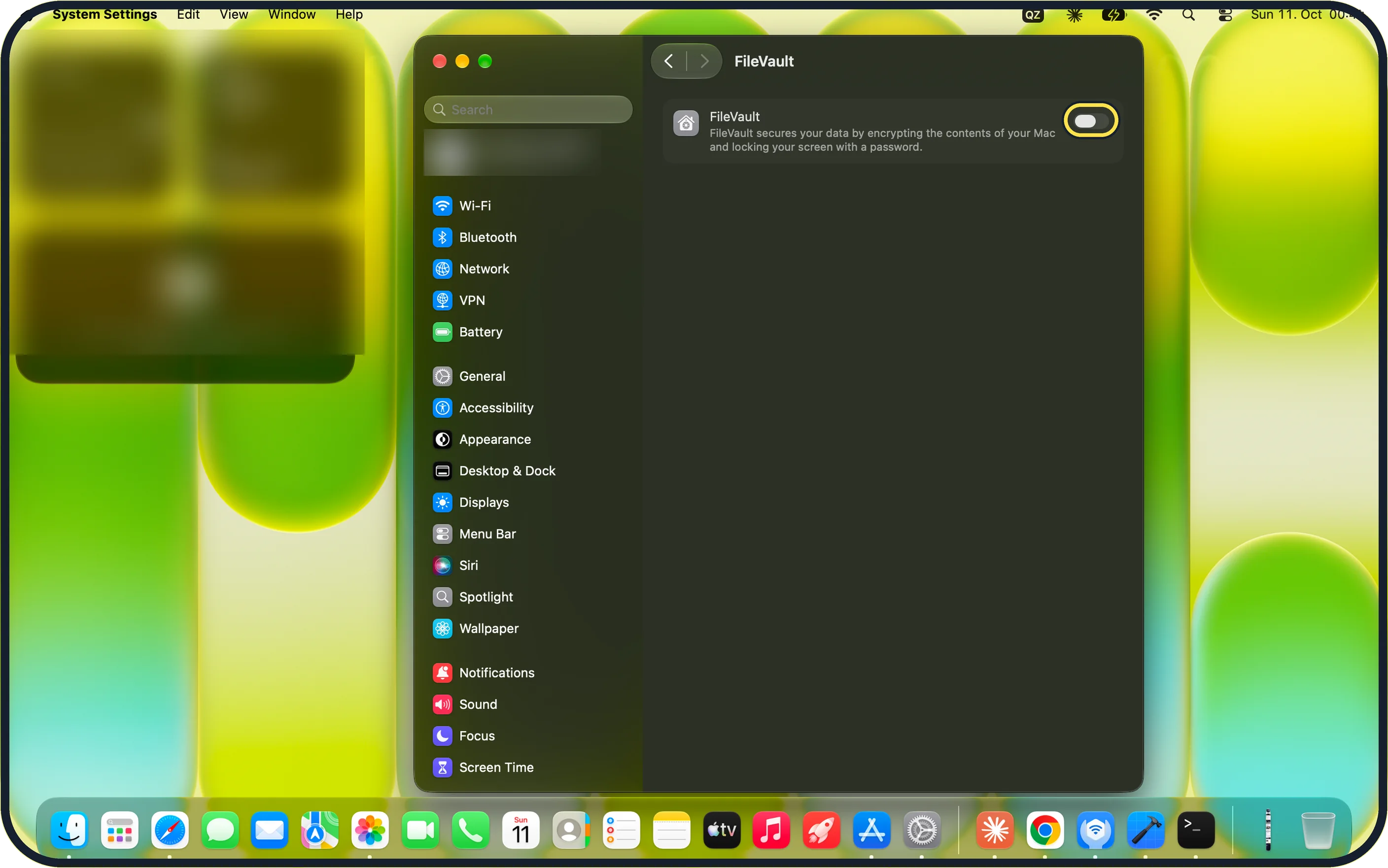
Zoomed in on the setting. Tap to see the whole screenTap the picture to see it full size Turn on the FileVault switch
On macOS 27 this is a switch, not the Turn On button described for macOS 26. On our MacBook Neo it sits next to the text "FileVault secures your data by encrypting the contents of your Mac and locking your screen with a password."
Apple says you may be asked for your password.
Choose a recovery method
Apple says you can allow your iCloud account to unlock the disk, or create a recovery key instead.
A recovery key is a long code of letters and numbers. Write it down and store it away from the Mac.
Click Continue
Apple says encryption happens in the background while you work, and on Macs with Apple silicon or the T2 chip the data is already encrypted, so turning FileVault on ties that encryption to your password.
What we saw on our device
- Open System Settings and click Privacy & Security: On our MacBook Neo the page that opens is titled Privacy & Security, with Privacy and Location Services at the top.
- Scroll to Security and click FileVault: On our MacBook Neo the row read FileVault Off, just below Allow applications from.
If you do not see this option
- FileVault is not near the top of Privacy & Security It sits under the Security heading near the bottom of the page, below Apple Advertising. Scroll the right-hand pane down. Source: Protect data on your Mac with FileVault
- There is no Turn On button On macOS 27 the FileVault page has a single FileVault switch instead. Click the switch to turn it on.
If this does not work
- FileVault still shows Off Go back to Privacy & Security and check the FileVault row under Security. On our MacBook Neo it read Off before the switch was turned on.
- You forgot your password and lost the recovery key Apple says the data cannot then be recovered by anyone, including Apple, so keep the recovery key safe from the start. Source: Protect data on your Mac with FileVault
- Encryption seems to take a while Apple says it runs in the background while you work, so you can keep using the Mac. Source: Protect data on your Mac with FileVault
About this guide
FileVault encrypts everything on the Mac's disk, so nobody can read your files without your password, even by removing the drive.
Screenshots: MacBook Neo, macOS 27.0.1, dark mode.
Good to know
If you forget your password and lose the recovery method, the data cannot be recovered by anyone, including Apple. Take the recovery step seriously.
FileVault protects a Mac that is switched off or logged out. Lock the screen when you walk away: Control + Command + Q.
FileVault protects the disk if the Mac is stolen; the firewall protects it on networks: How to turn on the firewall on a Mac.
A strong login password matters more with FileVault on: how to change your password on a Mac.
In short: System Settings > Privacy & Security > FileVault > turn on the FileVault switch > choose a recovery method > Continue.
Links checked in October 2026. Menus and features can change after software updates. These steps match the version named at the top.
Did this guide work for you?
Sorry about that. What happened?