
howtosimply.com/guides/how-to-set-up-touch-id-on-a-mac/ · Checked October 2026 · MacBook Pro · macOS Tahoe 26
In this guide
Open System Settings, click Touch ID & Password, click Add Fingerprint, enter your password and follow the instructions on screen. You can add up to three fingerprints to your account.
3 of 5 steps with real screenshots · 1 official source below
- Device
- Mac
- Shown on
- macOS Tahoe 26 (MacBook Pro)
- App
- System Settings
- Path
- System Settings › Touch ID & Password › Add Fingerprint
- Real screenshots
- 3 of 5 steps
- Checked
- October 2026
- Sources
- 1 official, linked below
Step by step
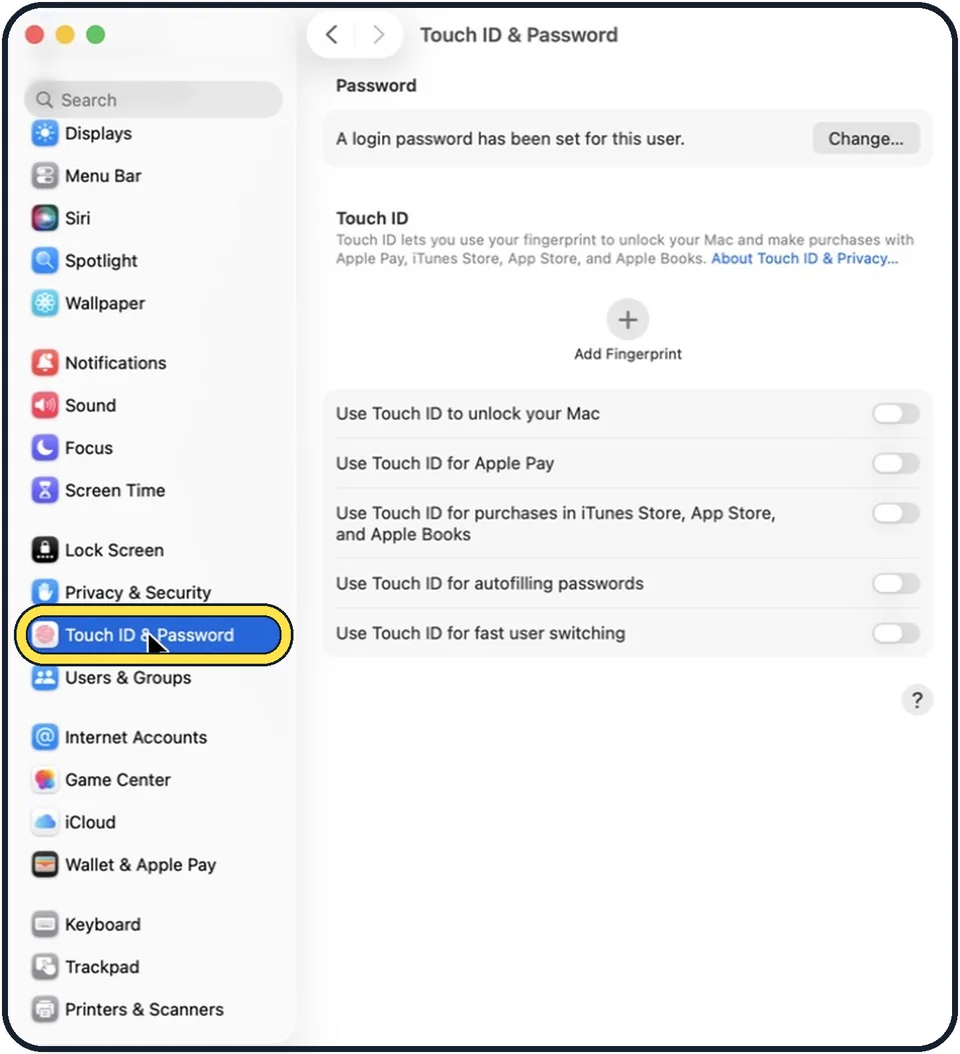
Zoomed in on the setting. Tap to see the whole screenTap the picture to see it full size Open System Settings and click Touch ID & Password
Click the Apple menu, then System Settings. Scroll down in the sidebar to Touch ID & Password.
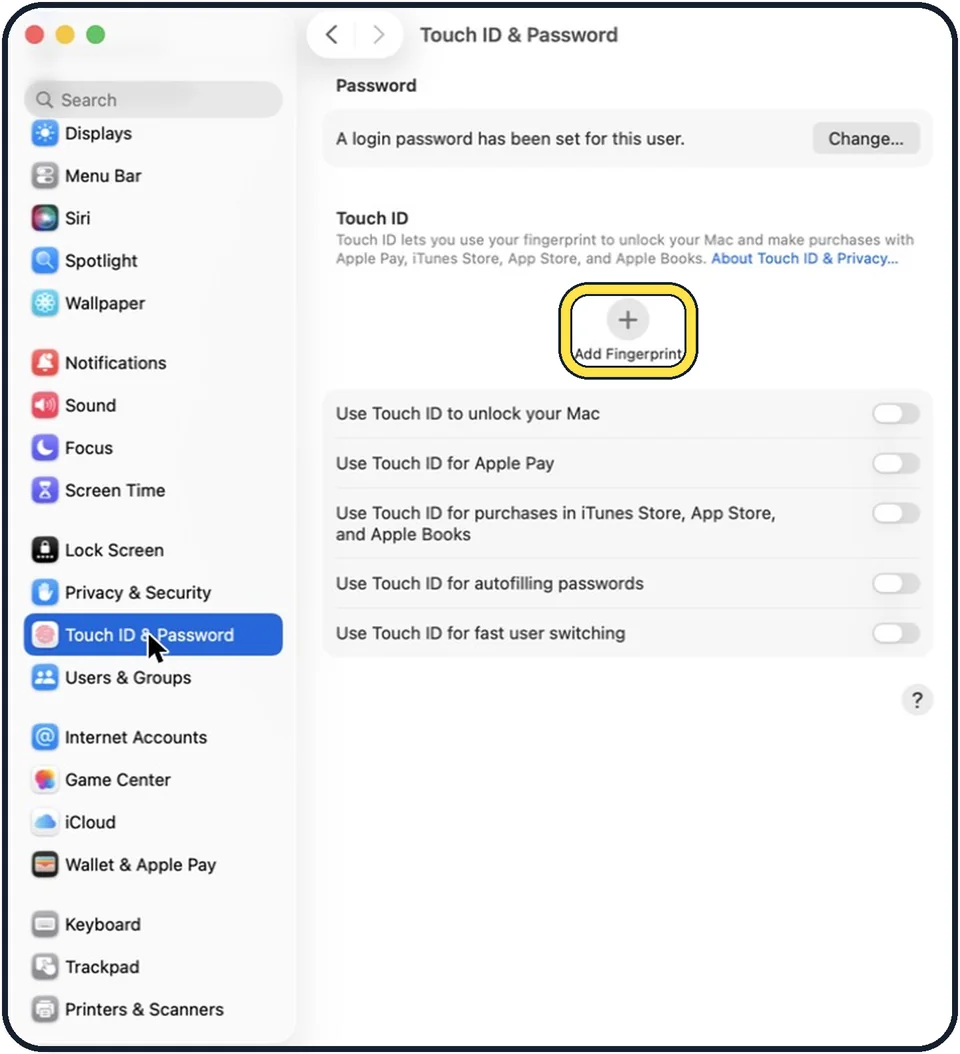
Zoomed in on the setting. Tap to see the whole screenTap the picture to see it full size Click Add Fingerprint
It is the round plus button. Enter your Mac password when asked.
Place and lift your finger
Follow the instructions on screen. Rest the finger on the Touch ID key and lift it, again and again, without pressing the key down.
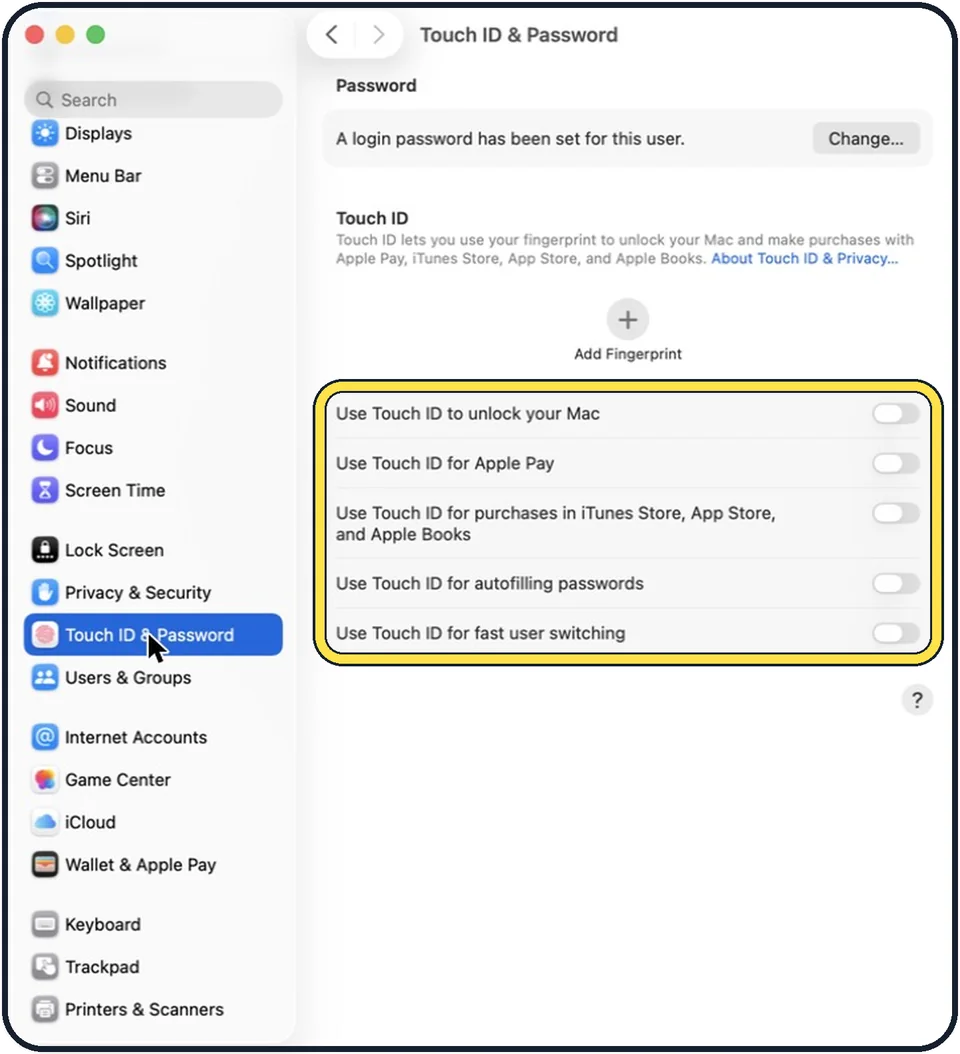
Tap the picture to see it full size Choose what Touch ID is used for
Below Add Fingerprint, the Touch ID & Password page lists five switches: Use Touch ID to unlock your Mac, Use Touch ID for Apple Pay, Use Touch ID for purchases in iTunes Store, App Store, and Apple Books, Use Touch ID for autofilling passwords, and Use Touch ID for fast user switching. On our Mac, before a fingerprint was added, all five are off. Switch each one on or off.
Add a second finger
Click Add Fingerprint again for a finger of the other hand. One account can have up to three fingerprints, and one Mac up to five in total.
About this guide
Touch ID lets you unlock the Mac, fill in passwords and confirm purchases with a fingertip. The sensor is the key at the top right of the keyboard on MacBooks and on Magic Keyboards with Touch ID.
These steps are for recent versions of macOS, where the settings app is called System Settings. The pictures are our own screenshots from macOS Tahoe 26 on a MacBook Pro.
Good to know
The Mac still asks for the password sometimes: after you start it, every 48 hours, and after five fingerprint attempts that did not work.
To name a fingerprint, click the text below it. To delete one, click the fingerprint, enter your password, click Unlock and then Delete.
If the sensor often fails, clean and dry the key and your finger, delete the fingerprint and add it again.
Changing the password itself: how to change your password on a Mac.
In short: System Settings, Touch ID & Password, Add Fingerprint, follow the instructions.
Links checked in October 2026. Menus and features can change after software updates. These steps match the version named at the top.
Did this guide work for you?
Sorry about that. What happened?