
howtosimply.com/guides/how-to-make-a-mac-log-in-automatically-without-a-password/ · Checked October 2026 · MacBook Pro · macOS Tahoe 26
In this guide
Open System Settings, click Users & Groups, and choose your account from the Automatically log in as menu. Enter the password to confirm. The option is greyed out while FileVault is switched on. Use it only on a Mac that never leaves a safe place.
4 of 6 steps with real screenshots · 1 official source below
- Device
- Mac
- Shown on
- macOS Tahoe 26 (MacBook Pro)
- App
- System Settings
- Path
- System Settings › Users & Groups › Automatically log in as
- Real screenshots
- 4 of 6 steps
- Checked
- October 2026
- Sources
- 1 official, linked below
Step by step
Think about the risk first
On a laptop that travels, do not use automatic login. A thief would have full access. On a desktop at home the risk is smaller, but the encryption that protects your data has to be off for this to work.
Zoomed in on the setting. Tap to see the whole screenTap the picture to see it full size Open System Settings, Users & Groups
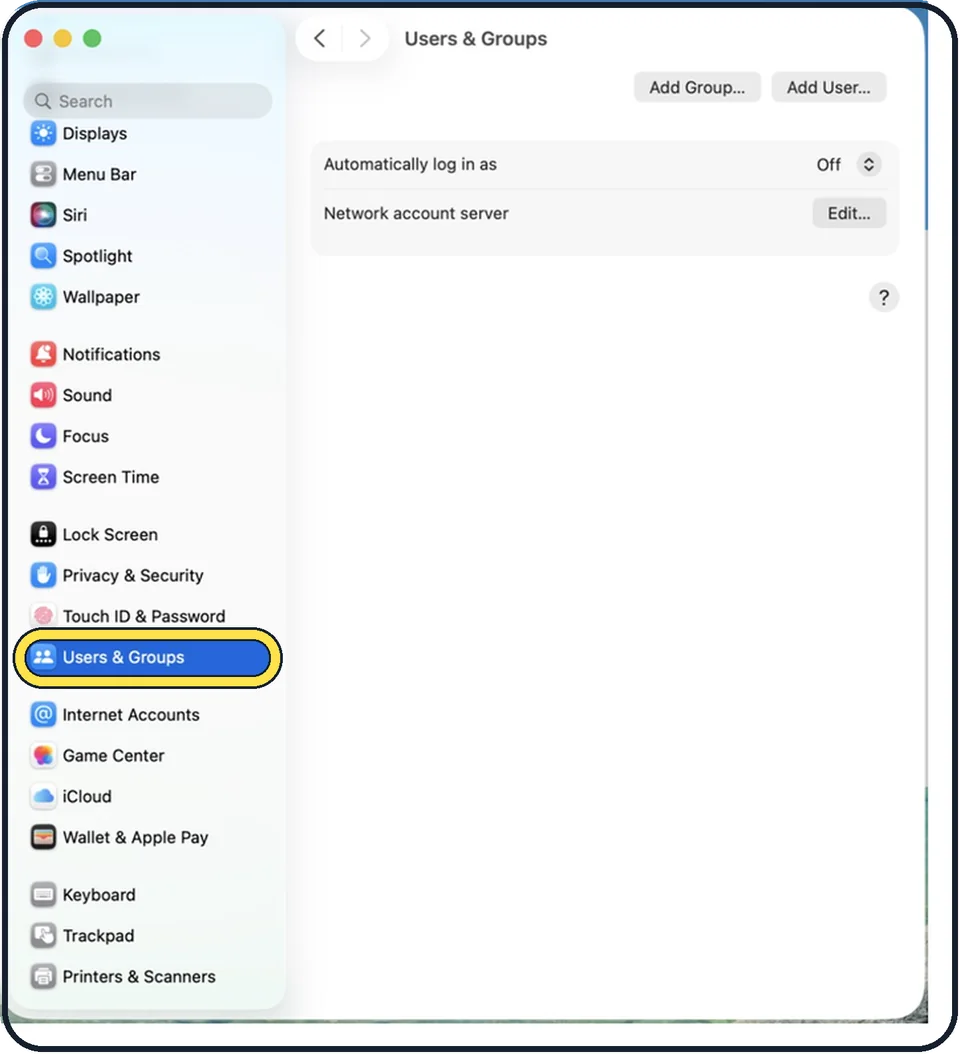
Choose Apple menu, System Settings and click Users & Groups in the sidebar.
Tap the picture to see it full size Choose the account
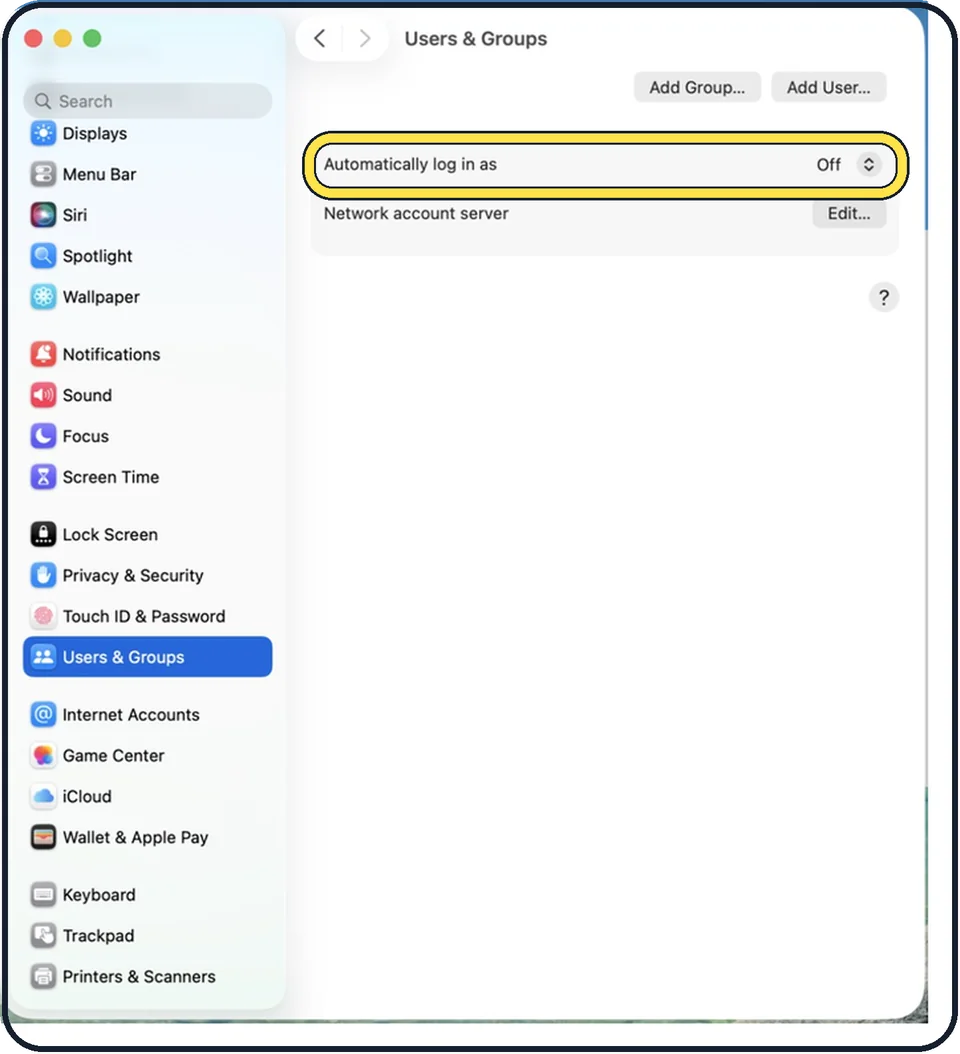
Open the menu next to Automatically log in as and pick the account. Enter its password and confirm.
Tap the picture to see it full size If the menu is greyed out: FileVault
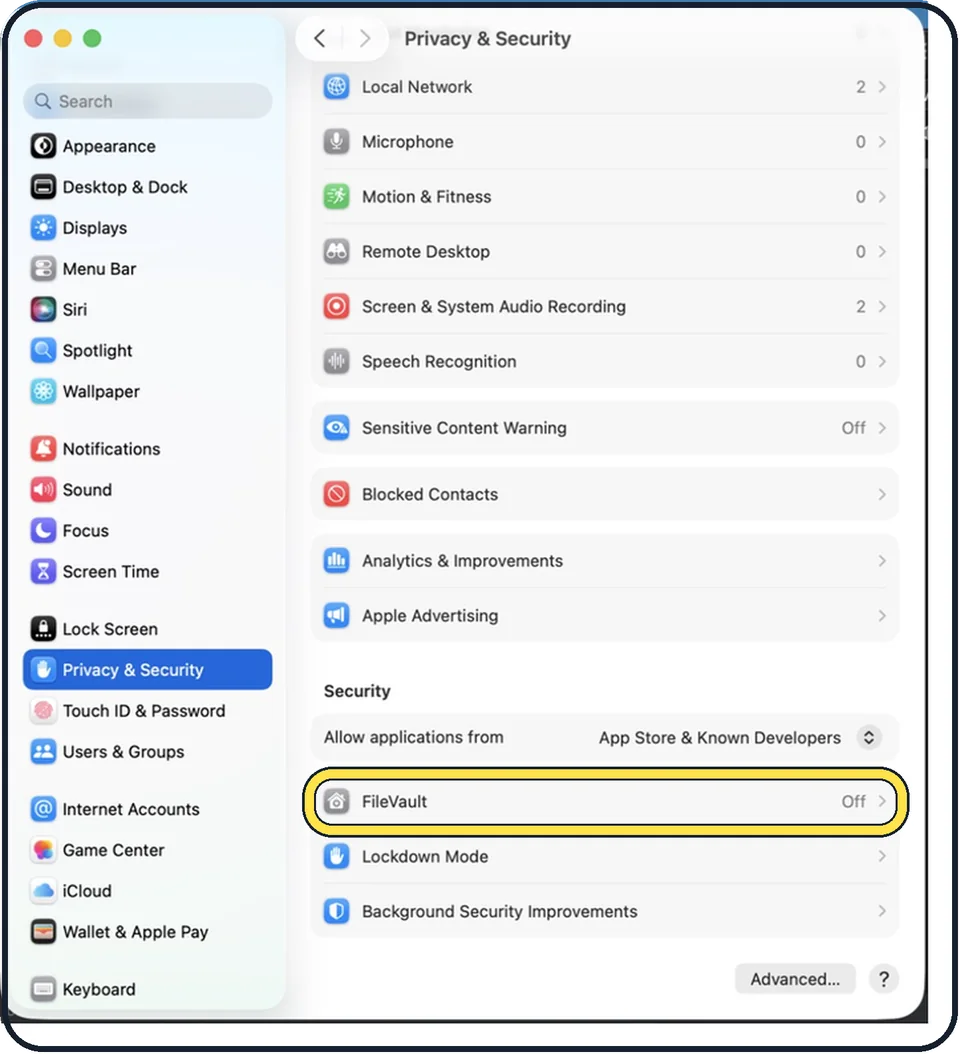
Automatic login is not possible while FileVault encrypts the disk. FileVault is switched off under System Settings, Privacy & Security, FileVault. Decrypting takes a while and leaves the data on the disk unprotected.
If it is still unavailable
An account that logs in with the Apple Account password cannot log in automatically. On a Mac managed by an organisation, a profile may forbid it.
Zoomed in on the setting. Tap to see the whole screenTap the picture to see it full size Decide about the password after sleep
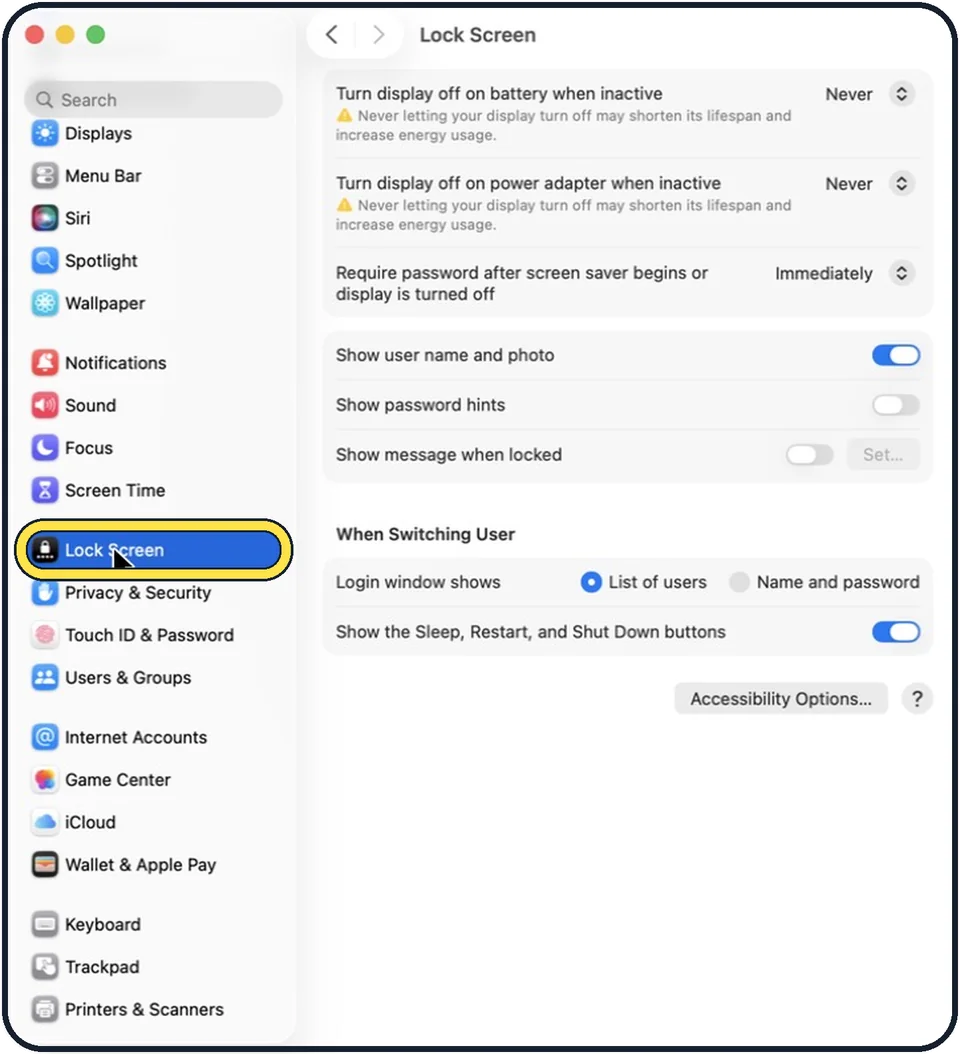
Automatic login applies to starting the Mac. Whether a password is needed after sleep or the screen saver is a separate setting under System Settings, Lock Screen: Require password after screen saver begins or display is turned off.
About this guide
With automatic login, the Mac starts straight to your desktop. That is convenient for a family computer or a Mac that runs a display or a server at home. It also means that anyone who switches the Mac on is in your account, with your mail, files and saved passwords.
Menu names are from recent versions of macOS, where the settings app is called System Settings.
Good to know
To switch it off again, choose Off in the same menu.
A middle way that keeps the protection: leave automatic login off and unlock with Touch ID or an Apple Watch, which is almost as quick: how to set up Touch ID on a Mac and how to unlock a Mac or iPhone with an Apple Watch.
What you give up without encryption: how to turn on FileVault on a Mac.
For visitors, a guest account is the safer answer: how to let someone use your Mac safely with the Guest User.
In short: System Settings, Users & Groups, Automatically log in as, choose the account, password. Needs FileVault off. Only for a Mac in a safe place.
Links checked in October 2026. Menus and features can change after software updates. These steps match the version named at the top.
Did this guide work for you?
Sorry about that. What happened?