
howtosimply.com/guides/how-to-change-your-password-on-a-mac/ · Checked October 2026 · MacBook Pro · macOS Tahoe 26
In this guide
Open System Settings, click Users & Groups, click the i next to your name and click Change next to Password. Enter the old password, then the new one twice.
3 of 4 steps with real screenshots · 1 official source below
- Device
- Mac
- Shown on
- macOS Tahoe 26 (MacBook Pro)
- App
- System Settings
- Path
- System Settings › Users & Groups
- Real screenshots
- 3 of 4 steps
- Checked
- October 2026
- Sources
- 1 official, linked below
Step by step
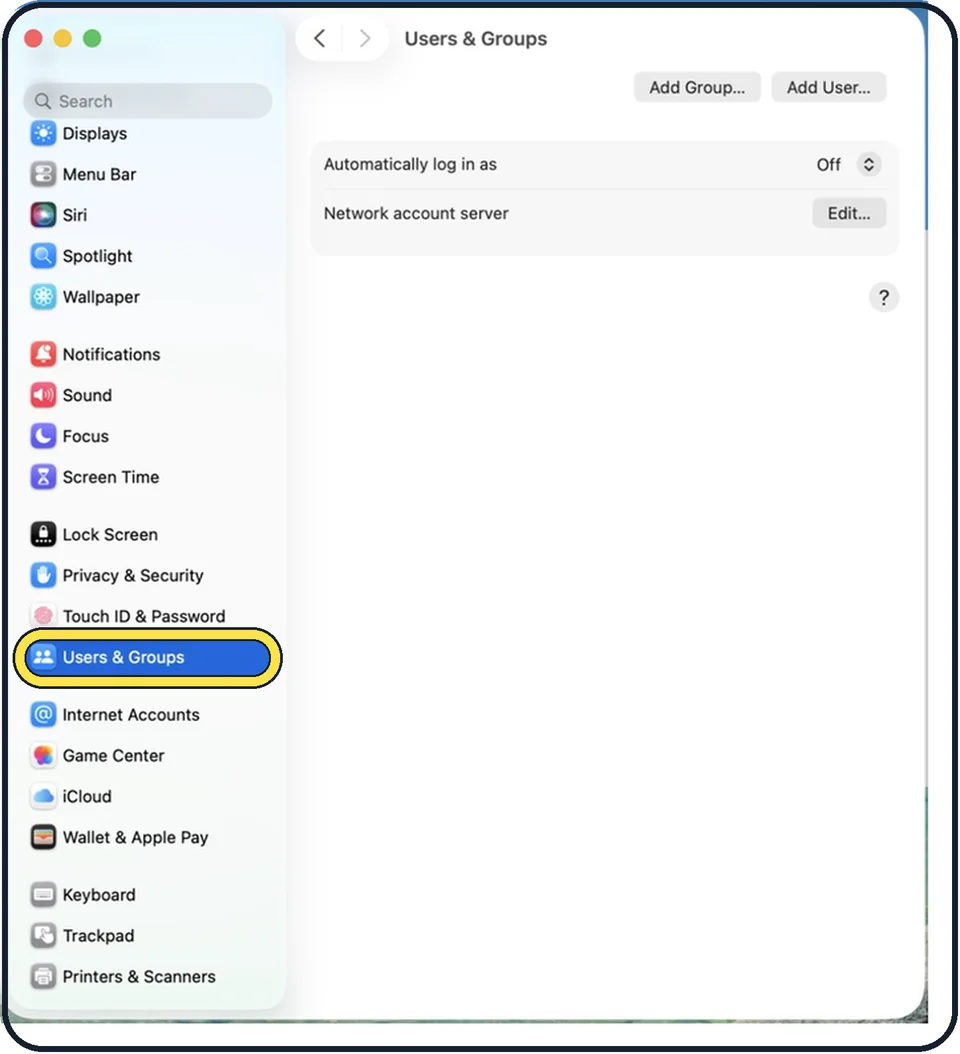
Zoomed in on the setting. Tap to see the whole screenTap the picture to see it full size Open System Settings and click Users & Groups
Click the Apple menu and choose System Settings. Users & Groups is further down the list on the left.
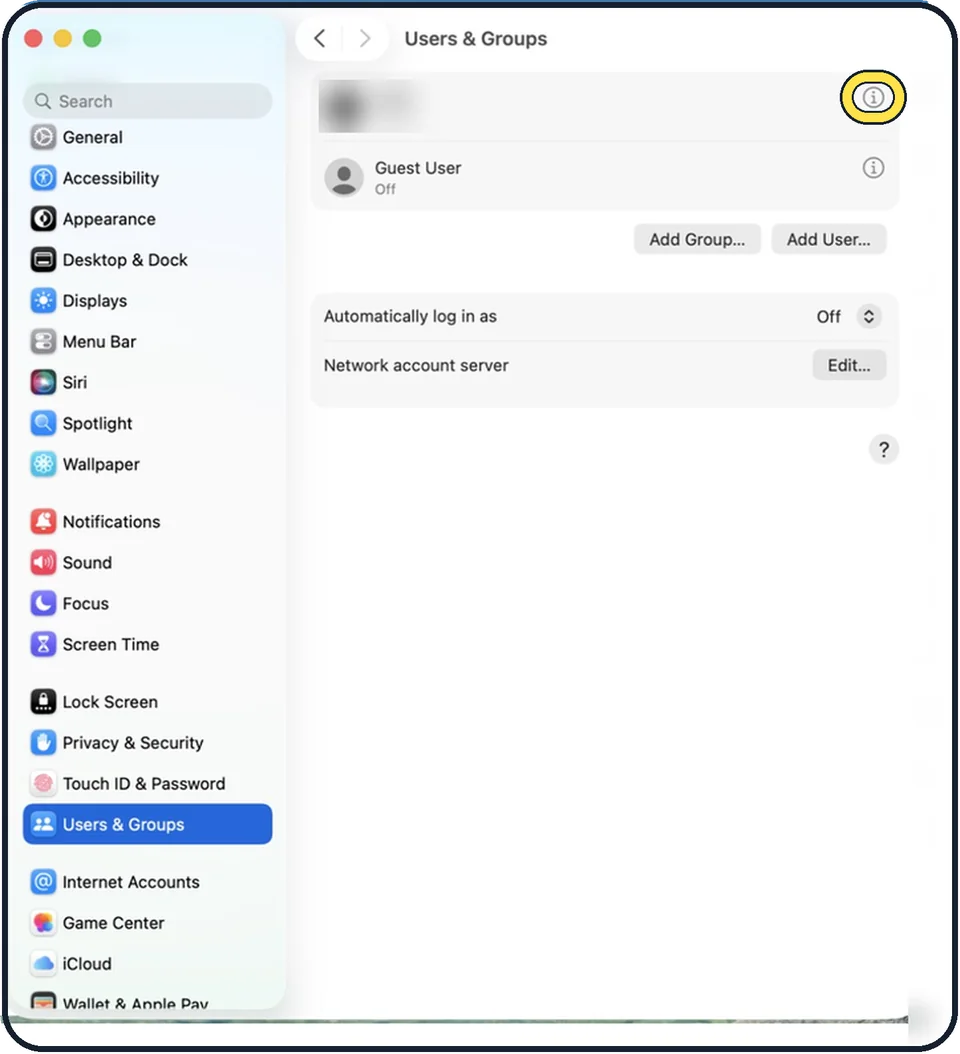
Zoomed in on the setting. Tap to see the whole screenTap the picture to see it full size Click the i next to your name
A panel with your account details opens.
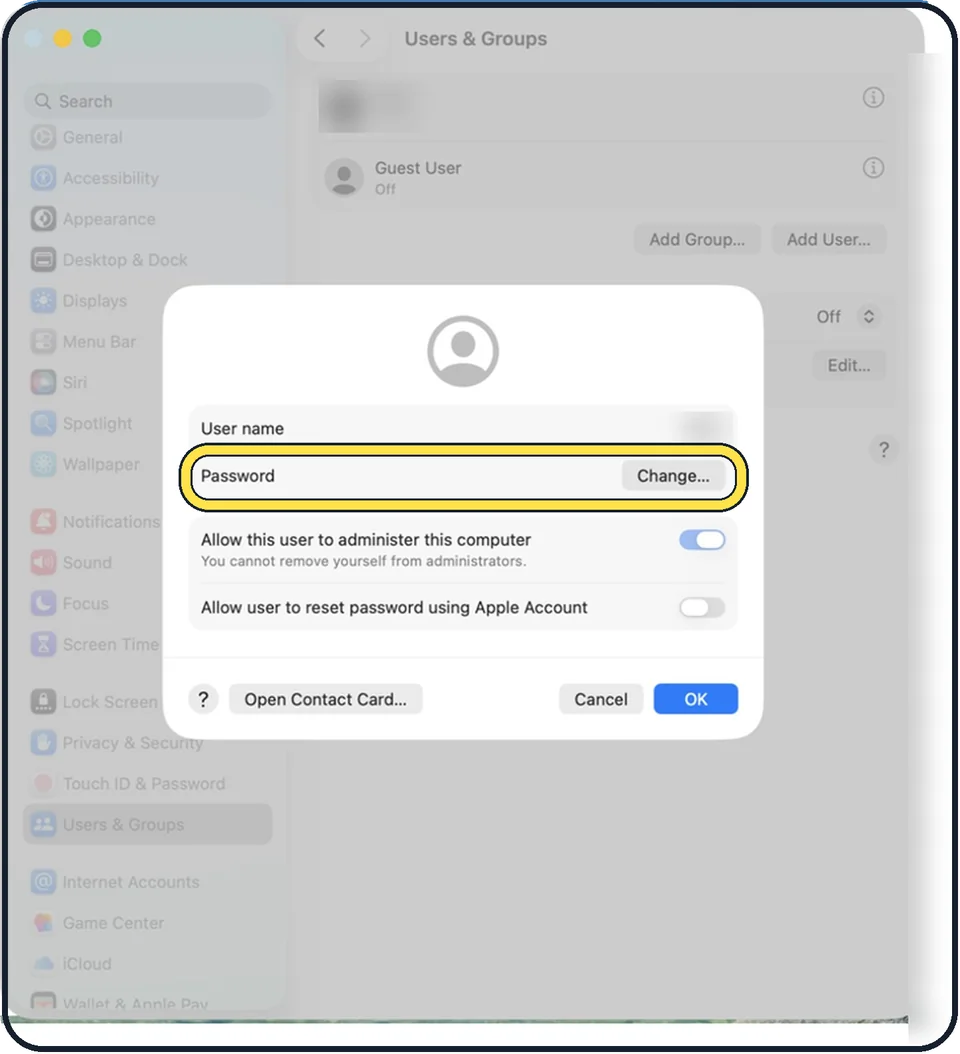
Zoomed in on the setting. Tap to see the whole screenTap the picture to see it full size Click Change next to Password
Type your current password, then the new one twice. Add a hint that helps you but nobody else.
Click Change Password
The new password applies immediately, including for unlocking after sleep.
About this guide
Your login password unlocks the Mac and approves changes such as installing software. Change it if someone else has learned it, or if it is short and easy to guess.
Good to know
If you forgot the password, enter a wrong one three times on the login screen. Depending on how the Mac is set up, it then offers to reset it with your Apple Account or a recovery key. On our Mac the Apple Account option was off (step 3).
The Mac password and the Apple Account password are two different things. Changing one does not change the other.
Touch ID still asks for the password after a restart and every 48 hours, so pick something you can remember. Three or four unrelated words work well: how to make strong passwords you can remember.
In short: System Settings, Users & Groups, i next to your name, Change.
Links checked in October 2026. Menus and features can change after software updates. These steps match the version named at the top.
Did this guide work for you?
Sorry about that. What happened?