ANDROID
How to turn off Google Discover on a Nothing Phone (OS 4.1)
Touch and hold an empty part of the Home screen, tap Home settings and turn off Swipe to access the Google app. A swipe right on the Home screen then no longer opens the Google feed. Turn it back on to get the feed back.

5 of 5 steps show a real screenshot from our Phone (4a) Pro. Each step was checked against the maker's own instructions, linked at the end.
Steps
- 1
Touch and hold the Home screen
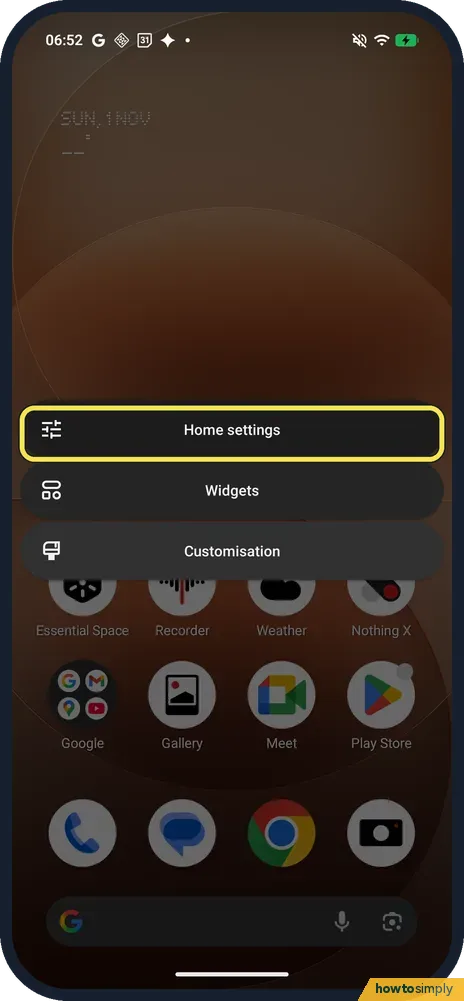
Press on an empty part of the Home screen until a menu appears. Ours offered Home settings, Widgets and Customisation. Tap Home settings.
- 2
Find Swipe to access the Google app
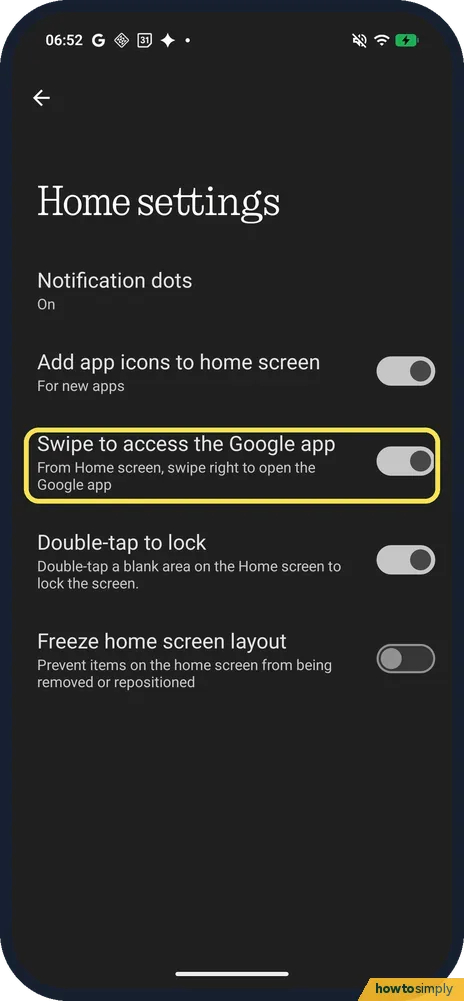
It is the third row. Its note says: From Home screen, swipe right to open the Google app. It was on on ours, as it came.
- 3
See what the swipe opens
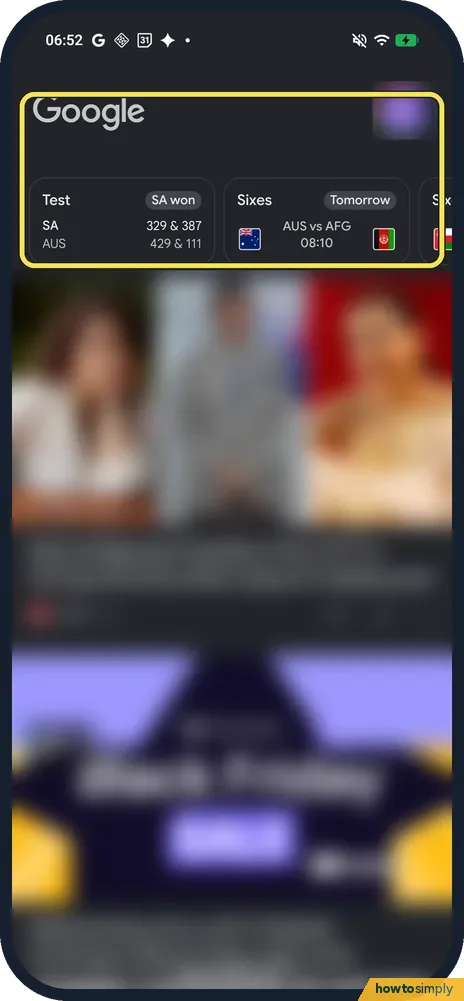
With the switch on, a swipe right on the Home screen opened the Google app on ours: the Google logo, a row of score cards and then the feed of stories with pictures.
- 4
Turn off Swipe to access the Google app
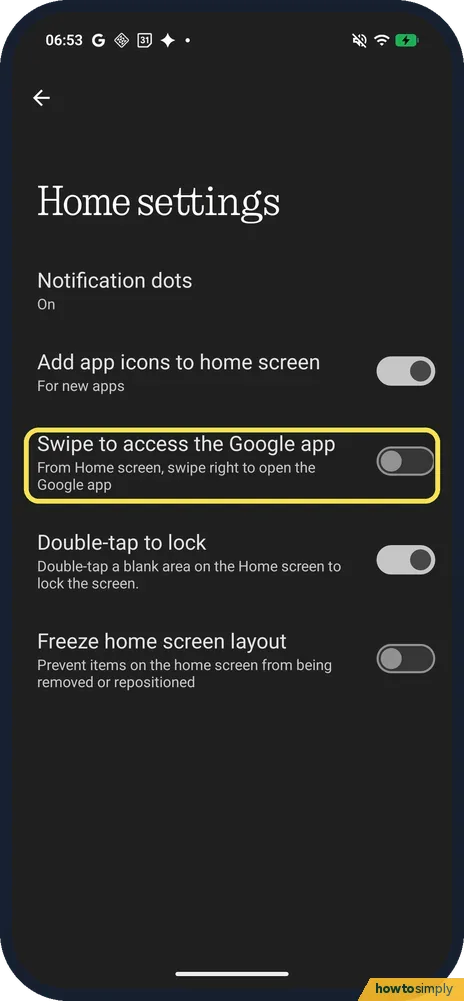
Back in Home settings, tap the switch so it turns off. The other rows, such as Double-tap to lock, are not affected.
- 5
Swipe right to check
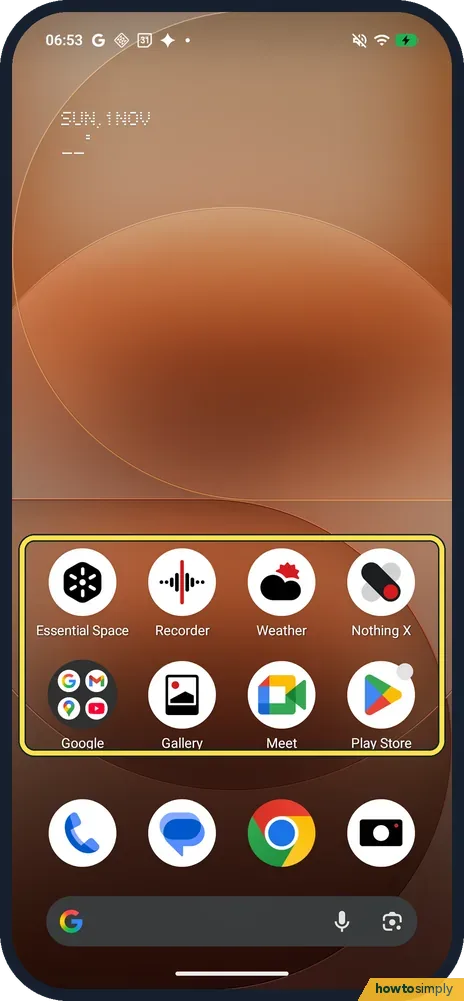
Go to the Home screen and swipe right. On ours the Home screen stayed where it was, with the apps and the dock in place, and the Google feed no longer opened.
If you do not see this option
- Want Discover off inside the Google app too? The switch above only stops the swipe. Google says to open the Google app, tap your profile picture or initial at the top right, then Settings, General, and turn off Discover. Source: Turn off Discover
- Seeing stories on google.com instead? Google says that in your browser, at google.com, you tap your profile picture, More settings, Other settings and turn off Show Discover on home page. Google notes this is not available in all countries or languages. Source: Turn off Discover
- No Home settings in the menu? The menu only appears when you hold an empty spot, not an app icon or a widget. On ours it sat above the app rows; let go of any icon and try a blank area higher up.
If this does not work
- The swipe still opens the Google feed? Open Home settings again and check that Swipe to access the Google app is off. On ours the change worked at once, with no restart (step 4).
- Stories feel too personal? Google says that if you do not want personalised stories, you can turn off personal results. That keeps the feed but changes what it shows.
Good to know
Turning off the swipe does not uninstall the Google app or sign you out. The Google search bar at the bottom of the Home screen and the Google folder still work as before, so you can still search.
To bring the feed back, open Home settings and turn Swipe to access the Google app on again; we did that on ours and the swipe opened the feed once more.
Home settings also holds Notification dots, Add app icons to home screen, Double-tap to lock and Freeze home screen layout. To change the grid and labels, see change the app grid on a Nothing Phone; for widgets, add a Nothing widget.
On other phones the switch is in a different place: see turn off the Google Discover page on a Galaxy and turn off Google Discover on a Pixel.
About this guide
- Device
- Android
- Shown on
- Nothing Phone (4a) Pro (A069P, EEA), Nothing OS 4.1, Android 16 (build FroggerPro-B4.1-260907-1153-EEA)
- Starts in
- Home screen
- Real screenshots
- 5 of 5 steps
- Checked
- October 2026
- Sources
- 1 official, linked below
Sources
Links checked October 2026. Menus and features can change with updates.Spotted a mistake? Menus change with updates, and we want every step to match your screen. Email us about this page or use the contact form. We read every report, and fixes are listed on What changed.
Liked this guide?
Follow us for new guides and short how-to videos.
Did this guide work for you?
Sorry about that. What happened?