
howtosimply.com/guides/how-to-turn-on-restricted-mode-in-youtube-on-android/ · Checked October 2026 · build CP3A.261005.005 · Google Pixel 10a, Android 17
In this guide
In YouTube tap You, the gear, General and switch on Restricted Mode. It hides potentially mature videos and comments, only in this app on this phone.
5 of 5 steps with real screenshots · 1 official source below
- Device
- Android
- Shown on
- Google Pixel 10a, Android 17 (build CP3A.261005.005)
- App
- YouTube
- Path
- YouTube › You
- Real screenshots
- 5 of 5 steps
- Checked
- October 2026
- Sources
- 1 official, linked below
Step by step
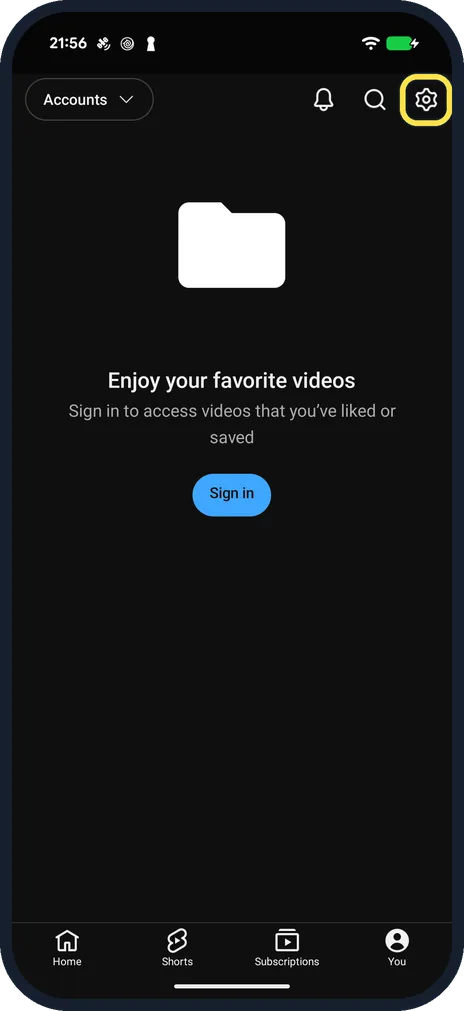
Open YouTube settings
Tap You at the bottom right, then the gear at the top right.
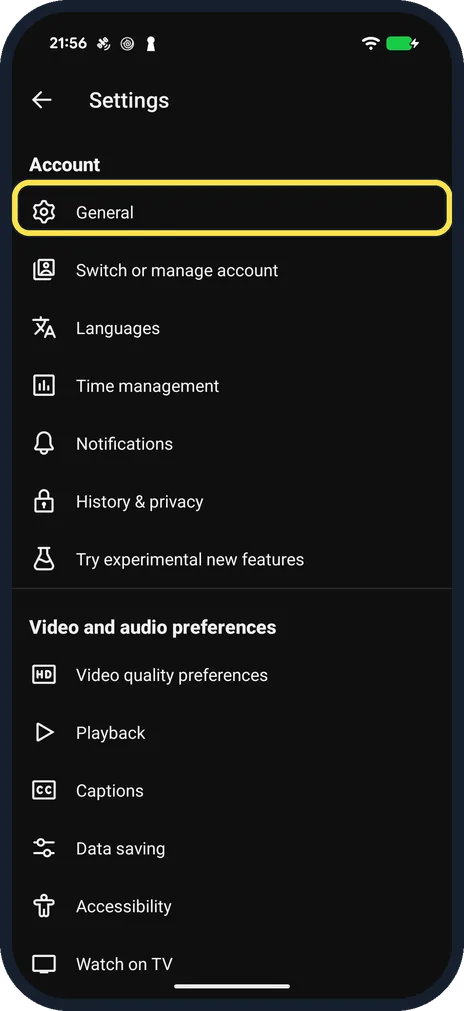
Tap General
It is the first row under Account.
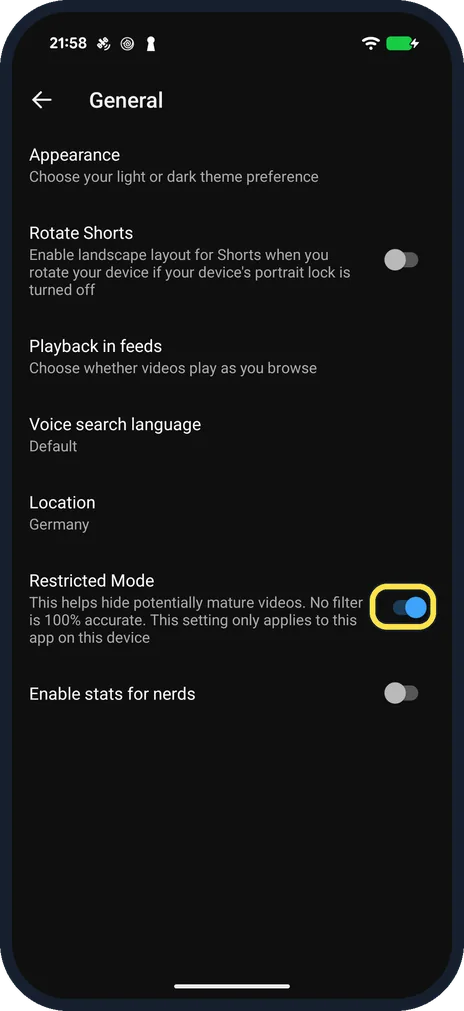
Switch on Restricted Mode
It is below Location. The note under it says no filter is 100% accurate and the setting only applies to this app on this device. The switch turns blue.
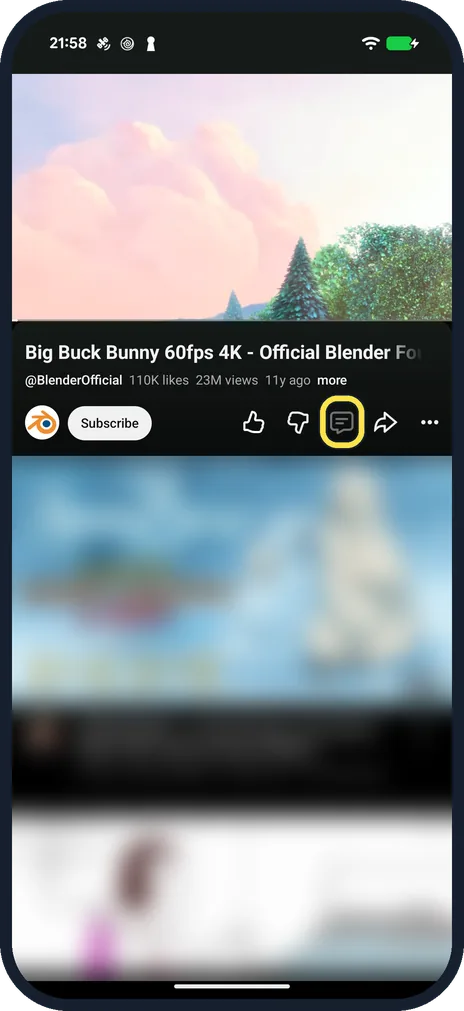
Open a video
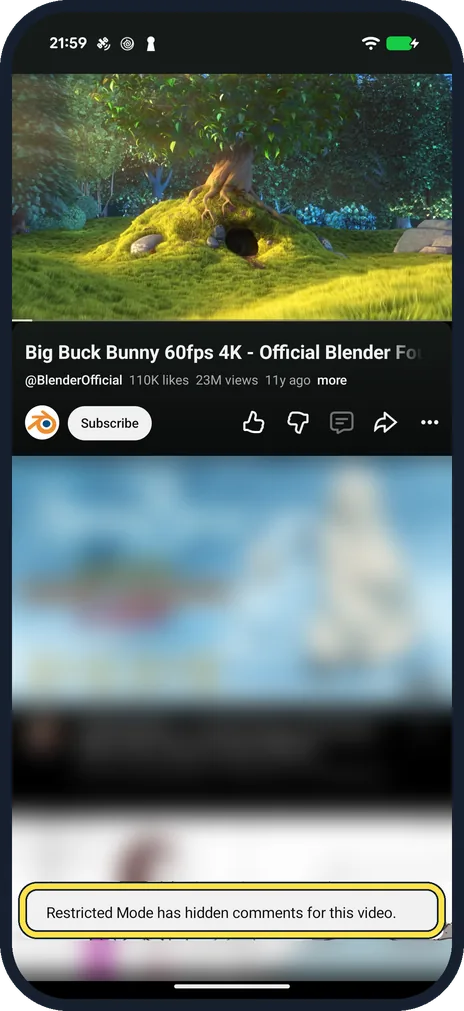
The comments card under the video disappears. The comments icon is still in the row of buttons.
Check the comments
Tapping the comments icon showed: Restricted Mode has hidden comments for this video.
If you do not see this option
- You are not signed in It still works: our YouTube was signed out and the switch turned on all the same.
- You also use YouTube in a browser The note under the switch says it only applies to this app on this device, so set it there separately.
If this does not work
- Mature videos still appear The note under the switch says no filter is 100% accurate; for a child, a supervised account gives more control.
- Comments still show Open the video again after switching it on; ours hid them and said so when we tapped the comments icon.
About this guide
Handy on a phone a child uses. YouTube says plainly that no filter is 100% accurate.
The screenshots are from the YouTube app on our Google Pixel 10a with Android 17 (build CP3A.261005.005), in dark mode, signed out of YouTube. Other people's videos and comments are blurred.
We switched Restricted Mode on for the pictures and off again.
Good to know
Set it again in every browser and on every device the child uses. For more control, YouTube offers supervised accounts through Family Center.
In short: YouTube, You, gear, General: Restricted Mode on.
Links checked in October 2026. Menus and features can change after software updates. These steps match the version named at the top.
📷 See real photos from the Pixel 10a in our Camera Lab, next to 10 other phones.
Did this guide work for you?
Sorry about that. What happened?