
howtosimply.com/guides/how-to-stop-website-notifications-in-chrome-on-android/ · Checked October 2026 · Google Pixel 10a (Android 17 (build CP3A.261005.005)) and Samsung Galaxy A57 5G (One UI 8.5, Android 16)
In this guide
In Chrome, tap the three dots, Settings, Site settings, Notifications and choose Don't allow sites to send notifications. To silence all Chrome notifications, open the phone's Settings, Apps, Chrome, Notifications and switch off Allow notifications.
6 of 6 steps with real screenshots · 1 official source below
- Device
- Android
- Shown on
- Google Pixel 10a, Android 17 (build CP3A.261005.005), Samsung Galaxy A57 5G (SM-A576B), One UI 8.5, Android 16
- App
- Chrome
- Path
- Chrome › Settings › Site settings › Notifications: Don't allow
- Real screenshots
- 6 of 6 steps
- Checked
- October 2026
- Sources
- 1 official, linked below
Step by step
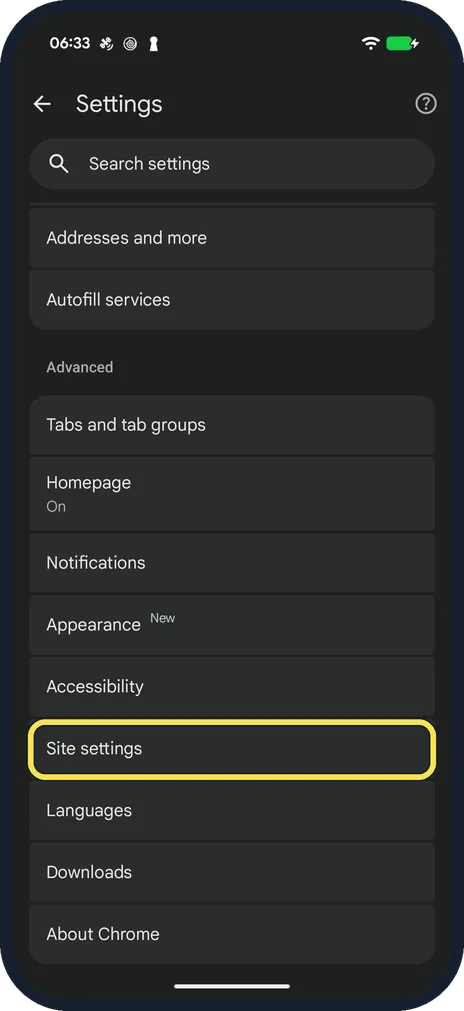
Open Site settings
Tap the three dots, Settings, then scroll to Advanced and tap Site settings.
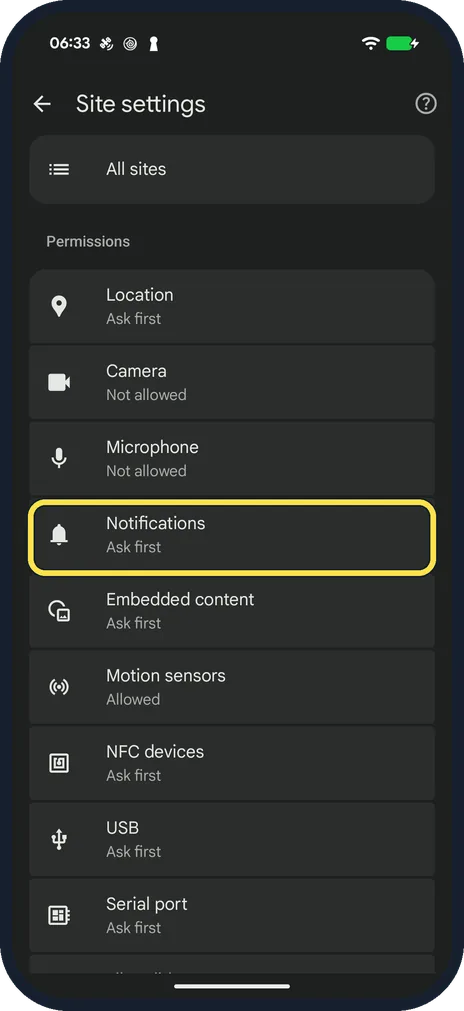
Tap Notifications
On our Pixel it was under Permissions, set to Ask first.
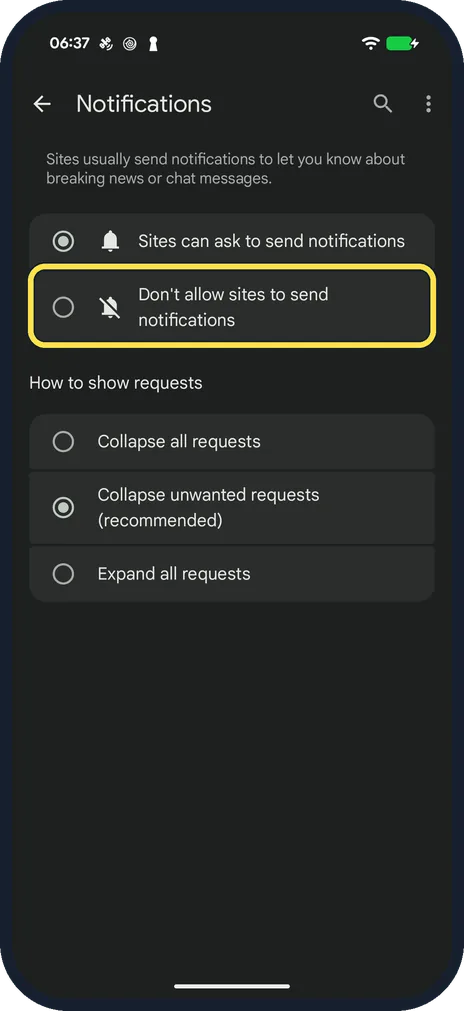
Choose Don't allow
Sites can ask to send notifications is the default; Don't allow sites to send notifications stops new requests. How to show requests below sets how quiet the requests are; ours was Collapse unwanted requests (recommended).
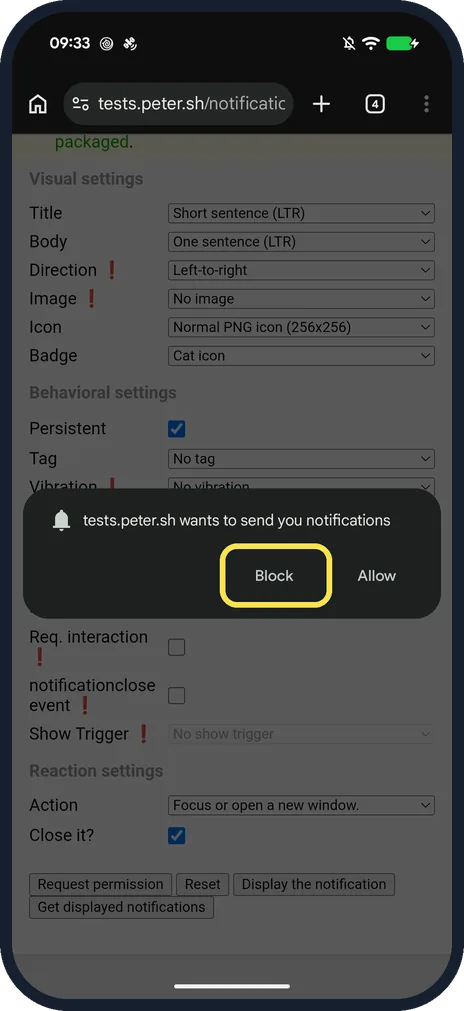
When a site asks, tap Block
The request appears at the bottom of the page with Block and Allow. Ours read “tests.peter.sh wants to send you notifications”.
Check one site
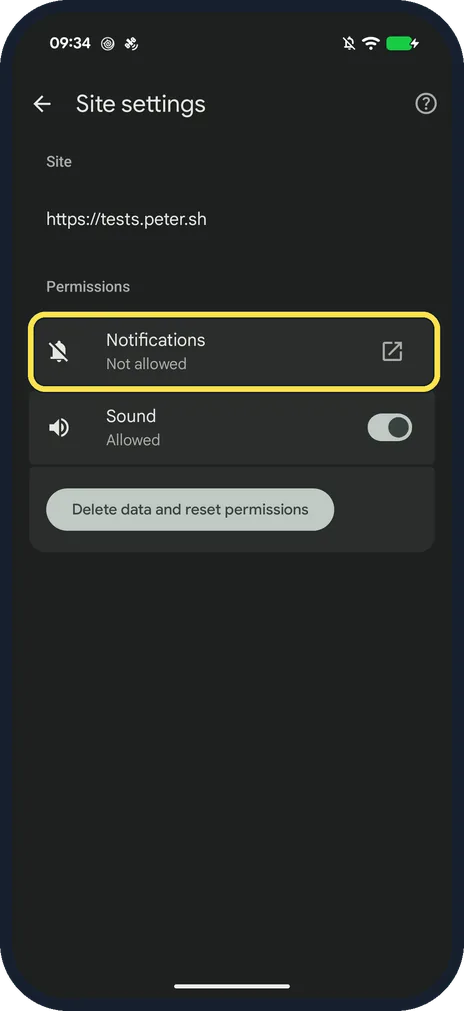
Open Site settings, All sites and tap the site. A site that has asked shows a Notifications row; after Block ours read Notifications, Not allowed. There is no Block or Allow choice on this page: tapping the row opens the Android switch Show notifications for that site.
Or switch off Chrome notifications completely
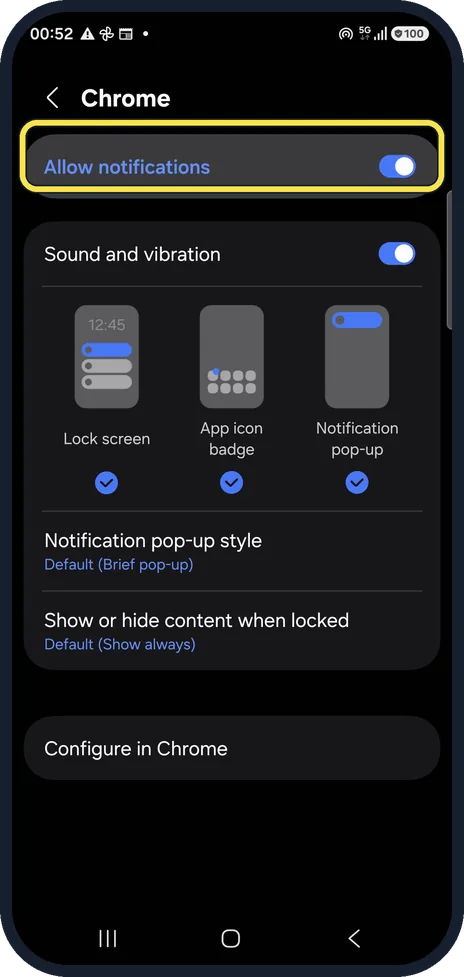
Open the phone's Settings, Apps, Chrome, Notifications. Allow notifications is the main switch; Configure in Chrome at the bottom leads back to Chrome's own settings. This screenshot is from our Galaxy A57, where the page also sets the sound and the pop-up style.
If you do not see this option
- The site has no Notifications row On our Pixel a site that had never asked showed no Notifications row on its page. Google says that if no menu opens for a permission, it is still at its original setting. Source: Use notifications to get alerts (Android)
- You can't find quieter messaging Google's page calls it quieter messaging. Chrome 149 on our Pixel showed How to show requests with Collapse all, Collapse unwanted (recommended) and Expand all. Source: Use notifications to get alerts (Android)
If this does not work
- One site keeps sending notifications Google says to go to the site, tap Page info, then Permissions, and change Notifications there. Source: Use notifications to get alerts (Android)
- A site's notifications stopped by themselves Google says Chrome may remove the permission from a site it finds disruptive, or from sites you have not visited in a while. Safety check in Chrome's Settings lists the permissions it removed. Source: Use notifications to get alerts (Android)
About this guide
Spammy "Allow notifications?" sites keep pinging you after one wrong tap. Chrome has a setting for websites and Android has one for the whole app.
Steps 1 to 5 are from Chrome 149 on our Google Pixel 10a with Android 17, in dark mode. For steps 4 and 5 we used a public notification test page, tests.peter.sh, then reset its permissions. Step 6 is the phone's own app settings on our Samsung Galaxy A57 5G with One UI 8.5; that screen differs by brand.
Good to know
Switching off Chrome as a whole also stops download and media notifications from Chrome.
Pop-ups and ads in the browser are a separate setting: pop-up ads on a Samsung Galaxy: how to stop them.
In short: Chrome, Settings, Site settings, Notifications: Don't allow. Whole app: phone Settings, Apps, Chrome, Notifications.
Links checked in October 2026. Menus and features can change after software updates. These steps match the version named at the top.
📷 See real photos from the Pixel 10a in our Camera Lab, next to 10 other phones.
Did this guide work for you?
Sorry about that. What happened?