
howtosimply.com/guides/how-to-stop-chrome-offering-to-save-passwords-on-android/ · Checked October 2026 · build CP3A.261005.005 · Google Pixel 10a, Android 17
In this guide
In Chrome, tap the three dots, Settings and Google Password Manager, then tap Settings at the bottom right. Switch off Offer to save passwords. Auto sign-in on the same page stops Chrome signing you in to sites automatically.
5 of 5 steps with real screenshots · 1 official source below
- Device
- Android
- Shown on
- Google Pixel 10a, Android 17 (build CP3A.261005.005)
- App
- Chrome
- Real screenshots
- 5 of 5 steps
- Checked
- October 2026
- Sources
- 1 official, linked below
Step by step
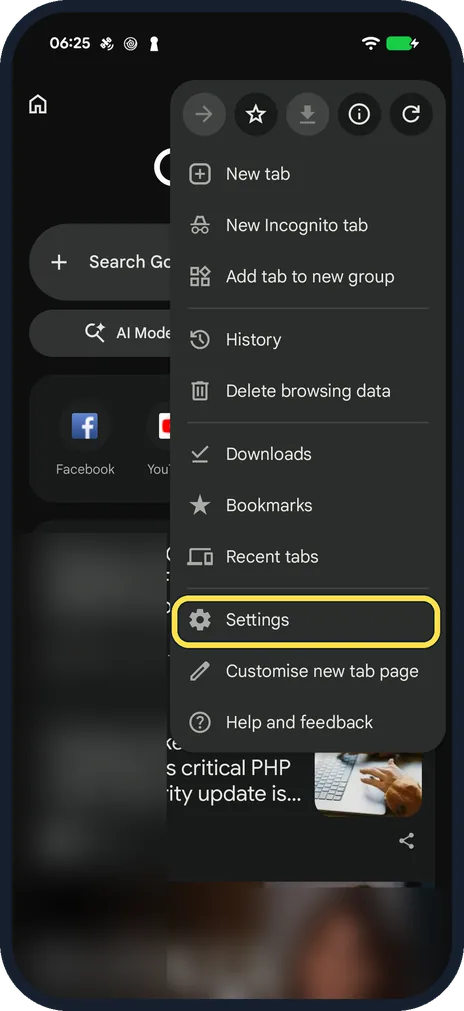
Open Chrome's Settings
Tap the three dots at the top right of Chrome and choose Settings. The menu on our Pixel had no Google Password Manager item of its own.
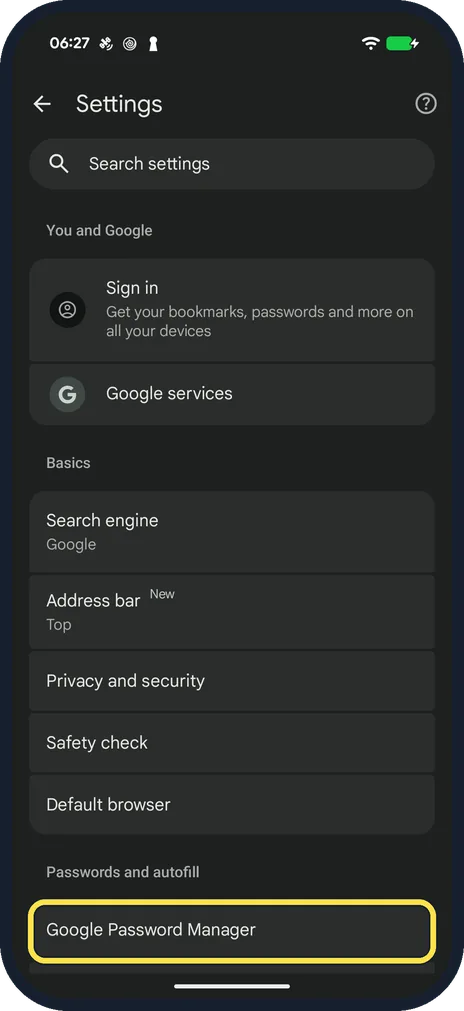
Tap Google Password Manager
On our Pixel it was the first row under Passwords and autofill. Google's help page calls the section Autofill and passwords.
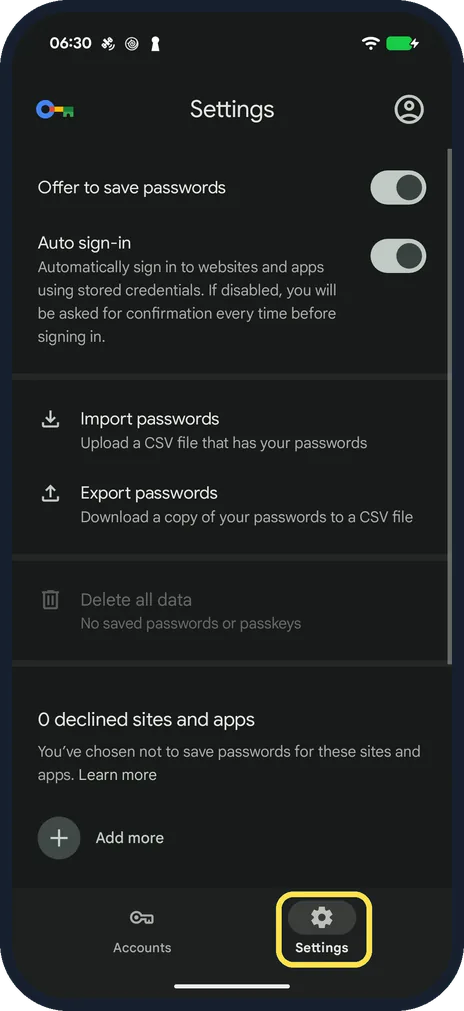
Open the Settings tab
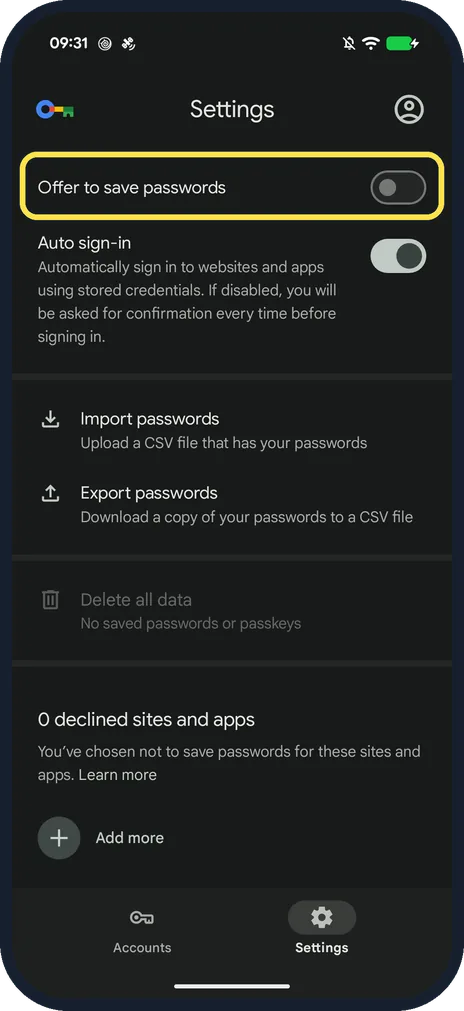
Google Password Manager opens on its own screen with two tabs at the bottom, Accounts and Settings. Tap Settings at the bottom right.
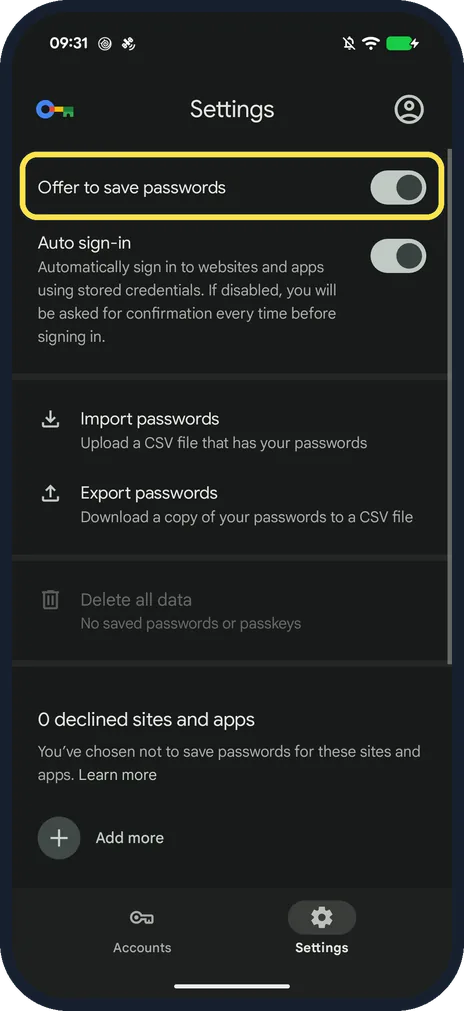
Switch off Offer to save passwords
It is the first switch on the Settings tab. Ours was on.
Check that it is off
The Offer to save passwords switch turns grey. We switched it back on afterwards. Auto sign-in below it is a separate switch and stayed on.
If you do not see this option
- There is no Google Password Manager in the three-dot menu On our Pixel it was only in Chrome's Settings, under Passwords and autofill. Google gives the route More, Settings, Autofill and passwords, Google Password Manager. Source: Manage passwords in Chrome (Android)
- You want to find the sites you said Never to On our Pixel the Settings tab ends with declined sites and apps (0 on ours) and an Add more button.
If this does not work
- Chrome still offers to save Google says Chrome offers to save passwords by default; check that Offer to save passwords is still off on the Settings tab. Source: Manage passwords in Chrome (Android)
- Saved passwords still fill in Switching off Offer to save does not delete anything. Google says Google Password Manager data, including passwords and passkeys, can be deleted; on our Pixel Delete all data is on the same Settings tab. Source: Manage passwords in Chrome (Android)
About this guide
Useful if you keep passwords in another password manager, or share the phone. Passwords already saved stay saved.
The screenshots are from Chrome 149 on our Google Pixel 10a with Android 17, in dark mode, signed out of Chrome.
Good to know
Auto sign-in, the second switch on the same Settings tab, stops Chrome signing you in to sites by itself. The note under it says that if it is off, you will be asked for confirmation every time before signing in.
Passwords you already saved stay in Google Password Manager; the Accounts tab at the bottom lists them.
In short: Chrome, three dots, Google Password Manager, Settings: Offer to save passwords off; Auto sign-in off if you like.
Links checked in October 2026. Menus and features can change after software updates. These steps match the version named at the top.
📷 See real photos from the Pixel 10a in our Camera Lab, next to 10 other phones.
Did this guide work for you?
Sorry about that. What happened?