
howtosimply.com/guides/how-to-connect-bluetooth-headphones-to-a-windows-11-pc/ · Checked October 2026 · Windows 11 Enterprise 25H2 (build 26200.9457), Microsoft Cloud PC
In this guide
Put the headphones in pairing mode. On the PC, open Settings, choose Bluetooth & devices, click Add device, then Bluetooth, and pick the headphones from the list.
3 of 6 steps with real screenshots · 1 official source below
- Device
- Windows
- Shown on
- Windows 11 Enterprise 25H2 (build 26200.9457), Microsoft Cloud PC
- App
- Settings
- Path
- Settings › Bluetooth & devices › Add device › Bluetooth
- Real screenshots
- 3 of 6 steps
- Checked
- October 2026
- Sources
- 1 official, linked below
Step by step
Put the headphones in pairing mode
Usually you hold the power or Bluetooth button for a few seconds until a light blinks. For earbuds, the button is often on the case. Check the manual if you are unsure.
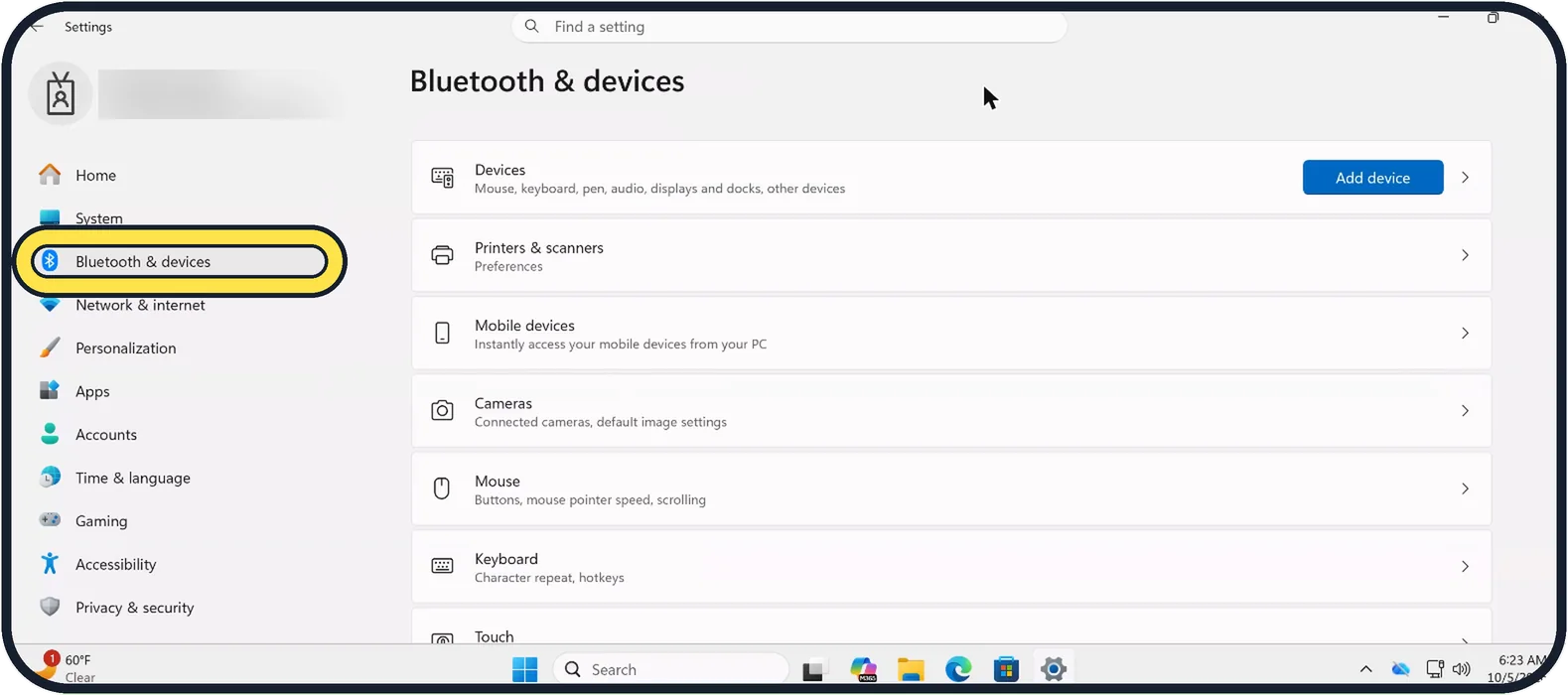
Zoomed in on the setting. Tap to see the whole screenTap the picture to see it full size Open Settings and choose Bluetooth & devices
Press Windows + I and click Bluetooth & devices on the left. On a PC with Bluetooth, make sure the Bluetooth switch at the top is on. Our Cloud PC has no Bluetooth radio, so its page has no switch.
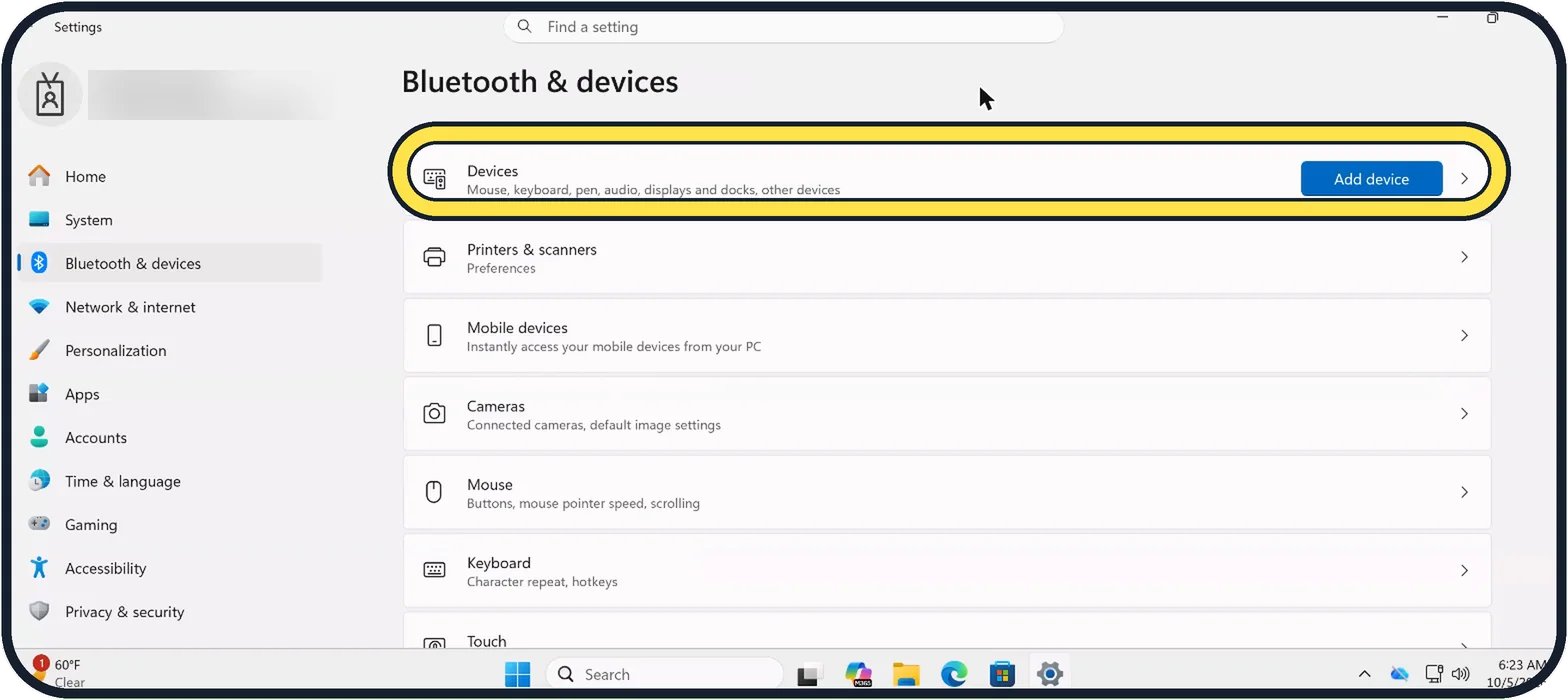
Tap the picture to see it full size Click Add device
The blue button is on the Devices row. A small window opens.
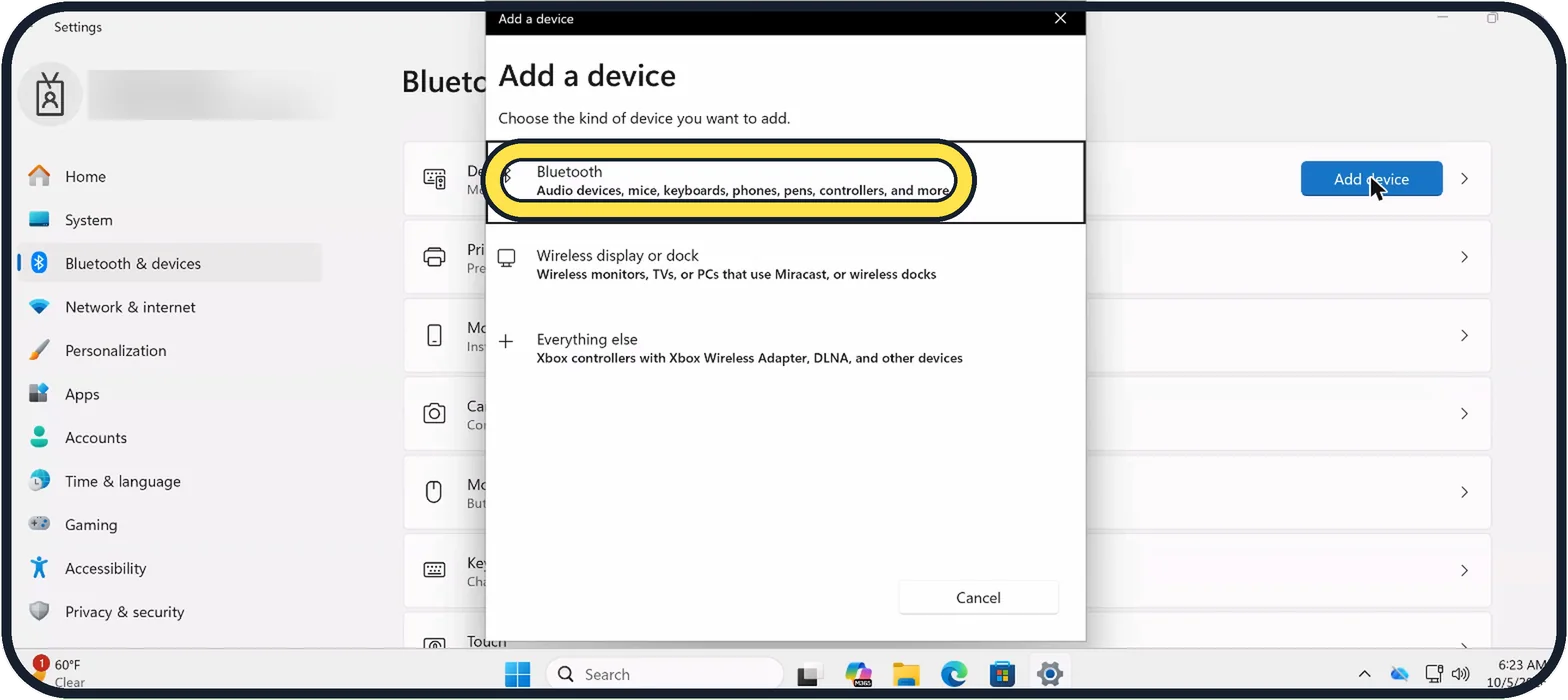
Zoomed in on the setting. Tap to see the whole screenTap the picture to see it full size Choose Bluetooth
It is the first option, for audio devices, mice, keyboards, phones, pens and controllers.
Click the name of your headphones
Wait until they appear in the list and click them. When the window says the device is ready, click Done.
Choose them as the sound output
Click the speaker icon at the right end of the taskbar, then the sound output button to the right of the volume slider, and select the headphones.
About this guide
Pairing is needed only once. After that the headphones connect by themselves when they are switched on near the PC. The same steps work for a Bluetooth mouse, keyboard or speaker.
Good to know
If there is no Bluetooth switch at all, the PC has no Bluetooth. A small USB Bluetooth adapter adds it.
If the headphones do not appear, switch them off and on, hold the pairing button again, and keep them away from the phone they were paired with before.
If the sound is poor during calls, that is normal for Bluetooth: the microphone mode uses lower sound quality. A wired headset or a separate microphone avoids it.
To remove a device, click the three dots next to it under Bluetooth & devices and choose Remove device.
In short: Pairing mode on the headphones. Settings, Bluetooth & devices, Add device, Bluetooth, pick the name.
Links checked in October 2026. Menus and features can change after software updates. These steps match the version named at the top.
Did this guide work for you?
Sorry about that. What happened?