
howtosimply.com/guides/mac-desktop-icons-missing-how-to-show-them-again/ · Checked October 2026 · MacBook Neo · macOS 27.0.1
In this guide
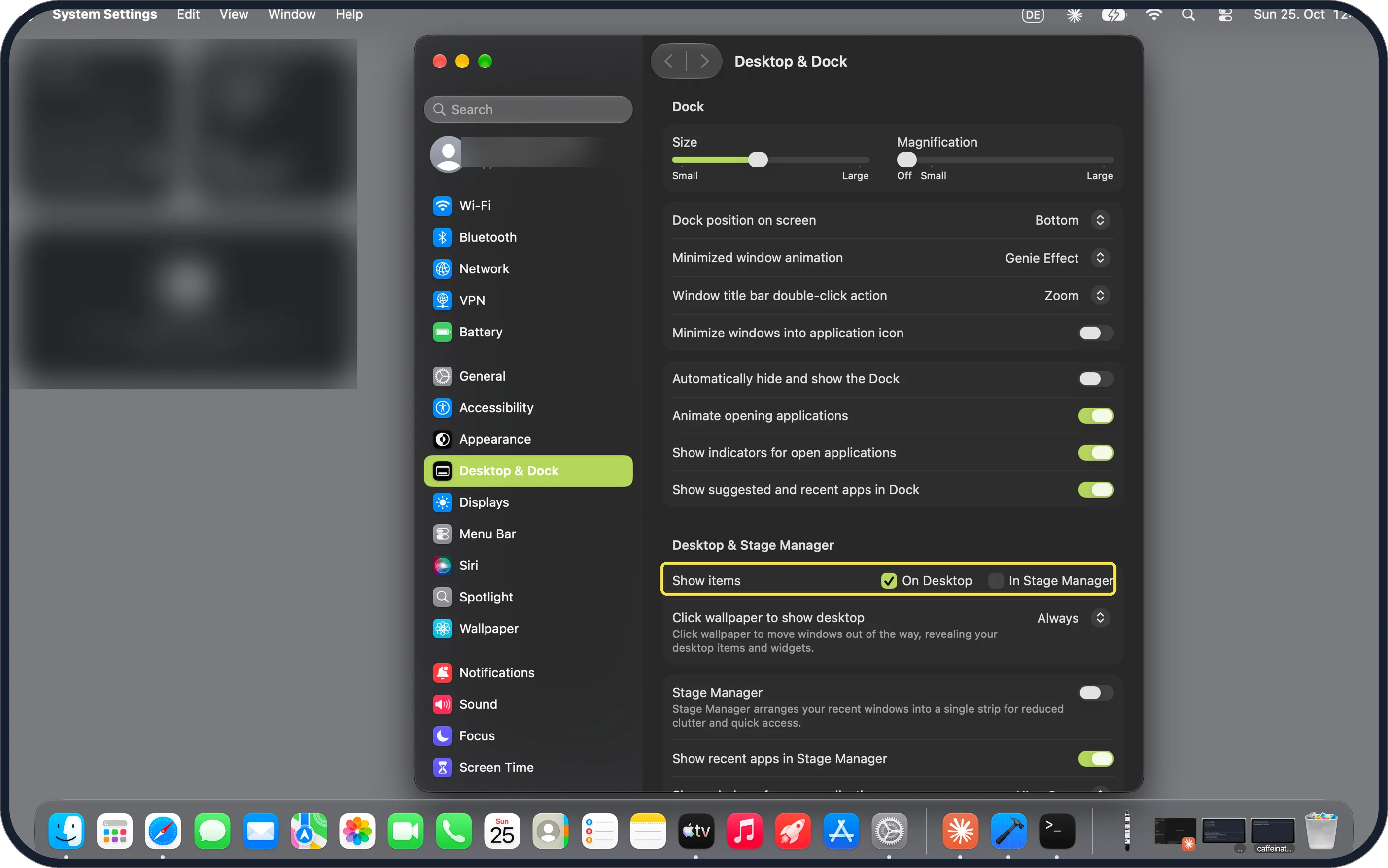
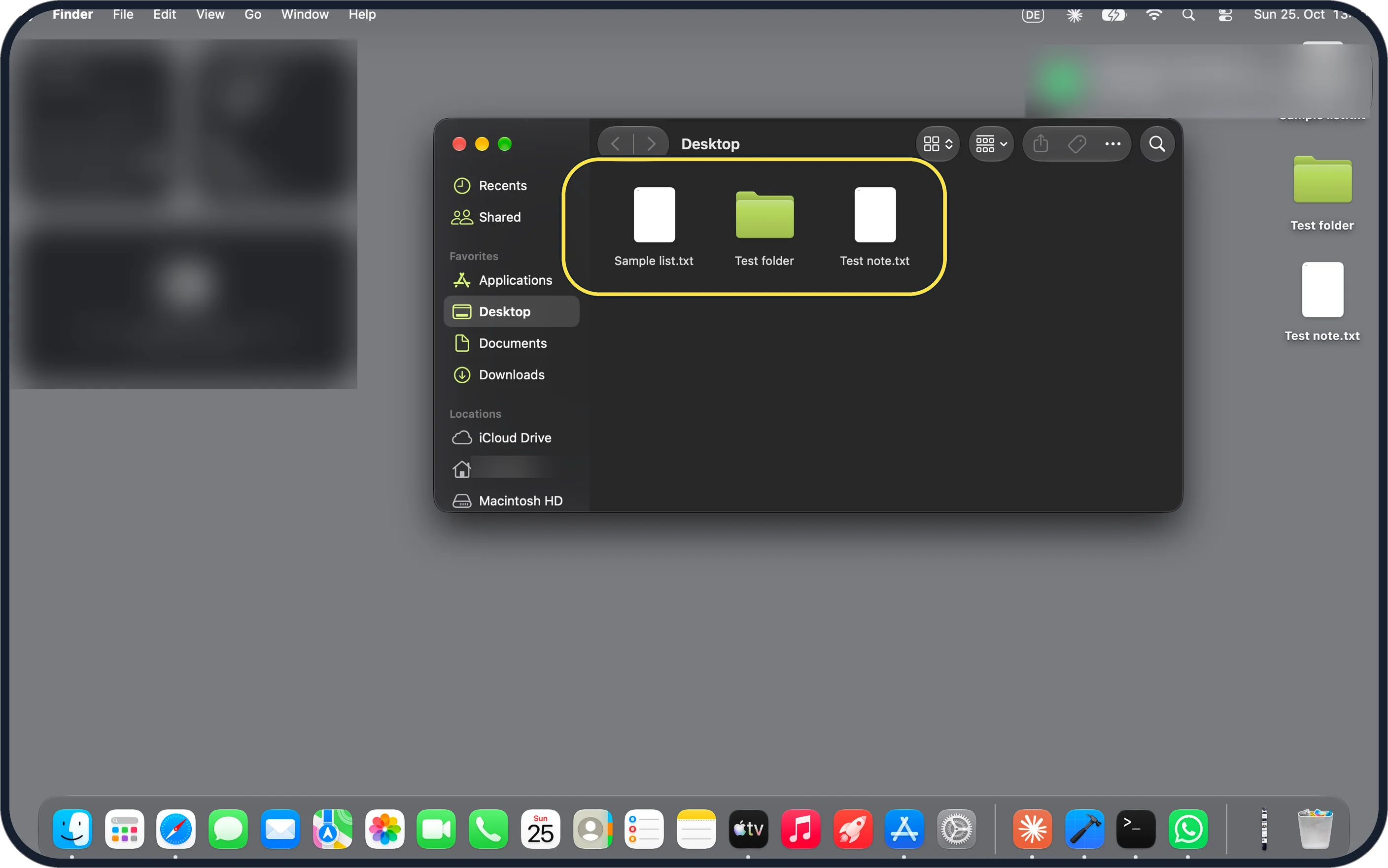
Open System Settings, Desktop & Dock and tick On Desktop next to Show items. Disks have their own switches in Finder, Settings, General. The files are not deleted: Finder, Go, Desktop still lists them.
4 of 4 steps with real screenshots · 2 official sources below
- Device
- Mac
- Shown on
- macOS 27.0.1 (MacBook Neo)
- App
- System Settings
- Path
- System Settings › Desktop & Dock › Show items
- Real screenshots
- 4 of 4 steps
- Checked
- October 2026
- Sources
- 2 official, linked below
Step by step
Tap the picture to see it full size Tick Show items On Desktop
Open System Settings, Desktop & Dock and scroll to Desktop & Stage Manager. Show items has two boxes: On Desktop (ticked on ours) and In Stage Manager.
Tap the picture to see it full size Check which disks Finder shows
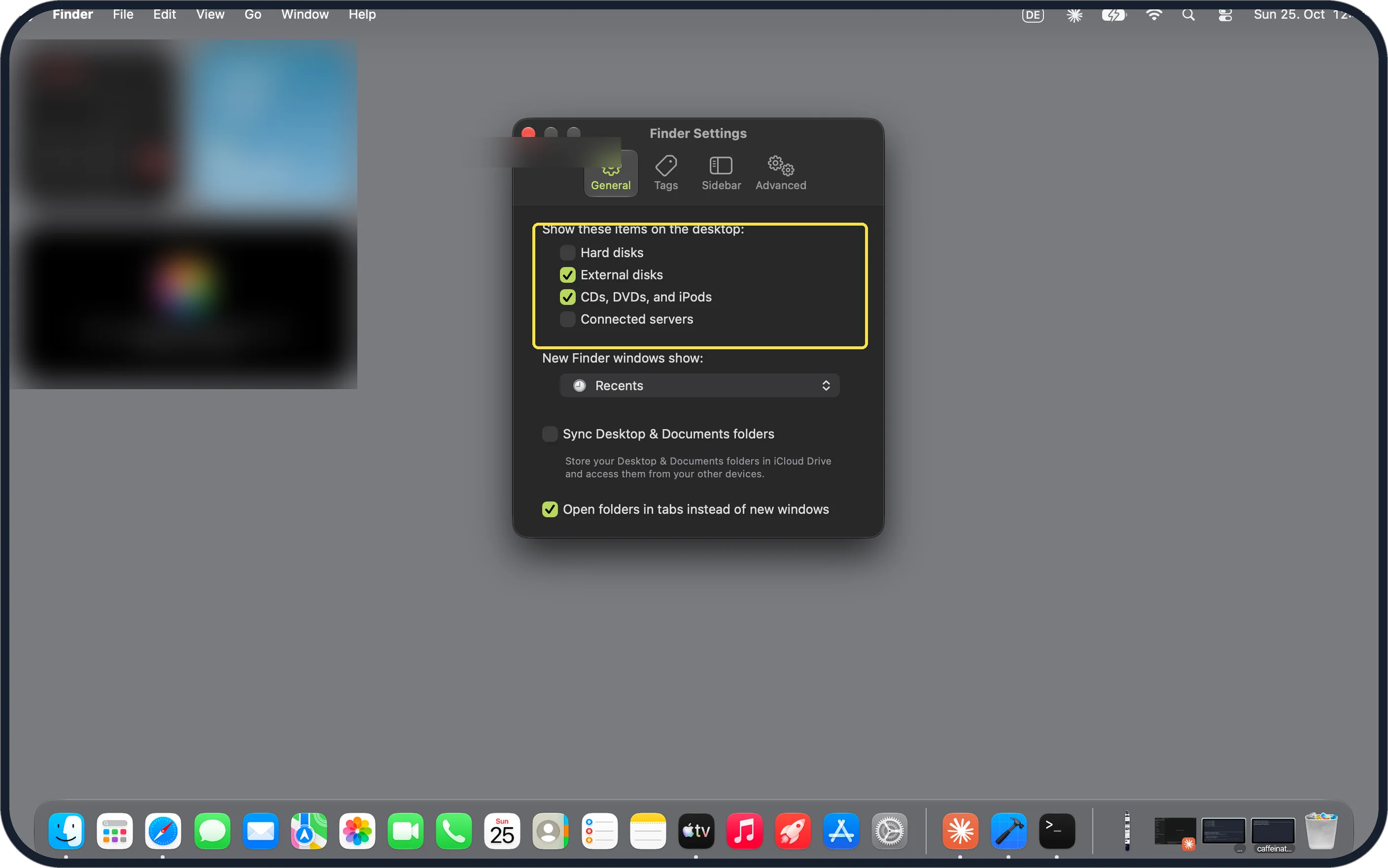
In Finder, choose Finder, Settings, General. Under Show these items on the desktop, ours had External disks and CDs, DVDs and iPods ticked, Hard disks and Connected servers not.
Zoomed in on the setting. Tap to see the whole screenTap the picture to see it full size Open the Desktop folder
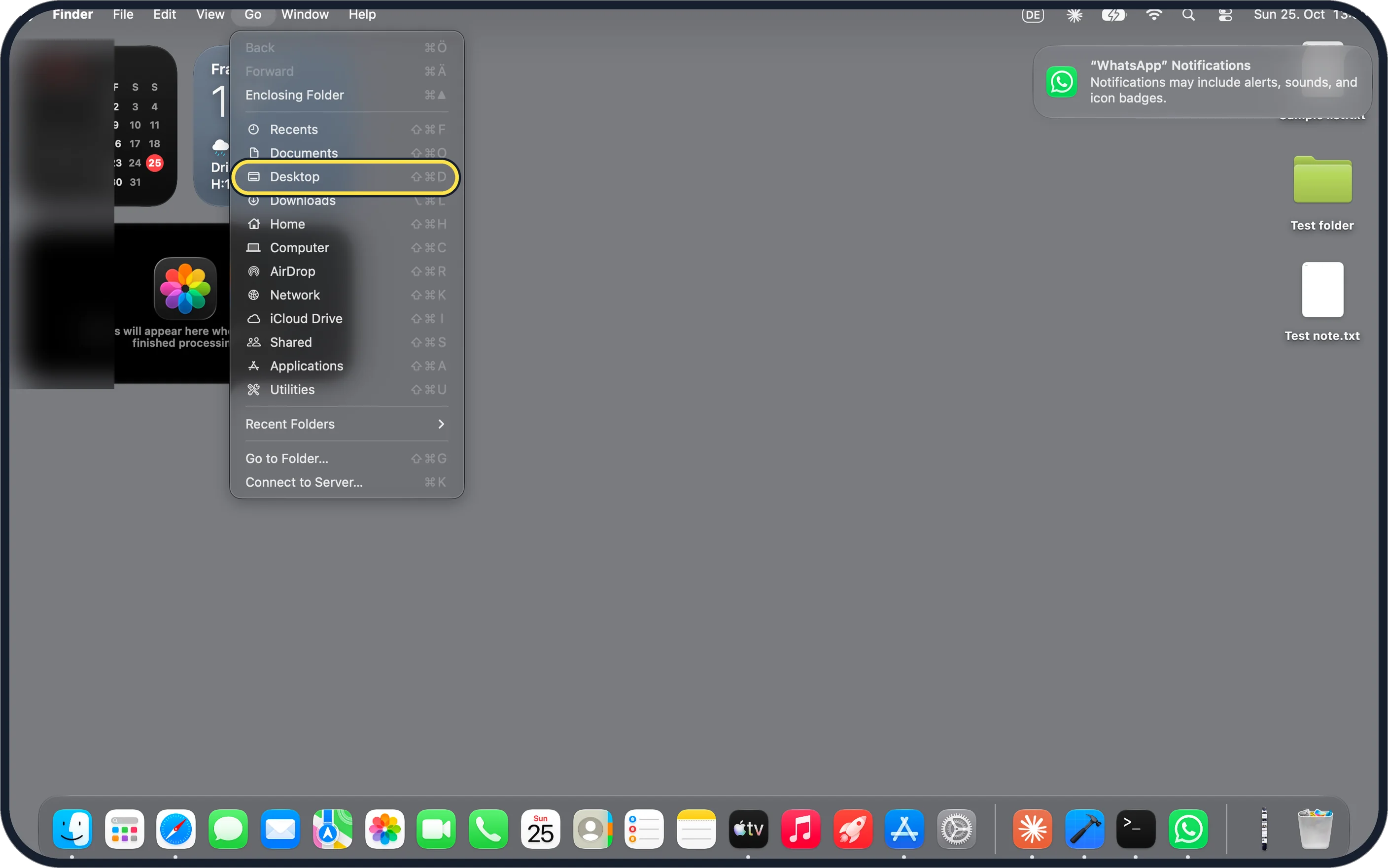
In Finder, choose Go, Desktop (Shift-Command-D). This works even while the icons are hidden.
Zoomed in on the setting. Tap to see the whole screenTap the picture to see it full size Your files are still there
Ours listed Sample list.txt, Test folder and Test note.txt, the same three items shown on the desktop at the right.
If you do not see this option
- Icons only missing with Stage Manager on? Apple says the In Stage Manager box shows desktop items while Stage Manager is turned on. Tick it too. Source: Change Desktop & Dock settings on Mac
- No Macintosh HD on the desktop? That is the Hard disks box in Finder settings, which was off on ours (step 2). Apple says these boxes control connected hardware on the desktop. Source: Change Finder settings on Mac
If this does not work
- Icons disappear when you click the desktop? Apple says Click wallpaper to show desktop set to Always moves all windows away when you click the wallpaper. Set it to Only in Stage Manager. Source: Change Desktop & Dock settings on Mac
- Desktop folder empty in Finder too? If you sync Desktop & Documents with iCloud Drive, the files may be under iCloud Drive, Desktop in the Finder sidebar instead. Source: Add your Desktop and Documents files to iCloud Drive
About this guide
Desktop icons can vanish because one box is unticked, while the files themselves stay in the Desktop folder.
The screenshots are from our MacBook Neo with macOS 27.0.1 in dark mode, taken on 25 October 2026. We put three test items on the desktop for the shots and deleted them afterwards.
Good to know
Windows vanish when you click the wallpaper? See how to stop a click on the desktop hiding windows.
In short: Desktop & Dock, Show items: On Desktop. Finder, Settings, General for disks. Finder, Go, Desktop to see the files.
Links checked in October 2026. Menus and features can change after software updates. These steps match the version named at the top.
📷 Camera Lab: the same 6 scenes photographed with 11 phones, side by side.
Did this guide work for you?
Sorry about that. What happened?