IPHONE
How to restart or force restart an iPhone (iOS 27)
In short
Press and hold the side button and either volume button until the power-off slider appears, drag it, and wait 30 seconds. Hold the side button to turn it back on. No buttons handy? Settings, General, Shut Down does the same. If the iPhone is frozen, press volume up, then volume down, then hold the side button until the Apple logo shows.
There are three ways to turn an iPhone off, and which one you need depends on whether the phone still responds to you.
2 of 4 steps show a real screenshot from our iPhone 17e.
Watch the steps first
Video: on our iPhone 17e (iOS 27.2.1) we open Settings, then General, and scroll to Shut Down (steps 2 and 3). Button presses (steps 1 and 4) can't be screen-recorded, so they aren't shown. No sound.
Steps
- 1
Hold the side button and a volume button
Press and hold the side button and either volume button together until the power-off slider appears. Drag the slider, then give it about 30 seconds to switch off. To turn it on again, hold the side button until the Apple logo appears.
- 2
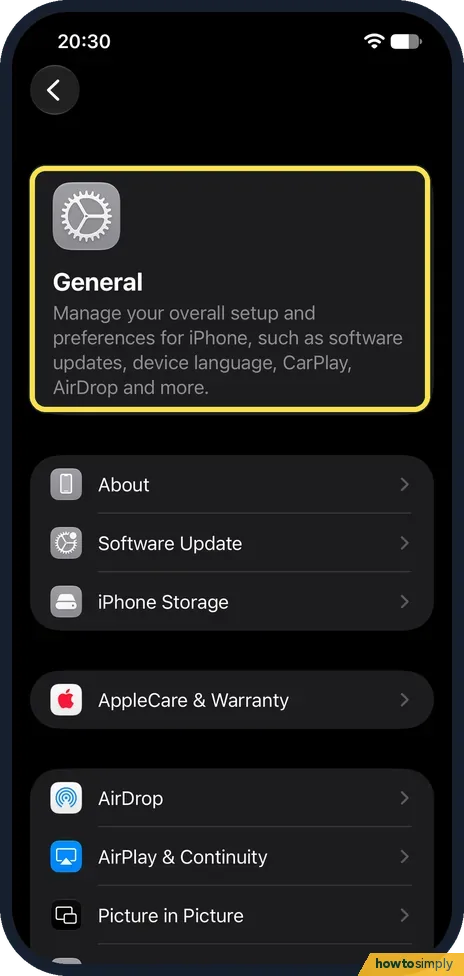
Or open General in Settings
If a button is broken, open Settings and tap General. Ours, on iOS 27.2.1, opened with About, Software Update and iPhone Storage.
- 3
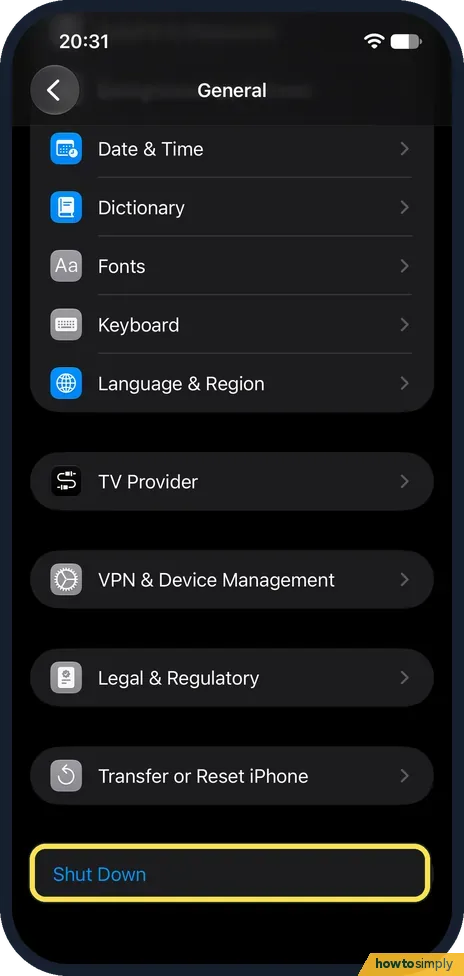
Tap Shut Down
Scroll to the very bottom of General. Shut Down sits on its own, below Transfer or Reset iPhone. Tap it and drag the slider. We didn't tap it on ours.
- 4
Force restart a frozen iPhone
If the screen won't respond and the slider never comes up, Apple says to press and quickly release volume up, press and quickly release volume down, then press and hold the side button. Let go when the Apple logo appears.
If you do not see this option
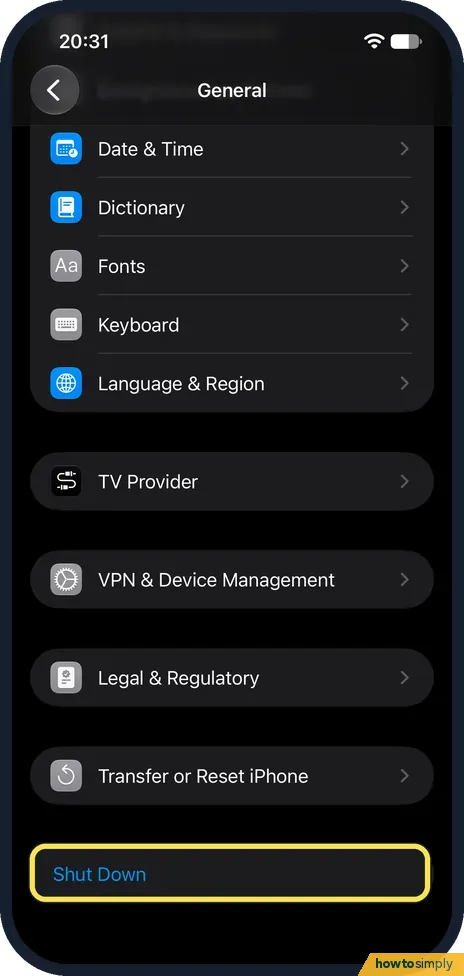
- Shut Down is blue text, not a row? That is how it looked on ours: plain blue text at the end of General, easy to miss when you scroll fast.
If this does not work
- Force restart did nothing? Timing matters: the two volume presses should be quick taps, and only the side button is held. Keep holding it until the logo shows, even if the screen goes black first. Apple has a separate help page if the iPhone still won't turn on.
- No slider when you hold the buttons? Use the Settings route above: General, Shut Down. If nothing on the screen responds at all, use the force restart in step 4.
Good to know
Phone locking too fast or not fast enough after it comes back on? See how to change how long an iPhone screen stays on.
About this guide
- Device
- iPhone
- Shown on
- iOS 27.2.1 (iPhone 17e)
- Starts in
- The phone's buttons
- Real screenshots
- 2 of 4 steps
- What we did
- Observed: looked at each screen, changed nothing
- Checked
- November 2026
- Sources
- 2 official, linked below
The screenshots are from our iPhone 17e with iOS 27.2.1, in Dark mode, taken on 18 November 2026. We only looked at these screens and changed nothing. Button presses can't be captured from the phone's own screen, so those steps follow Apple's guide.
Sources
Links checked October 2026. Menus and features can change with updates.Did this guide work for you?
Sorry about that. What happened?
Get new guides by email
Our newest guides, sent to your inbox. Free, and you can unsubscribe in one click.
We'll email you to confirm. How we use your email
Follow howtosimply on Facebook
We share every new article on our Facebook page, so the next fix turns up in your feed.
Follow on Facebook