
You are viewing the macOS 26 version of this guide, recorded on macOS Tahoe 26 (MacBook Pro) on 4 October 2026. It is kept as it was and not updated. See the macOS 27 version.
howtosimply.com/guides/how-to-repair-a-disk-on-a-mac-with-disk-utility-first-aid/ · Checked 4 October 2026 · MacBook Pro · macOS Tahoe 26
In this guide
Open Disk Utility, choose View, Show All Devices, and select the last volume shown under the disk. Click First Aid and Run. Then do the same for each item above it: volumes first, then containers, then the disk itself. For the startup disk, do this from macOS Recovery.
6 of 7 steps with real screenshots · 1 official source below
- Device
- Mac
- Shown on
- macOS Tahoe 26 (MacBook Pro)
- App
- Disk Utility
- Real screenshots
- 6 of 7 steps
- Checked
- 4 October 2026
- Sources
- 1 official, linked below
Step by step
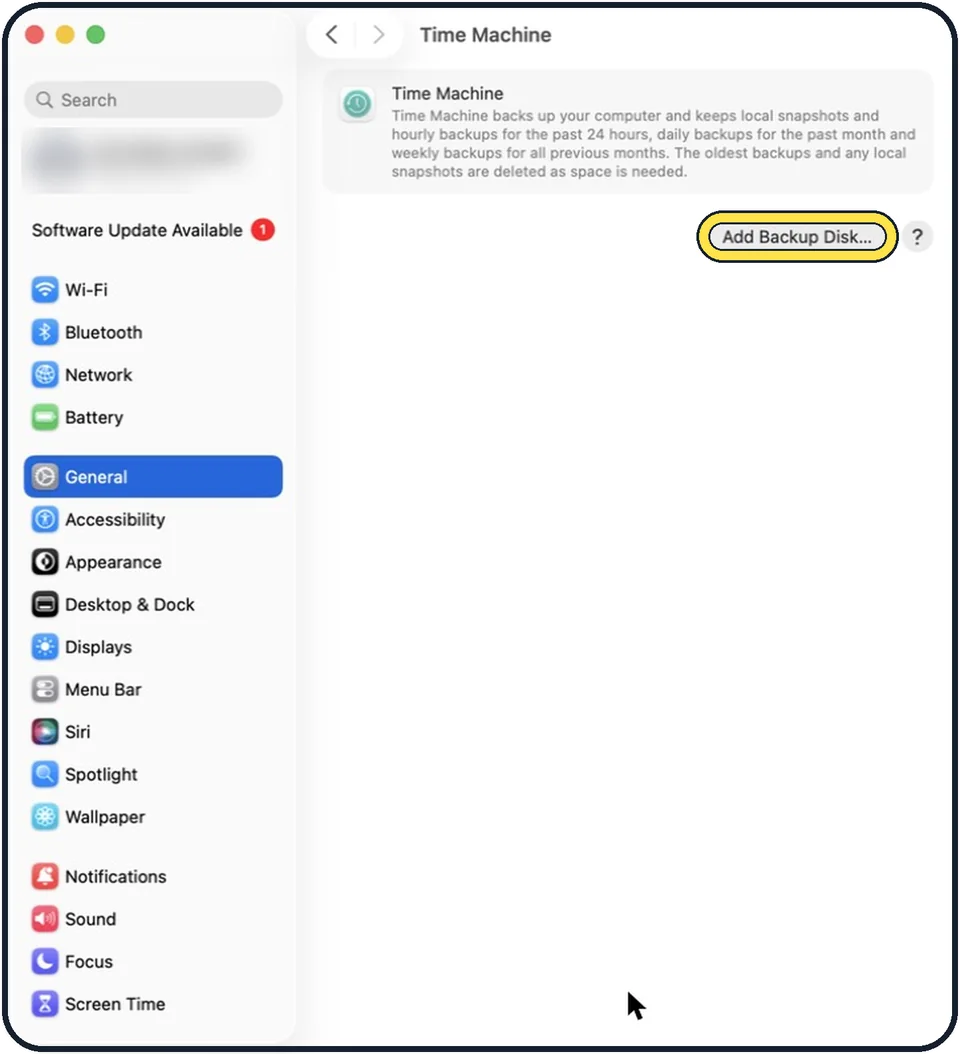
Tap the picture to see it full size Back up if you can
A disk that already has errors can fail completely. If the Mac still runs, make a backup before the repair: how to back up a Mac with Time Machine.
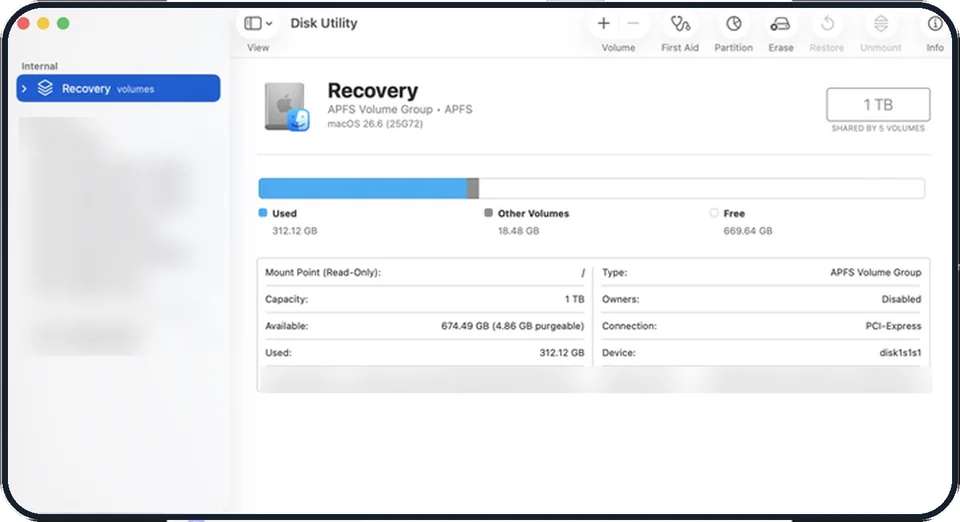
Tap the picture to see it full size Open Disk Utility
It is in Applications, Utilities. To repair the startup disk, or if the Mac does not start, open it from macOS Recovery: on Apple silicon hold the power button until the startup options appear and click Options. On an Intel Mac hold Command + R while it starts.
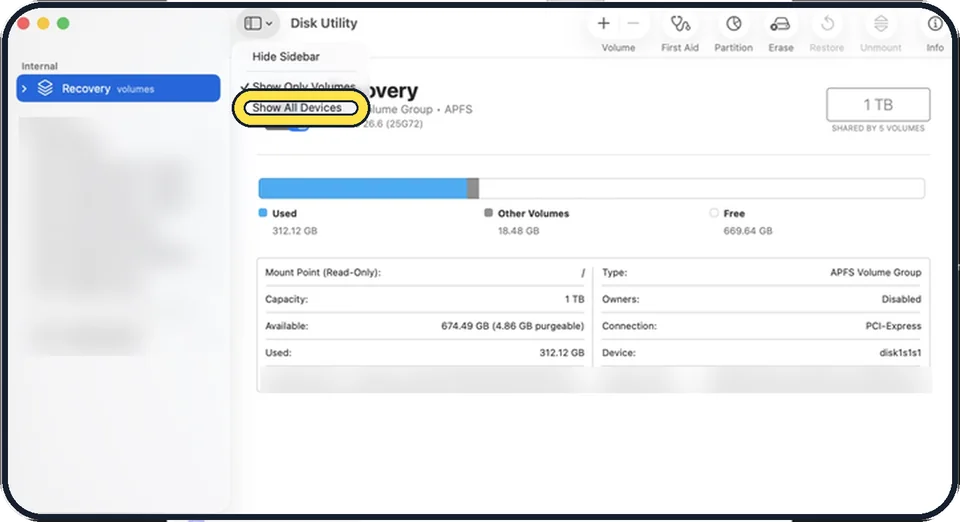
Tap the picture to see it full size Show all devices
Choose View, Show All Devices. The sidebar now shows each disk with its containers and volumes indented below it.
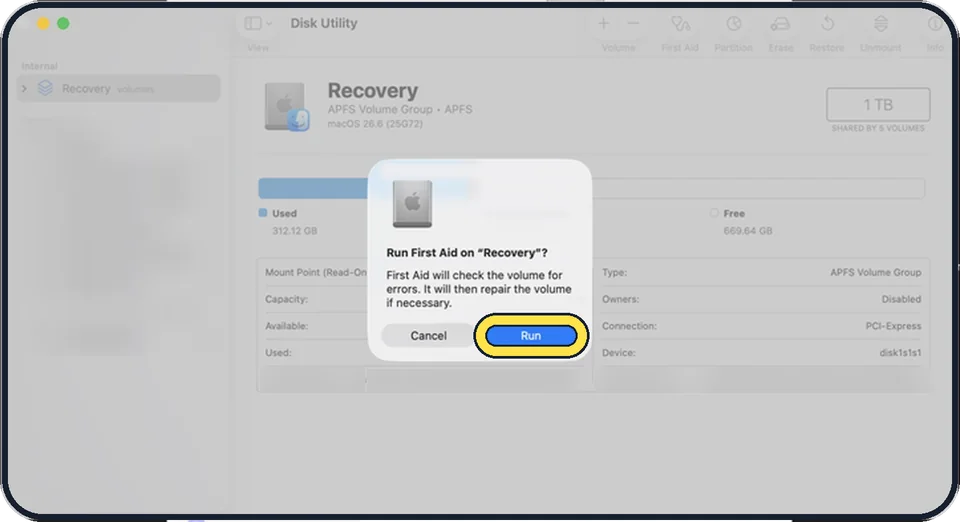
Tap the picture to see it full size Start with the last volume
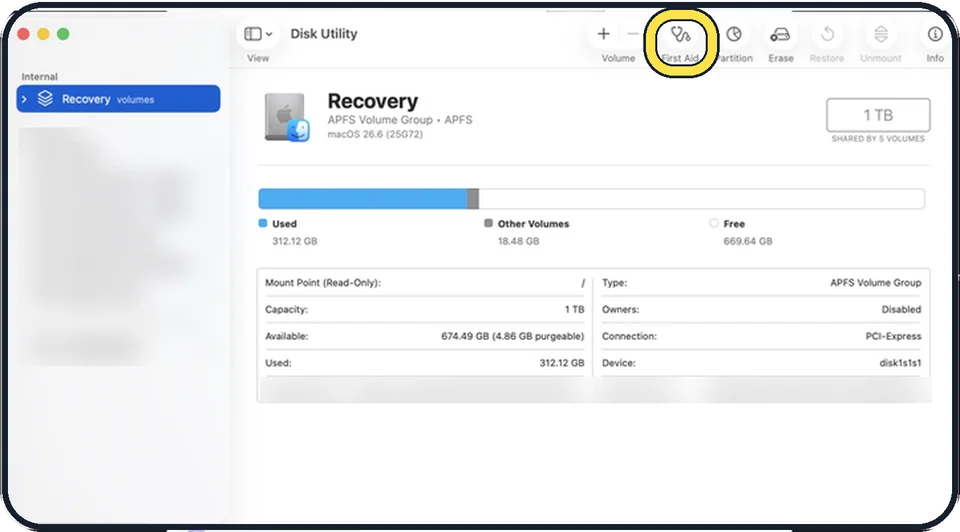
Select the last volume listed under the disk, click First Aid and then Run. Enter your administrator password if asked.
Tap the picture to see it full size Work upwards
When it is finished, select the item above it and run First Aid again. Go on in this order: all volumes, then each container, then the disk itself at the top. If the First Aid button is dimmed for an item, skip it.
Read the result
A green tick means the item is fine or was repaired. If Disk Utility reports errors it cannot repair, the disk has to be erased and restored from a backup, or replaced.
Tap the picture to see it full size Restart
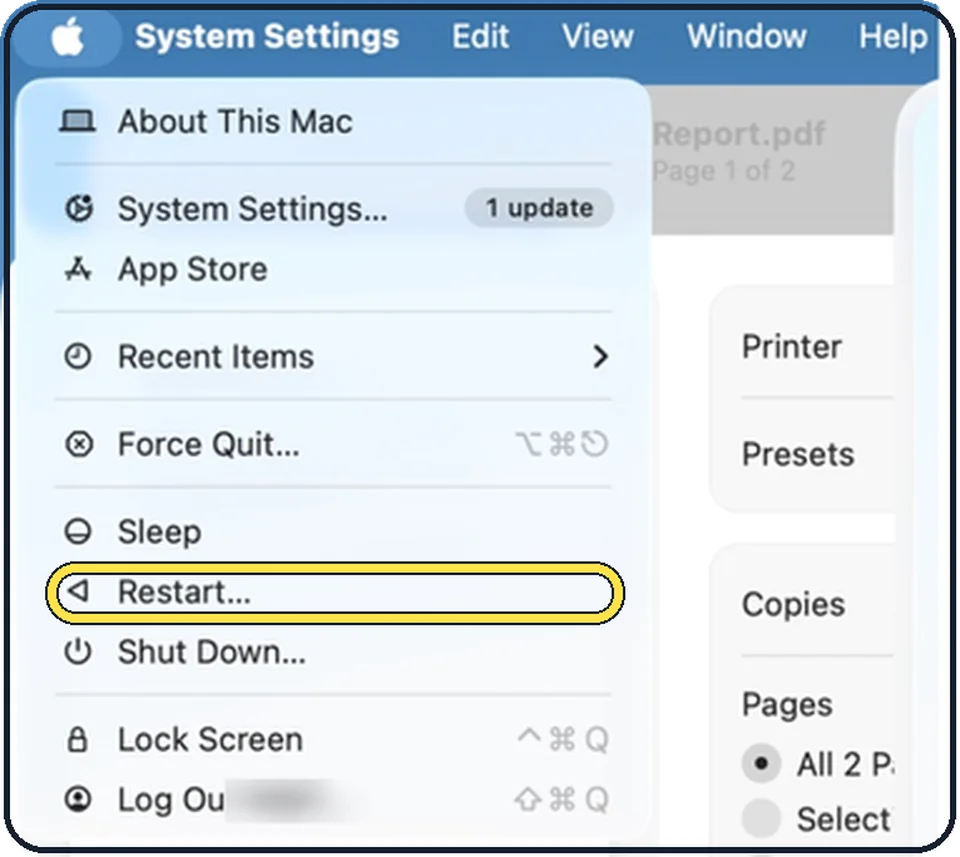
Quit Disk Utility and choose Restart from the Apple menu.
What we saw on our device
- Open Disk Utility: On our MacBook Neo, Disk Utility opened with Macintosh HD volumes under Internal and an iOS 27.0 Simulator under Disk Images.
- Show all devices: On our MacBook Neo the View menu had a tick next to Show Only Volumes, and the sidebar showed Macintosh HD, its snapshot and Macintosh HD - Data.
- For the startup disk, use Recovery: On our MacBook Neo, clicking Run showed: Verifying the startup volume will cause this computer to stop responding.
- Work upwards: On our MacBook Neo, with all devices shown, the sidebar listed APPLE SSD AP0512Z Media, Container disk3, Macintosh HD volumes, Macintosh HD with its snapshot indented below it, and Macintosh HD - Data at the bottom.
About this guide
First Aid checks the structure of a disk and repairs errors in it. It is the right tool when a Mac starts slowly or not at all, when files will not open, or when an external drive behaves oddly. It does not delete your data, but Apple still advises a backup first.
Menu names are from recent versions of macOS, where the settings app is called System Settings.
Good to know
While First Aid checks the startup volume, the Mac may stop responding for a few minutes. That is expected.
If the disk does not appear in Disk Utility at all, shut the Mac down, unplug all devices that are not needed, check the cable and power of an external drive, and try again.
A drive with repeated errors is on its way out. Copy your data off it and stop relying on it.
Related: external drive not showing up on a Mac: 8 fixes to try and Mac starts up to a black screen: 5 fixes to try.
In short: Back up, Disk Utility, View, Show All Devices, First Aid on the last volume, then upwards through volumes, containers and the disk, restart.
Links checked in October 2026. Menus and features can change after software updates. These steps match the version named at the top.
Did this guide work for you?
Sorry about that. What happened?