
macOS 27 compared with macOS 26: We rewrote this guide on macOS 27.0.1 (MacBook Neo): it now has 8 steps instead of 6. The macOS 26 page keeps the steps and screenshots as they were.
howtosimply.com/guides/mac-showing-the-wrong-time-or-date-how-to-fix-it/ · Checked October 2026 · MacBook Neo · macOS 27.0.1
In this guide
Open System Settings, click General, then Date & Time. Switch on Set time and date automatically and Set time zone automatically using your current location, and confirm with Touch ID or your password if asked. The Mac then takes the time from the server shown next to Source, on our MacBook Neo Apple (time.apple.com.).
8 of 8 steps with real screenshots · 1 official source below
- Device
- Mac
- Shown on
- macOS 27.0.1 (MacBook Neo)
- App
- System Settings
- Real screenshots
- 8 of 8 steps
- Checked
- October 2026
- Sources
- 1 official, linked below
Step by step
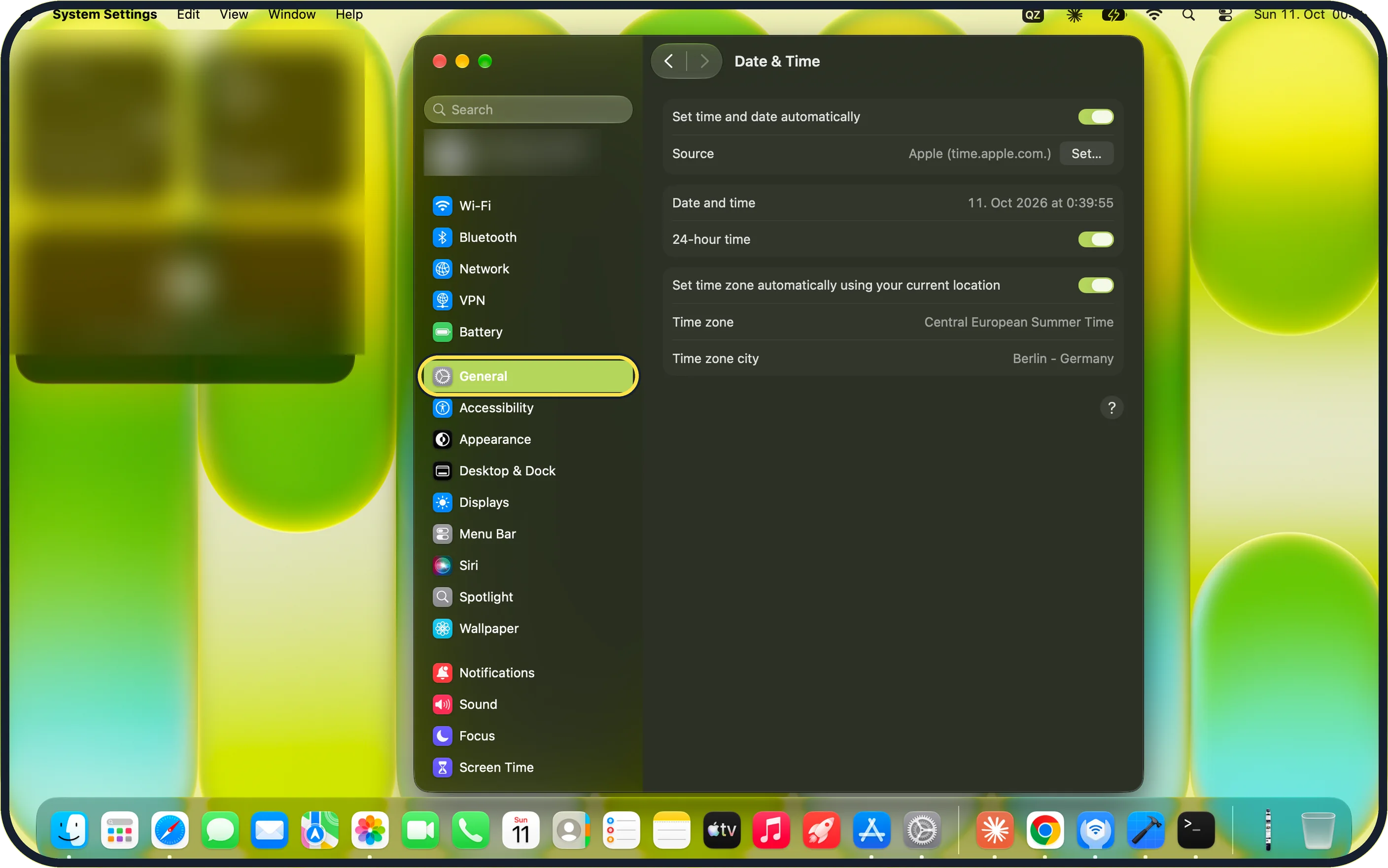
Zoomed in on the setting. Tap to see the whole screenTap the picture to see it full size Open System Settings, General, Date & Time
Choose Apple menu > System Settings…, click General in the sidebar, then click Date & Time.
On our MacBook Neo, General is highlighted in the sidebar, below Wi-Fi, Bluetooth, Network, VPN and Battery, and the Date & Time page opens on the right.
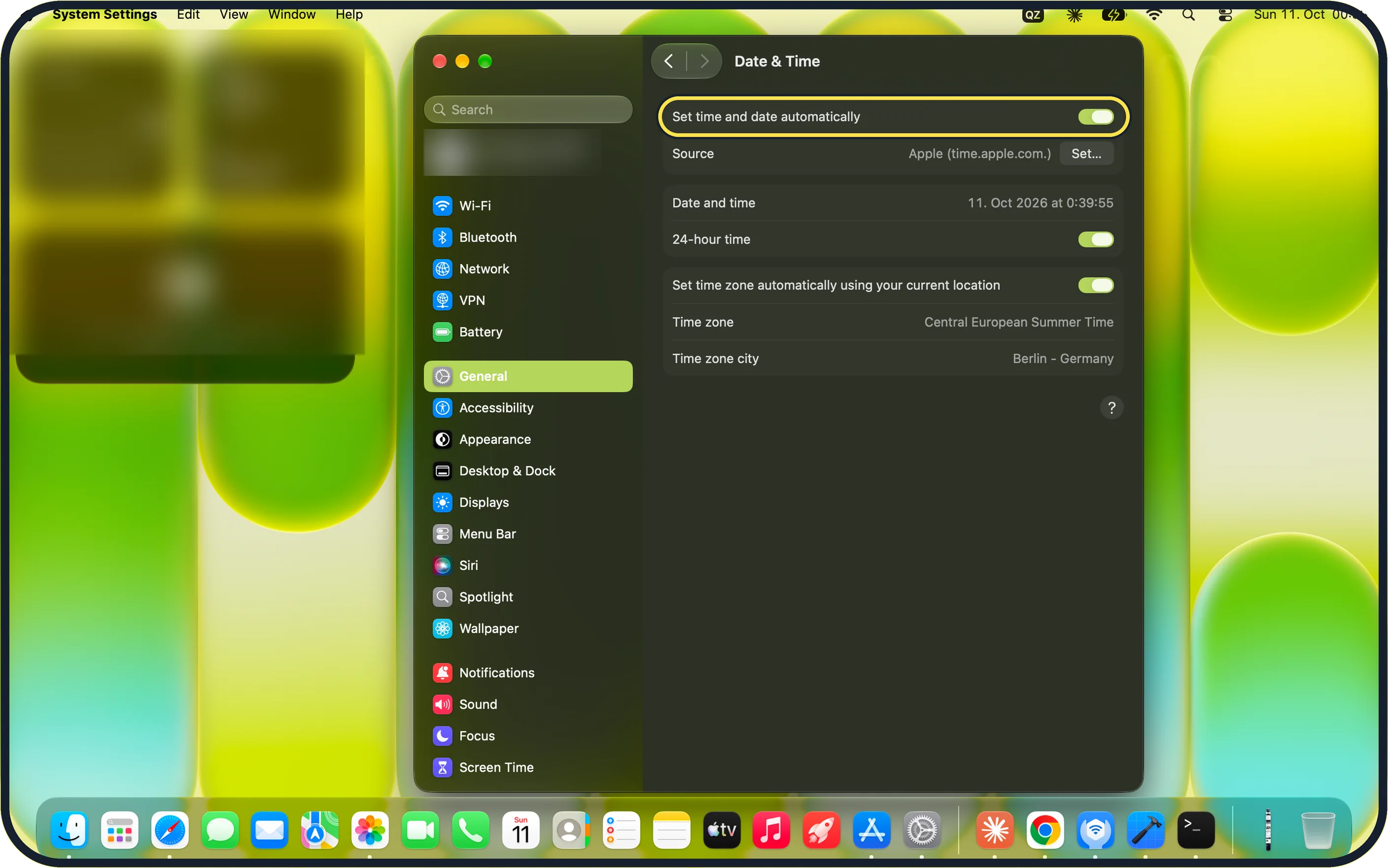
Zoomed in on the setting. Tap to see the whole screenTap the picture to see it full size Switch on Set time and date automatically
Turn on the switch next to Set time and date automatically.
Apple says the Mac needs an internet connection to fetch the time.
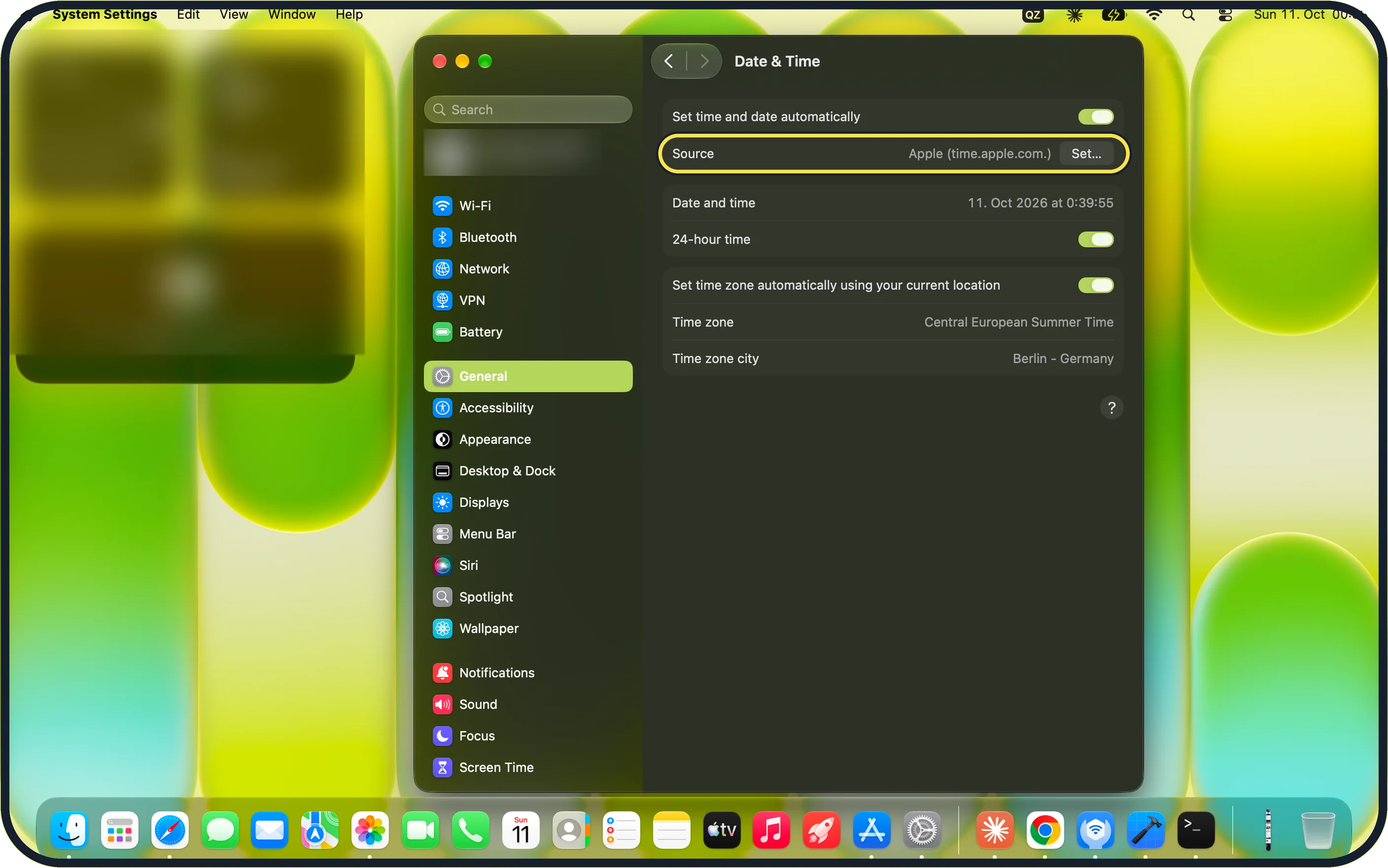
Zoomed in on the setting. Tap to see the whole screenTap the picture to see it full size Check the source
The time server is shown next to Source. On our MacBook Neo it reads Apple (time.apple.com.), with a Set… button beside it.
Click Set… only if you need to enter a different server.
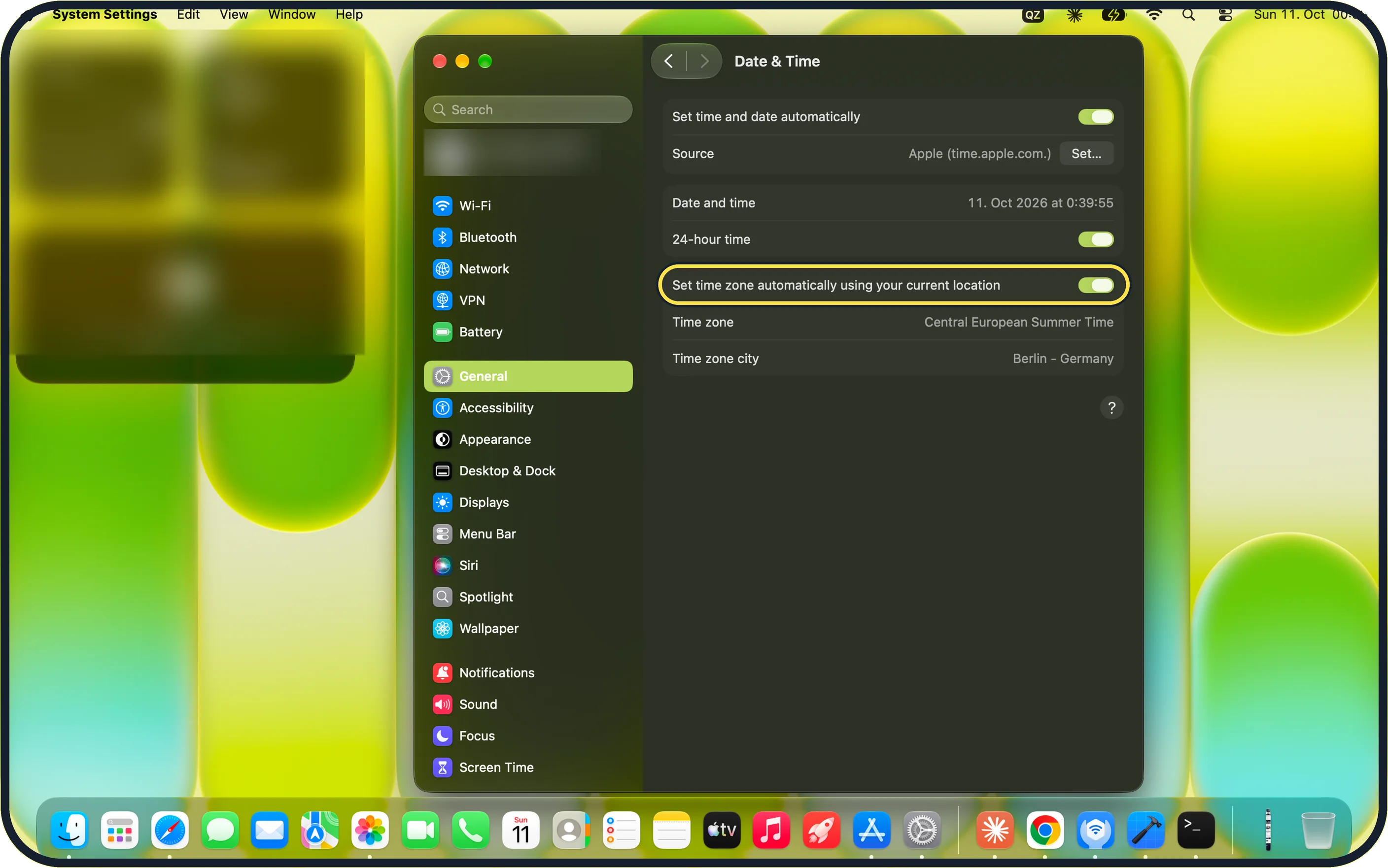
Zoomed in on the setting. Tap to see the whole screenTap the picture to see it full size Switch on the automatic time zone
Turn on Set time zone automatically using your current location.
Apple says this needs Location Services: System Settings, Privacy & Security, Location Services, on, and Setting time zone switched on under System Services.
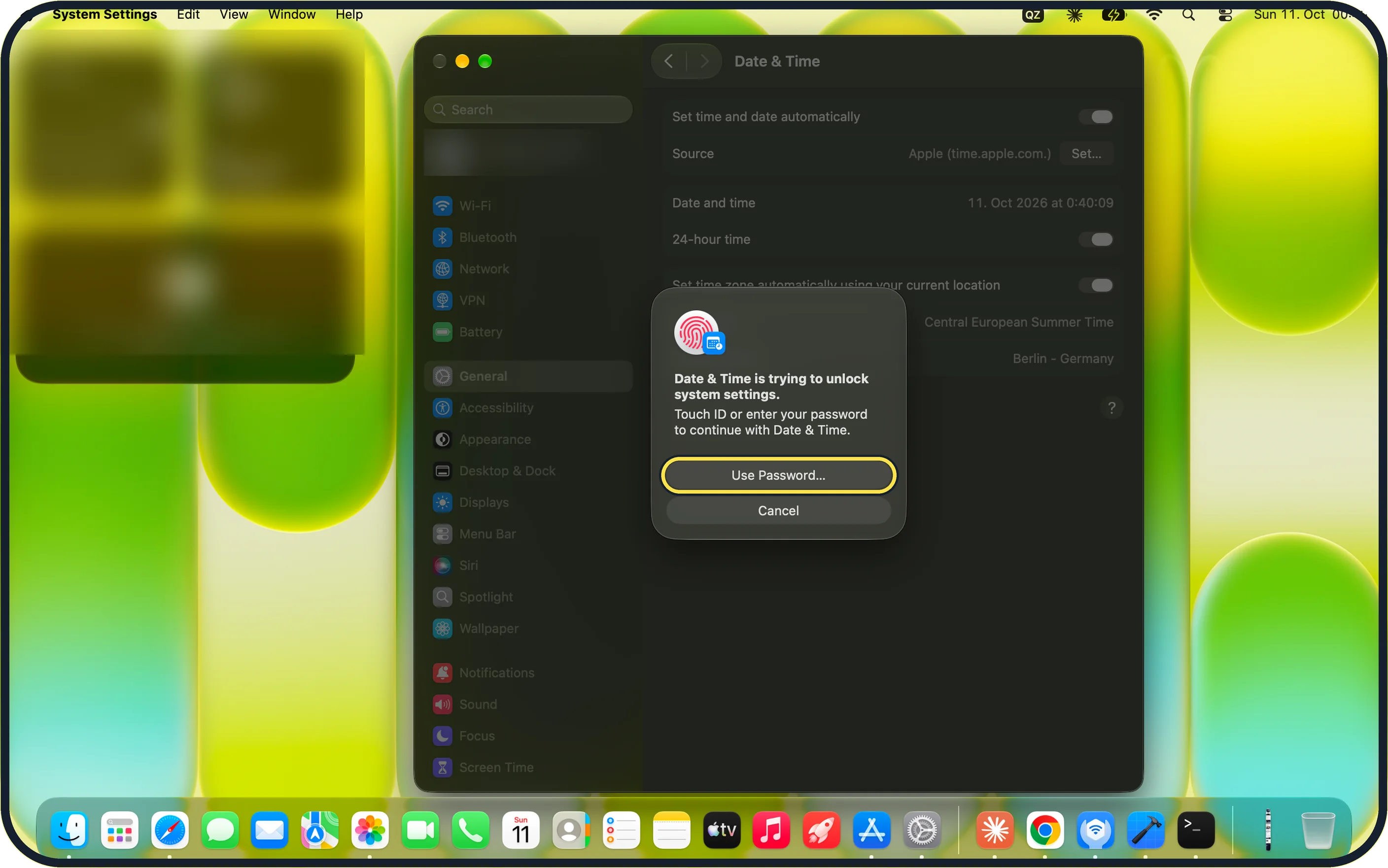
Zoomed in on the setting. Tap to see the whole screenTap the picture to see it full size Unlock the setting if asked
On our MacBook Neo, a dialog showed "Date & Time is trying to unlock system settings."
Use Touch ID, or click Use Password… and enter your Mac password.
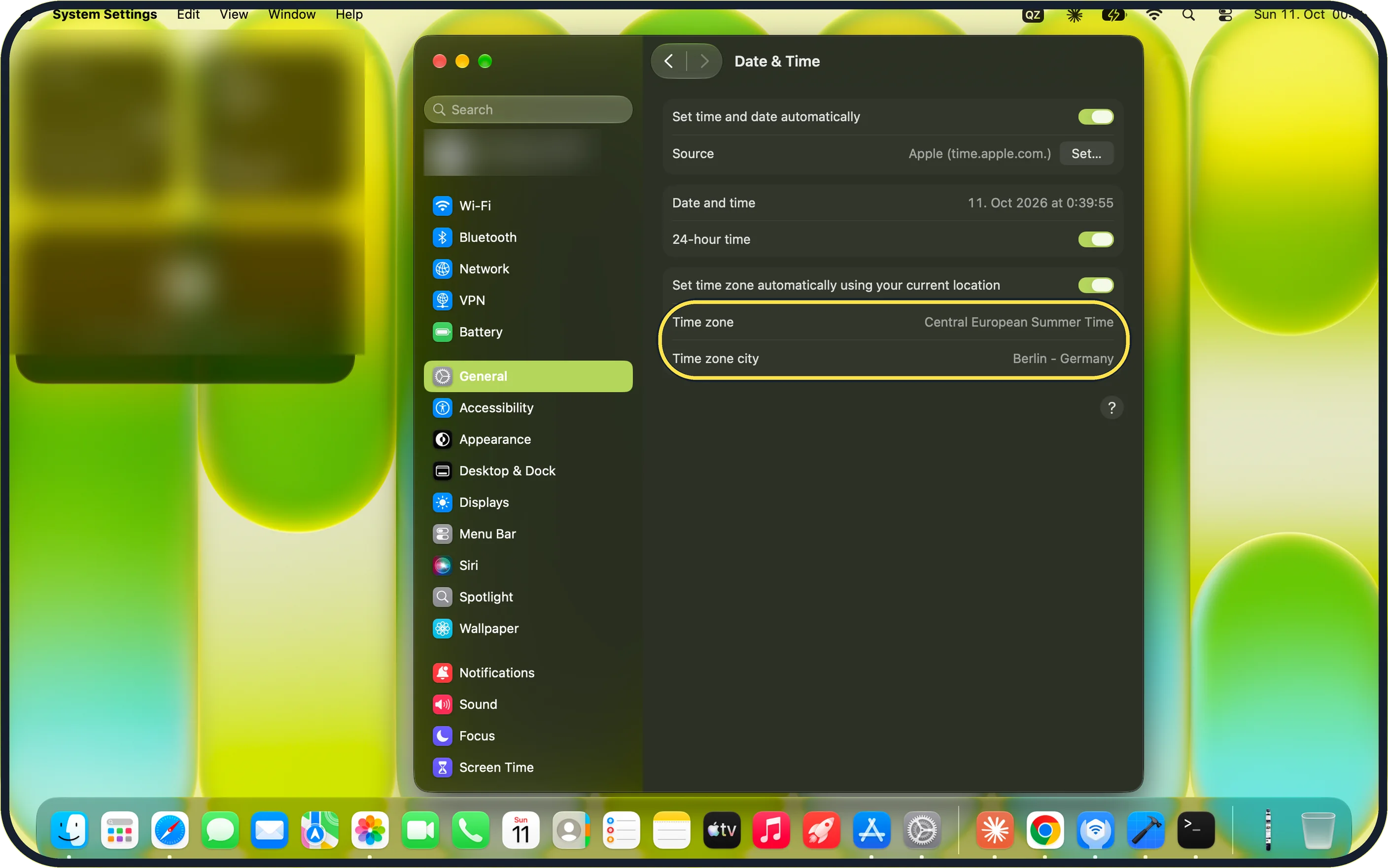
Zoomed in on the setting. Tap to see the whole screenTap the picture to see it full size Check the time zone
Read the Time zone and Time zone city rows. On our MacBook Neo they show Central European Summer Time and Berlin - Germany.
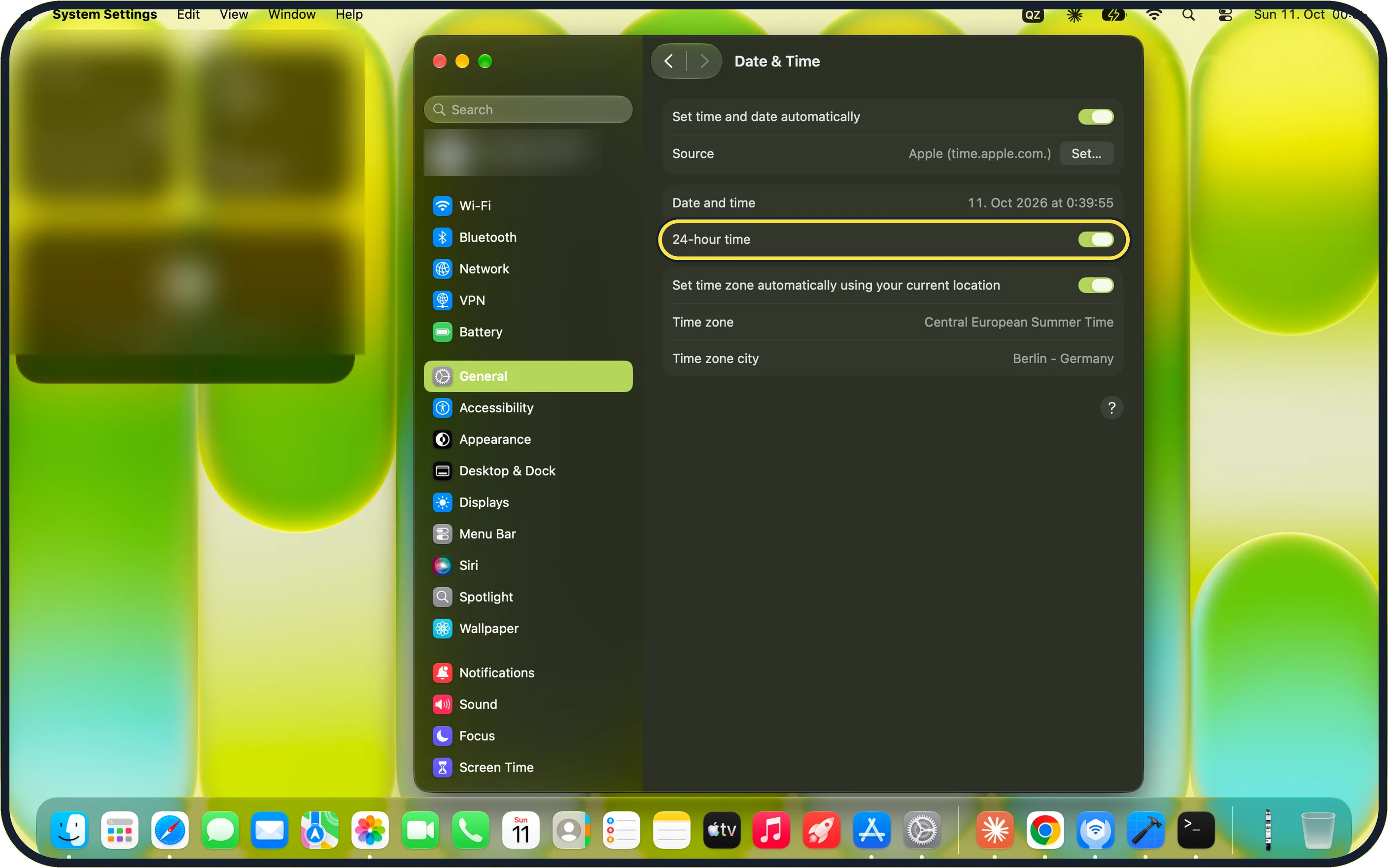
Zoomed in on the setting. Tap to see the whole screenTap the picture to see it full size Check the 24-hour setting
If the time is right but looks unusual, for example 14:00 where you expect 2:00 PM, change the 24-hour time switch on the same page.
On our MacBook Neo it is on, and Date and time reads 11. Oct 2026 at 0:39:55.
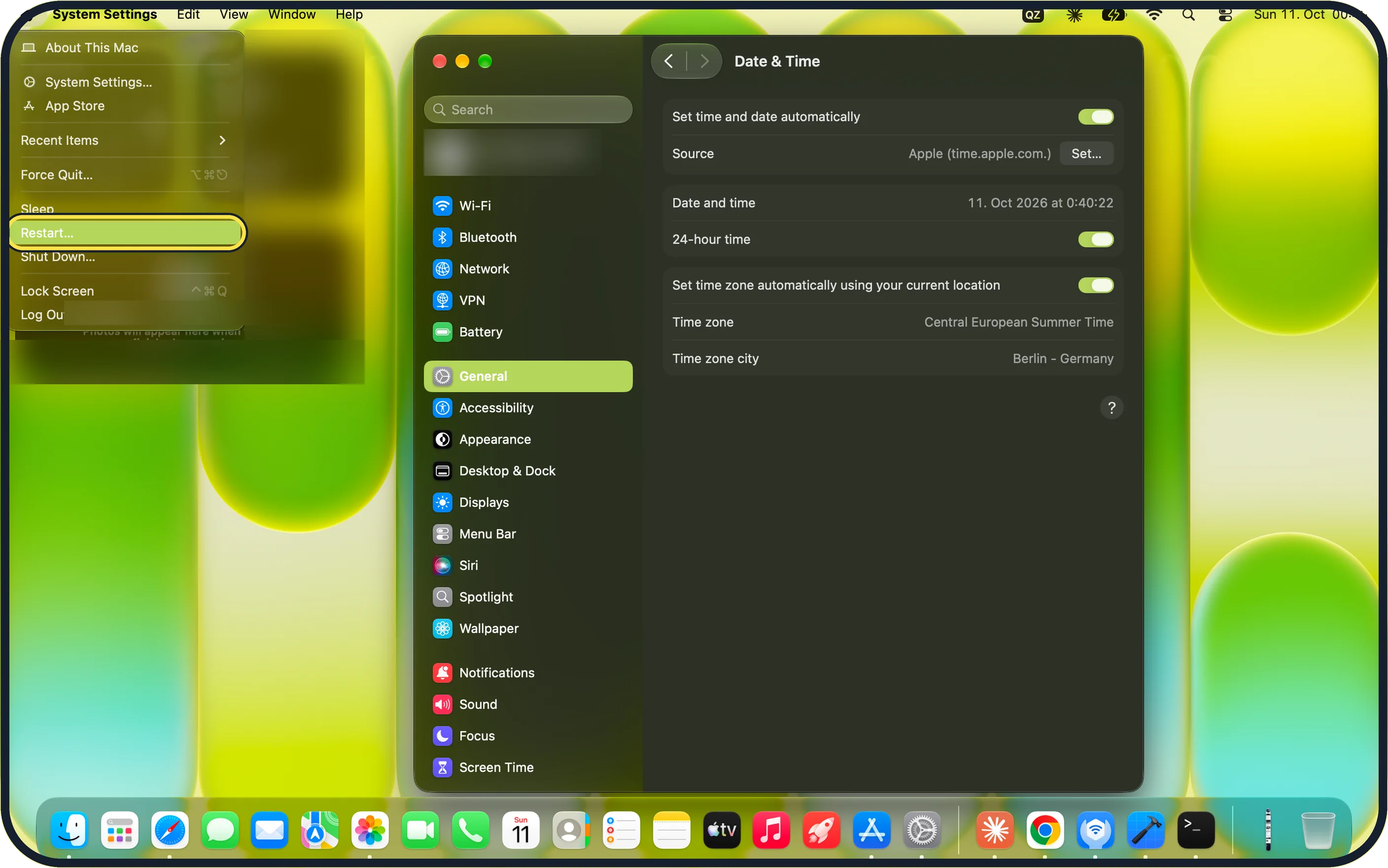
Zoomed in on the setting. Tap to see the whole screenTap the picture to see it full size Restart the Mac
Choose Apple menu > Restart….
If you do not see this option
- No Date & Time in the sidebar On our MacBook Neo it sits inside General: click General, then Date & Time.
- A switch will not change Clicking it opens "Date & Time is trying to unlock system settings." Use Touch ID or click Use Password….
- No field to pick a city With the automatic time zone on, our MacBook Neo only shows Time zone and Time zone city as read-only rows. Apple says you choose a city after switching the automatic time zone off. Source: Set the date and time automatically on your Mac
If this does not work
- The time is still wrong Apple says the Mac needs an internet connection to fetch the time. Check that you are online, then restart with Apple menu > Restart…. Source: Set the date and time automatically on your Mac
- The time zone is still wrong Apple says the automatic time zone needs Location Services, with Setting time zone switched on under System Services in Privacy & Security. Source: Set the date and time automatically on your Mac
- The time server is blocked On a company network, click Set… next to Source and enter the server your IT support gives you.
- Apps still show the old time Restart the Mac with Apple menu > Restart…. Source: Set the date and time automatically on your Mac
About this guide
A wrong clock makes websites show security warnings and gives files wrong dates; the automatic setting fixes it in nearly every case.
Screenshots: MacBook Neo, macOS 27.0.1, dark mode.
Good to know
In a company network, a firewall may block the time server. Ask your IT support which server to enter.
The same problem on the phone: iPhone showing the wrong time: how to fix the date and time.
Sign-in problems that come from a wrong clock: Messages not working on a Mac: 8 things to check.
In short: Apple menu > System Settings… > General > Date & Time > Set time and date automatically on > Set time zone automatically using your current location on > Apple menu > Restart…
Links checked in October 2026. Menus and features can change after software updates. These steps match the version named at the top.
Did this guide work for you?
Sorry about that. What happened?