
You are viewing the macOS 26 version of this guide, recorded on macOS Tahoe 26 (MacBook Pro) on 3 October 2026. It is kept as it was and not updated. See the macOS 27 version.
howtosimply.com/guides/how-to-convert-heic-photos-to-jpg-on-a-mac/ · Checked 3 October 2026 · MacBook Pro · macOS Tahoe 26
In this guide
Select the photos in Finder, right-click, choose Quick Actions, then Convert Image. Pick JPEG and a size, and click Convert to JPEG. The JPG copies appear next to the originals.
2 of 4 steps with real screenshots · 1 official source below
- Device
- Mac
- Shown on
- macOS Tahoe 26 (MacBook Pro)
- App
- Finder
- Real screenshots
- 2 of 4 steps
- Checked
- 3 October 2026
- Sources
- 1 official, linked below
Step by step
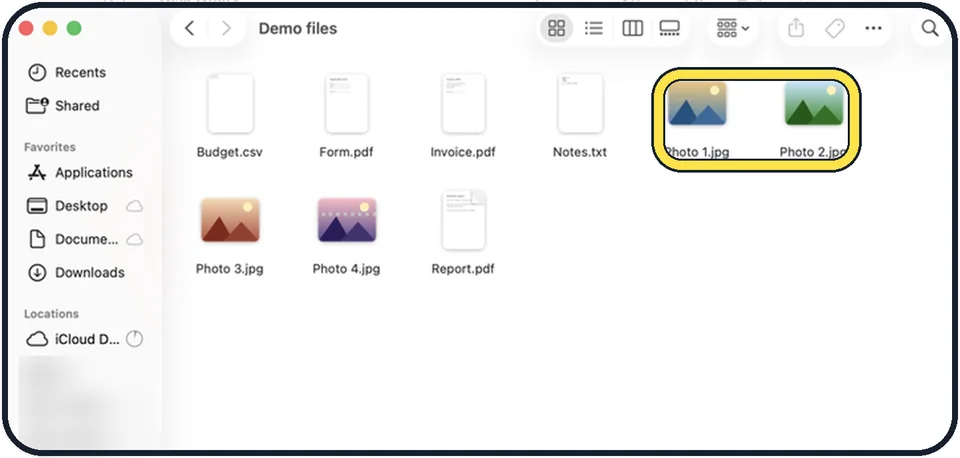
Tap the picture to see it full size Select the photos in Finder
Hold Command and click to select several.
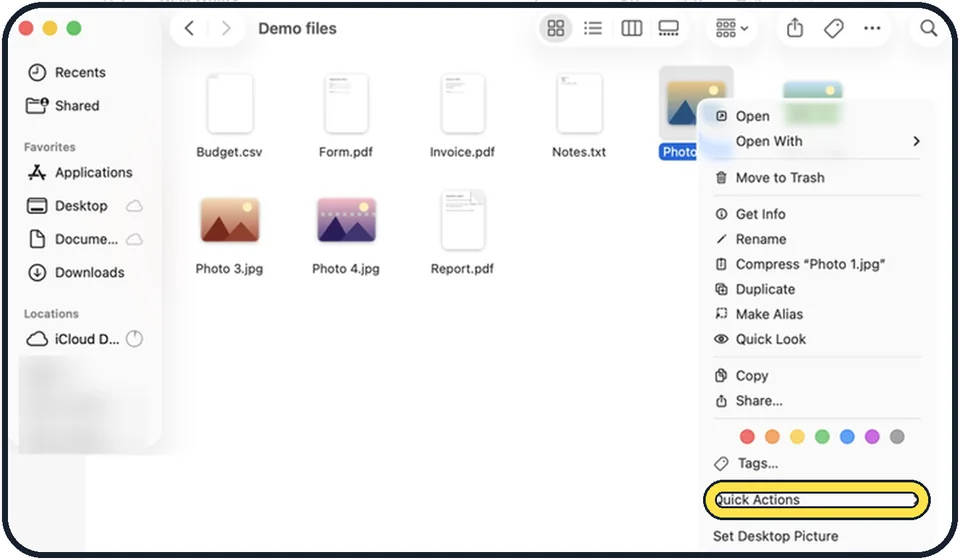
Tap the picture to see it full size Right-click and choose Quick Actions, Convert Image
A small window appears.
Choose JPEG and the image size
Actual Size keeps full quality. Large, Medium or Small make the file lighter for email or upload forms.
Click Convert to JPEG
JPG copies are created in the same folder. The HEIC originals are kept.
What we saw on our device
- Right-click and choose Quick Actions > Convert Image: On our MacBook Neo, Quick Actions lists Rotate Left, Create PDF, Convert Image, Remove Background and Customize….
- Check that Format is JPEG: On our MacBook Neo it was already set to JPEG, with Preserve Metadata ticked.
- Find the JPEG copies: On our MacBook Neo, IMG_0101.HEIC became IMG_0101 Large.jpeg: macOS adds the size name and uses the .jpeg extension.
About this guide
iPhones save photos in the HEIC format, which takes half the space of JPG. Many websites and older programs do not accept it. A Mac converts them in seconds.
Good to know
From the Photos app: select the photos and choose File, Export, Export Photos, with Photo Kind set to JPEG.
To stop the iPhone from making HEIC files in the first place, open Settings, Camera, Formats on the phone and choose Most Compatible.
Have a lot of photos to send? Make each file smaller as well: how to resize an image on a Mac with Preview.
To always open HEIC or JPG files in a different app: how to change which app opens a file type on a Mac.
In short: Finder: select photos > right-click > Quick Actions > Convert Image > Format: JPEG > Image Size > Convert to JPEG.
Links checked in October 2026. Menus and features can change after software updates. These steps match the version named at the top.
Did this guide work for you?
Sorry about that. What happened?