
You are viewing the macOS 26 version of this guide, recorded on macOS Tahoe 26 (MacBook Pro) on 4 October 2026. It is kept as it was and not updated. See the macOS 27 version.
howtosimply.com/guides/mac-showing-the-wrong-time-or-date-how-to-fix-it/ · Checked 4 October 2026 · MacBook Pro · macOS Tahoe 26
In this guide
Open System Settings, click General and then Date & Time. Switch on Set time and date automatically, and switch on Set time zone automatically using your current location. The Mac then takes the time from a time server on the internet.
5 of 6 steps with real screenshots · 1 official source below
- Device
- Mac
- Shown on
- macOS Tahoe 26 (MacBook Pro)
- App
- System Settings
- Real screenshots
- 5 of 6 steps
- Checked
- 4 October 2026
- Sources
- 1 official, linked below
Step by step
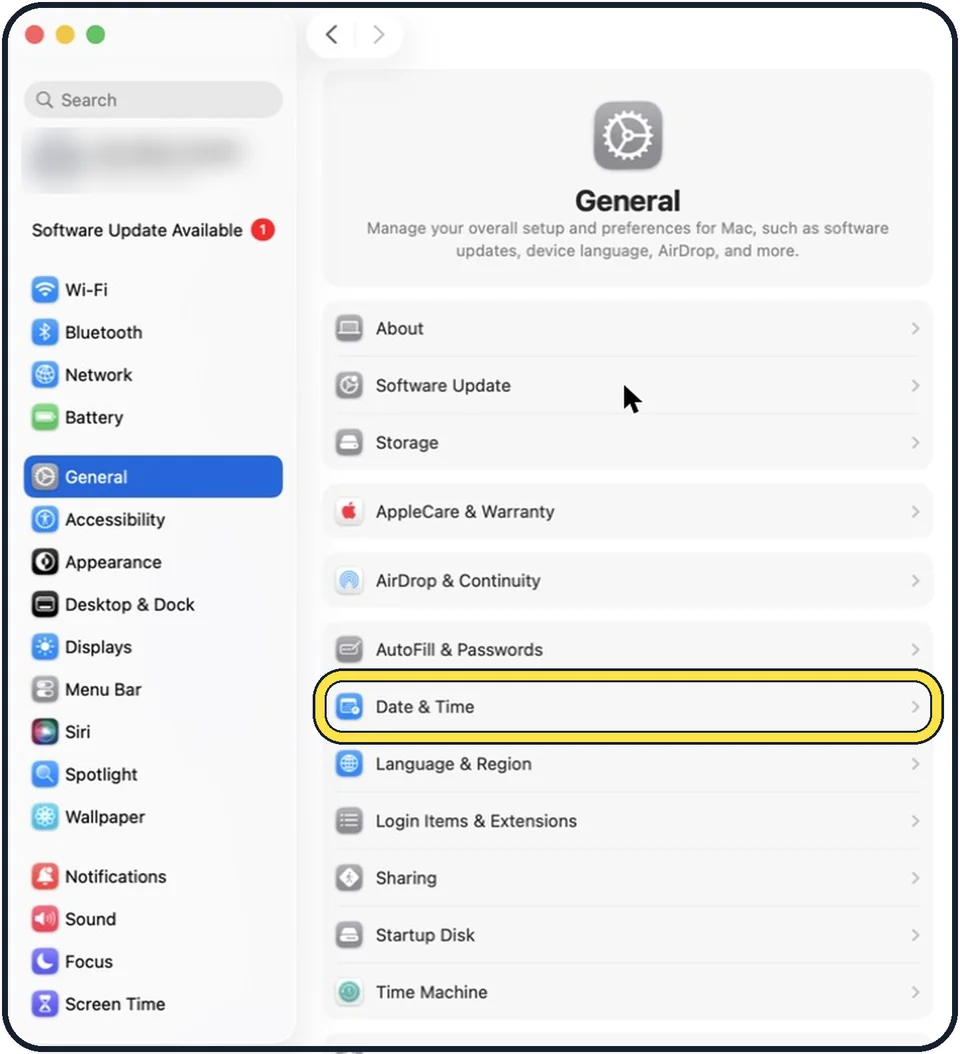
Tap the picture to see it full size Open System Settings, General, Date & Time
Choose Apple menu, System Settings, click General in the sidebar and click Date & Time.
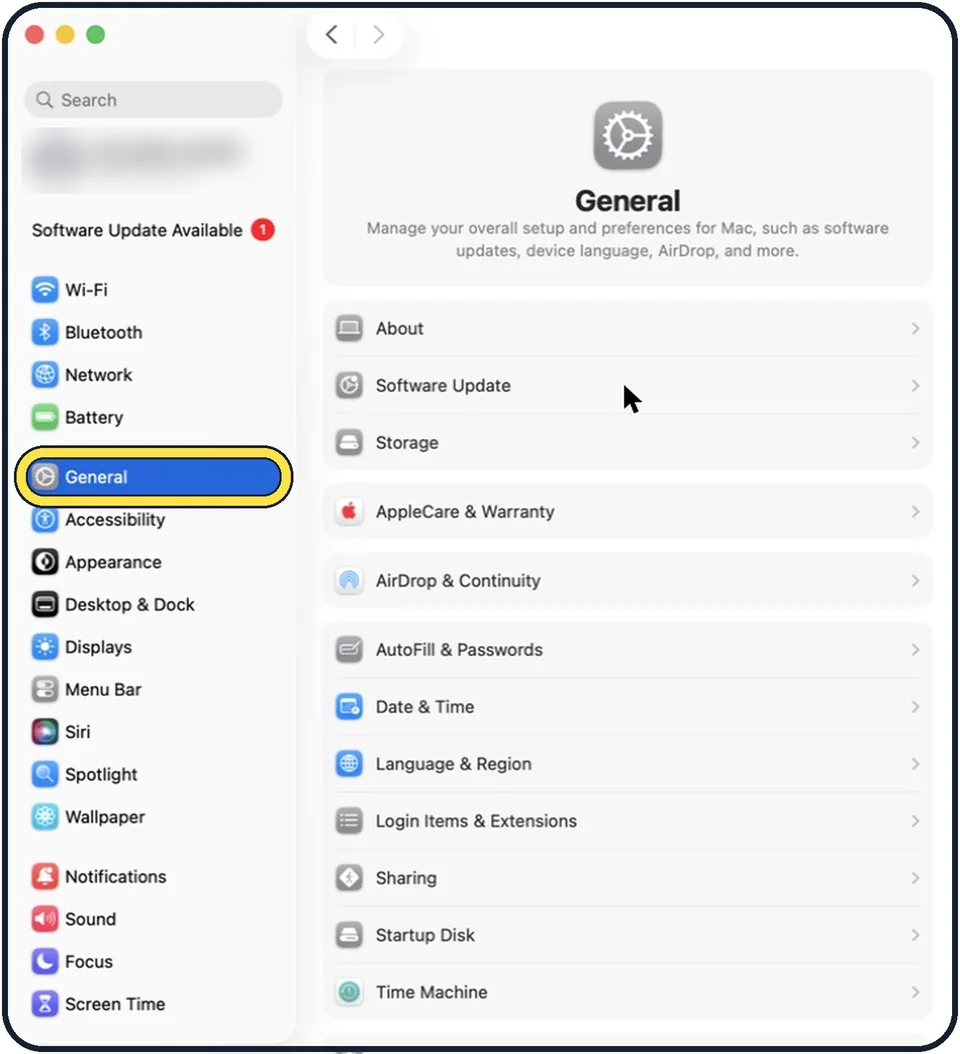
Tap the picture to see it full size Switch on Set time and date automatically
The Mac needs an internet connection to fetch the time. Next to Source, the time server is shown. Apple's server (time.apple.com) is the default. Click Set only if you want to enter another one.
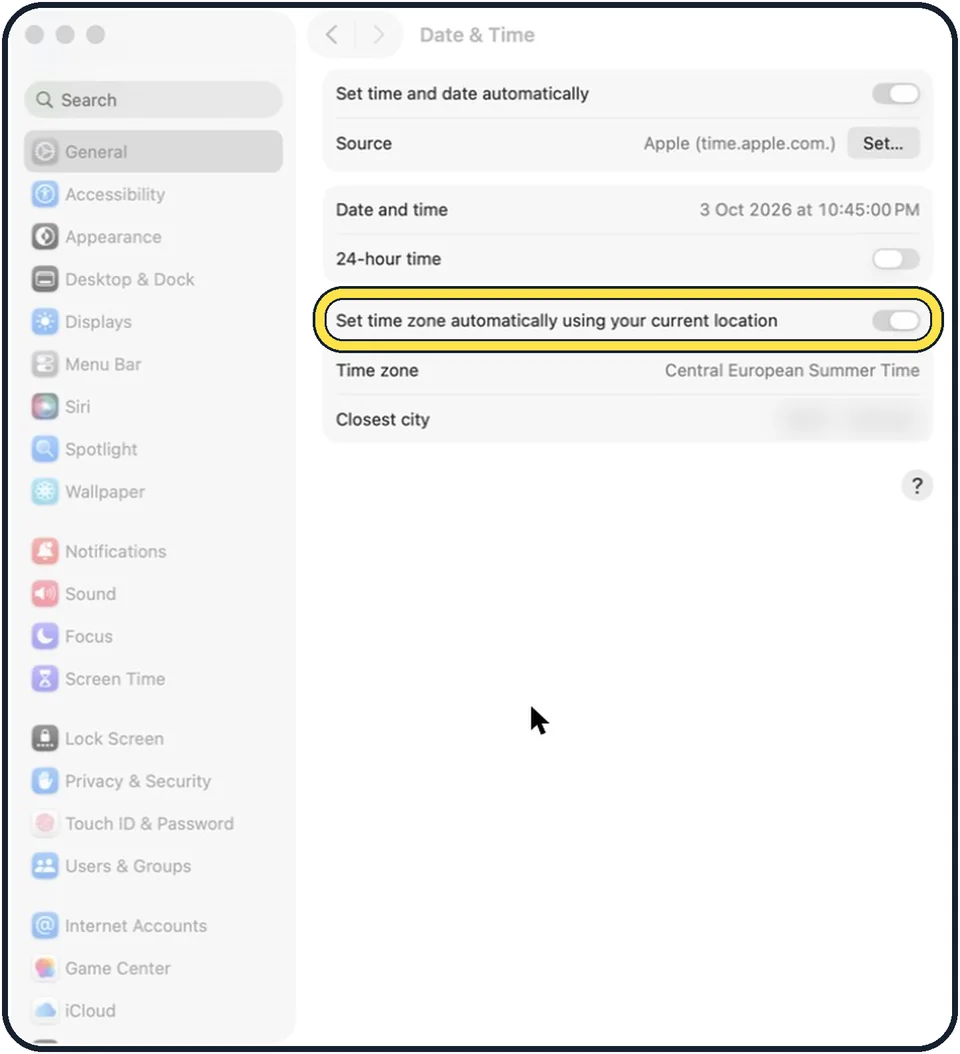
Tap the picture to see it full size Switch on the automatic time zone
Turn on Set time zone automatically using your current location. This needs Location Services: System Settings, Privacy & Security, Location Services, on, and in the list under System Services, Setting time zone.
If the time zone is still wrong
Switch the automatic time zone off and choose the nearest city by hand.
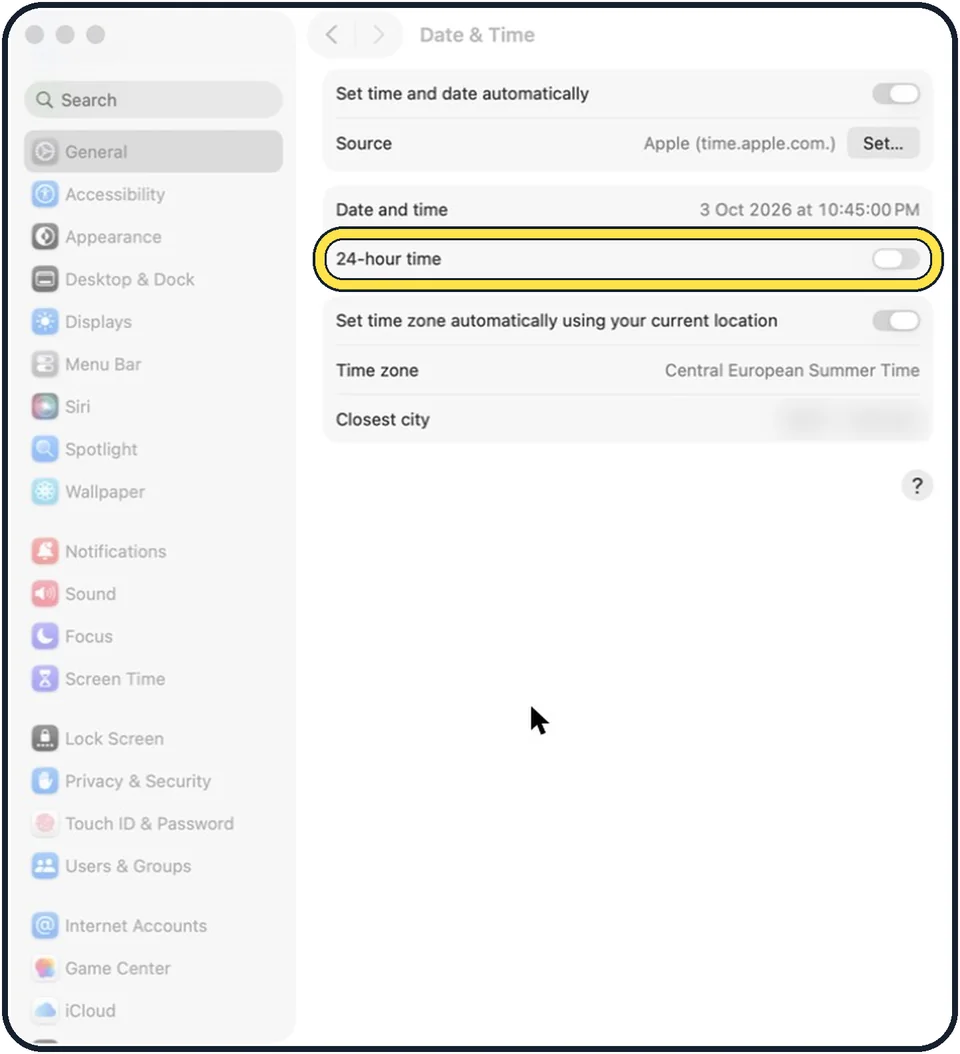
Tap the picture to see it full size Check the 24-hour and region settings
If the time is right and only looks unusual, for example 14:00 where you expect 2:00 PM, change it in the same place with 24-hour time, or under General, Language & Region.
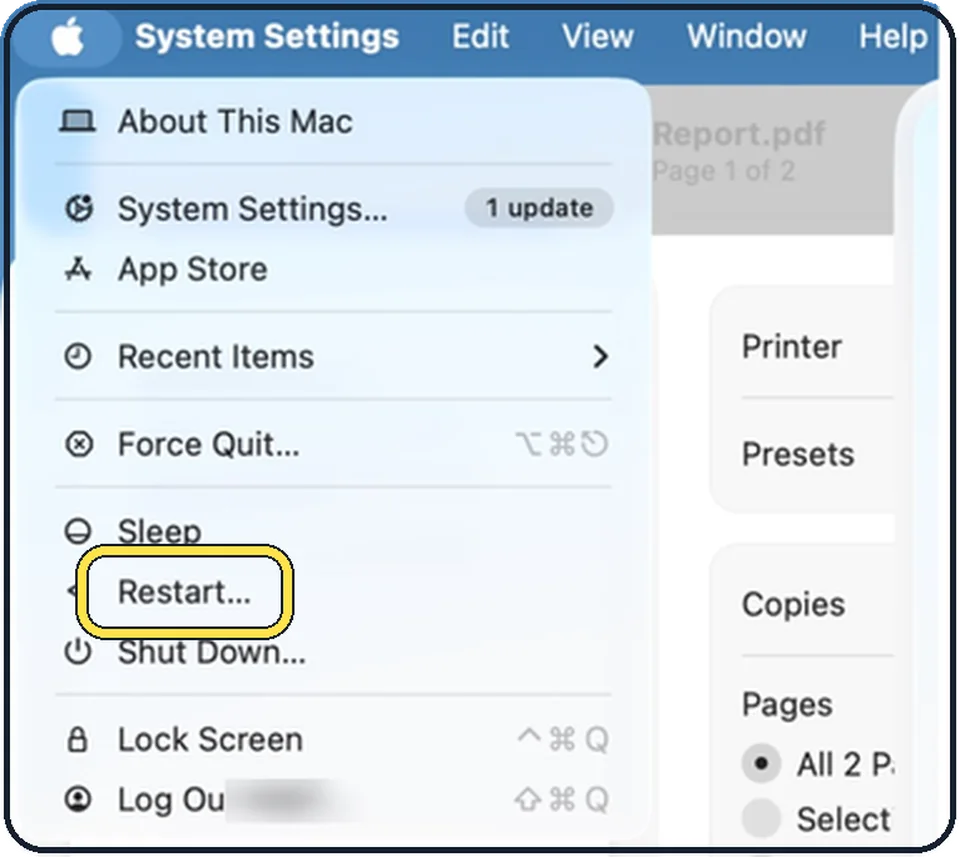
Tap the picture to see it full size Restart
A restart makes the Mac fetch the time again and corrects apps that still show the old one.
What we saw on our device
- Open System Settings, General, Date & Time: On our MacBook Neo, General is highlighted in the sidebar, below Wi-Fi, Bluetooth, Network, VPN and Battery, and the Date & Time page opens on the right.
- Check the source: On our MacBook Neo it reads Apple (time.apple.com.), with a Set… button beside it.
- Check the time zone: On our MacBook Neo they show Central European Summer Time and Berlin - Germany.
- Check the 24-hour setting: On our MacBook Neo it is on, and Date and time reads 11. Oct 2026 at 0:39:55.
About this guide
A wrong clock is more than a nuisance. Websites show security warnings, iMessage and the App Store refuse to sign in, and files get wrong dates. The automatic setting fixes it in nearly every case.
Menu names are from recent versions of macOS, where the settings app is called System Settings. The picture is our own screenshot from macOS Tahoe 26 on a MacBook Pro.
Good to know
A Mac that loses the time whenever it has been without power for a while, mostly an older model, has an empty backup battery. That is a job for a repair shop.
In a company network, a firewall may block the time server. Ask your IT support which server to enter.
The same problem on the phone: iPhone showing the wrong time: how to fix the date and time.
Sign-in problems that come from a wrong clock: Messages not working on a Mac: 8 things to check.
In short: Apple menu > System Settings… > General > Date & Time > Set time and date automatically on > Set time zone automatically using your current location on > Apple menu > Restart…
Links checked in October 2026. Menus and features can change after software updates. These steps match the version named at the top.
Did this guide work for you?
Sorry about that. What happened?