
macOS 27 compared with macOS 26: We rewrote steps 1, 2, 3, 4, 5, 6 and 7 to match the macOS 27 screens. The macOS 26 page keeps the steps and screenshots as they were.
howtosimply.com/guides/how-to-use-activity-monitor-on-a-mac/ · Checked October 2026 · MacBook Neo · macOS 27.0.1
In this guide
Open Activity Monitor from Applications, Utilities, or search for it with Spotlight. The tabs CPU, Memory, Energy, Disk and Network show what each app is using right now. Click a column heading to sort, and select an app and click the stop button to quit one that has hung.
7 of 7 steps with real screenshots · 3 official sources below
- Device
- Mac
- Shown on
- macOS 27.0.1 (MacBook Neo)
- App
- Activity Monitor
- Real screenshots
- 7 of 7 steps
- Checked
- October 2026
- Sources
- 3 official, linked below
Step by step
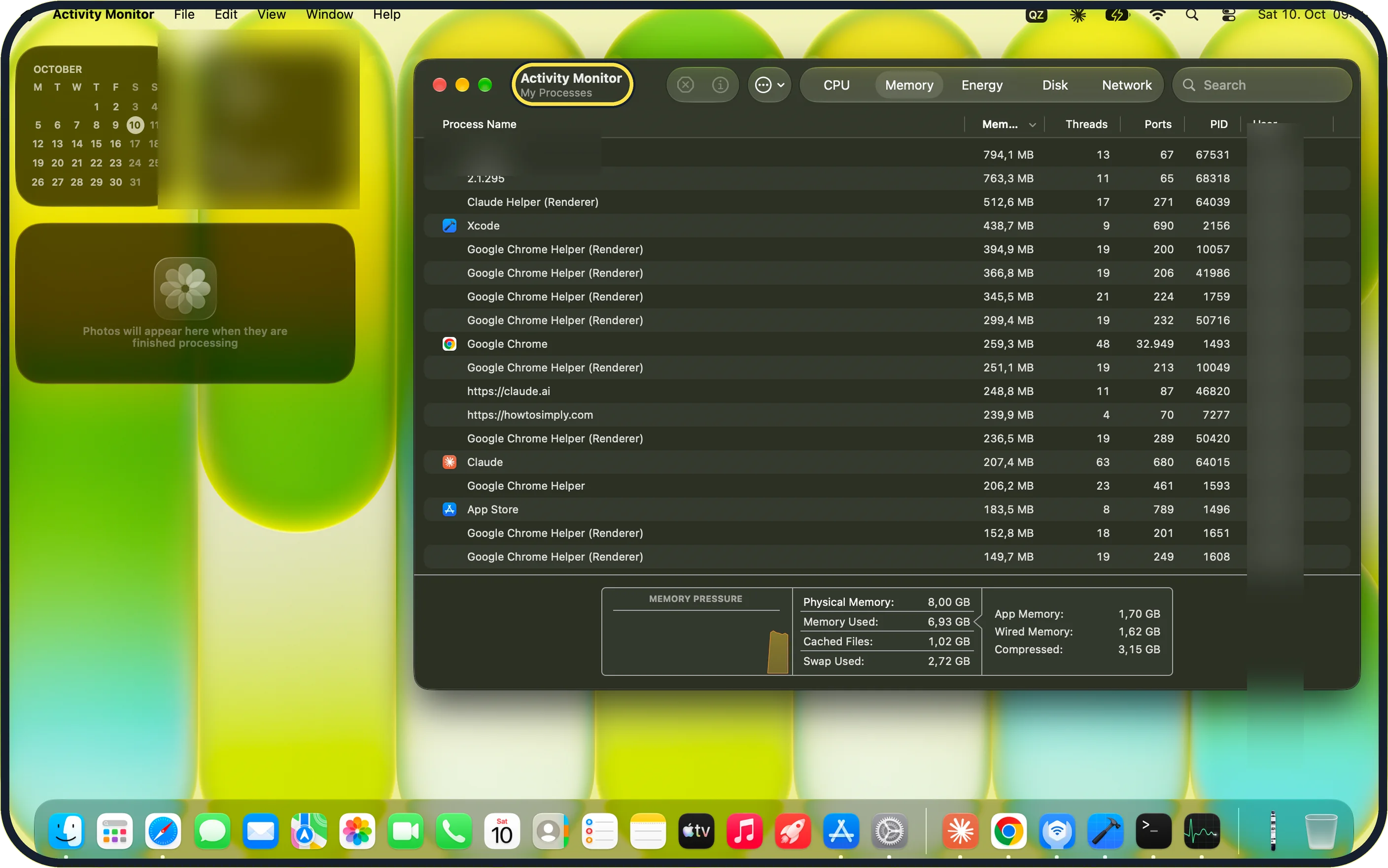
Zoomed in on the setting. Tap to see the whole screenTap the picture to see it full size Open Activity Monitor
Press Command + Space, type Activity Monitor and press Return. The app is in Applications, Utilities. On our MacBook Neo it opened on My Processes, shown under the window title.
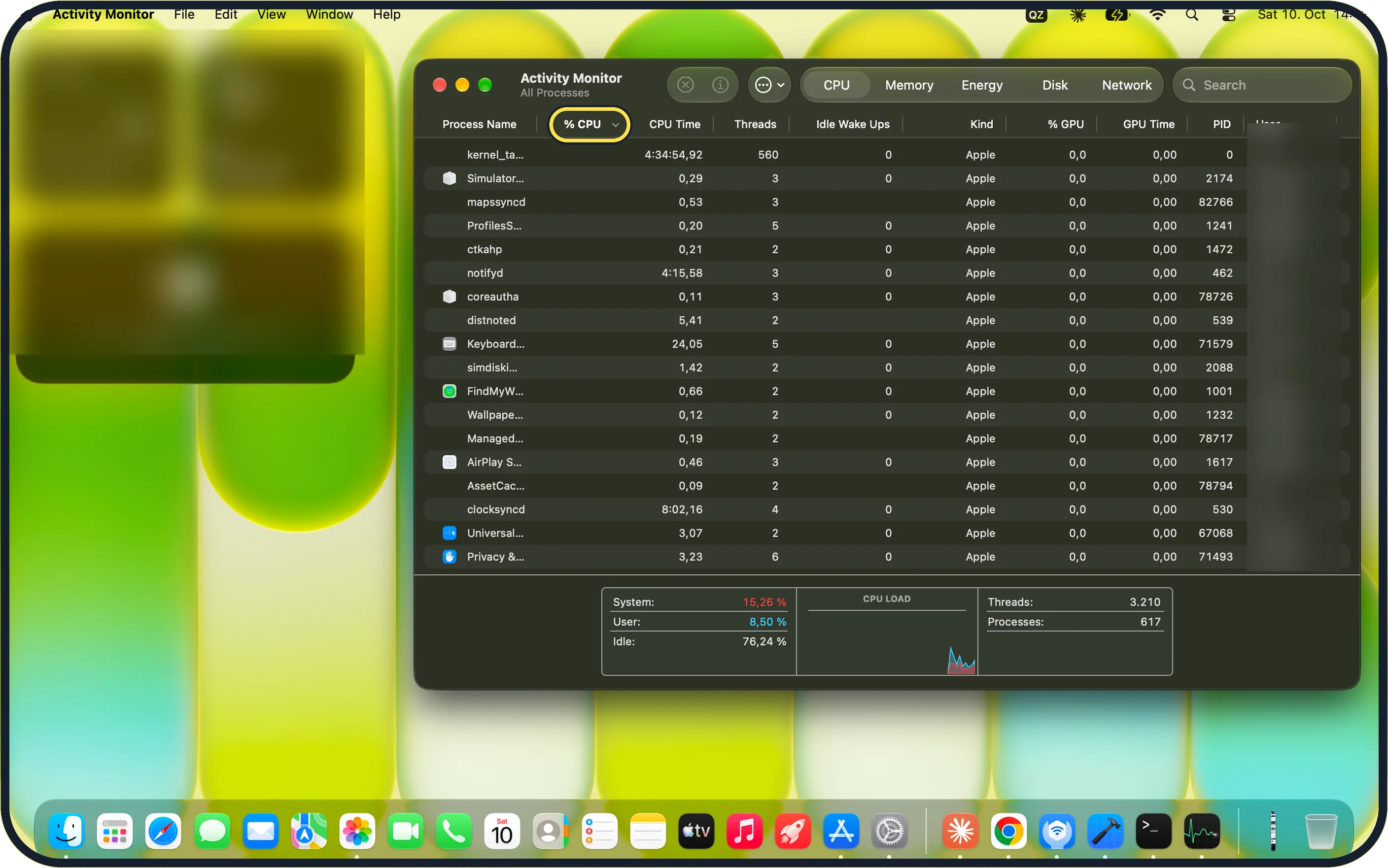
Zoomed in on the setting. Tap to see the whole screenTap the picture to see it full size Look at the CPU tab
Click CPU in the toolbar, then click the % CPU column to put the busiest process at the top. An app that stays high when you are not using it may be stuck. On our MacBook Neo, with the list sorted by % CPU, kernel_task was at the top.
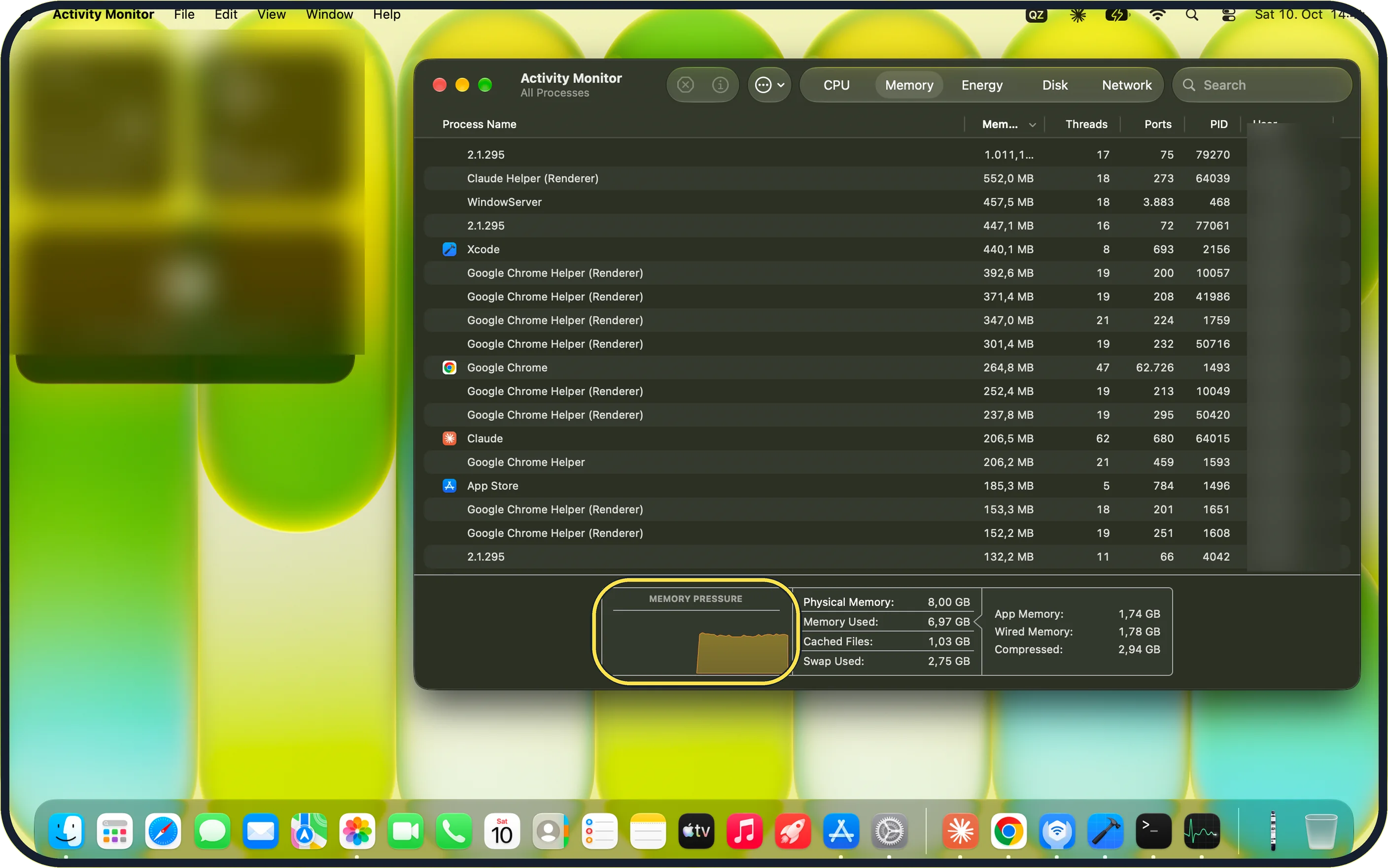
Zoomed in on the setting. Tap to see the whole screenTap the picture to see it full size Look at the Memory tab
The Memory Pressure graph at the bottom shows how hard the Mac is working its memory. Green is fine. Apple reads it this way: yellow, the Mac might eventually need more memory; red, it needs more memory. Closing apps and browser tabs lowers the pressure. On our MacBook Neo, with 8 GB, the graph was yellow, with 6,97 GB Memory Used and 2,75 GB Swap Used.
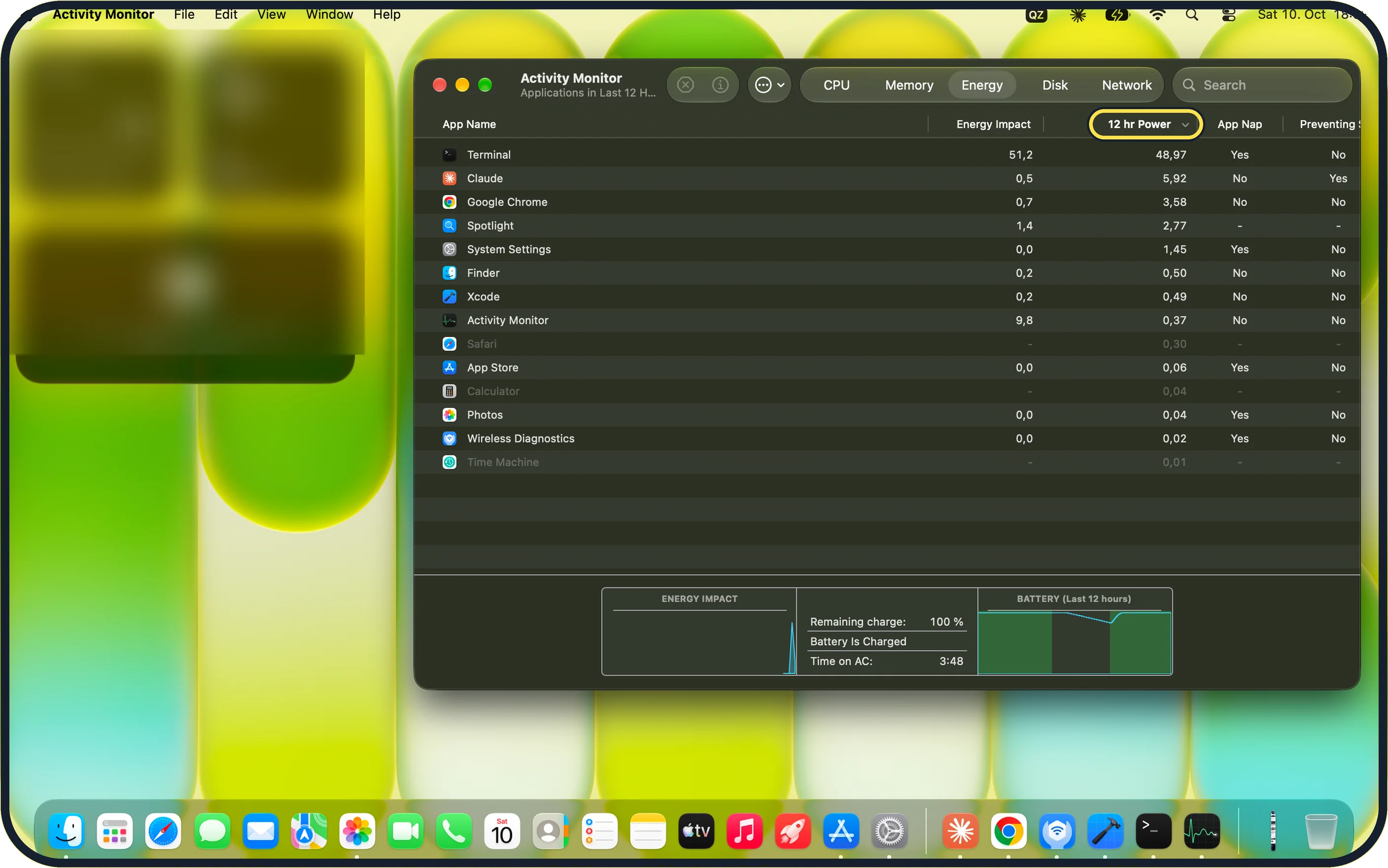
Zoomed in on the setting. Tap to see the whole screenTap the picture to see it full size Look at the Energy tab
On a MacBook, Energy Impact and the 12 hr Power column show how much battery each app has used. Our MacBook Neo's Energy tab, set to Applications in Last 12 Hours, also showed an App Nap column and a Battery (Last 12 hours) graph.
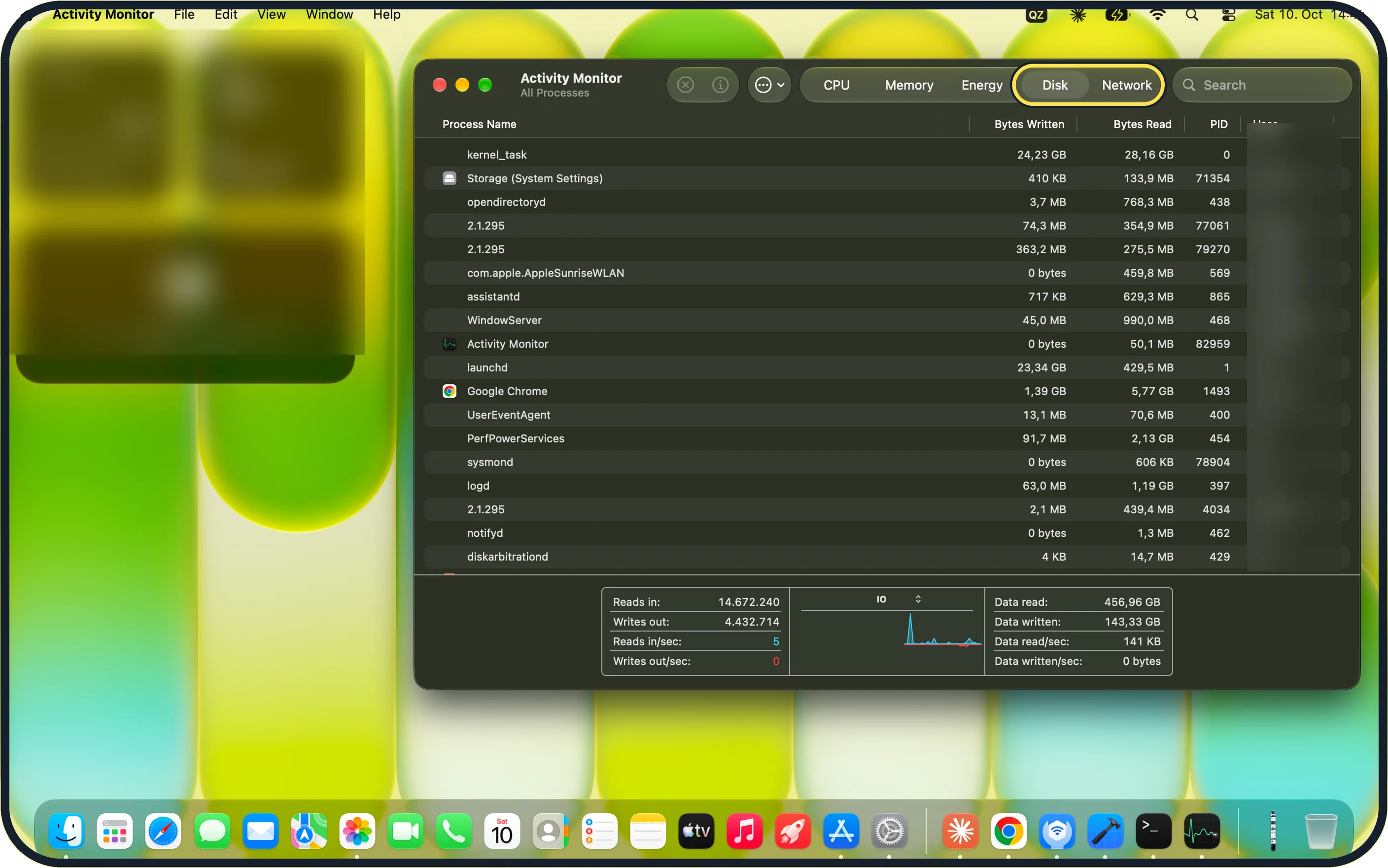
Zoomed in on the setting. Tap to see the whole screenTap the picture to see it full size Look at Disk and Network
They show how much each process reads, writes, sends and receives. This is where you see what is busy when the Mac seems to work by itself. On our MacBook Neo the Disk tab lists Bytes Written and Bytes Read per process, with Data read and Data written totals at the bottom. The Network tab, in the step 6 picture, lists Sent Bytes (cut to Sent Byt… on our screen), Rcvd Bytes, Sent Packets and Rcvd Packets.
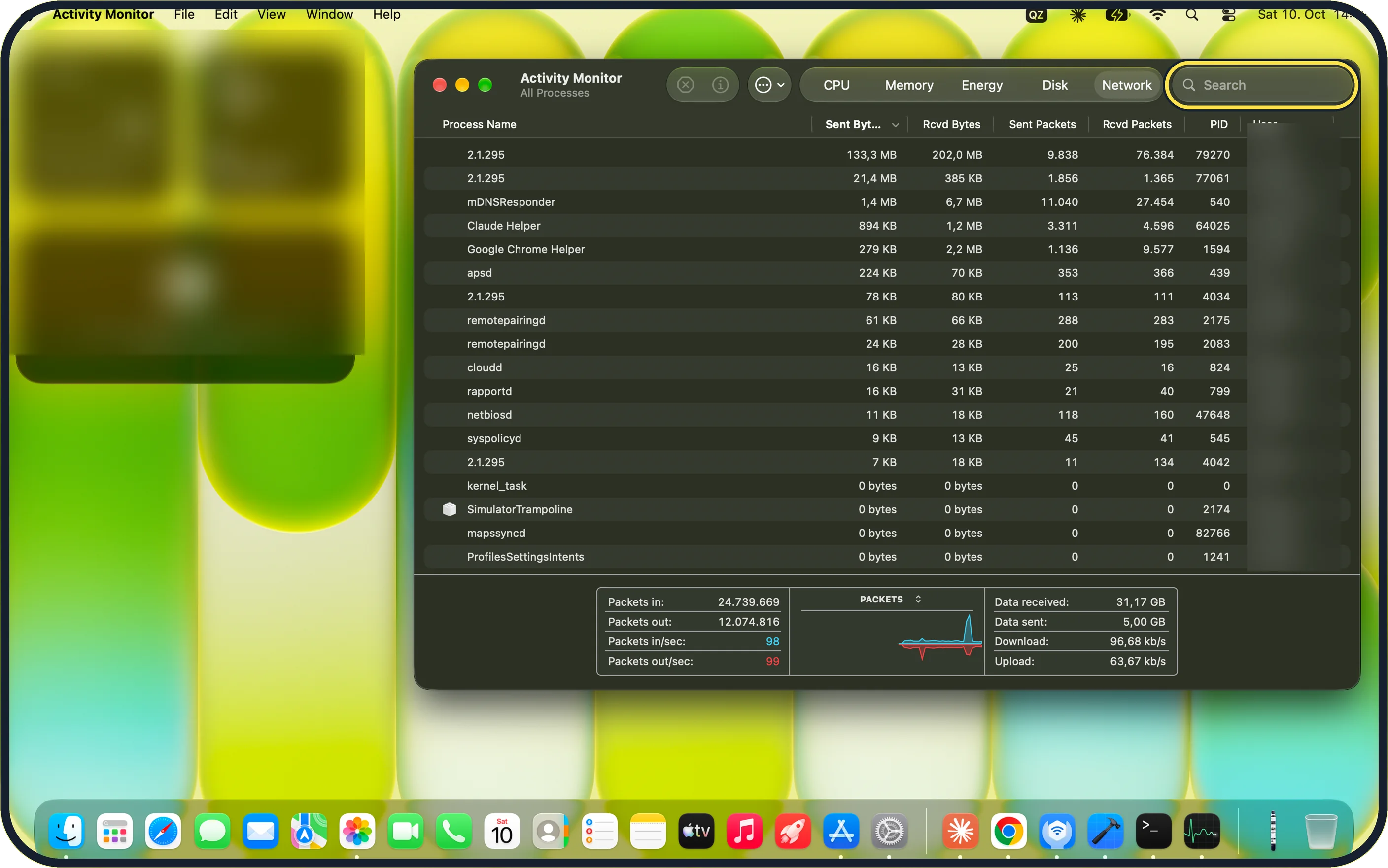
Zoomed in on the setting. Tap to see the whole screenTap the picture to see it full size Find a process
Type a name in the Search field at the top right. The View menu switches between All Processes, My Processes, Windowed Processes and other groups. The line under the window title names the view: on our MacBook Neo it read My Processes when the app opened (step 1), Applications in Last 12 Hours on the Energy tab (step 4) and All Processes in this picture.
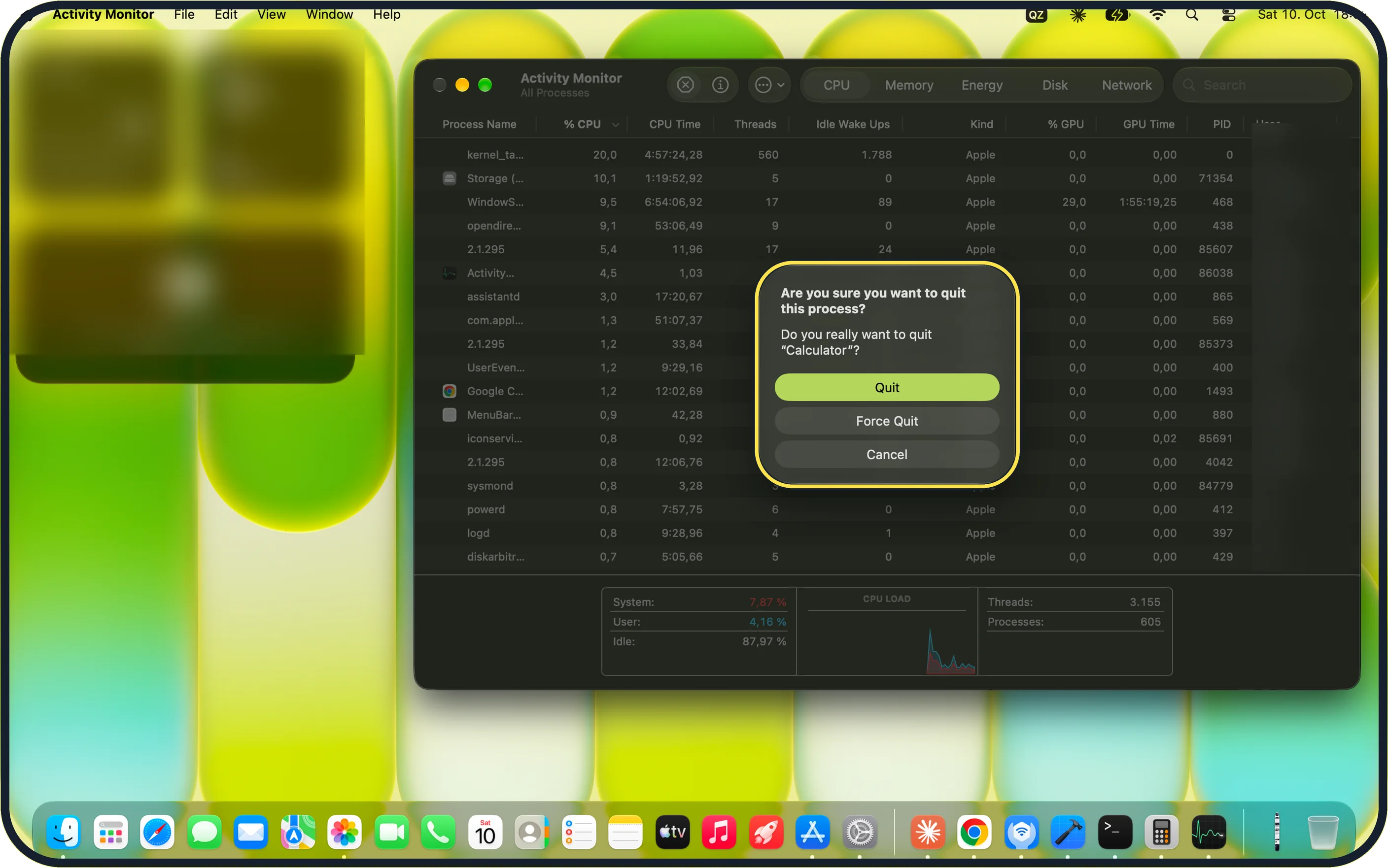
Zoomed in on the setting. Tap to see the whole screenTap the picture to see it full size Quit a hung app
Select the process and click the stop button, the X in a circle, at the left of the toolbar. Choose Quit first. Use Force Quit only if that does not work: unsaved changes are lost. On our MacBook Neo, with Calculator selected, the stop button asked: Do you really want to quit "Calculator"? with Quit, Force Quit and Cancel.
If you do not see this option
- Some tabs are not shown On our MacBook Neo all five tabs, CPU, Memory, Energy, Disk and Network, sit in the toolbar. Make the window wider if some are cut off. Source: View information about Mac processes in Activity Monitor
- The stop button does nothing It acts on the selected process. Click a row first: on our MacBook Neo the button was dim while no process was selected. Source: View information about Mac processes in Activity Monitor
If this does not work
- An app will not quit Choose Force Quit in the dialog, or choose Force Quit from the Apple menu. Source: How to force an app to quit on your Mac
- The Mac is slow but no app is high Check the Memory tab. Our MacBook Neo with 8 GB was using 2,75 GB of swap. Close apps and browser tabs you do not need. Source: If your Mac runs slowly
About this guide
Activity Monitor is the Mac's counterpart to the Windows Task Manager. It answers three questions: which app is keeping the processor busy, which one is using memory, and what is draining the battery.
Screenshots: MacBook Neo, macOS 27.0.1, dark mode.
Good to know
Leave alone anything you do not recognise that belongs to the user root or to the system, such as kernel_task or WindowServer. They are parts of macOS.
Double-click a process to see details about it.
A quicker way to end one frozen app: how to force quit a frozen app on a Mac.
What to do with what you find: Mac running slow: 8 fixes to try and MacBook getting hot: 7 things to check.
In short: Open Activity Monitor, sort by % CPU, check Memory Pressure, Energy on a MacBook, search for a process, stop button to quit a hung app.
- Apple Support: View information about Mac processes in Activity Monitor
- Apple Support: How to force an app to quit on your Mac
- Apple Support: If your Mac runs slowly
Links checked in October 2026. Menus and features can change after software updates. These steps match the version named at the top.
Did this guide work for you?
Sorry about that. What happened?