
howtosimply.com/guides/how-to-use-incognito-mode-in-the-youtube-app-on-android/ · Checked October 2026 · Samsung Galaxy A57 5G (SM-A576B), One UI 8.5, Android 16
In this guide
Tap your profile picture or You, open the account list and tap Turn on Incognito. YouTube does not link what you watch or search to your account until you turn it off, or after 90 minutes of inactivity.
2 of 3 steps with real screenshots · 1 official source below
- Device
- Android
- Shown on
- Samsung Galaxy A57 5G (SM-A576B), One UI 8.5, Android 16
- App
- YouTube
- Real screenshots
- 2 of 3 steps
- Checked
- October 2026
- Sources
- 1 official, linked below
Step by step
Open the account list
Tap You at the bottom right, then your name at the top to open the account list.
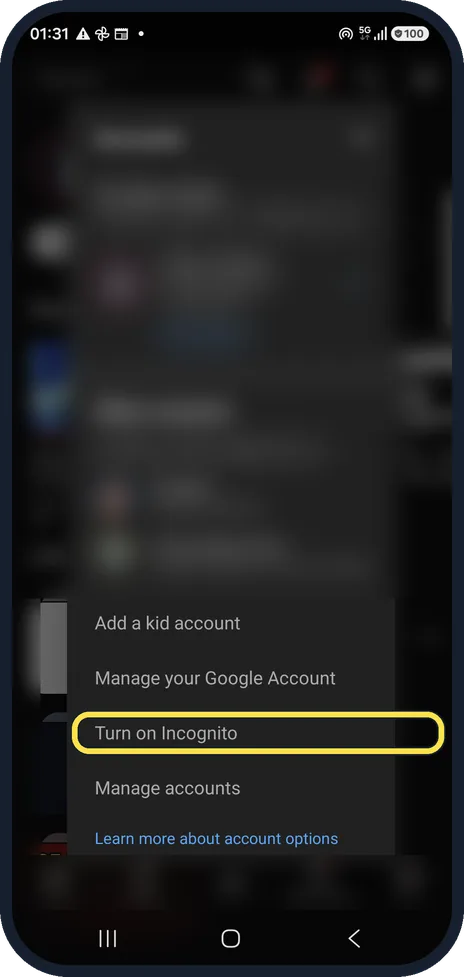
Tap Turn on Incognito
It is below Manage your Google Account. Our account list is blurred.
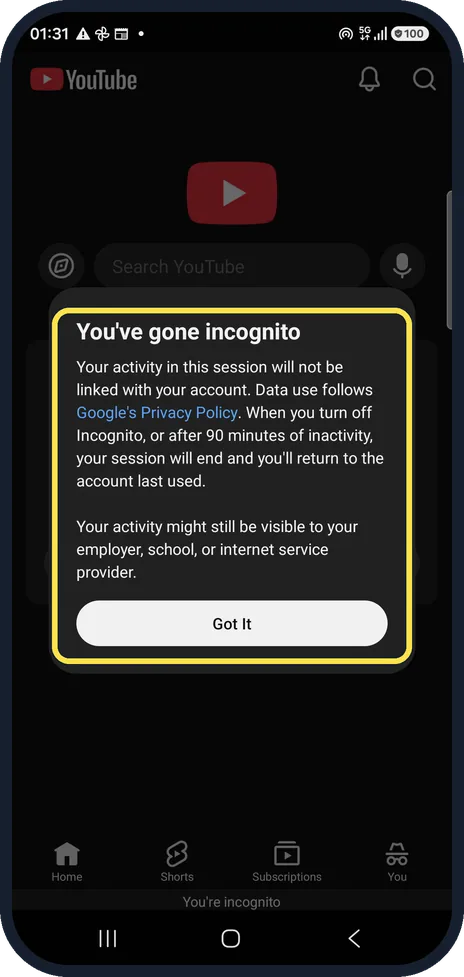
Read the notice
You've gone incognito explains the rules: activity is not linked to your account, and the session ends when you turn it off or after 90 minutes of inactivity. A You're incognito bar stays at the bottom.
If you do not see this option
- There is no Turn on Incognito YouTube says Incognito only works when you are signed in to the YouTube app. Sign in first; the option then appears under your profile picture, Accounts. Source: Browse YouTube while incognito on mobile devices
- You want to comment or subscribe YouTube says that public actions such as commenting or subscribing ask you to sign in, because Incognito acts as if you are signed out. Source: Browse YouTube while incognito on mobile devices
If this does not work
- Incognito switched itself off YouTube says the session ends after more than 90 minutes of inactivity and you go back to the last account you used. The next time you open YouTube, a message tells you that you are no longer incognito. Source: Browse YouTube while incognito on mobile devices
- You want to leave Incognito YouTube says that when you turn it off you return to the last account you used before turning it on. Source: Browse YouTube while incognito on mobile devices
About this guide
Watch something without it shaping your recommendations or showing in your history. It only hides activity from your Google account, not from your network.
The screenshots are from the YouTube app, version 21.39.522, on a Samsung Galaxy A57 5G with Android 16 and One UI 8.5, in dark mode. Other people's videos, ads and comments are blurred.
Good to know
Your employer, school or internet provider might still see the activity, as the notice says.
To stop saving history all the time instead, pause YouTube history.
In short: You, account list, Turn on Incognito.
Links checked in October 2026. Menus and features can change after software updates. These steps match the version named at the top.
📷 See real photos from the Galaxy A57 in our Camera Lab, next to 10 other phones.
Did this guide work for you?
Sorry about that. What happened?