
You are viewing the macOS 26 version of this guide, recorded on macOS Tahoe 26 (MacBook Pro) on 3 October 2026. It is kept as it was and not updated. See the macOS 27 version.
howtosimply.com/guides/how-to-use-dictation-on-a-mac/ · Checked 3 October 2026 · MacBook Pro · macOS Tahoe 26
In this guide
Open System Settings, click Keyboard and switch on Dictation. Then click where you want to type, press the microphone key or press Control twice, and speak. Press the key again or Escape to stop.
3 of 5 steps with real screenshots · 1 official source below
- Device
- Mac
- Shown on
- macOS Tahoe 26 (MacBook Pro)
- App
- System Settings
- Real screenshots
- 3 of 5 steps
- Checked
- 3 October 2026
- Sources
- 1 official, linked below
Step by step
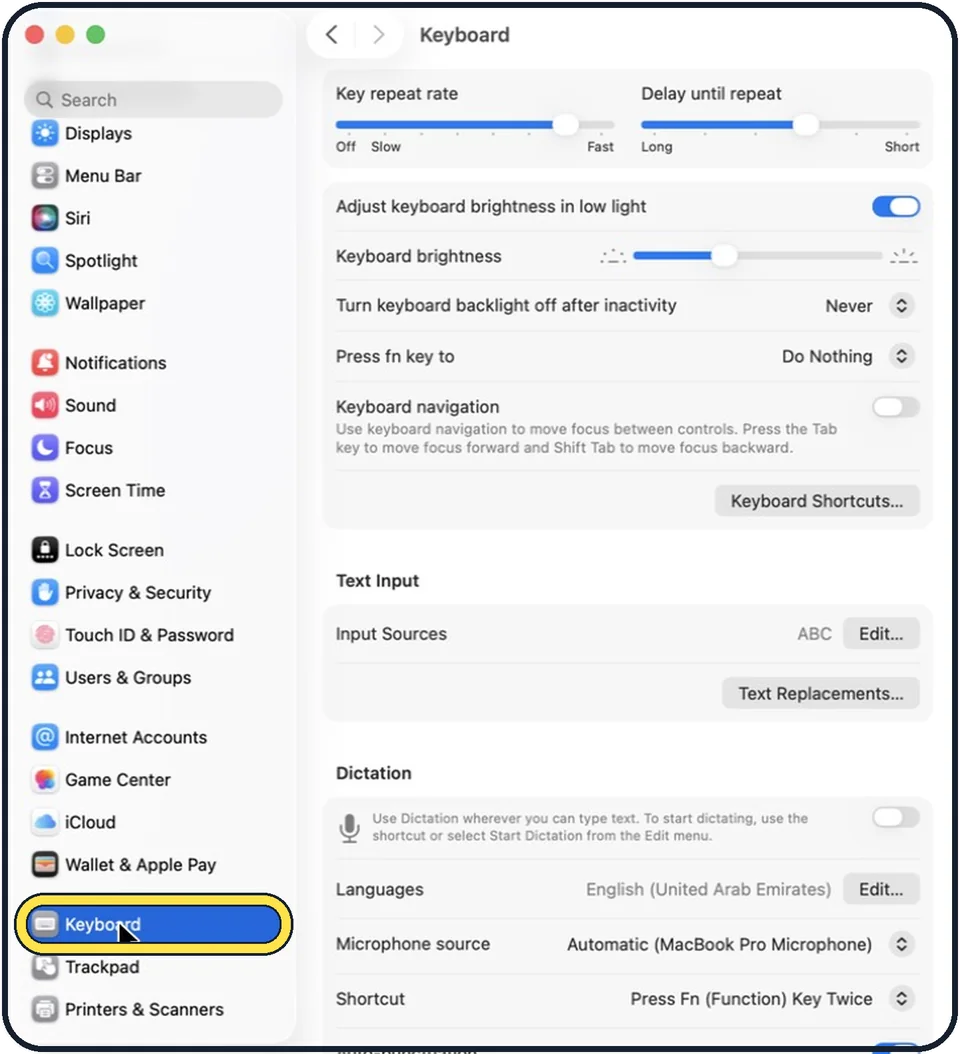
Tap the picture to see it full size Open System Settings and click Keyboard
Click the Apple menu and choose System Settings.
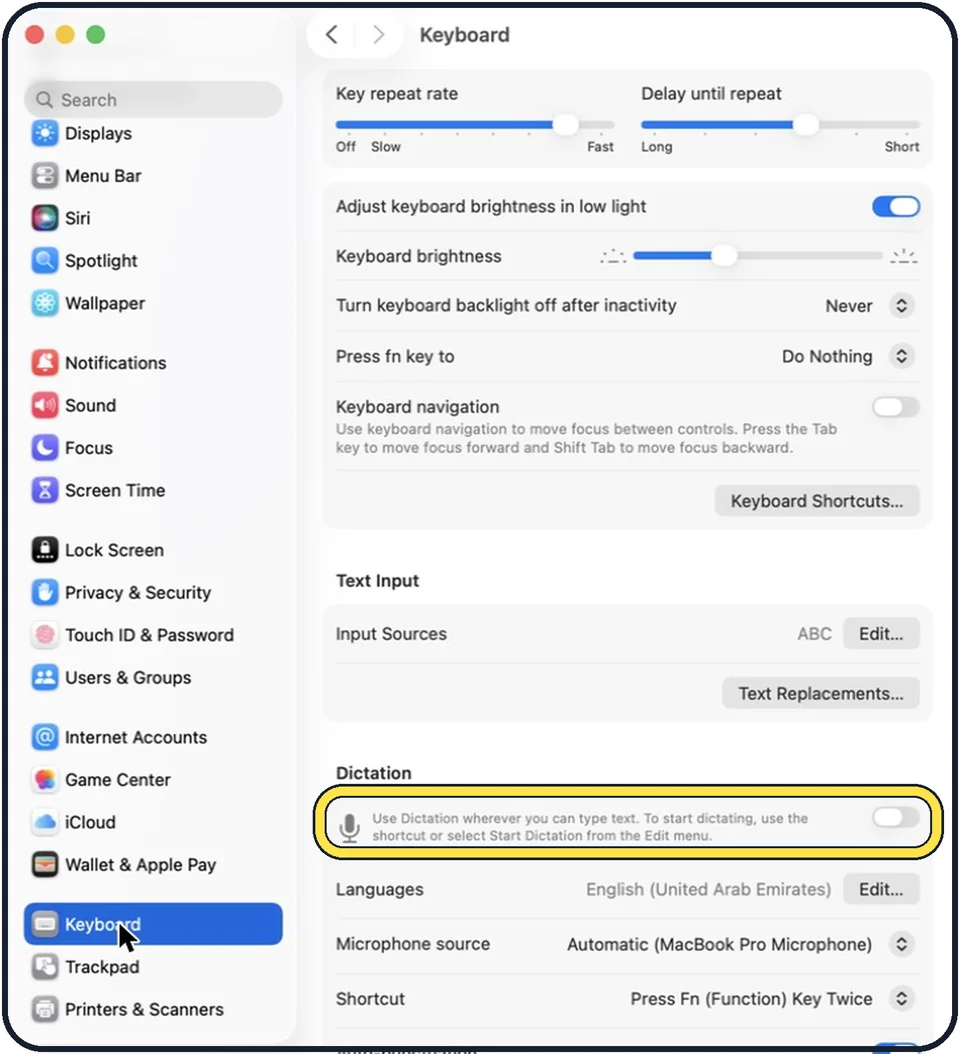
Tap the picture to see it full size Switch on Dictation
Scroll down to the Dictation section. Choose your language, and add others if you speak more than one.
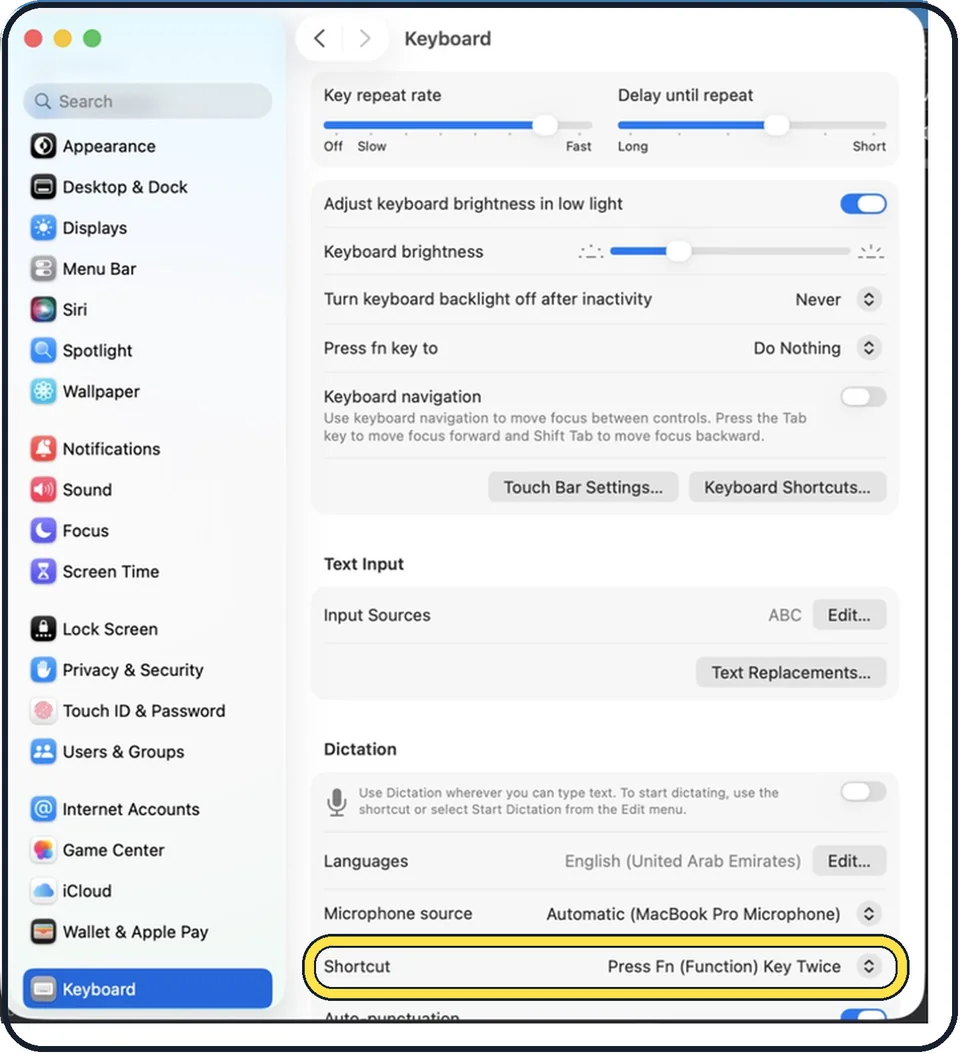
Tap the picture to see it full size Check the shortcut
The default is the microphone key on the F5 key of newer Mac keyboards, or pressing the Control key twice. You can change it in the Shortcut menu.
Click in a text field and start dictating
Press the shortcut. A microphone icon appears at the cursor. Speak normally.
Stop
Press the shortcut again, or press Escape.
What we saw on our device
- Click Enable: On our MacBook Neo the box also offers Dictation Privacy… and Cancel.
- Check the shortcut: On our MacBook Neo the menu offers Press 🎤 (ticked), Press Control Key Twice and Press 🌐 Twice, with an arrow at the bottom for more.
- Stop dictating: On our MacBook Neo, TextEdit showed "Hello" in Notes.txt.
About this guide
Dictation turns speech into text in any app where you can type. It adds punctuation automatically and can be faster than typing for emails and notes.
These steps are for recent versions of macOS, where the settings app is called System Settings. The pictures are either our own screenshots from macOS Tahoe 26 on a MacBook Pro or simplified diagrams of the screen.
Good to know
Say "new line" or "new paragraph" to move down. Punctuation is added by itself in most languages, and you can also say "comma" or "question mark".
On Macs with Apple silicon, dictation for many languages runs on the Mac without sending audio to Apple, and you can type while it is listening.
Dictation stops by itself after about 30 seconds of silence.
For controlling the whole Mac by voice, look at Voice Control under System Settings, Accessibility.
Want the Mac to read text back to you as well? How to make a Mac read selected text aloud.
The same on an iPhone: how to delete your Siri and dictation history on an iPhone covers what is stored.
In short: System Settings > Keyboard > Dictation switch on > Enable, then press 🎤 in any text field and speak.
Links checked in October 2026. Menus and features can change after software updates. These steps match the version named at the top.
Did this guide work for you?
Sorry about that. What happened?