
What changed: the screenshots are now our own iPhone 17e on iOS 27.0.1, dark mode, and the wording is checked against those screens and Apple's iOS 27 guide.
howtosimply.com/guides/how-to-turn-on-reduce-motion-on-an-iphone/ · Checked October 2026 · iPhone 17e · iOS 27.0.1
In this guide
Open Settings, tap Accessibility, tap Motion and switch on Reduce Motion. On our iPhone 17e with iOS 27, the note under the switch says it reduces the motion of the user interface, including the parallax effect of icons.
4 of 4 steps with real screenshots · 2 official sources below
- Device
- iPhone
- Shown on
- iOS 27.0.1 (iPhone 17e)
- App
- Settings
- Path
- Settings › Accessibility › Motion
- Real screenshots
- 4 of 4 steps
- Checked
- October 2026
- Sources
- 2 official, linked below
Step by step
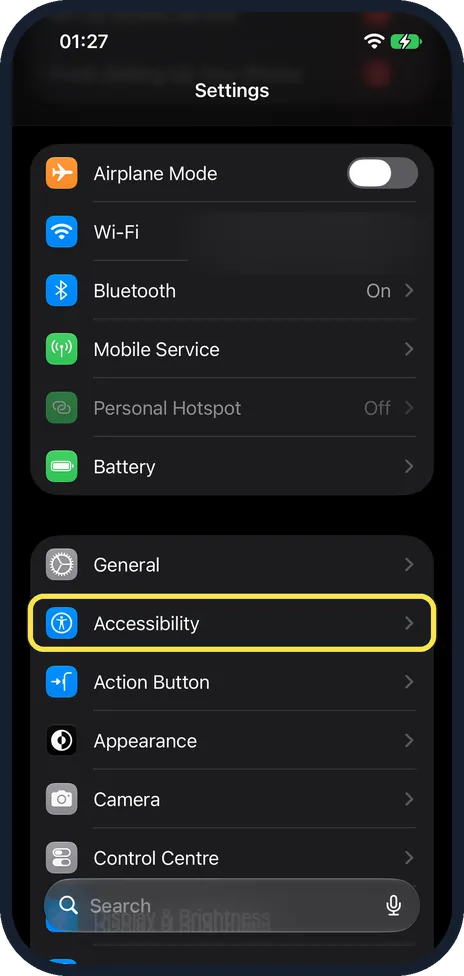
Open Settings and tap Accessibility
It is in the same group as General. On our iPhone 17e with iOS 27, it is right below General.
Watch these steps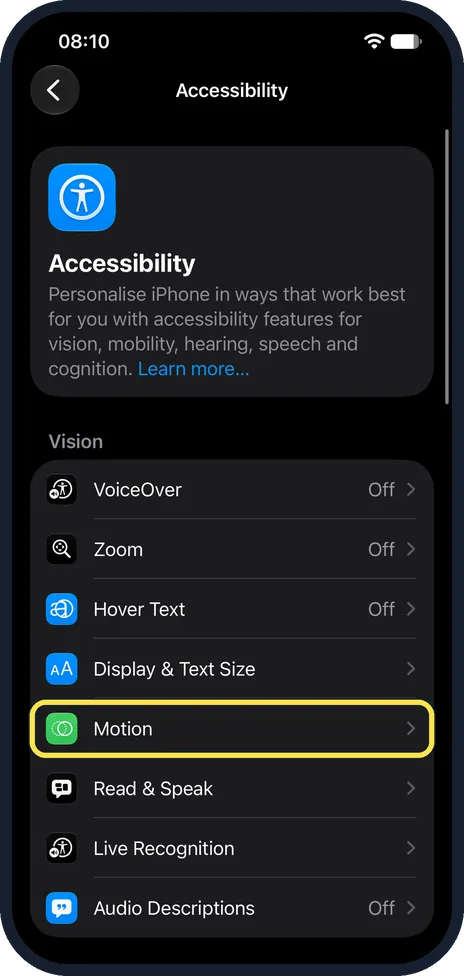
Tap Motion
It is in the Vision group. On our iPhone 17e with iOS 27, Motion is below Display & Text Size.
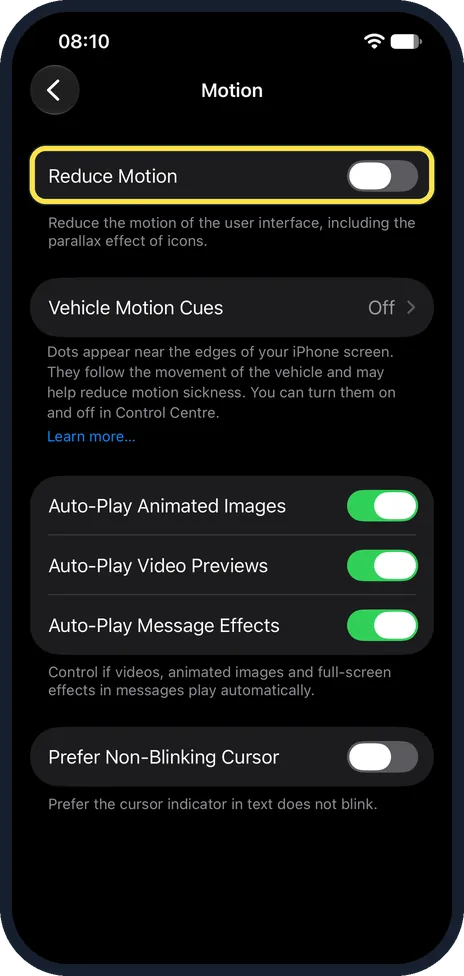
Switch on Reduce Motion
On our iPhone 17e with iOS 27, Reduce Motion was off. The change applies at once. Go back to the Home Screen and open an app to see the difference.
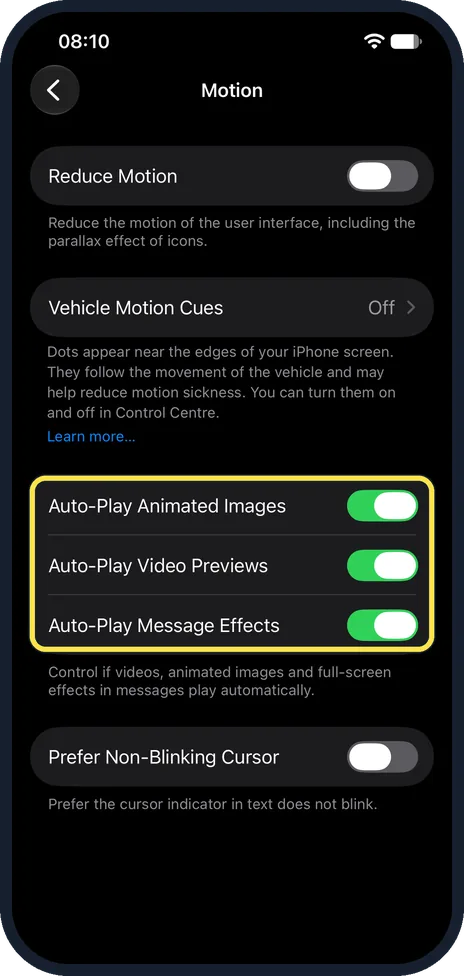
Decide about the auto-play switches
Auto-Play Message Effects controls the full-screen effects in Messages, such as balloons. Auto-Play Animated Images and Auto-Play Video Previews control whether moving pictures and previews start by themselves. On our iPhone 17e with iOS 27, all three were on.
What changed: the screenshots are now our own iPhone 17e on iOS 27.0.1, dark mode, and the wording is checked against those screens and Apple's iOS 27 guide.
Watch these steps
If you do not see this option
- No Limit Frame Rate switch Apple says Limit Frame Rate is for models with ProMotion display technology. Our iPhone 17e with iOS 27 did not show it on the Motion page. Source: Customize onscreen motion on iPhone
- Motion is not where you expect Apple gives the route Settings, Accessibility, Motion. On our iPhone 17e with iOS 27, Motion is in the Vision group, below Display & Text Size and above Read & Speak. Source: Customize onscreen motion on iPhone
If this does not work
- Message effects no longer play Apple says that with Auto-Play Message Effects off, you can still play an effect by tapping Replay below the message bubble. Source: Customize onscreen motion on iPhone
- Moving dots appear on the screen in a car These are Vehicle Motion Cues. Apple says that when they are on, dots appear and move on the screen. Turn them off under Settings, Accessibility, Motion, Vehicle Motion Cues. On our iPhone 17e with iOS 27 it read Off, and the page notes that you can also turn them on and off in Control Centre. Source: Customize onscreen motion on iPhone
About this guide
Reduce Motion cuts down the movement on the screen. Apple lists motion effects for wallpaper, apps and alerts, screen transitions and Siri animations among the movements you can change. On our iPhone 17e with iOS 27, the note under the switch reads: Reduce the motion of the user interface, including the parallax effect of icons.
Screenshots: our own iPhone 17e with iOS 27.0.1, dark mode.
Good to know
With Reduce Motion off, Apple says you see more motion, like the fluid morphing effects of Liquid Glass.
Apple says that with Auto-Play Message Effects off, you can still play an effect by hand: tap Replay below the message bubble.
On our iPhone 17e with iOS 27, the Motion page showed Reduce Motion, Vehicle Motion Cues, the three Auto-Play switches and Prefer Non-Blinking Cursor, with Reduce Motion off.
If the phone itself is slow, see iPhone running slow: 8 fixes that speed it up.
In short: Settings, Accessibility, Motion, Reduce Motion on.
- Apple Support: Reduce screen motion on your iPhone, iPad or iPod touch
- Apple iPhone User Guide: Customize onscreen motion on iPhone
Links checked in October 2026. Menus and features can change after software updates. These steps match the version named at the top.
Did this guide work for you?
Sorry about that. What happened?