
You are viewing the macOS 26 version of this guide, recorded on macOS Tahoe 26 (MacBook Pro) on 4 October 2026. It is kept as it was and not updated. See the macOS 27 version.
howtosimply.com/guides/how-to-turn-on-dark-mode-on-a-mac/ · Checked 4 October 2026 · MacBook Pro · macOS Tahoe 26
Open System Settings, click Appearance and choose Dark. Choose Auto if you want the Mac to switch to dark in the evening and back to light in the morning.
4 of 4 steps with real screenshots · 1 official source below
- Device
- Mac
- Shown on
- macOS Tahoe 26 (MacBook Pro)
- App
- System Settings
- Real screenshots
- 4 of 4 steps
- Checked
- 4 October 2026
- Sources
- 1 official, linked below
Step by step
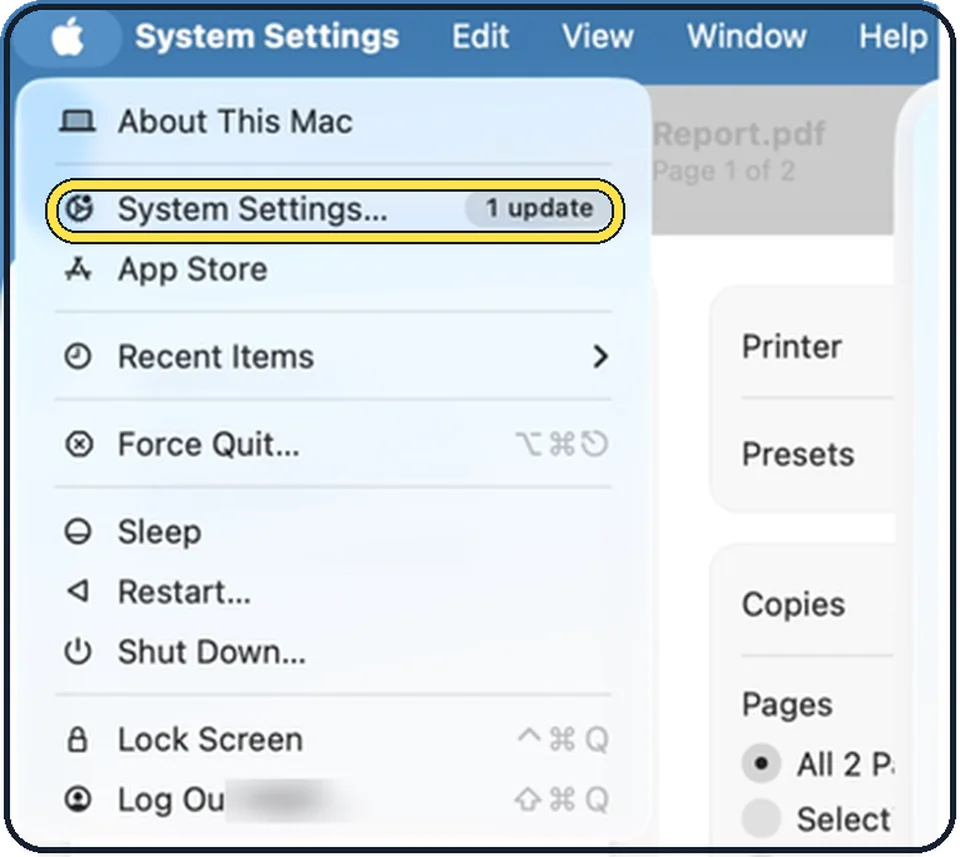
Tap the picture to see it full size Open System Settings
Click the Apple menu in the top left corner and choose System Settings.
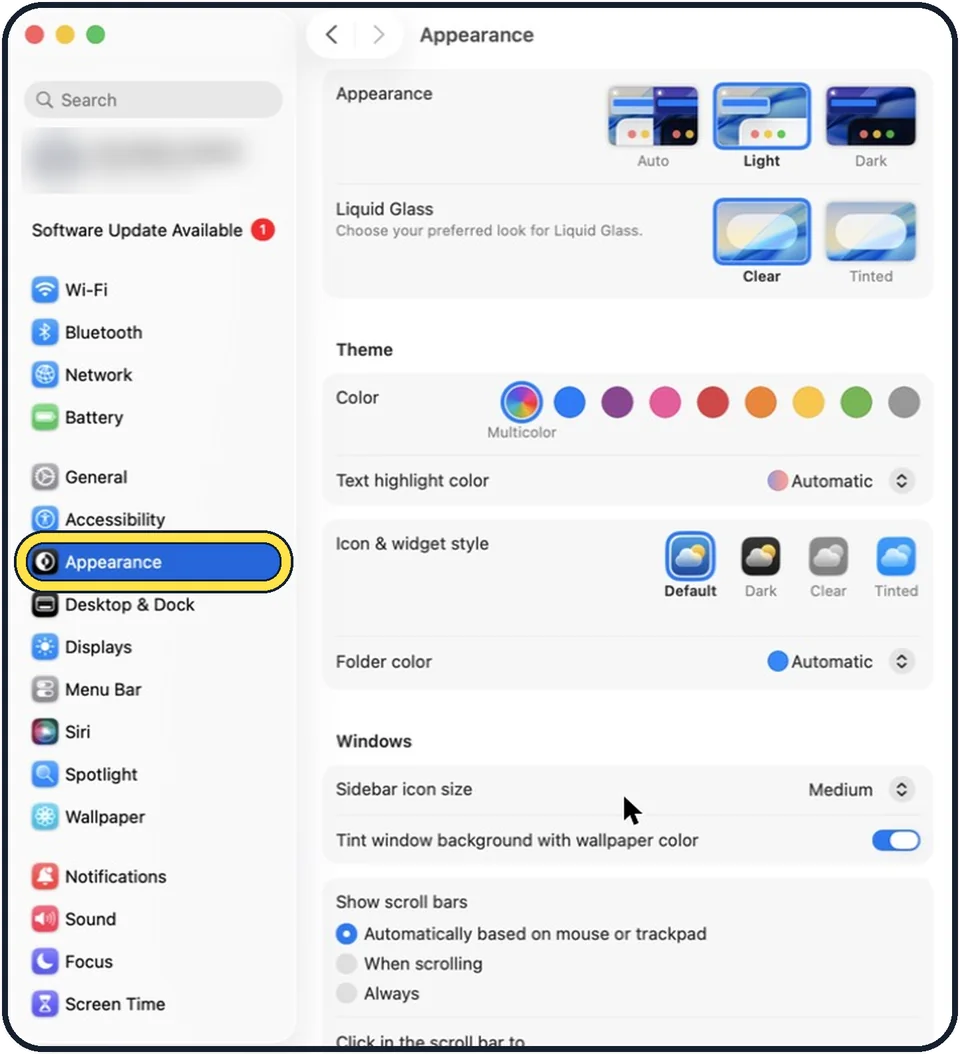
Tap the picture to see it full size Click Appearance
It is in the list on the left.
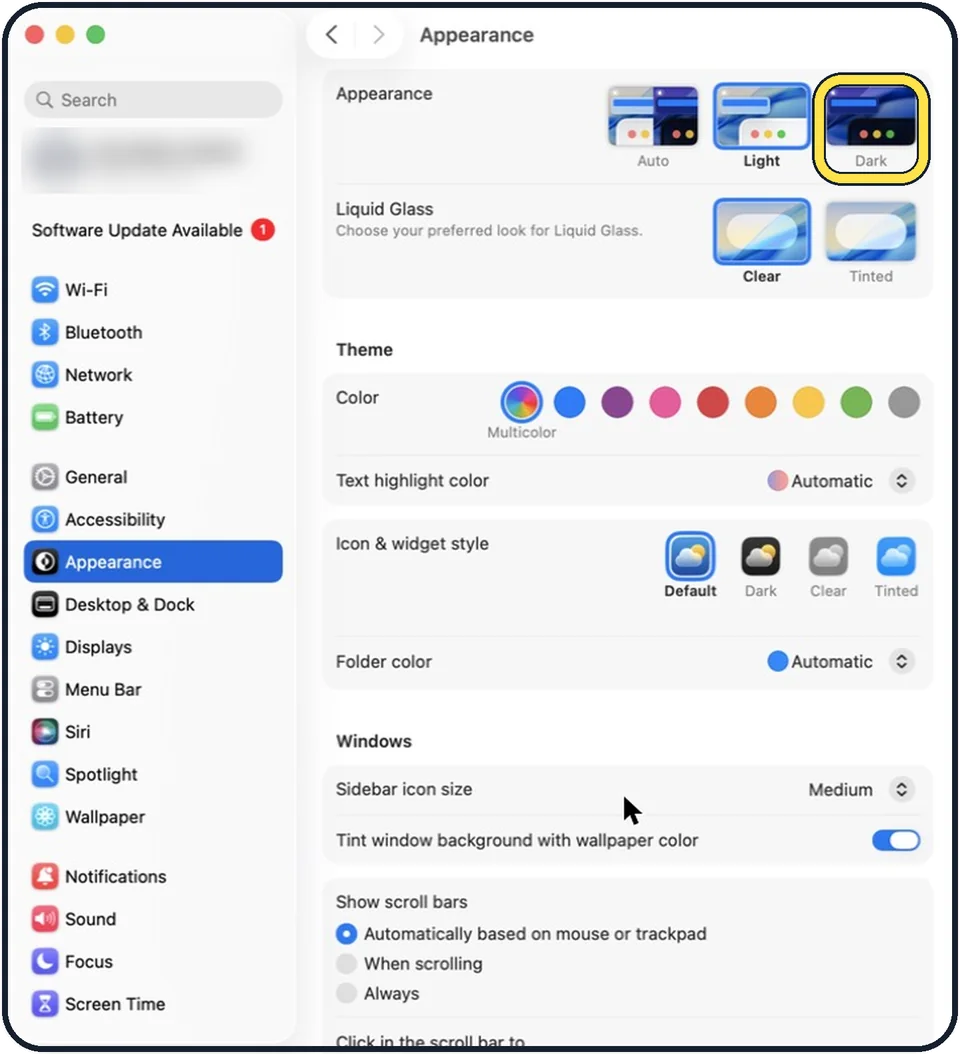
Tap the picture to see it full size Choose Dark
The whole system changes straight away.
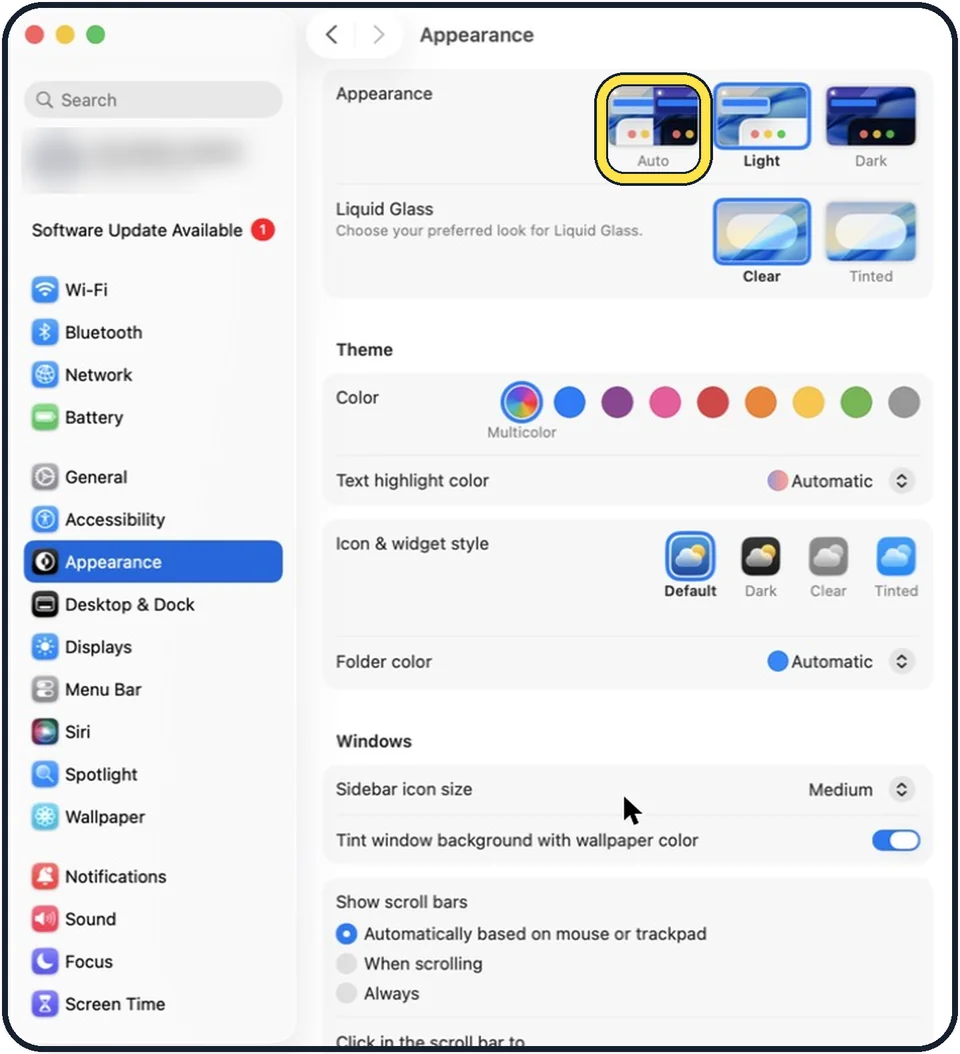
Tap the picture to see it full size Or choose Auto
With Auto, the Mac uses the light look during the day and the dark look after sunset.
What we saw on our device
- Click Appearance: On our MacBook Neo it sits between Accessibility and Desktop & Dock.
- Choose Dark: On our MacBook Neo the same page also has Liquid Glass and Theme settings below; you do not need those for dark mode.
- Or choose Auto: On our MacBook Neo the order is Light, Dark, Auto.
About this guide
Dark mode gives the menu bar, windows and most apps a dark background with light text. Many people find it easier on the eyes at night.
Good to know
The quick way: open Control Centre in the menu bar, click Display and click Dark Mode.
Some apps have their own setting. In Mail, you can keep messages on a light background under Mail, Settings, Viewing.
Websites turn dark only if they support it.
Dark mode does not reduce blue light. For a warmer screen at night, see how to turn on Night Shift.
In short: Apple menu, System Settings, Appearance, Dark (or Auto).
Links checked in October 2026. Menus and features can change after software updates. These steps match the version named at the top.
Did this guide work for you?
Sorry about that. What happened?