
You are viewing the macOS 26 version of this guide, recorded on macOS Tahoe 26 (MacBook Pro) on 4 October 2026. It is kept as it was and not updated. See the macOS 27 version.
howtosimply.com/guides/how-to-stop-a-click-on-the-desktop-hiding-windows-on-a-mac/ · Checked 4 October 2026 · MacBook Pro · macOS Tahoe 26
In this guide
Open System Settings, click Desktop & Dock, and set Click wallpaper to show desktop to Only in Stage Manager. Clicking the wallpaper then no longer moves all windows out of the way, unless Stage Manager is on.
3 of 3 steps with real screenshots · 1 official source below
- Device
- Mac
- Shown on
- macOS Tahoe 26 (MacBook Pro)
- App
- System Settings
- Real screenshots
- 3 of 3 steps
- Checked
- 4 October 2026
- Sources
- 1 official, linked below
Step by step
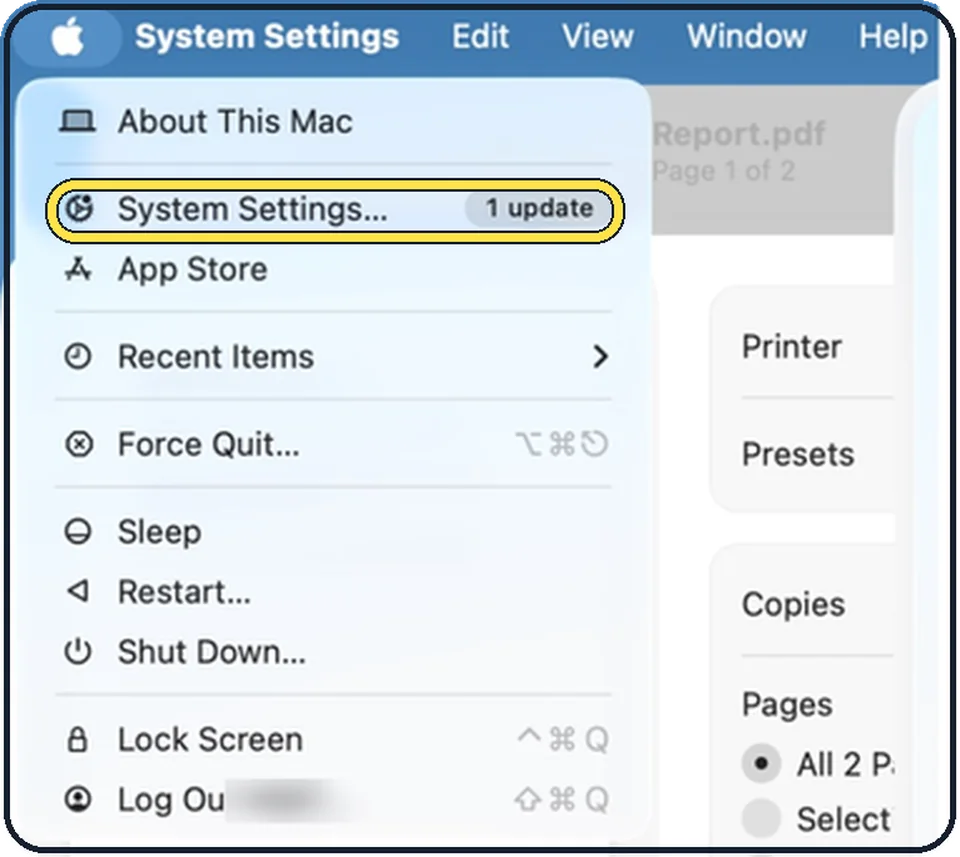
Tap the picture to see it full size Open System Settings
Click the Apple menu in the top left corner of the screen and choose System Settings.
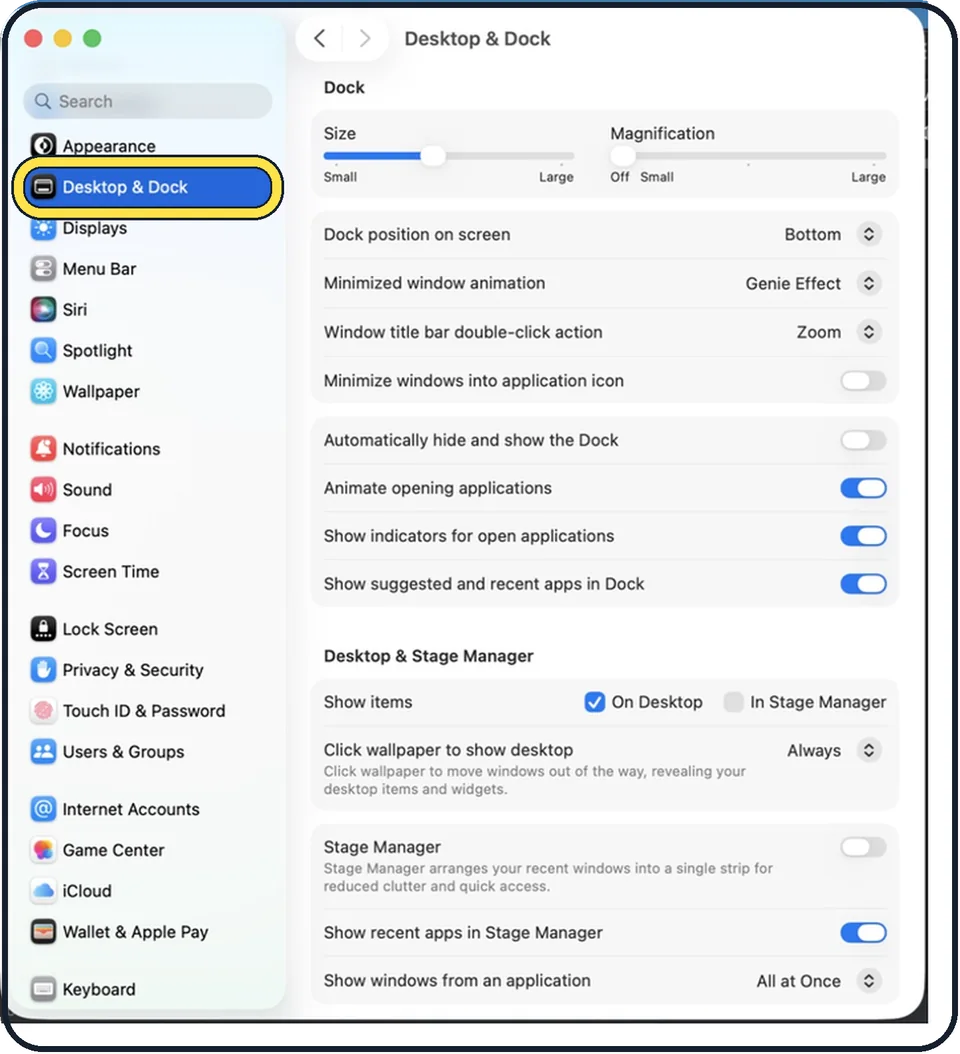
Tap the picture to see it full size Click Desktop & Dock in the sidebar
It is below Appearance. You may need to scroll down in the sidebar.
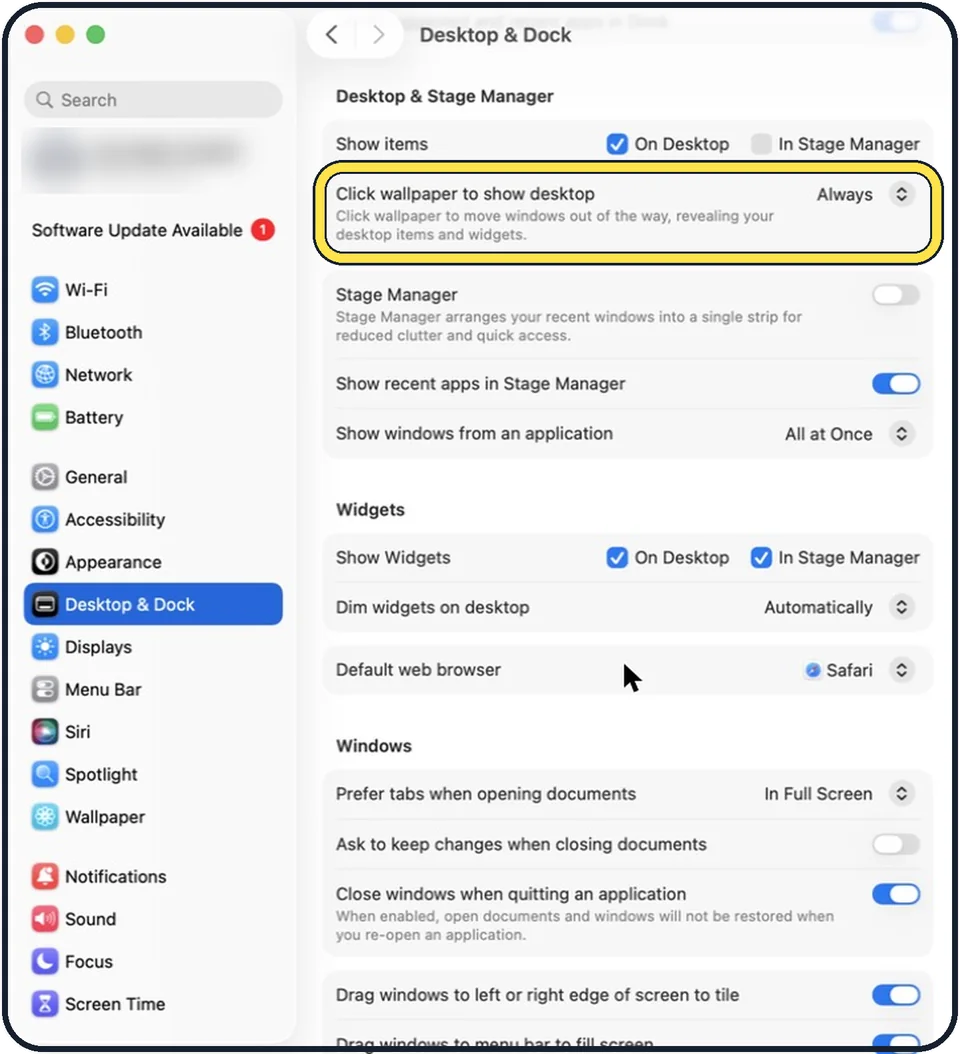
Tap the picture to see it full size Scroll to Desktop & Stage Manager and set Click wallpaper to show desktop
Click the menu in that row. Always, the setting in the picture, moves windows out of the way on every click on the wallpaper. Only in Stage Manager limits that to when Stage Manager is on.
What we saw on our device
- Click Desktop & Dock in the sidebar: On our MacBook Neo, System Settings opened on General, and Desktop & Dock sits directly below Appearance, visible without scrolling.
- Choose Only in Stage Manager: On our MacBook Neo the menu has just two choices: Always and Only in Stage Manager.
About this guide
On recent versions of macOS, one click on the wallpaper pushes every window aside to reveal the desktop items and widgets. If you click the desktop by accident, your windows seem to vanish. The setting behind it has two choices.
The screenshots show System Settings on macOS Tahoe 26.
Good to know
Show items, the row above, decides whether files on the desktop are shown at all.
In short: Apple menu > System Settings… > Desktop & Dock > Click wallpaper to show desktop: Only in Stage Manager.
Links checked in October 2026. Menus and features can change after software updates. These steps match the version named at the top.
Did this guide work for you?
Sorry about that. What happened?