How to remove the background from a picture in Paint on Windows 11
By Saadat Rafiq · 2 min read · 4 steps · Published 6 October 2026
Open the picture in Paint and click Remove background in the Image group. Paint cuts out the main subject in a few seconds. Save it with File, Save as, PNG picture to keep the background transparent.
- Device
- Windows
- Shown on
- Windows 11 Enterprise 25H2 (build 26200.9457), Microsoft Cloud PC
- Real screenshots
- 3 of 4 steps
- Checked
- October 2026
- Sources
- 1 official, linked below
Step by step
Open the picture in Paint
Open Paint from Start, click File, Open and choose the picture. We used a Windows wallpaper.
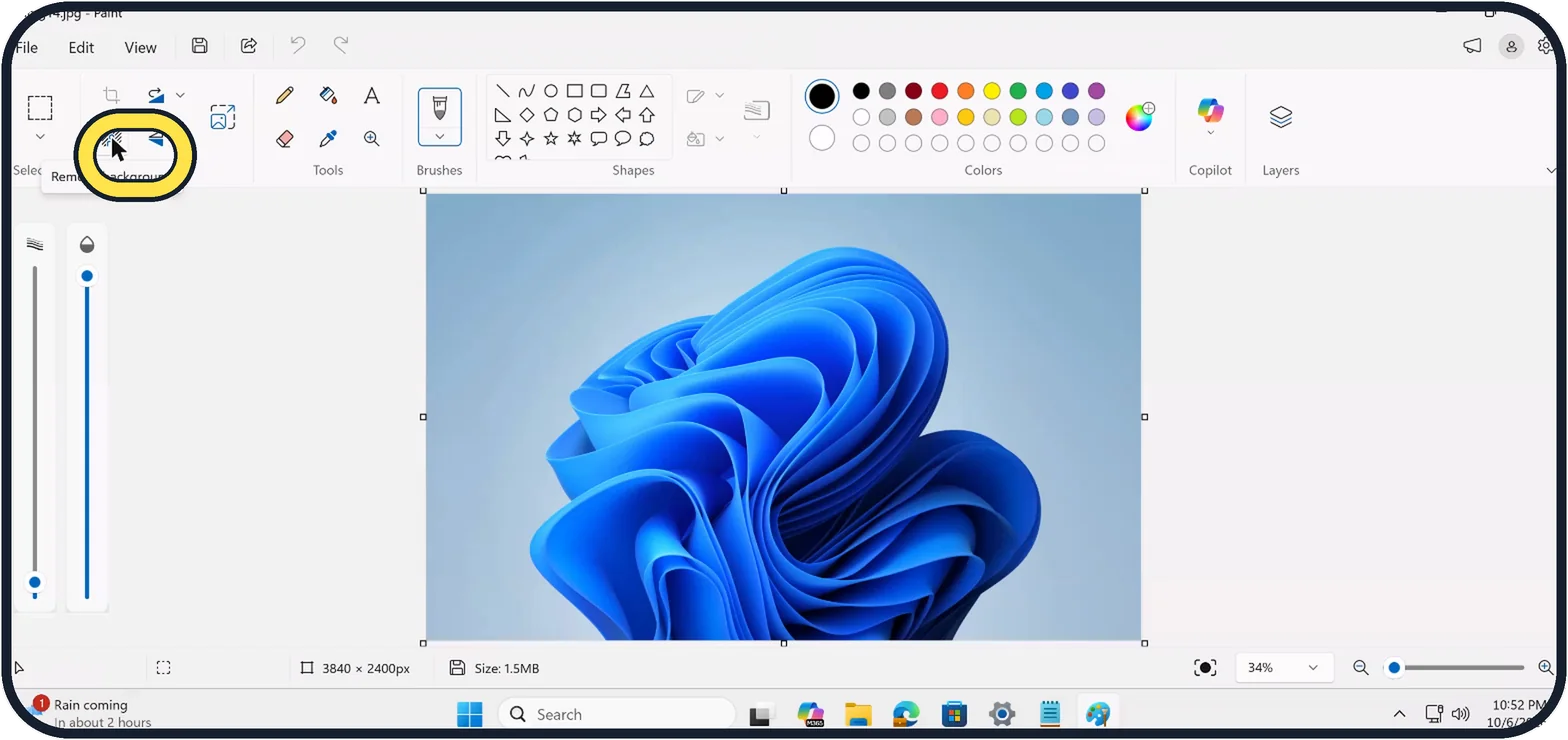
Tap the picture to see it full size Click Remove background
It is in the Image group on the toolbar, below Crop. Point at it to see its name.
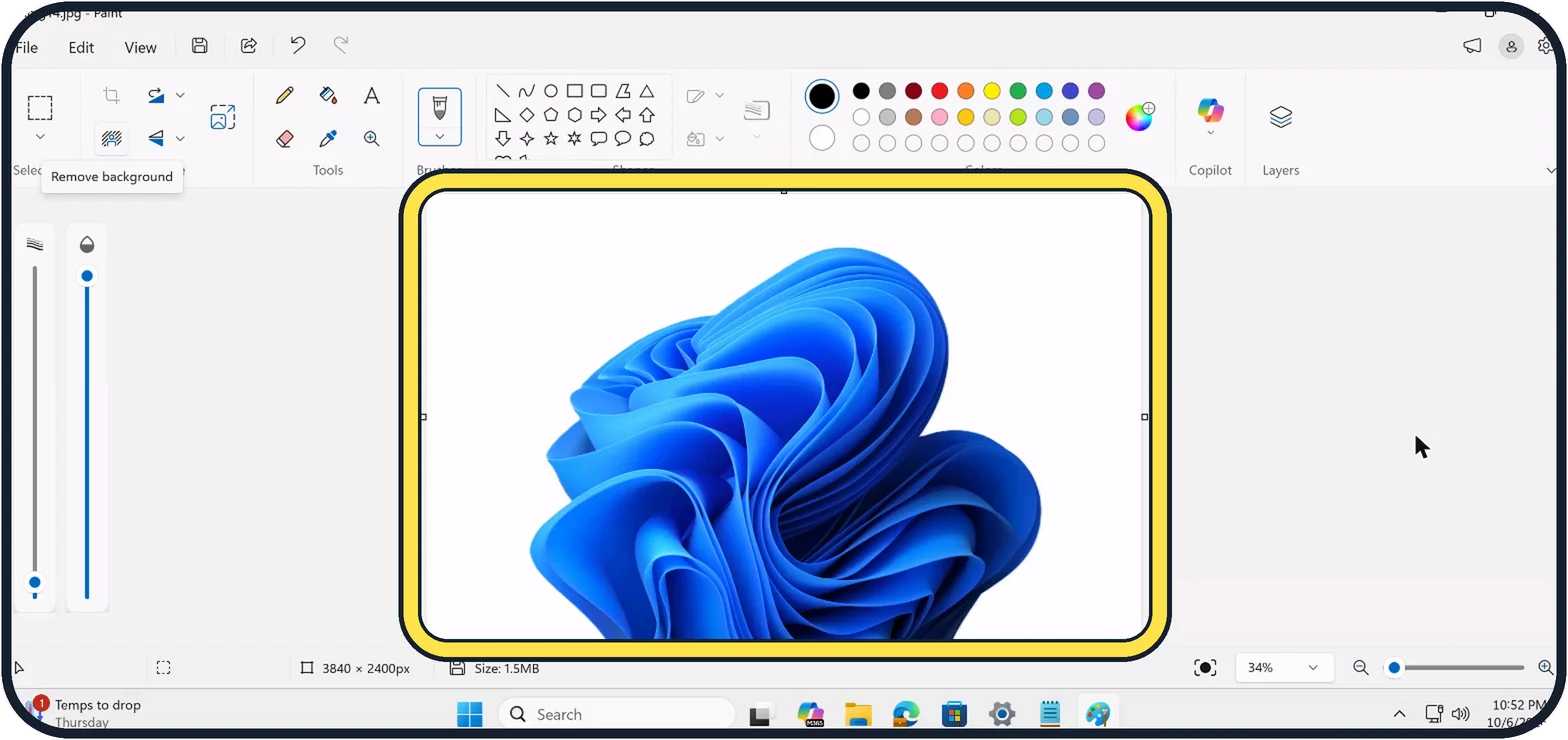
Tap the picture to see it full size Wait a few seconds
The background disappears and the subject stays. Ours took about five seconds. Undo brings the background back.
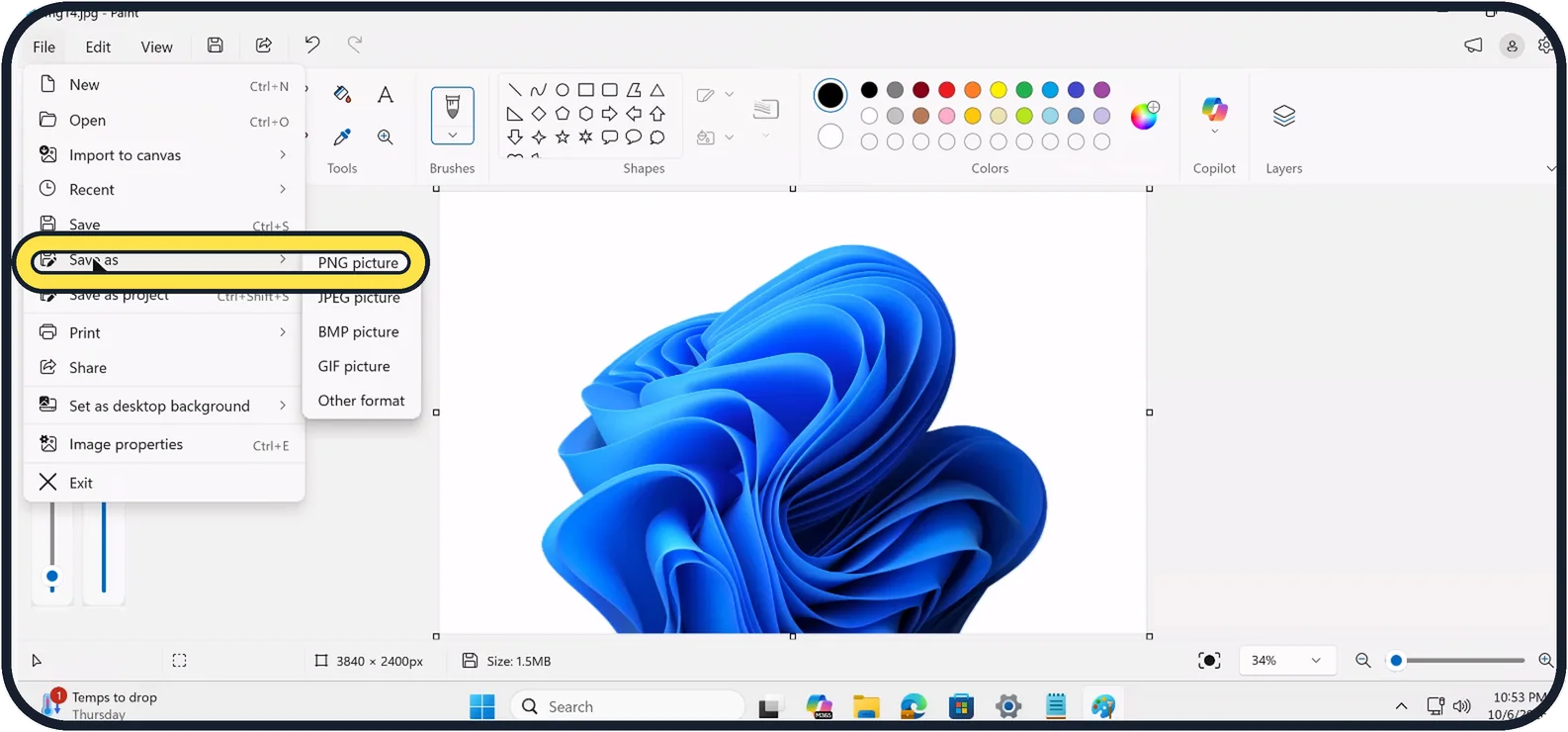
Tap the picture to see it full size Save as PNG
Click File, Save as and choose PNG picture. JPEG has no transparency and fills the background with white. We did not save ours.
About this guide
Paint in Windows 11 can cut a person or object out of a photo with one click. It worked on our PC without signing in.
The screenshots are our own, taken on Windows 11 Enterprise 25H2 (build 26200.9457) running as a Microsoft Cloud PC, a Windows PC that runs in the cloud. The Settings app is the same on Home and Pro PCs; where the Cloud PC shows something different, the step says so.
Good to know
Remove background works on the whole picture, or on an area you selected first.
It works best with a clear subject, such as a person or a product, against a plain background.
In short: Paint, open the picture, Image group, Remove background, File, Save as, PNG picture.
Links checked in October 2026. Rules and prices change. Check the official source before you act.
Did this guide work for you?
Sorry about that. What happened?