GOOGLE PIXEL
How to block numbers and spam calls on a Google Pixel (Android 17)
In the Phone app, tap the three dots, then Settings, Blocked numbers, and Add a number. Caller ID and spam has Filter spam calls. On our Pixel 10a in Germany there was no Call Screen setting, and Scam Detection covered messages only.

6 of 6 steps show a real screenshot from our Pixel 10a. Each step was checked against the maker's own instructions, linked at the end.
Steps
- 1
Open Blocked numbers
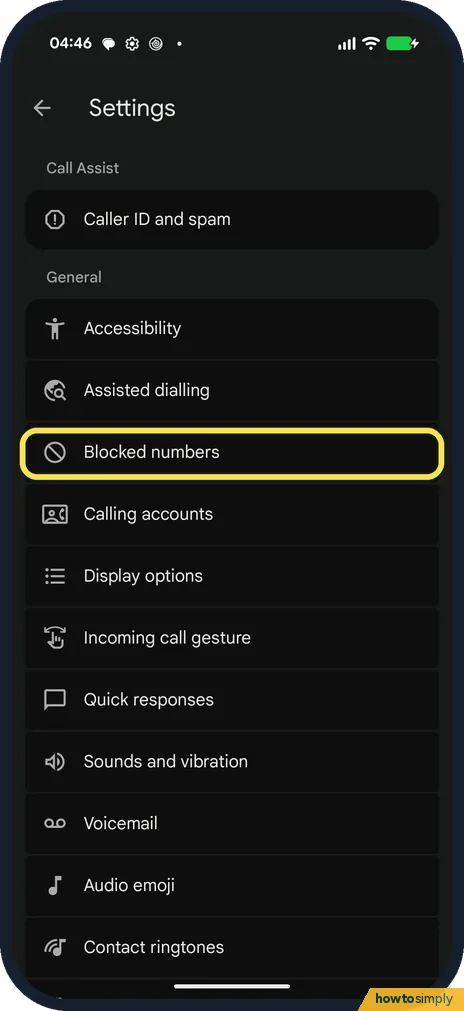
In the Phone app, tap the three dots at the top right, then Settings. Tap Blocked numbers.
- 2
Add a number
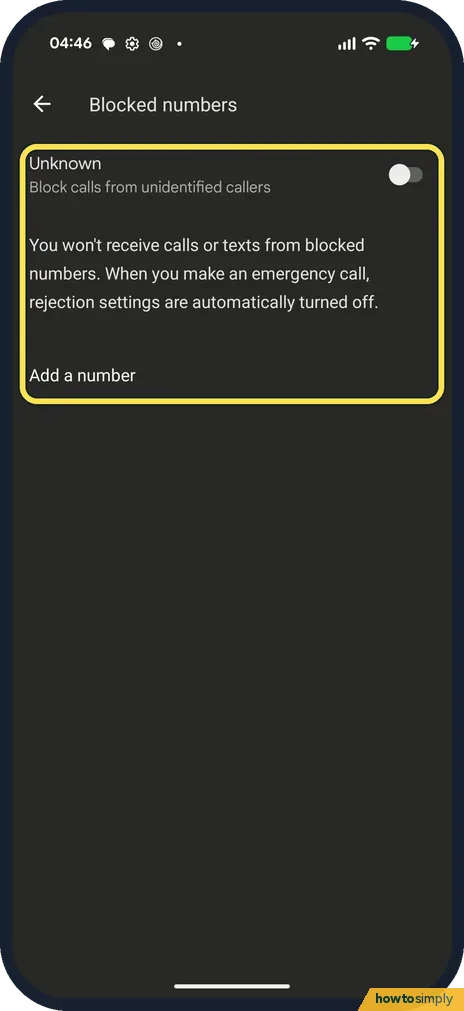
Tap Add a number. Turn on Unknown to block calls from unidentified callers; it was off on ours.
- 3
Open Caller ID and spam
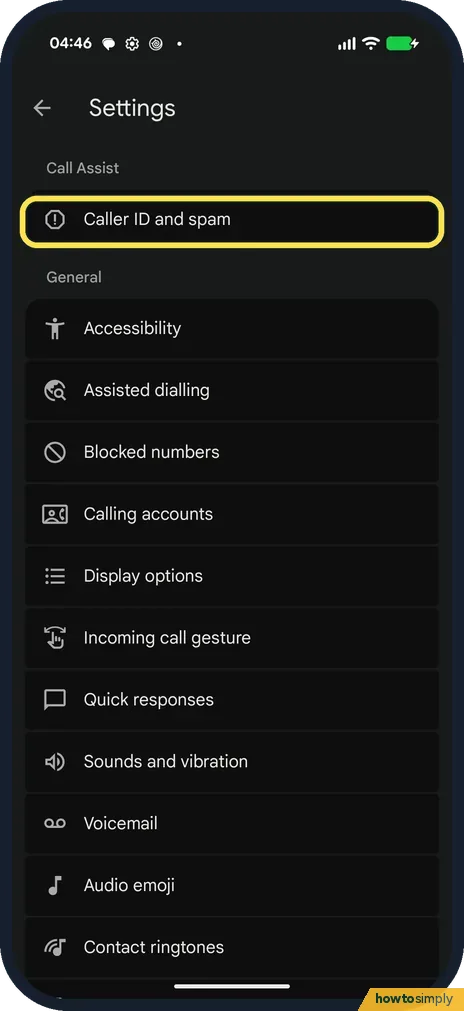
Back in Settings, tap Caller ID and spam, under Call Assist.
- 4
Check Filter spam calls
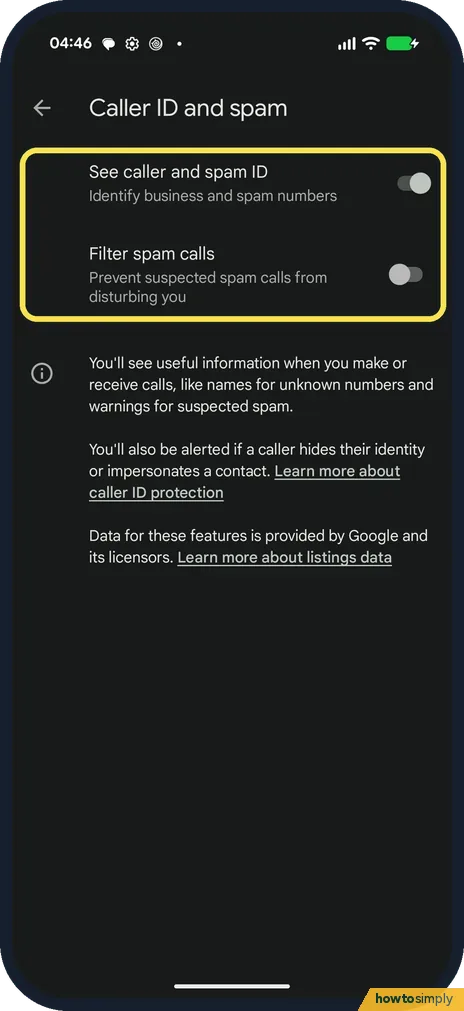
Filter spam calls prevents suspected spam calls from disturbing you. On ours it was off and See caller and spam ID was on. Both switches looked greyed out; we did not try to change them.
- 5
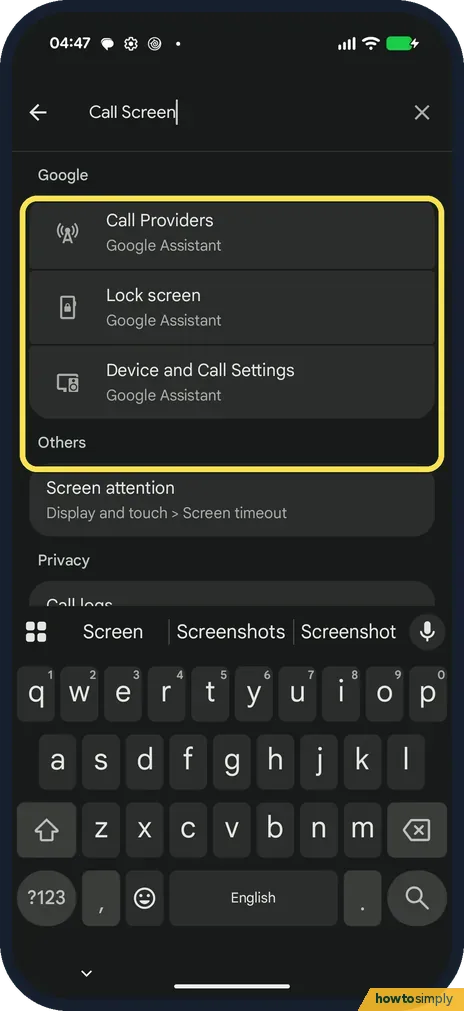
Look for Call Screen
Searching Settings for Call Screen found only Google Assistant entries on ours, and the Phone app had no Call Screen row.
- 6
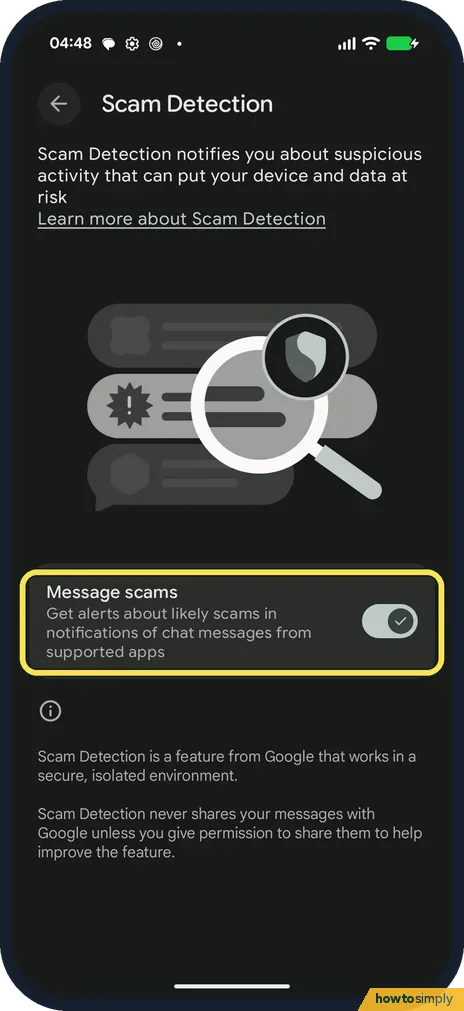
Check message Scam Detection
Go to Settings, Security and privacy, More security and privacy, Scam Detection. Ours had only Message scams, which was on.
If you do not see this option
- No Call Screen? Our Pixel 10a in Germany had none (step 5). It depends on the country.
- No call Scam Detection? Ours had Message scams only. Google says call Scam Detection is available in some countries, on Pixel 9 and later, with a SIM from that country. Source: Use Scam Detection
If this does not work
- Blocked the wrong number? Open Blocked numbers and clear the number to unblock it.
- Spam switches greyed out? They were greyed out on ours and we could not test a fix. Google's caller ID and spam page explains how the features work.
- Want to block a number that just called? Google says you can open the call in your call history and tap Block or Report spam, without typing the number. Marking a number as spam also blocks its future calls.
- A real caller was marked as spam? Google says to open the call in Recents, tap Not spam, then Unblock.
- Unknown is on but strangers still get through? Google says Unknown blocks private or unidentified numbers only. Numbers that show caller ID still ring, even if they are not in your contacts.
Good to know
Phone and SIM settings: how to turn on 4G calling and 5G on a Pixel.
A blocked number is declined automatically, so the phone does not ring and you get no missed call. Filter spam calls works more gently: Google says filtered calls give no missed call or voicemail notification, but they still appear in your call history and you can still check your voicemail. To use caller ID and spam protection, the phone may send the number of an outside caller to Google to check it; Google says it doesn't get numbers from your contact list. To undo a block, clear the number in Blocked numbers.
For a quieter phone at night rather than blocking, see how to use Do Not Disturb and modes.
About this guide
- Device
- Android
- Shown on
- Google Pixel 10a, Android 17 (build CP3A.260905.009)
- App
- Phone
- Path
- Phone › Settings › Blocked numbers › Add a number
- Real screenshots
- 6 of 6 steps
- What we did
- Observed: looked at each screen, changed nothing
- Checked
- October 2026
- Sources
- 3 official, linked below
Sources
Links checked October 2026. Menus and features can change with updates.Spotted a mistake? Menus change with updates, and we want every step to match your screen. Email us about this page or use the contact form. We read every report, and fixes are listed on What changed.
Liked this guide?
Follow us for new guides and short how-to videos.
Did this guide work for you?
Sorry about that. What happened?