ANDROID
HONOR phone overheating? What to check (MagicOS 10)
Look at Settings, Battery for an app using a lot, keep Battery mode off Performance, use Dynamic or Standard refresh rate, and turn on Bypass charging if you use the phone while plugged in. HONOR adds: avoid gaming while charging, take off the case and charge at room temperature.

6 of 6 steps show a real screenshot from our Magic7 Lite. Each step was checked against the maker's own instructions, linked at the end.
Steps
- 1
Check which apps use the most battery
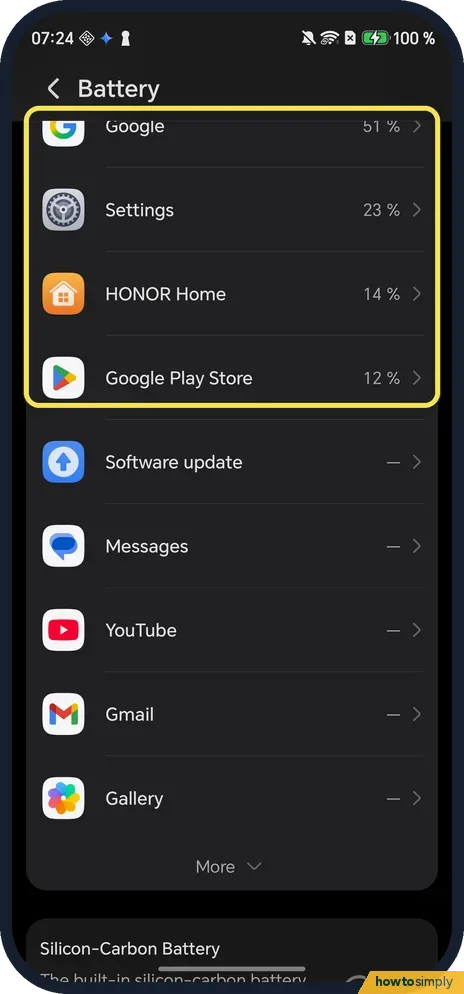
Open Settings, Battery and scroll down past the BATTERY USE chart. An app near the top that you are not using is working in the background. Ours: Google 51 %, Settings 23 %, HONOR Home 14 % and Google Play Store 12 %, read on the charger.
- 2
Pick Balanced instead of Performance
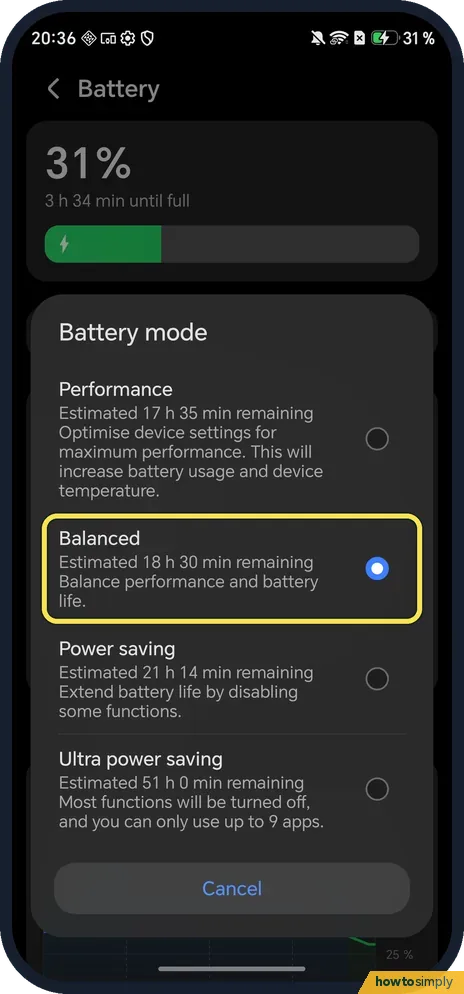
On the Battery page, tap Battery mode. The Performance line says it will increase battery usage and device temperature, so pick Balanced (ours, boxed) or Power saving. This screenshot is from 21 October 2026, same phone and build.
- 3
Use Dynamic or Standard refresh rate
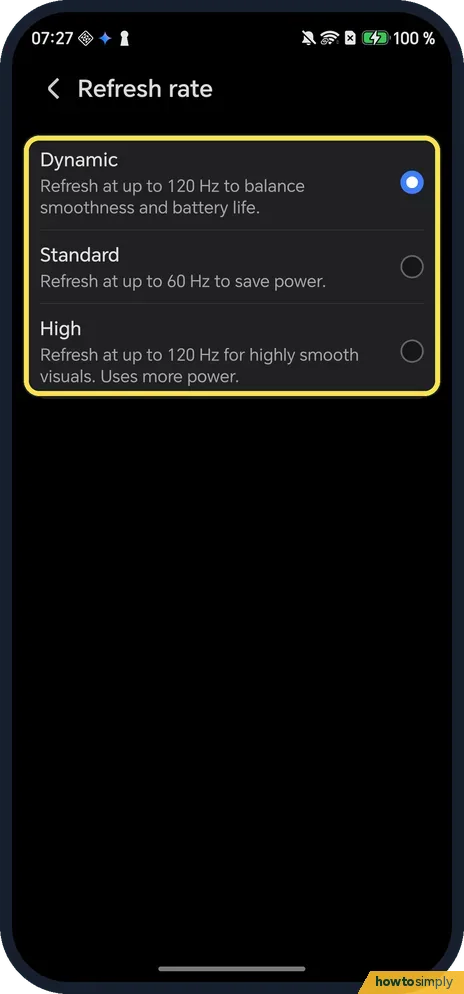
Open Settings, Display & brightness, Refresh rate. HONOR says a high refresh rate uses more power and takes part of the charging current; it suggests Standard (up to 60 Hz) while charging. Ours was on Dynamic.
- 4
Turn on Bypass charging for use while plugged in
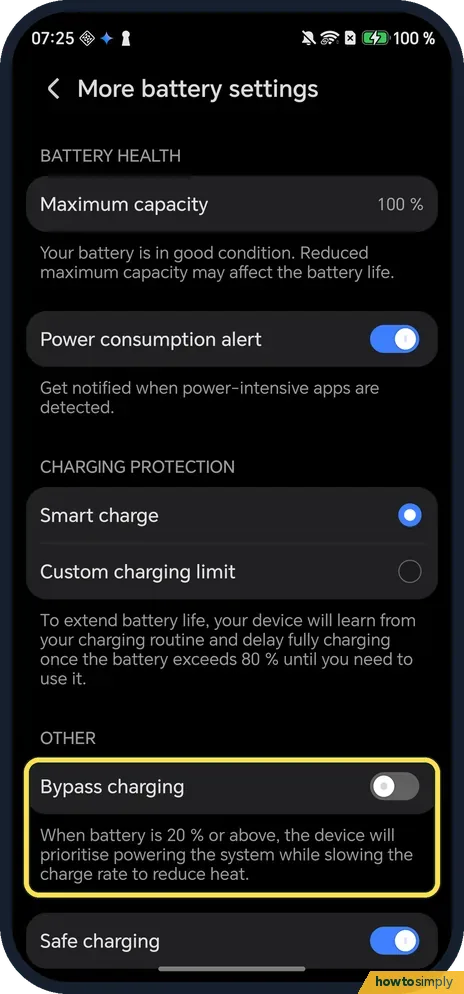
Battery, More battery settings, under OTHER. On ours the text says: when battery is 20 % or above, the device will prioritise powering the system while slowing the charge rate to reduce heat. It was off on ours.
- 5
Keep Safe charging on
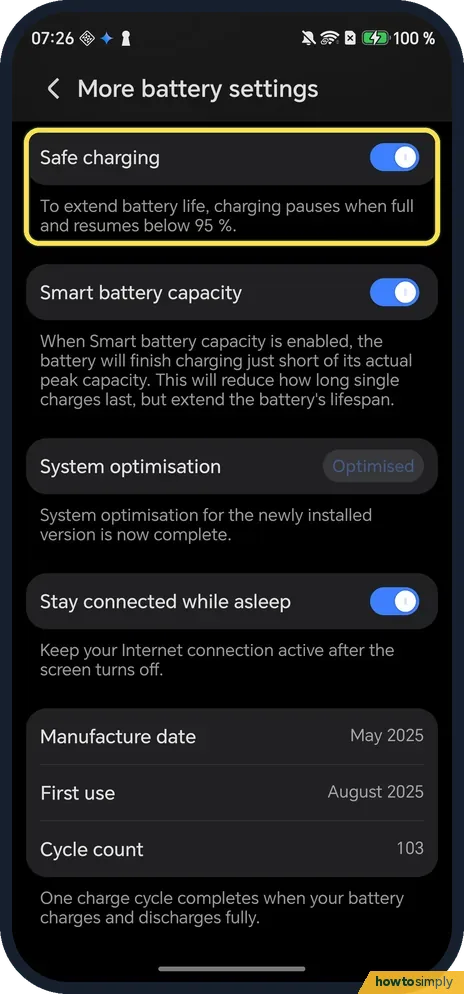
Scroll down the same page. Safe charging pauses charging when full and resumes below 95 % to extend battery life; it was on on ours. Smart battery capacity, below it, stops just short of peak capacity.
- 6
Let Power saving mode switch on by itself
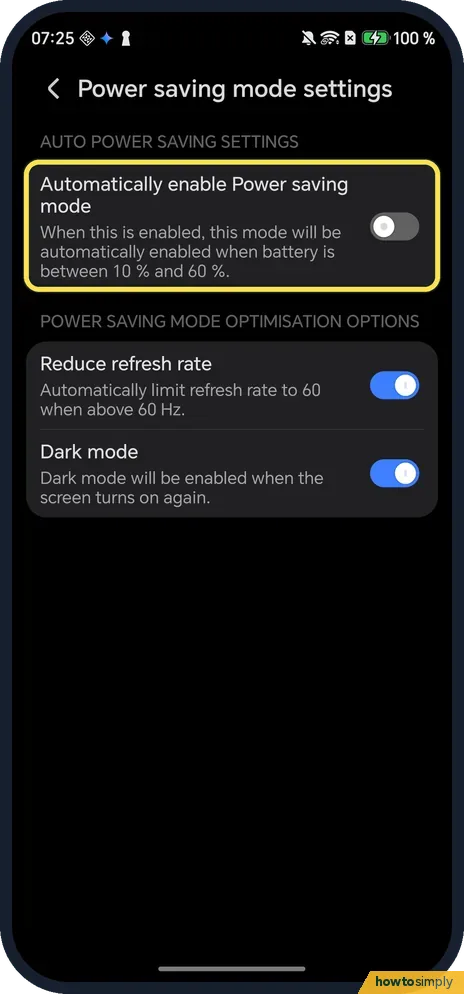
Back on Battery, tap Power saving mode settings and turn on Automatically enable Power saving mode. It then switches on when the battery is between 10 % and 60 % (the switch was off on ours). Below it, Reduce refresh rate limits the rate to 60 Hz in that mode.
If you do not see this option
- No Bypass charging switch? HONOR notes that battery features vary by model and software version. If More battery settings has no Bypass charging, your phone does not offer it; see use Bypass charging on an HONOR phone. Source: Enabling Smart Charge and Smart Battery Capacity
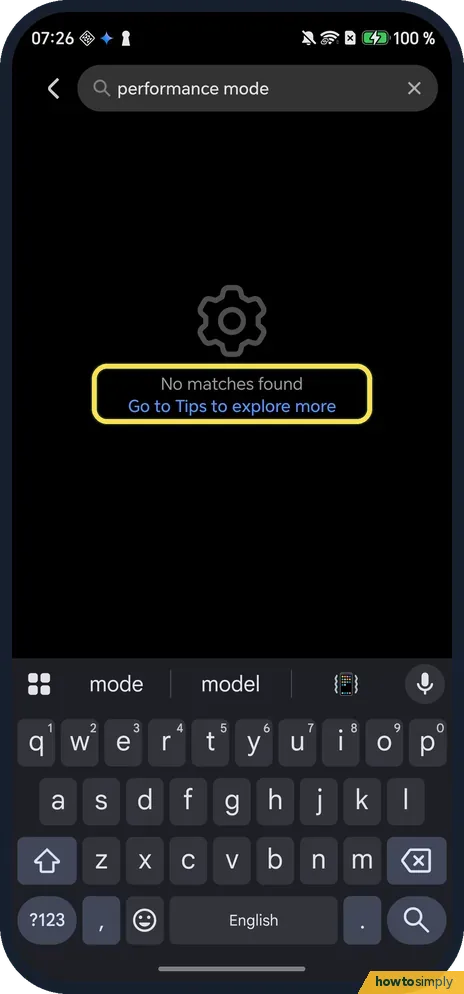
- Searched Settings for Performance mode? On ours Settings search said No matches found for performance mode, yet Performance is a choice in Battery, Battery mode, as in step 2.
- No Battery mode list on another HONOR? HONOR's page for other models shows Performance mode as a switch under Settings, Battery, and says it may cause higher device temperature during extended use. Source: Performance mode vs Battery saving mode
If this does not work
- Hot while gaming? HONOR suggests playing somewhere cooler, lowering brightness, game effects and resolution, lowering the speaker volume or using earphones, taking off the case and turning off GPS and Bluetooth if you do not need them. Avoid gaming while charging.
- Hot and charging slowly? HONOR says the phone reduces the charging current when it is too hot. Charge at room temperature, close background apps and turn the screen off while it charges.
- Warm at room temperature, not charging? HONOR suggests restarting the phone and trying again. If it keeps heating up, back up your data and take the phone and proof of purchase to an HONOR authorised service centre.
- Battery also drains fast? Heat and drain go together; see HONOR battery draining fast.
Good to know
Some warmth is normal. HONOR lists heavy chip load in games, the screen and speaker working for a long time, charging, and a hot environment as the usual reasons a phone heats up. A phone that is warm while it charges and plays a game is doing two hot jobs at once.
Google adds that the battery drains much faster when it is hot, even when not in use, so a hot phone also loses charge sooner.
On our Magic7 Lite the switches in this guide are all on two pages: Battery (with More battery settings) and Display & brightness. For the whole charging page, see check battery health on an HONOR phone.
About this guide
- Device
- Android
- Shown on
- HONOR Magic7 Lite (BRP-NX1M, EEA), MagicOS 10.0, Android 16 (build 10.0.0.169(C430E7R2P1))
- App
- Settings
- Real screenshots
- 6 of 6 steps
- Checked
- October 2026
- Sources
- 4 official, linked below
Sources
Links checked October 2026. Menus and features can change with updates.Spotted a mistake? Menus change with updates, and we want every step to match your screen. Email us about this page or use the contact form. We read every report, and fixes are listed on What changed.
Liked this guide?
Follow us for new guides and short how-to videos.
Did this guide work for you?
Sorry about that. What happened?