ANDROID
How to use screen pinning on an HONOR phone (MagicOS 10)
Open Settings, Security & privacy, More security and privacy, Screen pinning and turn it on. Open Recents and tap the round pin icon at the bottom of the app's card, then OK. To unpin, swipe up twice from the bottom of the screen.

9 of 9 steps show a real screenshot from our Magic7 Lite. Each step was checked against the maker's own instructions, linked at the end.
Steps
- 1
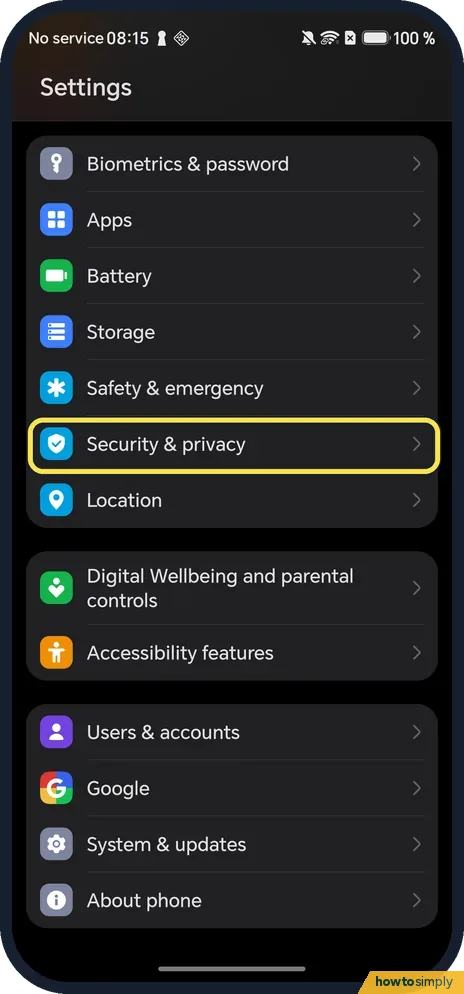
Open Security & privacy
Open Settings and tap Security & privacy. On ours it sits between Safety & emergency and Location.
- 2
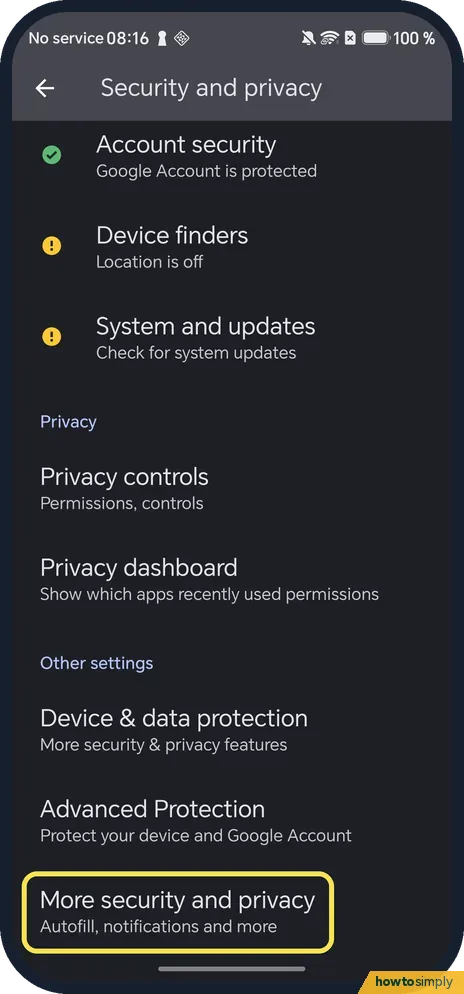
Tap More security and privacy
Scroll down to Other settings and tap More security and privacy: Autofill, notifications and more. The page that opens is headed More security & privacy.
- 3
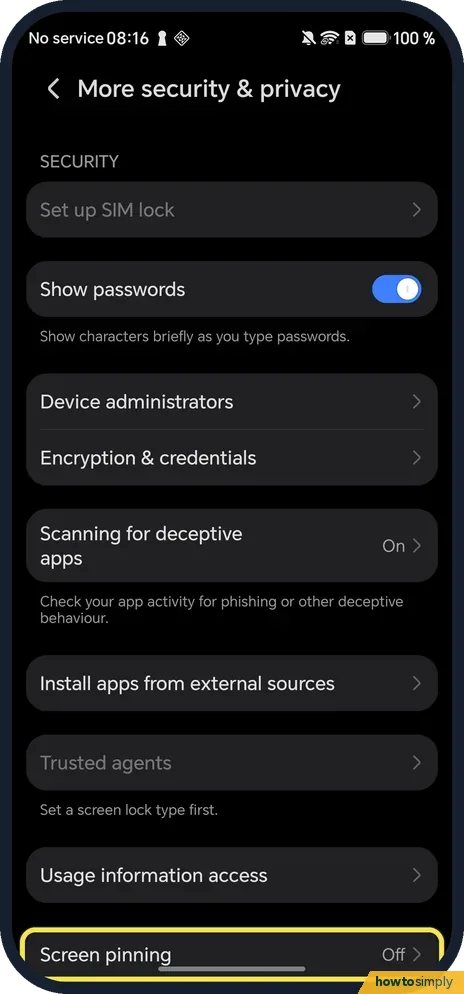
Tap Screen pinning
Scroll to the bottom of the SECURITY group. Screen pinning is the last row, below Usage information access. Ours said Off.
- 4
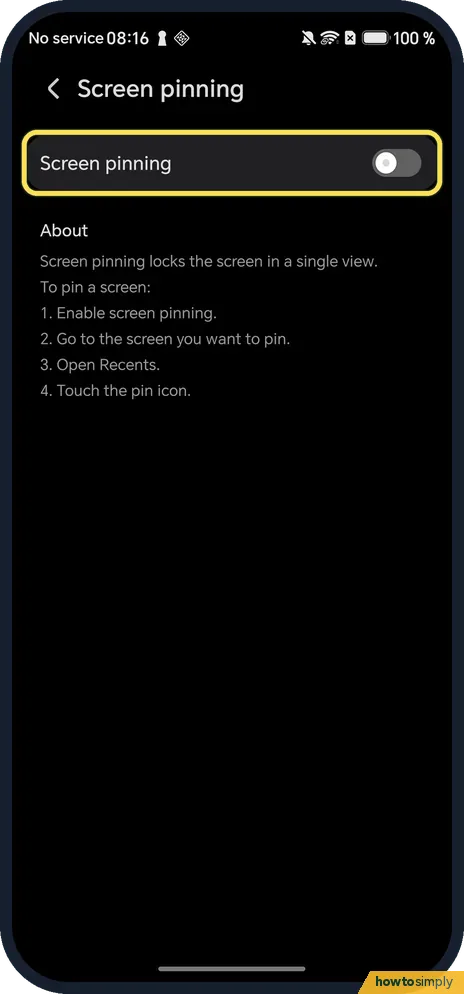
Turn on Screen pinning
Tap the Screen pinning switch. The About text below it says: Screen pinning locks the screen in a single view. To pin a screen: 1. Enable screen pinning. 2. Go to the screen you want to pin. 3. Open Recents. 4. Touch the pin icon. On ours no warning box appeared when we turned it on.
- 5
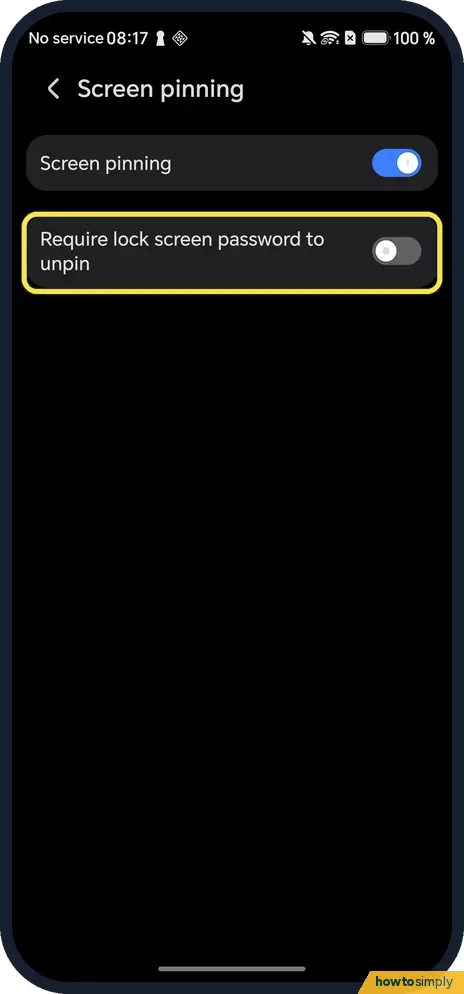
Leave Require lock screen password to unpin as it is
A second switch appears: Require lock screen password to unpin. It was off on ours and we did not use it, because the phone had no screen lock.
- 6
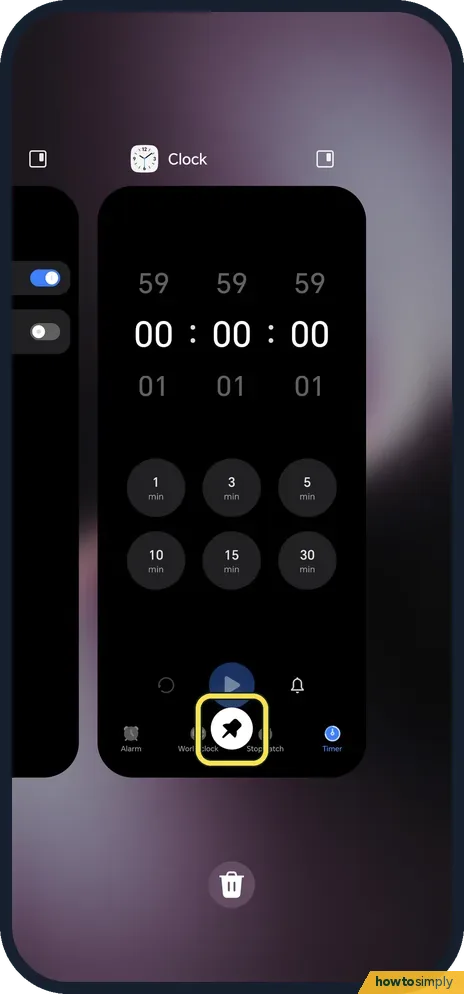
Open Recents and tap the pin icon
Open the app you want to pin, then open Recents (ours was on gestures: swipe up from the bottom and hold). Bring the app's card to the middle and tap the round white pin icon at the bottom of the card. Ours was the Clock app, on Timer.
- 7
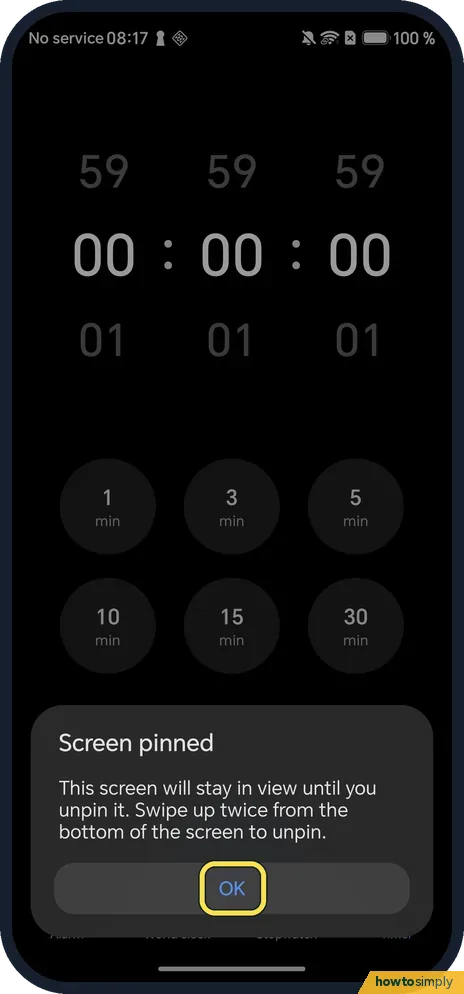
Read the message and tap OK
A message appears: Screen pinned. This screen will stay in view until you unpin it. Swipe up twice from the bottom of the screen to unpin. Tap OK.
- 8
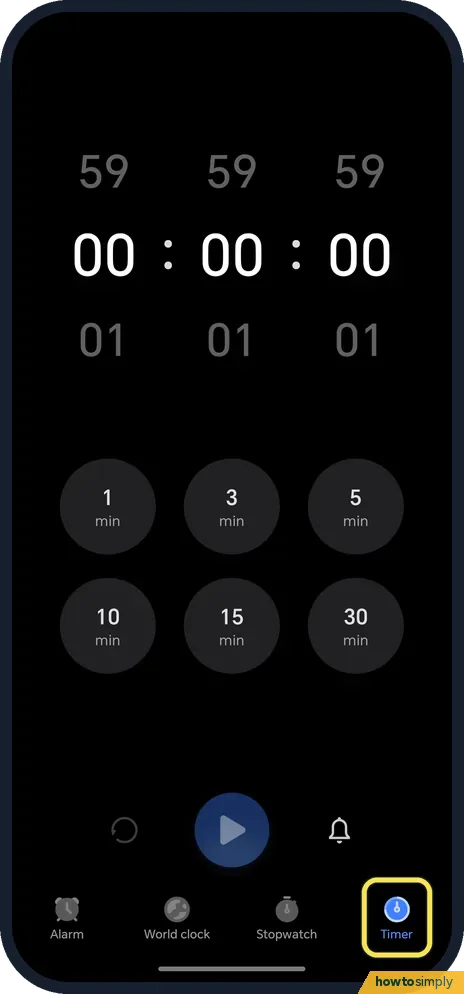
The app stays on the screen
The Clock app fills the screen, here on the Timer tab. On ours the status bar at the top, with No service, the time and the battery, was gone while the screen was pinned.
- 9
Swipe up twice to unpin
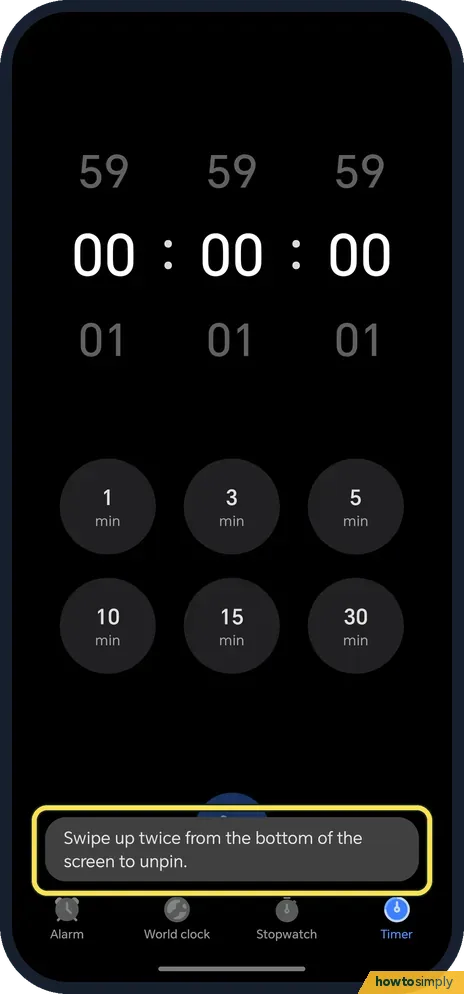
One swipe up from the bottom does not unpin: on ours it only showed the reminder Swipe up twice from the bottom of the screen to unpin. Two quick swipes up unpinned it and the Home screen opened; we did not catch an "unpinned" message on the screen.
If you do not see this option
- No Screen pinning row? Google says that if you can't find app pinning, get help from your device maker. On our Magic7 Lite with MagicOS 10.0 it is called Screen pinning and sits under Security & privacy, More security and privacy, not under a row named App pinning. Source: Pin and unpin screens
- Screen pinning not available with parental controls on? HONOR lists Screen pinning among the functions restricted when My child is selected in Digital balance, and says to go to Settings, Digital balance and turn off Screen time management to use it. Our phone names those settings Digital Wellbeing and parental controls; we did not use them. Source: Some functions do not work properly when Digital balance is enabled
- No pin icon on the card? Turn on Screen pinning first. The About text on ours gives the order: enable screen pinning, go to the screen you want to pin, open Recents, touch the pin icon.
If this does not work
- One swipe up does nothing? That is expected. On ours one swipe only showed: Swipe up twice from the bottom of the screen to unpin. Swipe up twice, quickly.
- Asked for a password when unpinning? Google says that when app pinning is on, you need to enter your PIN, pattern, or password before you can unpin, so enter it. Ours had no screen lock and Require lock screen password to unpin was off. Set a lock: how to set a screen lock.
- Using three-key navigation? We only tried gesture navigation. Google's general Android help says to touch and hold Back and Overview with 3-button navigation; check the Screen pinned message on your phone for its own instruction. To switch: gestures and three keys on an HONOR phone.
Good to know
Screen pinning is not a lock. Google's help describes it as a way to pin an app and hand your phone to a friend, who can then use only that app. On ours, with no screen lock, two swipes unpinned it and no password was asked. For longer sharing, a guest user is safer: how to add a guest on Android.
Choose an app that keeps people inside it. A game or a video app is a better pick than a browser, where any link leads on.
Other phones do it differently: Nothing and Pixel pin from a menu on the app icon and unpin with swipe up and hold (Nothing, Google Pixel); OPPO needs button navigation first (OPPO). Xiaomi: pinning apps on a Xiaomi phone. For any Android phone: how to let someone use one app only.
About this guide
- Device
- Android
- Shown on
- HONOR Magic7 Lite (BRP-NX1M, EEA), MagicOS 10.0, Android 16 (build 10.0.0.169(C430E7R2P1))
- App
- Settings
- Path
- Settings › Security & privacy › More security and privacy
- Real screenshots
- 9 of 9 steps
- What we did
- Performed: we made the change on our device and show the result
- Checked
- October 2026
- Sources
- 2 official, linked below
Sources
Links checked October 2026. Menus and features can change with updates.Spotted a mistake? Menus change with updates, and we want every step to match your screen. Email us about this page or use the contact form. We read every report, and fixes are listed on What changed.
Liked this guide?
Follow us for new guides and short how-to videos.
Did this guide work for you?
Sorry about that. What happened?