ANDROID
HONOR not getting notifications? Settings to check (MagicOS 10)
Open Settings, Apps, the app, Notifications and turn on Allow notifications. Then in Settings, Battery, App launch turn the app's switch off and leave Auto-launch, Secondary launch and Run in background on. Turn off Power saving mode, and open the app once.

7 of 7 steps show a real screenshot from our Magic7 Lite. Each step was checked against the maker's own instructions, linked at the end.
Steps
- 1
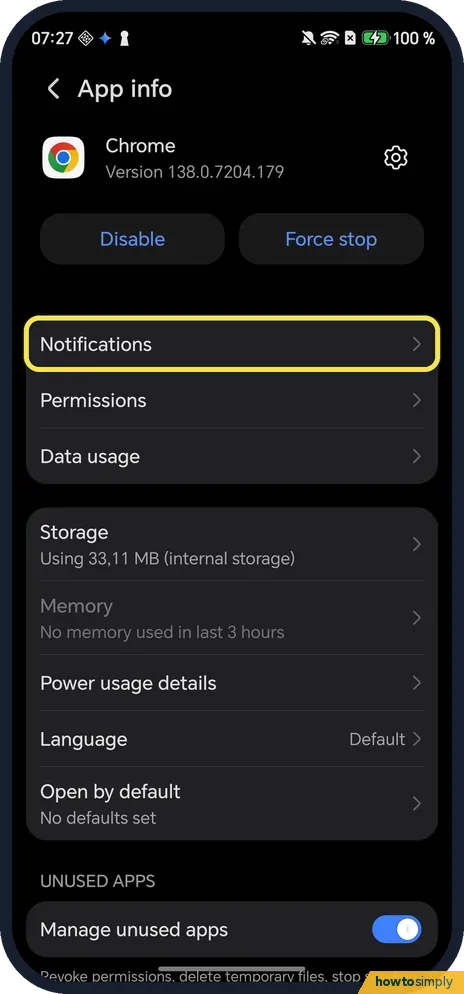
Open the app's Notifications page
Open Settings, Apps and tap the app. On App info, Notifications is the first row under the app name. Ours shows Chrome.
- 2
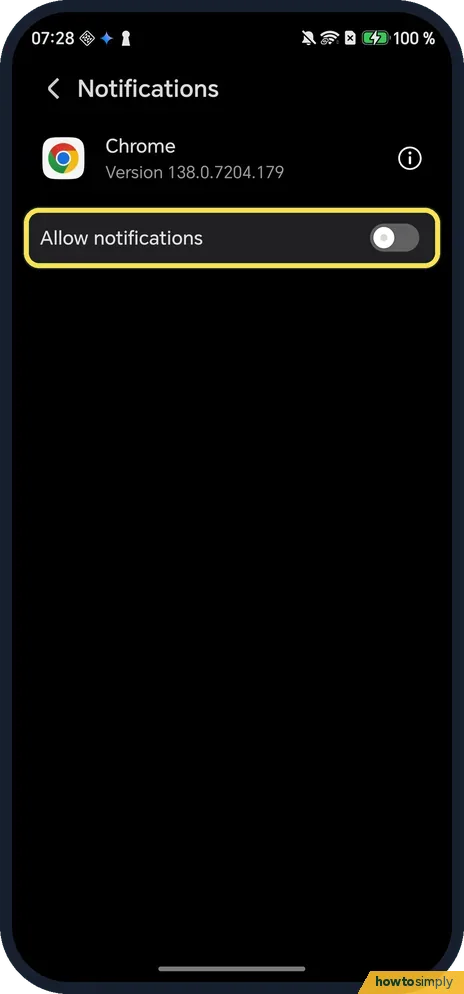
Turn on Allow notifications
The switch at the top. It was off for Chrome on ours, so Chrome could not show any notification. HONOR says to turn on the app's own notification switch in its settings too.
- 3
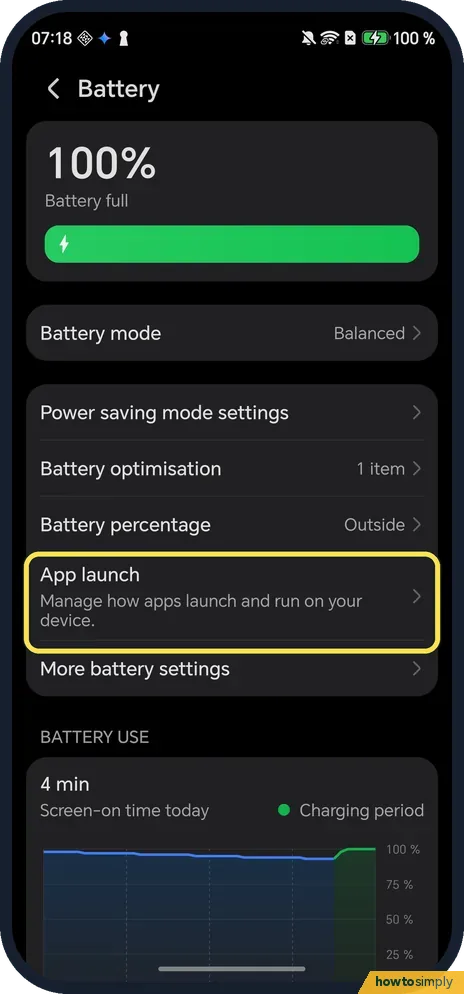
Open App launch
Open Settings, Battery and tap App launch: Manage how apps launch and run on your device.
- 4
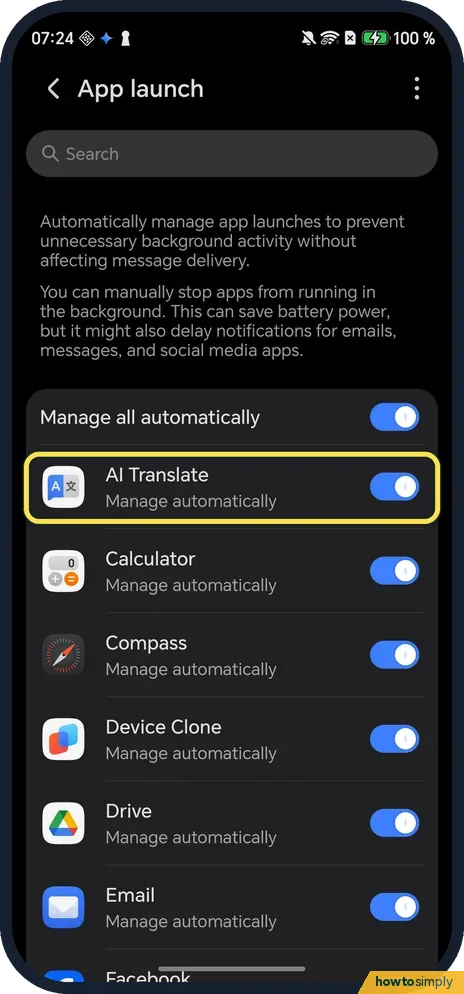
Turn off the switch next to the app
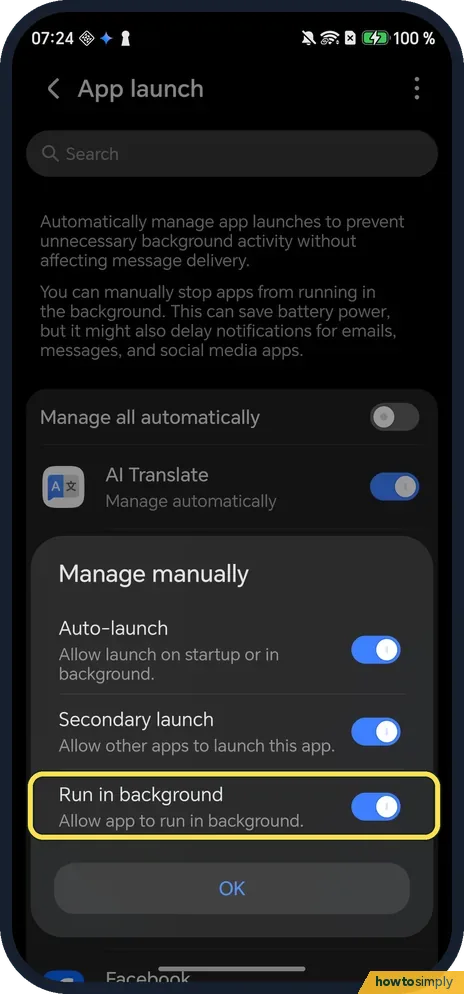
The page says that stopping apps from running in the background can save battery power, but it might also delay notifications for emails, messages and social media apps. Find the app; every app was on Manage automatically on ours.
- 5
Leave Run in background on and tap OK
A Manage manually box opens with Auto-launch (allow launch on startup or in background), Secondary launch (allow other apps to launch this app) and Run in background (allow app to run in background). Keep all three on for a messaging app.
- 6
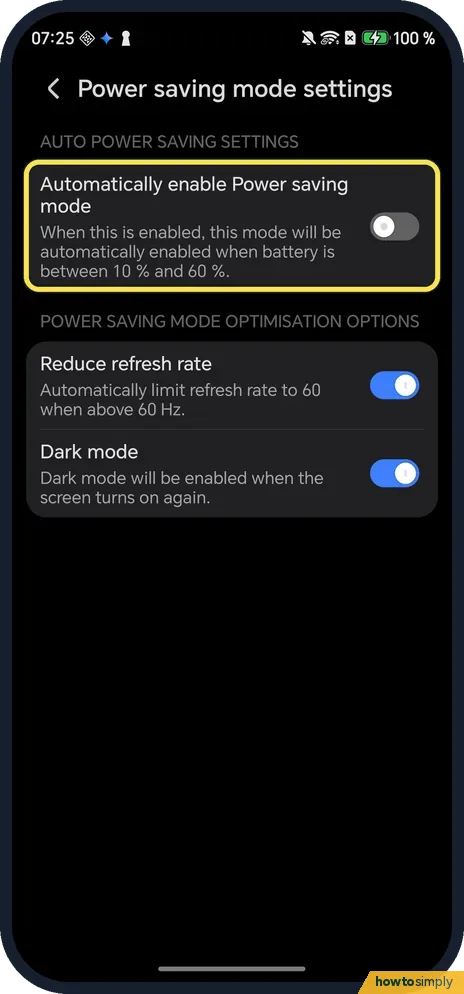
Check Power saving mode settings
Back on Battery, tap Power saving mode settings. If Automatically enable Power saving mode is on, Power saving starts when the battery is between 10 % and 60 %. HONOR lists Power saving among the causes of missed notifications. Ours was off.
- 7
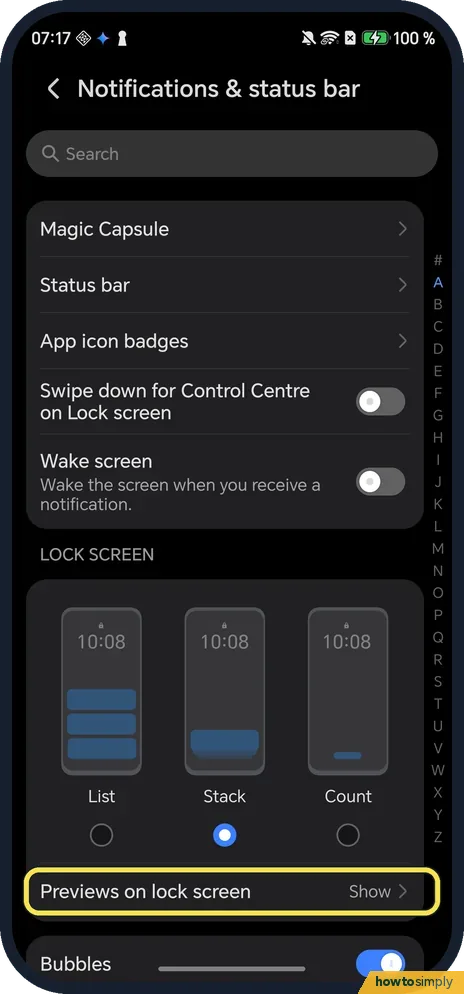
Check the lock screen settings
Open Settings, Notifications & status bar. Under LOCK SCREEN, Previews on lock screen said Show on ours. Wake screen (off on ours) lights the screen when a notification arrives.
If you do not see this option
- Looking for Launch in Settings search? HONOR's pages call the page Launch or App launch. On ours it is Settings, Battery, App launch. Source: Background apps are forced to close
- App not in the Notifications list? Open it through Settings, Apps instead, as in step 1, or scroll the list at the bottom of Notifications & status bar; see turn off notifications for one app for that route.
- Want notifications while the screen is off? More battery settings has Stay connected while asleep, which keeps the internet connection on after the screen turns off. HONOR names it among the fixes. Sources: Unable to receive notifications from third-party apps, Battery Settings
If this does not work
- Nothing until you open the app? HONOR notes that after a restart some apps only receive messages once you open them. Open the app once after every restart.
- Messages arrive on your computer instead? HONOR says some apps stop pushing messages to the phone while you are signed in to their PC version.
- Still nothing on mobile data? HONOR says to check the app may use mobile data and Wi-Fi and that Data saver is not limiting it.
- A cleaner or booster app installed? HONOR says third-party management apps can force background apps to close; remove the app or add yours to its trusted list.
- Notifications silent rather than missing? Check Do Not Disturb and the Sound mode; see turn on Do Not Disturb on an HONOR phone.
Good to know
Allow notifications decides whether the app may show anything; App launch decides whether it may keep running in the background to receive it. A chat app needs both. Most apps work on Manage automatically, which the App launch page says is designed not to affect message delivery, so change only the app that misses messages.
Google adds that some notifications can be shown silently, with no sound or vibration, and still appear when you swipe down. If you see messages only when you open the panel, check the app's notification categories as well.
About this guide
- Device
- Android
- Shown on
- HONOR Magic7 Lite (BRP-NX1M, EEA), MagicOS 10.0, Android 16 (build 10.0.0.169(C430E7R2P1))
- App
- Settings
- Path
- Settings › Apps
- Real screenshots
- 7 of 7 steps
- Checked
- October 2026
- Sources
- 5 official, linked below
Sources
Links checked October 2026. Menus and features can change with updates.Spotted a mistake? Menus change with updates, and we want every step to match your screen. Email us about this page or use the contact form. We read every report, and fixes are listed on What changed.
Liked this guide?
Follow us for new guides and short how-to videos.
Did this guide work for you?
Sorry about that. What happened?